Converting CMYK to RGB lets you preview how print colors will appear on screens before sending files to a printer. CMYK (Cyan, Magenta, Yellow, Black) defines ink percentages for print, while RGB (Red, Green, Blue) controls light on digital displays. Because screens and ink mix colors differently, a direct conversion is only an approximation—screens can’t reproduce the exact depth of printed hues. However, for quick checks, social media mockups, or web previews, an uncalibrated RGB preview is often enough. The CMYK To RGB tool gives you this preview instantly: enter CMYK percentages, and it returns the closest RGB match, a hexadecimal code, and a live color swatch—all in your browser, no software required.
Print designers and marketers frequently need to share print-ready files with clients or teams who only view colors on screens. A business card designed in CMYK may look dull on a laptop if the RGB preview isn’t checked first. Similarly, a logo sent to a printer in RGB format can shift unpredictably when converted to CMYK. While professional print workflows rely on ICC color profiles for accuracy, many day-to-day tasks—like drafting a social media post or a quick client review—don’t need that precision. For these cases, the CMYK To RGB tool bridges the gap between print and screen, letting you see an approximate match in seconds.
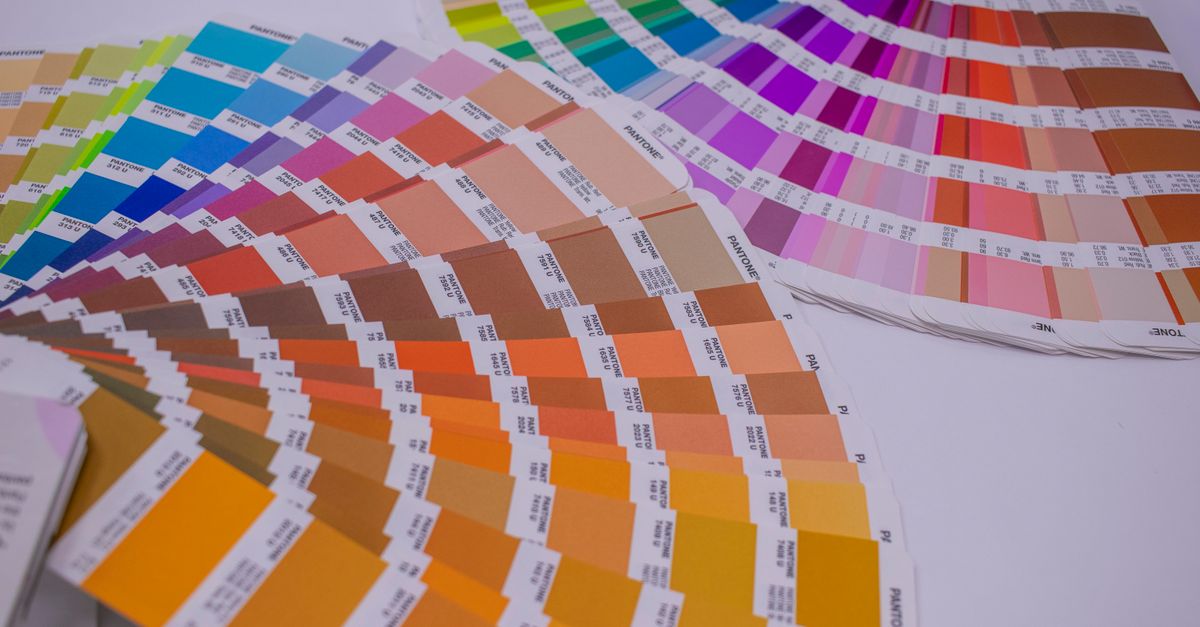
Why CMYK and RGB Are Different
CMYK and RGB represent color through fundamentally different methods. CMYK is a subtractive model: ink absorbs light, and the more ink you add, the darker the result. Mixing 100% cyan, magenta, and yellow should theoretically produce black, but in practice, it yields a muddy brown, which is why black ink (K) is added. RGB, on the other hand, is additive: screens emit light, and combining red, green, and blue at full intensity creates white. This difference means colors achievable in RGB (like bright neon greens) often fall outside CMYK’s gamut, while deep, rich CMYK blacks may appear flat on screens.
According to the International Color Consortium (ICC), the sRGB color space—used by most monitors—covers about 35% of the visible spectrum, while CMYK’s gamut varies by ink and paper but is generally narrower. This mismatch explains why a vibrant RGB blue might turn dull when printed in CMYK. For example, a pure RGB blue (0, 0, 255) converts to CMYK values around 100% cyan, 100% magenta, and 0% yellow and black—but on screen, the CMYK version will look less saturated. The CMYK To RGB tool helps you anticipate this shift by showing the closest RGB equivalent, so you can adjust expectations or tweak the design before printing.
When to Use CMYK To RGB
Use the CMYK To RGB tool in these scenarios:
- Previewing print colors on a website or social media post.
- Checking how a business card or flyer will look in a digital mockup.
- Sharing print designs with clients or teams who only view colors on screens.
- Quickly converting CMYK values to hex codes for CSS or web design.
- Verifying that a logo or brand color looks consistent across print and digital.
For tasks requiring precise color matching—like packaging or high-end photography—rely on ICC-profile-aware software instead. Tools like Adobe Photoshop or Illustrator use color profiles (e.g., US Web Coated SWOP) to simulate how CMYK inks will appear on specific papers. However, for most everyday needs, the CMYK To RGB tool provides a fast, no-friction way to see an approximate screen version of your print colors.
Convert CMYK to RGB in Your Browser
- Open the CMYK To RGB tool in your browser.
- Enter the CMYK values as percentages (0-100) for cyan, magenta, yellow, and black. For example, a deep navy might use 100% cyan, 50% magenta, 0% yellow, and 30% black.
- The tool instantly displays the approximate RGB values (0-255) for red, green, and blue, along with the hexadecimal code (e.g., #1A2B3C).
- Below the values, a live color swatch shows how the RGB version will appear on screen.
- Copy the RGB or hex code for use in web design, presentations, or digital mockups.
For example, entering CMYK values of 0% cyan, 100% magenta, 100% yellow, and 0% black yields an RGB of (255, 0, 0) and a hex code of #FF0000—bright red. This matches the theoretical expectation, as magenta and yellow inks combine to create red. However, if you enter 100% cyan, 100% magenta, 0% yellow, and 0% black, the RGB result will be a dark purple (e.g., #000080), not the deep blue you might expect from print. This discrepancy highlights the tool’s limitations: it provides a useful preview but cannot replicate the exact appearance of printed colors.
CMYK to RGB vs. ICC-Profile Conversions
| Feature | CMYK To RGB Tool | ICC-Profile Software (e.g., Photoshop) |
|---|---|---|
| Accuracy | Uncalibrated approximation | High precision with color profiles |
| Use Case | Quick previews, web mockups, digital sharing | Print production, professional color matching |
| Speed | Instant, no setup | Requires profile selection and configuration |
| Gamut Handling | Clips out-of-gamut colors to nearest match | Simulates print output using paper/ink profiles |
| Accessibility | Browser-based, no software needed | Requires Adobe Creative Suite or similar |
While the CMYK To RGB tool is convenient, it lacks the nuance of ICC-profile conversions. For instance, a CMYK value of 50% cyan, 0% magenta, 100% yellow, and 0% black might appear as a bright green on screen (e.g., RGB 128, 255, 0), but the printed result could vary depending on the paper’s brightness or the ink’s opacity. ICC profiles account for these variables by mapping colors to specific output devices. If you’re preparing files for a commercial printer, always use profile-aware software and confirm the expected color space (e.g., SWOP, FOGRA) with your print provider.
For web designers, the tool is particularly useful when working with brand guidelines that specify CMYK values. Instead of guessing how a print color will translate to a website, you can convert it to RGB or hex and apply it directly in CSS. For example, a brand’s CMYK blue (100, 50, 0, 0) might convert to RGB (0, 102, 204) or hex #0066CC. You can then use this value in your stylesheet:
.button {
  background-color: #0066CC;
  color: white;
}
To explore other color tools, try the RGB To HEX converter for web design or the Color Contrast Checker to ensure accessibility. For more on color spaces, read our guide on when to use CMYK or RGB for print projects.
Related reading: Convert CMYK to RGB in Illustrator for Accurate Screen Previews.
Related reading: Convert CMYK to RGB in Photoshop for Accurate Screen Previews.