The W3C naive device-CMYK conversion produces a screen RGB value by combining each ink percentage with black and inverting the result, and it is the formula behind most browser-based CMYK to RGB previews including the CMYK To RGB tool. The arithmetic for a single channel is straightforward: one minus the minimum of one and (colorInk multiplied by (one minus black) plus black), then multiplied by 255 and rounded. With that one rule, you can predict the endpoints: zero ink across the board returns white (255, 255, 255), full black alone returns black (0, 0, 0), and 100% magenta plus 100% yellow with no cyan or black returns red (255, 0, 0). The output is an approximation, not a profile-aware conversion, so it is most useful for quick mockups, palette comparisons, and verifying how an uncalibrated CMYK recipe might read on a typical sRGB display. Production print work still needs ICC profiles, rendering intents, and physical proofs.
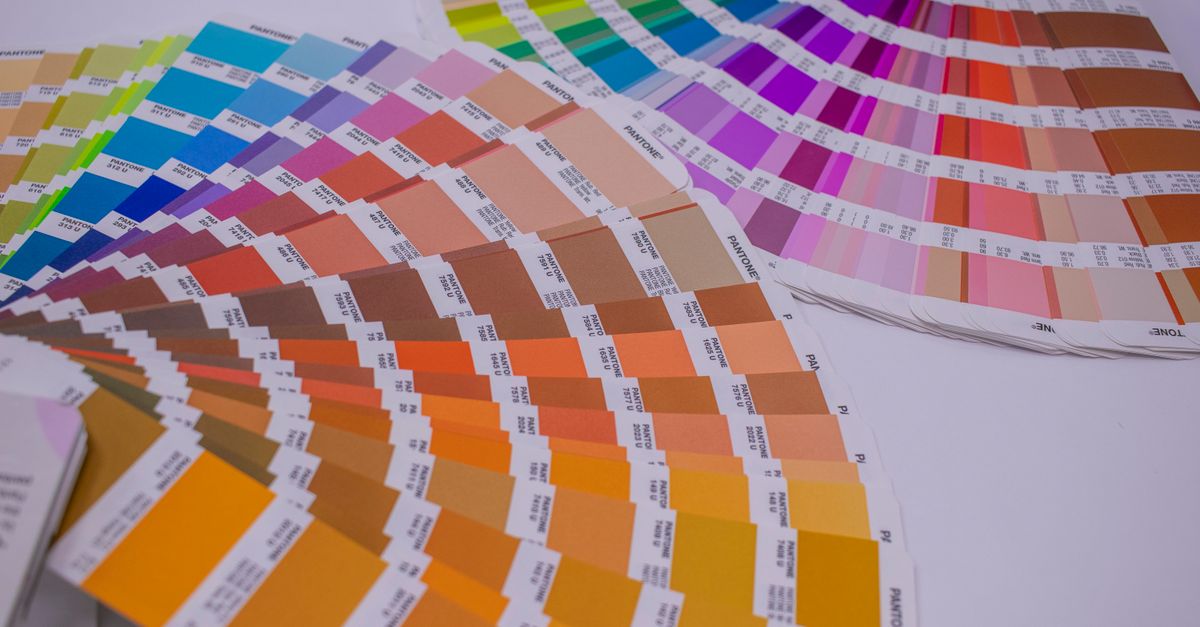
What the Naive CMYK to RGB Formula Actually Does
The naive conversion documented in the W3C CSS Color specification treats CMYK percentages as device values and returns a screen approximation. Each of the cyan, magenta, yellow, and black inputs is first normalized to a number between zero and one, where 100% becomes 1.0 and 0% becomes 0.0. The formula for each of the three output channels, red, green, and blue, uses the same shape, but each one draws its colorInk from a different ink in the recipe.
In plain terms, the channel formula reads:
1 minus min(1, colorInk multiplied by (1 minus black) plus black)
That expression is then multiplied by 255 and serialized to an 8-bit integer using half-even tie rounding so that the well-known firebrick reference value resolves to the documented hex code. The CMYK To RGB tool implements exactly this approach in your browser, which is why the result is fast and predictable but uncalibrated. Because the formula is symmetric in structure, predicting the result for a given recipe is easier than it looks. If you can mentally run the math for one ink against the others, you can sanity-check the tool's output without re-deriving anything from scratch.
Tips for Getting a Useful Screen Preview From CMYK
A browser preview has a narrow job, and the tips below keep it useful instead of misleading when the recipe is the source of truth.
- Keep your original CMYK percentages alongside the RGB or hex output. The screen value is for layout and mockup. The four ink values are what the press actually uses, and you will need them again once the work leaves the screen.
- Round only after the formula finishes. The tool applies half-even rounding at the integer step. If you round the CMYK percentages yourself to whole numbers before entering them, you add a second rounding layer that can shift a channel by one and change a hex digit.
- Treat the hex as an sRGB approximation. Browsers and most consumer displays expect sRGB inputs. Dropping the tool's hex straight into CSS will give you the same swatch the tool showed you, but it will not match a calibrated print.
- Use the preview to compare two recipes, not to pick one from scratch. A naive conversion preserves relative differences between recipes well, because the same formula applies to both. It is a poor tool for absolute color picking from an unprofiled target.
- Confirm endpoint behavior before trusting a custom recipe. Enter all zeros to verify white, all 100s to verify black, and 100/100/0/0 to verify red. If those do not appear as expected, you have a workflow problem before you have a color problem.
These habits keep the preview useful as a quick check rather than letting it become a quiet source of error in a longer production pipeline.
How to Convert CMYK to RGB in Your Browser
- Open the CMYK To RGB tool and set the cyan, magenta, yellow, and black inputs to the percentages you want to preview. Each input accepts values from 0 through 100.
- Watch the swatch, the 8-bit red, green, and blue channels, and the six-digit hexadecimal value update as you adjust any slider or field.
- Copy the RGB triplet or hex code into your mockup, palette document, or CSS as needed for a screen-only deliverable.
- Record the original CMYK percentages in your project notes so the press-ready values are not lost when the screen preview is the only thing filed.
- Hand the CMYK values to your printer or open them in a profile-aware application when the work leaves the screen and moves to paper.
The conversion runs locally in the browser, so the four percentages and the resulting swatch are not uploaded anywhere. That detail matters when recipes are confidential or under NDA.
Common Mistakes That Throw Off Your Colors
Most conversion errors show up before the formula even runs. The table below pairs each common mistake with the visible symptom and the safer alternative.
| Common Mistake | What Goes Wrong | What to Do Instead |
|---|---|---|
| Treating the browser preview as a press proof | The press runs a different CMYK gamut, and the printed swatch drifts visibly away from the screen | Use the preview for mockups only and request a calibrated proof from the printer |
| Comparing uncalibrated RGB against an sRGB target | Two viewers see slightly different colors because monitor profiles differ | Use the preview to compare recipes against each other, not against an absolute color target |
| Rounding the CMYK percentages twice | An extra rounding layer pushes one channel by a couple of points and a hex code changes by one digit | Enter the exact percentages from the recipe and let the tool apply its single rounding step |
| Stripping the CMYK values after converting | The team ends up with only the screen hex and no way to recover the press recipe | Keep both the CMYK percentages and the RGB or hex value in your project notes |
| Loading a profile-aware screenshot into the naive tool | The tool ignores ICC profiles and returns its own approximation, so the original intent is lost | Stay in profile-aware software for anything that was authored with ICC profiles attached |
These five cover the workflow pitfalls we see most often. The unifying theme is that the naive formula gives you a faithful preview only when the recipe itself is the source of truth, and any ICC profile, monitor calibration, or physical press constraint lives outside the conversion.
A Worked Example: Predicting the Red Endpoint
The CMYK To RGB tool exposes the underlying arithmetic through its endpoints, so a single worked example is enough to anchor the rest of your intuition. Take the recipe C=0, M=100, Y=100, K=0, which is the full magenta and yellow mix the tool documents as producing red.
Substitute into the channel formula with black at zero:
Red channel uses cyan as its colorInk, so 1 minus min(1, 0 multiplied by (1 minus 0) plus 0) equals 1, which scales to 255. Green channel uses magenta as its colorInk, so 1 minus min(1, 1 multiplied by (1 minus 0) plus 0) equals 0, which scales to 0. Blue channel uses yellow as its colorInk, so 1 minus min(1, 1 multiplied by (1 minus 0) plus 0) equals 0, which scales to 0.
The tool returns RGB (255, 0, 0) and the hex value FF0000. The same endpoint behavior holds for the firebrick reference case the tool's fixtures cover. This kind of quick check is the easiest way to verify the tool is working before you trust it on a recipe that matters.
When a Browser Tool Is the Wrong Tool
There are situations where the naive approximation should not be used at all. If the color recipe was generated by a profile-aware application or comes with an embedded ICC profile, any conversion that ignores profiles will drift. Profile-aware software accounts for the source CMYK gamut, the destination RGB gamut, the rendering intent, the ink set, and the output device. The CMYK To RGB tool uses the W3C naive fallback described in the CSS Color working draft, so it has no way to honor any of those parameters and is deliberately labeled an approximation.
Use a profile-aware workflow whenever the work crosses a contract, an approval, or a press check. Press proofs, brand color targets, packaging color, and any deliverable that a client will sign off on all need calibrated tools and a physical proof. A browser preview is fine for layout, mockups, and rough palette comparisons; it is not fine for any of the cases where a contract depends on the color being right.
A Short Workflow Checklist for Handing Work to Print
Before you send a file to press, walk through this short list to make sure the naive preview has not replaced a value the printer will need.
- Confirm the CMYK percentages are still in the file. The screen hex is a preview, not a substitute, and the press recipe is what the ink room will mix.
- Ask the printer which output profile they expect. Different presses and ink sets behave differently, and the right profile is rarely the software default.
- Run a physical proof on the actual paper stock. A backlit monitor cannot judge dot gain, ink absorption, or paper color shifts.
- Archive the original recipe alongside any RGB exports. Future revisions should be able to recover the press-ready values without re-deriving them from a swatch.
- Use the browser tool only for layout and palette decisions. Treat it as a sketch, not a contract, and route any color-critical step through profile-aware software.
For deeper background on the formula and where it breaks down, the CMYK to RGB Explained: The Formula and Its Limits guide walks through the same arithmetic and the reasons behind the approximation, and pairs naturally with the workflow above.
For a deeper look, see Color Palette Generator Tips and Common Mistakes to Avoid.