Reading CMYK from an image and previewing it as RGB means taking a four-number device ink recipe — cyan, magenta, yellow, and black percentages between 0 and 100 — and turning it into an 8-bit screen color you can paste into CSS, a Figma frame, or a quick mockup. The CMYK to RGB tool does exactly this in the browser: you set four sliders, and the page instantly shows the red, green, and blue channels (0–255), the six-digit hexadecimal value, and a visual swatch. The math is the W3C naive device-CMYK conversion, so the output is best understood as a screen approximation rather than a print-proof target. Real CMYK is device-dependent — the press, ink set, paper stock, dot gain, rendering intent, and embedded ICC profile all shape what hits the paper — so any tool that does not load a profile (including this one) is honest only about how the recipe will look on a typical sRGB display.
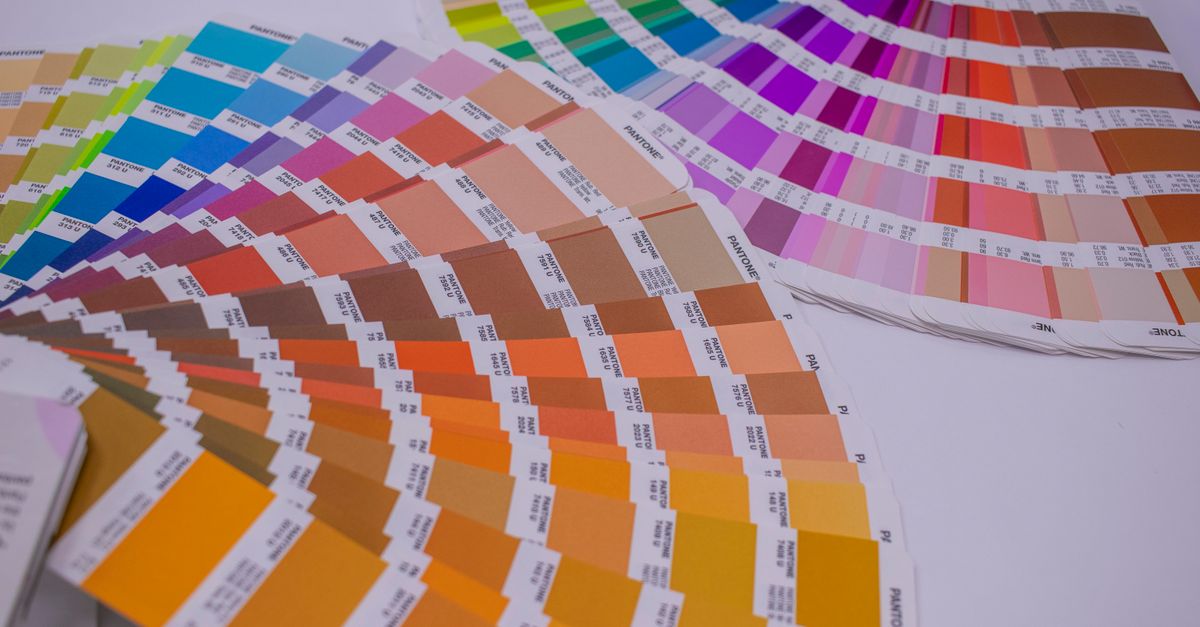
For most "from an image" queries, the image in question is the source of the CMYK recipe: a Pantone-style swatch book page, an export from a layout program, a screenshot of brand guidelines, or pixel data read from a CMYK-encoded JPEG. The browser tool itself does not ingest image files; you read the four percentages another way and feed them in. The rest of this article walks through that two-step path, the formula, the predictable endpoints, and when you should reach for profile-aware software instead.
What "CMYK to RGB from an image" actually means
Searchers usually arrive at this topic with one of three concrete tasks. They might have a CMYK-encoded image (a print-proof JPEG or TIFF) and want to know which screen RGB values correspond to a swatch in that file. They might be reading a printed color recipe from a brand book and want to drop the recipe into a screen design. Or they might be translating legacy CMYK values from a PDF into CSS-friendly hex codes.
In all three cases the bottleneck is the same: CMYK is a four-channel, device-dependent ink model, and RGB is a three-channel, device-dependent light model. There is no single correct mapping between them. The mapping depends on which CMYK profile you assume (a coated press in Tokyo will not match an uncoated press in Berlin), which RGB profile your screen uses, and how those two color spaces are bridged. The CMYK to RGB tool collapses that ambiguity on purpose and returns the W3C naive approximation — useful for a quick look, never a substitute for a contract proof.
If your source is a CMYK image file, the practical first step is to read the four ink values out of it. Photoshop's eyedropper can report CMYK for the active document, GIMP can do the same with the right color management settings, and most layout programs (InDesign, Affinity Publisher, Illustrator) expose the CMYK breakdown of any selected object. Once you have four percentages in hand, the tool takes over.
Read the CMYK from the image, then preview it
Follow these steps to go from an image-derived CMYK recipe to a screen RGB value you can use in a mockup.
- Open the source image in a color-aware application. Use Photoshop, GIMP, Illustrator, InDesign, or any tool that can report CMYK percentages for a pixel or object. Disable any "apply profile" warnings if you just want the raw numbers.
- Sample the swatch you care about and copy the four percentages. Write down cyan, magenta, yellow, and black, each as a number from 0 to 100. Enter them into the four sliders.
- Open the CMYK To RGB tool and set the four sliders. Move cyan, magenta, yellow, and black to the values you recorded. The page updates the RGB channels, hex code, and swatch immediately as you drag.
- Read the output. Copy the six-digit hex code or the three RGB channels (each 0–255) and paste them into your screen design, your CSS, or your component library.
- Sanity-check against a known endpoint. If you sampled (0, 100, 100, 0) you should see pure red (#FF0000). If you see something else, re-sample and try again.
This loop is fast because everything runs locally. The percentages never leave your browser tab, which matters when the recipe is internal or client-confidential. There is no upload step, no server round-trip, and no account to create.
The formula behind the conversion
The W3C device-CMYK fallback, which the tool implements, treats CMYK as a subtractive recipe against a white substrate. For each color ink (cyan, magenta, yellow), you multiply the ink amount by the amount of light the black ink has not already absorbed (1 − K), then add the black contribution, clamp to 1, and invert to get the remaining reflected light. The display channel is then scaled to 0–255 and serialized with half-even tie rounding.
Written out for one channel:
channel = round(255 × (1 − min(1, ink × (1 − K) + K)))
The same expression runs three times — once for cyan → red, once for magenta → green, once for yellow → blue. The black channel is shared across all three. Work a single example by hand: CMYK(20%, 40%, 0%, 0%). Cyan is 0.2, magenta is 0.4, yellow is 0, black is 0.
- Red = 255 × (1 − min(1, 0.2 × 1 + 0)) = 255 × 0.8 = 204
- Green = 255 × (1 − min(1, 0.4 × 1 + 0)) = 255 × 0.6 = 153
- Blue = 255 × (1 − min(1, 0 × 1 + 0)) = 255 × 1 = 255
The tool returns (204, 153, 255), or #CC99FF. Plug the same numbers into the sliders and you should see exactly that swatch. The W3C CSS Color 4 specification describes this naive mapping in its device-CMYK section; the tool's fixtures include the same test case so the implementation stays aligned.
Predictable endpoints at a glance
A handful of CMYK inputs always produce the same RGB output under the naive formula, which makes them useful as quick sanity checks. The table below shows those fixed endpoints, derived directly from the documented formula.
| CMYK input (C, M, Y, K) | Naive RGB output | Hex | What it represents |
|---|---|---|---|
| 0, 0, 0, 0 | (255, 255, 255) | #FFFFFF | No ink — white substrate |
| 100, 100, 100, 100 | (0, 0, 0) | #000000 | Full K — black |
| 100, 100, 100, 0 | (0, 0, 0) | #000000 | Full CMY, no K — black |
| 100, 0, 0, 0 | (0, 255, 255) | #00FFFF | Cyan only — screen cyan |
| 0, 100, 0, 0 | (255, 0, 255) | #FF00FF | Magenta only — screen magenta |
| 0, 0, 100, 0 | (255, 255, 0) | #FFFF00 | Yellow only — screen yellow |
| 100, 100, 0, 0 | (0, 0, 255) | #0000FF | Cyan + magenta — screen blue |
| 100, 0, 100, 0 | (0, 255, 0) | #00FF00 | Cyan + yellow — screen green |
| 0, 100, 100, 0 | (255, 0, 0) | #FF0000 | Magenta + yellow — screen red |
Notice how the subtractive pairings behave exactly as the textbook suggests: cyan plus magenta → blue, magenta plus yellow → red, cyan plus yellow → green. Each single ink subtracts exactly one display channel, so cyan absorbs red, magenta absorbs green, and yellow absorbs blue. That pair-wise predictability is the W3C fallback behaving as intended, not a profile-aware result.
Why the result is always an approximation
Two recipes that look identical on screen can print very differently, and two recipes that look different on screen can print identically. That gap is the entire reason print-accurate conversion is a profession and not a one-line formula. A real CMYK to RGB conversion needs four things: the source CMYK profile, the destination RGB profile, a rendering intent, and the bit depth of the pipeline. The browser tool ships none of those, by design — it is a quick-look utility, not a prepress tool.
For the same reason, the tool does not behave as a press proof, a contractual color target, or a substitute for a calibrated workflow. If a designer hands you CMYK(0, 100, 100, 0) and expects it to match the swatch on a particular paper stock under a particular light, you need profile-aware software, the printer's output profile, and a physical proof. The naive approximation cannot tell you how the ink will interact with the substrate, how dot gain will thicken the dots, or how the press's gamut will clip out-of-range inks.
When to reach for a profile-aware tool instead
Use the CMYK to RGB browser tool when you need a fast, honest screen preview — interface mockups, rough palette comparisons, checking whether a CMYK recipe in a brand book will feel close to a digital palette. Use profile-aware software when print accuracy matters: contract proofs, packaging, large-format signage, anything that goes on a press and gets judged by a client under a viewing booth. For a deeper read on how each model fits into a real project, see Should You Use CMYK or RGB for Print Projects.
The clean workflow is to keep both. Hold on to the original CMYK recipe for the printer, ask the printer for their output profile, convert with profile-aware software for the contract proof, and use the browser approximation only as a quick sanity check on what the screen will show. If you also need to check the screen color for accessibility, the same hex value flows directly into a color contrast checker against WCAG AA and AAA thresholds.
A small number of cases will send you elsewhere. If you only have an RGB source and need CMYK percentages, the reverse tool covers that. If you have a hex code and need 8-bit channels, a hex-to-rgb converter parses CSS notation directly. For most "from an image" queries, though, the path is: read the four CMYK percentages from the source, drop them into the sliders, and read off the resulting RGB and hex.
If you're weighing options, Complementary Color Finder Alternative: RGB Inverse covers this in detail.