The CMYK to RGB image conversion is a screen preview that takes four ink percentages and returns an approximate sRGB channel set, hex value, and live swatch in your browser. It is designed for designers and developers who have a CMYK recipe in hand - often copied from a printer's PDF, a legacy brand guide, or an Adobe color swatch - and need a quick picture of how that recipe might render on a typical sRGB monitor. The conversion is intentionally a naive fallback: four numbers in, three channels and a hex out, with no ICC profile lookup and no render-intent negotiation. That simplicity is the feature. You move four sliders, read the hex, and drop the result into an image mockup, a Figma frame, or a CSS variable without leaving the browser. It also explains why the output is labeled an approximation: real CMYK is device-dependent, and a print press, ink formulation, dot gain, and rendering intent can all change the actual on-press color. Use the CMYK To RGB tool when you want a fast screen check; reach for profile-aware software when a contract color, a proof, or a press signature is on the line. This article walks through the calculation, the step-by-step workflow, and the boundaries so you know which tool to pick.
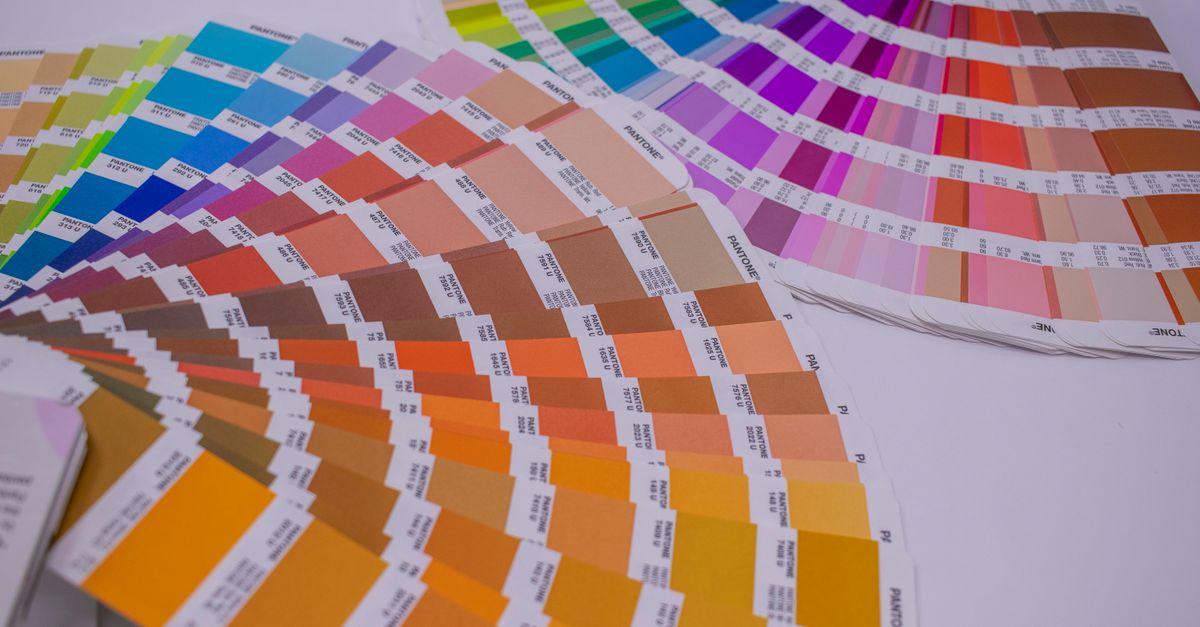
Why designers ask for a CMYK-to-RGB image preview
The phrase "CMYK to RGB image" usually means one of three things. Most often it means "I have CMYK ink percentages and I want to see what they look like as a screen image." Sometimes it means "I have a CMYK file and I need an RGB export." And sometimes it means "I want to pick the right RGB that visually matches my CMYK recipe." All three jobs overlap, and a browser approximation serves the first and the third very well. A CMYK-file-to-RGB export is a different problem, because file conversion involves channels, embedded profiles, and rendering intents that a four-slider tool cannot touch.
A screen preview earns its keep in design hand-offs. When a brand book ships a CMYK recipe for a logo color and your job is to mock up a marketing image, a slide deck, or a web hero, you need a number that drops into CSS, a Figma fill, or an image-editing layer.Waiting on a profile-managed round-trip through a full design suite slows the loop, and designers often pull a quick approximation so the rest of the comp can move forward. The CMYK To RGB tool is built for that loop: four sliders, immediate output, no upload.
It also earns its keep in palette comparisons. When you have three or four CMYK recipes and need to decide which will read best on a laptop display, the fastest path is to convert each, paste the hex values side by side, and eyeball the result. The approximation is good enough to rank recipes by warmth, saturation, and contrast. It is not good enough to settle a contract color dispute, but for visual triage, the screen preview is the right tool.
How the W3C naive fallback computes a CMYK to RGB image preview
The calculation in this browser tool follows the W3C device-CMYK naive fallback from the CSS Color 4 specification. It treats each color ink (cyan, magenta, yellow) and black as a fraction between 0 and 1, then computes each display channel independently. The formula is:
r = 1 - min(1, cyan × (1 - black) + black)
g = 1 - min(1, magenta × (1 - black) + black)
b = 1 - min(1, yellow × (1 - black) + black)
Each result is scaled to the 0-255 display range and serialized as an integer channel using half-even rounding, which matchesthe W3C reference example for firebrick. None of these steps require an ICC profile, a renderer, or a press profile - that is what makes the tool fast and local. The full reference for the formula is documented in the W3C device-CMYK naive conversion section of the CSS Color 4 working draft.
Worked example: full magenta plus full yellow with no cyan and no black should produce pure red on screen. Setting C = 0, M = 100, Y = 100, K = 0 normalizes to 0, 1, 1, 0. Plugging in: r = 1 - min(1, 0 × 1 + 0) = 1 - 0 = 1; g = 1 - min(1, 1 × 1 + 0) = 0; b = 1 - min(1, 1 × 1 + 0) = 0. Scaling to 255 yields red = 255, green = 0, blue = 0, which serializes as #FF0000. The tool renders the same value because the fixture covers primary endpoints; that check is part of its verified test suite.
The formula has known limits. It assumes the inks are device-CM-Y-K in the abstract, with no paper, no ink set, no dot gain, and no rendering intent. In the familiar endpoint cases - no ink gives white, full black gives black, full magenta plus yellow gives red - it is exactly right. For mixed channels, the result is one of many plausible sRGB colors that could be called the "naive" version of that recipe.You should treat the hex value as a starting point for the screen preview, not as the only possible answer.
Convert CMYK to RGB for an image mockup: step-by-step
- Open the CMYK To RGB tool in your browser.
- Copy the cyan, magenta, yellow, and key (black) percentages from your source - a print proof, a brand guide, a Pantone bridge, or a design file.
- Move the four sliders to match those percentages, between 0 and 100. The page recomputes on each change.
- Read the three 8-bit channel values - red, green, and blue - in the 0 to 255 display range.
- Copy the six-digit hexadecimal value for use in CSS, image software, or design tools.
- Compare the on-screen swatch to the rest of your image composition to confirm it fits the palette.
- If you need a different recipe next, just slide and the swatch updates instantly. No upload, no profile swap, no waiting on a render queue.
This is the workflow for a quick screen preview. It is also the workflow to repeat whenever the brand guide adds a new CMYK recipe and your image needs an approximation you can paste into a Figma frame or a Photoshop layer. The output is labeled an approximation on purpose; treat it as one screen among many, not as a final print target.
Approximation vs. profile-aware conversion
A browser preview and a profile-aware conversion solve overlapping but different problems. The table below shows what each handles well and where each one stops.
| Task or constraint | Browser approximation (this tool) | Profile-aware conversion (Photoshop, Illustrator, Acrobat) |
|---|---|---|
| Source CMYK values come from an unprofiled recipe | Designed for it | Works, but assumes a default profile |
| Embedded ICC profile is present | Ignored | Used automatically |
| Rendering intent (perceptual, relative, absolute) | None | Selectable |
| Ink set, paper, dot gain compensation | None | Accounted for by the destination profile |
| Speed and friction for a screen mockup | Fast: four sliders | Requires opening a profile-aware app, loading the source profile, choosing intent |
| Suitable for a press proof or contract color target | No | Yes, when paired with a calibrated display and physical proof |
| Suitable for an image mockup, UI element, or quick palette check | Yes | Yes, but overkill |
The rule of thumb: the moment your work touches a press, a contract, a deliverable with a written color target, or a soft proof that the printer will compare against a physical sample, switch to profile-aware software with a calibrated display and ask your printer for the correct output profile. The browser tool is for everything between those moments: mockups, UI comps, slide templates, early palette exploration, and image previews that never leave a screen.
When to skip the browser and use profile-aware software
A browser approximation cannot stand in for a managed workflow when the printed color matters contractually. A few situations always warrant the extra step:
- Brand color delivery: if the brand book specifies a CMYK recipe and a tolerance, profile-aware conversion with a calibrated monitor and physical proof is the only defensible path. The should you use CMYK or RGB for print projects guide covers when each mode is the right call.
- Press signatures and contract proofs: when a printer needs a soft proof to compare against a contract sample, an ICC profile, a rendering intent, and a proofing workflow are non-negotiable.
- Photography or fine-art reproduction: skin tones, museum color, and gallery reproductions often rely on custom profiles that capture the specific paper and ink combination.
- Cross-device brand consistency: when a logo or a packaging color needs to read correctly across web, retail, and print simultaneously, a single naive RGB approximation will not hold the line.
- Anything that will be measured: spot-color checks with a spectrophotometer ignore the screen preview entirely and rely on the press profile and the ink formulation.
Outside those situations, the browser approximation is faster, lighter, and honest about its limits. You can move CMYK recipes into screen space for mockups, comparisons, and discussions without paying the cost of a profile round-trip every time.
Pairing the screen preview with the rest of your image workflow
The output of the CMYK To RGB tool slots into the rest of your design toolkit cleanly. The hex value goes straight into CSS, the RGB channels map directly to image-editing software, and the swatch gives you a quick visual reference. Common companion tasks include:
- Comparing the approximated CMYK image swatch with neighboring hex colors - the Color Mixer can blend the result against a brand color to see how they meet.
- Verifying contrast between the approximated color and a background - the Color Contrast Checker applies WCAG rules and shows whether the pair passes AA or AAA.
- Building a screen palette around the converted color - the Color Palette Generator produces complementary, analogous, and triadic schemes from the hex. <li>Going the other way for a print-only file - the RGB to CMYK Converter round-trips a screen color back to ink percentages when print is the destination.
Treat the browser approximation as a screening step, not a sign-off. Once the design is approved and ready for production, the original CMYK recipe stays unchanged, the printer supplies the output profile, and profile-aware software handles the final conversion with a calibrated display and physical proof. Until then, four sliders, an eight-bit channel set, and a six-digit hex are enough to keep a screen mockup, a brand palette, and a quick image preview moving.
For a deeper look, see Check Color Contrast From an Image: A Workflow Guide.