After using a web safe colors chart, the result you should check is a six-digit hexadecimal code drawn from a fixed 216-entry palette: each of the three RGB channels is restricted to one of six levels — 0, 51, 102, 153, 204, and 255 (written as 00, 33, 66, 99, CC, and FF) — so every valid output is one of exactly 216 combinations, no more and no fewer. If you clicked a swatch, the value to verify is the full six-character HEX shown in the result area, not the three-character hint displayed inside the tile. If you used the match function, the value to verify is the six-digit HEX that the matcher returns after snapping each channel independently to the nearest allowed level. In both cases the chart gives you a single, auditable color, and the rest of this article walks through how to read that color, confirm it is a real member of the 216-cube, and test whether it works for the foreground/background pair you actually plan to ship. The chart is built as the Cartesian product of the six source levels, which means the result you see can be checked against an exact, finite set rather than a continuous gradient.
What the Chart Returns When You Click a Swatch
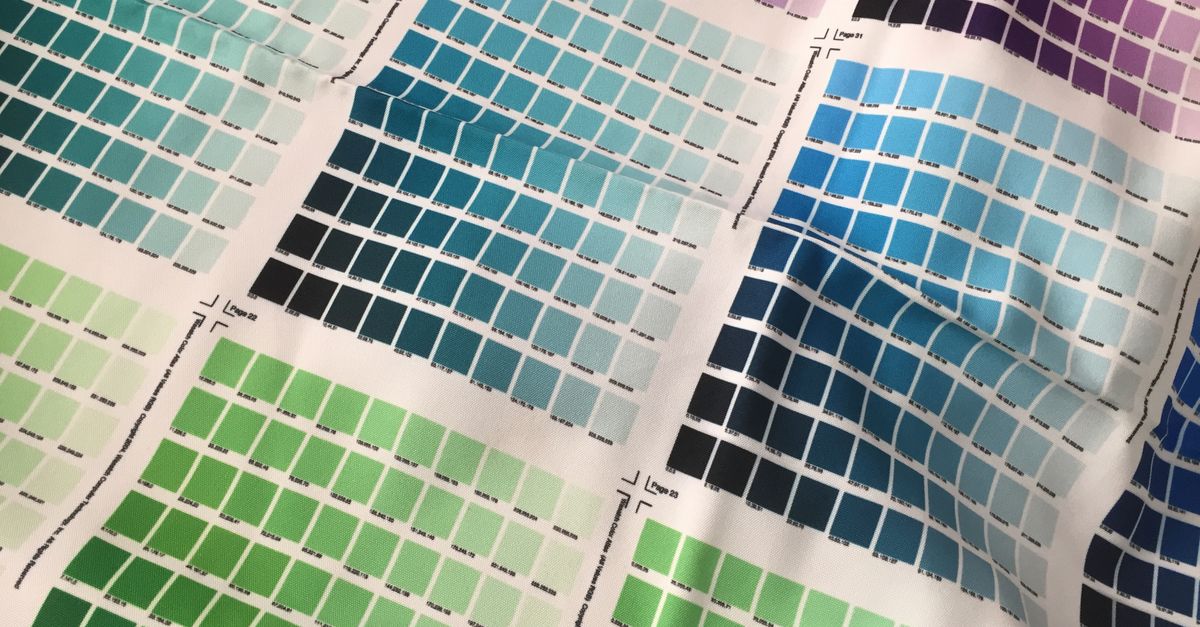
Each of the 216 tiles in the chart represents one unique combination of the six allowed red, green, and blue levels. When you click any tile, the chart performs two useful actions at once: it highlights the selected swatch in a larger result area and copies the complete six-digit HEX to your clipboard through the browser's standard copy API. The tile itself displays only a shortened three-character hint so that all 216 cells fit in a compact grid, but the accessible label and tooltip for the same tile always carry the full six-digit value plus the matching RGB triplet.
That distinction matters when you are checking the result. A tile showing "39C" is the shortened view of #3399CC, not a separate color and not a value you should paste into CSS as #39C. Always copy from the result area or from the accessible label rather than from the compact grid hint, because the chart keeps the shortened hint visible only to save space. If your browser denies clipboard access for security reasons, the visible code in the result area still appears in plain text, so you can select it manually with your cursor and copy it the ordinary way.
Use the Web Safe Colors Chart as the source for the full six-digit HEX, and treat the compact tile text as a navigation aid rather than the authoritative value.
How to Find the Nearest Cube Match for Any HEX
If you already have a color from a brand guide, a screenshot, or another tool and you want to know which web-safe swatch it maps to, the chart's matcher handles that in three steps. The matcher accepts a standard CSS HEX value of either three digits (shorthand) or six digits.
- Type or paste a valid 3-digit or 6-digit HEX into the matcher's input field. Three-digit values such as #abc expand to #aabbcc before the matching step, following the standard CSS shorthand rule.
- Select the Find match action. The chart rounds each 8-bit channel independently to its nearest multiple of 51 and reassembles the three snapped levels into a new six-digit HEX.
- Read the resulting HEX from the result area and copy it. The matched color is one of the 216 guaranteed cube members, so it is safe to paste directly into CSS, SVG, or design software as a true web-safe value.
For example, the input #3470d0 returns #3366cc. The red channel 52 sits closest to 51, the green channel 112 sits closest to 102, and the blue channel 208 sits closest to 204, so the recomposed HEX is #3366CC. You can verify this result against the swatch grid: #3366CC is one of the documented 216 entries and shares the same red, green, and blue levels as every other cube member.
How the Nearest-Match Math Actually Works
The matcher is a per-channel snap, not a perceptual algorithm. Each of the three RGB channels is compared against the six allowed levels — 0, 51, 102, 153, 204, and 255 — and the closest one wins. Because the six levels are evenly spaced and the three channels are independent, snapping each channel to its nearest allowed value is equivalent to choosing the nearest neighbor in the ordinary unweighted RGB cube.
That simplicity is useful for verification: if you can see the input channel values and the six allowed levels, you can reproduce the match by hand and check whether the chart's output agrees with your arithmetic. It also means the chart does not need any color-science profile or display calibration to deliver a consistent answer; the answer depends only on the integer RGB values you typed.
There is, however, one important caveat. sRGB — the color space used by web browsers, phones, and most consumer displays — encodes brightness non-linearly, so equal numeric steps in R, G, and B do not correspond to equal perceived steps. The chart's per-channel snap is mathematically nearest in raw RGB, but the visually nearest swatch can differ from the Euclidean RGB result, especially in the mid-tones. For a quick palette reference this is rarely a problem, and the predictability of the snap is often more valuable than perceptual accuracy.
The Six Channel Levels Behind Every Result
Every value the chart can return is built from the six levels below. If the HEX you copied does not contain exactly these digits in each channel, it is not a true web-safe color and the chart's guarantee of 216-entry compatibility does not apply to it.
| Decimal (0-255) | Hexadecimal | Role |
|---|---|---|
| 0 | 00 | Channel minimum |
| 51 | 33 | Low level |
| 102 | 66 | Mid-low level |
| 153 | 99 | Mid-high level |
| 204 | CC | High level |
| 255 | FF | Channel maximum |
Six independent choices per channel, multiplied across three channels, gives 6 × 6 × 6 = 216 unique combinations. The chart is generated in deterministic red-major, green-middle, blue-minor order from those six source levels rather than copied from an opaque list, which means the table is reproducible and can be checked for exactly 216 entries, unique HEX values, and channel membership in the six allowed levels. The W3C's historical introduction to CSS at w3.org/MarkUp/Guide/Style.html documents the same six evenly spaced channel levels.
Read and Verify the Result Before You Use It
Before you paste the HEX into your stylesheet, take a few seconds to verify it. The chart exposes several invariants that you can check by eye or with a quick script.
- Length: the HEX you copied should be exactly six digits long, prefixed with a single #, and use only the characters 0-9 and A-F.
- Channel membership: split the six digits into three pairs and confirm each pair is one of 00, 33, 66, 99, CC, or FF. If any pair contains other digits, the value is not a true cube member.
- Uniqueness: the matched color should match exactly one tile in the chart's grid. The chart is built to guarantee one HEX per tile, so any duplicate result indicates a copy or input error.
- Visible label versus compact hint: if you copied from a tile, make sure you used the full value in the result area, not the shortened hint printed inside the swatch.
These checks turn the result from "the chart said so" into "the chart's output is provably a member of the 216-cube you can audit by hand," which is the whole point of using a constrained palette in the first place.
Test the Actual Pair for Contrast
The most common mistake after picking a web-safe color is assuming it will be readable. The historical 216-cube was designed to limit dithering on 256-color displays, not to meet modern accessibility targets for body text, large headings, or interface controls. Two adjacent cube members can still fail WCAG contrast ratios, and two distant cube members can pass them. The result of the chart is only one half of the equation — the foreground or background — so a separate contrast test on the actual pair is essential.
Open a dedicated contrast tool, paste the HEX you copied as the foreground, and paste the second color as the background. The tool will report the contrast ratio and tell you whether the pair passes WCAG AA or AAA for normal text, large text, or non-text UI components. If the pair fails, the chart can help you snap a different cube member, but the accessibility decision is the contrast tool's, not the chart's. The chart's job ends at producing a verified cube member; what you do with that color is a separate accessibility problem. For a deeper walkthrough of pairing and testing, see Web Safe Colors Accessibility Contrast: Pair and Test, then return to the chart to choose a replacement swatch if the ratio is too low.
When a Web-Safe Result Still Doesn't Look Right
Sometimes the matched color will not look like the color you expected, even when the arithmetic checks out. The most frequent cause is the difference between raw RGB distance and perceived color difference. The chart snaps each channel to its nearest allowed value, which is the same as the nearest neighbor in the unweighted RGB cube, but sRGB is gamma-encoded and the human eye is more sensitive to changes in green than to changes in blue. As a result, a swatch with slightly worse RGB distance can still look closer to your input.
Specialist workflows address this by comparing colors in a more perceptually uniform space. Lab (CIELAB) is the classic choice, OKLCH is a modern alternative that handles wide-gamut displays, and an ICC profile can further align the comparison to a specific output device. For ordinary web styling these refinements are rarely necessary, and the chart's per-channel snap remains a faithful, predictable answer.
It is also worth remembering the chart's scope. "Web safe" here is a historical name. It does not label colors with subjective names, does not imply equivalence to Pantone or CMYK inks, and does not guarantee that a swatch is safe for text, accessibility, printing, or branding on every current display. Treat the chart as a transparent reference, matcher, and copy aid, and treat its output as one input among several in your color workflow.
Related reading: CMYK Color Chart Vector: Map All 148 CSS Names.