Changing time zones means resolving a wall-clock time in one region to its exact equivalent elsewhere, accounting for both the standard UTC offset and any daylight saving time in effect on that specific date. A reading like 12:00 does not point to a single fixed instant in UTC: New York is five hours behind UTC in January (Eastern Standard Time, UTC−5) but only four hours behind in July (Eastern Daylight Time, UTC−4), and regions from Europe to Australia shift on their own schedules each year. The reliable method is to treat the source wall-clock time as an input, resolve it to the true UTC instant using the IANA time-zone database, and then re-derive the wall-clock time in each destination zone at that exact instant. The Time Zone Converter automates this end-to-end in your browser, so you enter a date and a clock reading once and immediately see the matching local time, calendar date, weekday, and UTC offset in roughly thirty major world zones — all DST-correct, even across spring-forward and fall-back boundaries.
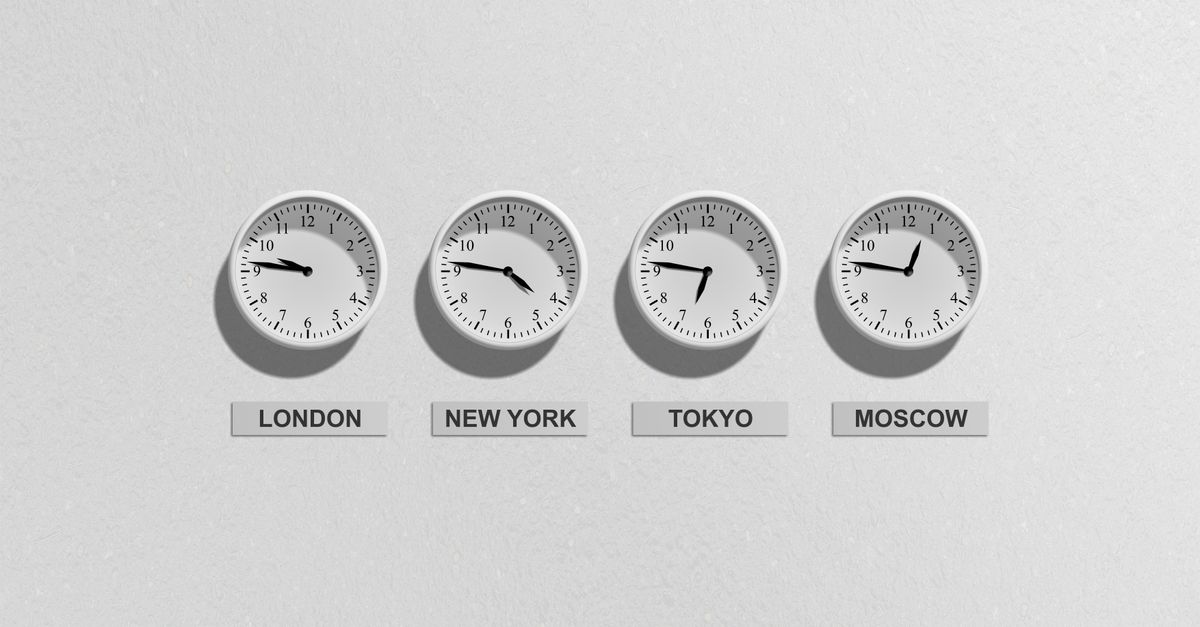
Why Changing Time Zones Is Harder Than Subtracting Hours
Most online "time zone" tools assume a fixed offset per city. That works for short answers in winter for half the world, and it falls apart everywhere else. The reason is daylight saving time, which is the single variable that turns naive conversion into a guessing game.
Consider three cities on a July afternoon: New York is on EDT (UTC−4), London is on BST (UTC+1), and Sydney is on AEST (UTC+10). On the same date in January those three cities are on EST (UTC−5), GMT (UTC+0), and AEDT (UTC+11) — three different offsets than they had six months earlier. A converter that hard-codes "Sydney is always UTC+10" will give the right answer half the year and silently produce a time that is one hour off for the rest of it.
Modern systems solve this with the IANA time-zone database, often called tzdata. Each region has an identifier such as America/New_York, Europe/London, or Australia/Sydney, and the database tracks which UTC offset is in effect for every second of every year, including the exact date and hour of every DST transition. The Time Zone Converter uses your browser's built-in IANA data via the JavaScript Intl API, so the same source moment can resolve to different UTC instants depending on whether it falls inside or outside daylight saving time.
The conversion is two-way. To go from a wall-clock time in a source zone to a true UTC instant, the converter makes an initial guess, checks the zone's offset at that guess, corrects once, and re-checks at the corrected instant — a small iterative step that keeps results accurate right at the spring-forward and fall-back boundaries. To go the other way, it formats the resolved UTC instant into each target zone's wall-clock reading and reports the offset back to UTC. Both directions are validated against golden test values for summer and winter, so a 12:00 in New York correctly converts to 17:00 UTC in January and to 16:00 UTC in July.
How to Change a Time Zone With the Converter
- Open the Time Zone Converter in your browser. The page works offline once it has loaded, so you can disconnect afterwards.
- Type the date and time exactly as it reads on a clock in your source location. For example, "15 Jan 2026, 14:30". If you want the current moment rather than a fixed future or past date, click "Use current time" and the present date and time from your device fills the fields automatically.
- Pick the matching zone under "From zone" — for instance, America/New_York if the clock you typed is in New York, or Europe/London if it is in London. Each entry shows the city alongside its current standard or daylight abbreviation (EST, EDT, GMT, BST, JST, AEST, AEDT, and so on), so you can verify the choice at a glance.
- Add one or more target zones from the chips. The defaults span Europe, Asia, and beyond; click any chip to remove it or pick additional zones to build a custom list. Roughly thirty major IANA zones are available, covering North America, South America, Europe, the Middle East, South Asia, East Asia, and Oceania.
- Read the converted output for each target. Every row shows the local clock time, the calendar date, the weekday, and the current UTC offset — so you can tell not just what hour it is on the other side of the planet but also whether the date has rolled over and whether daylight saving time is currently in effect there.
- If you change the source date or time, every target row updates at the same instant, including its UTC offset. No refresh needed.
Reading the Output: Time, Date, Weekday, and UTC Offset
Every conversion row gives you four pieces of information, and each one answers a different question you actually have when scheduling across regions.
The local time is the most obvious field and the one most people grab first. The calendar date tells you whether the moment has crossed midnight in the target zone — a 17:00 UTC instant lands on Tuesday in London but on Wednesday morning in Tokyo. The weekday resolves the same question in plain language: if your meeting in New York is on Monday at 09:00 and you want to know what day it is in Auckland, the row will say Tuesday, not Monday, because New Zealand is roughly seventeen hours ahead.
The UTC offset is the diagnostic field. It tells you which abbreviation is currently active in the target zone and how many hours and minutes the local reading is ahead of or behind UTC. Watching the offset shift from UTC−5 to UTC−4 between January and July for New York, or from UTC+0 to UTC+1 for London, is the clearest way to see daylight saving time working in real time. The converter re-derives that offset at your exact source instant, so you never get a stale value from a different week of the year.
Common Scenarios Where a DST-Aware Converter Matters
A handful of real scheduling problems break fixed-offset converters every year:
- Planning a global team call across New York, London, and Tokyo. The two cities with active DST shift on different dates — the United States switches on the second Sunday of March, Europe on the last Sunday of March, and Australia on the first Sunday of October — so there is no single rule of thumb that works year-round.
- Picking a webinar slot that works across the United States, Europe, and Australia. A 17:00 UTC slot works in London all year but lands at different local hours in Sydney depending on whether AEDT is in effect.
- Reading a deadline written in another country's local time. A document that says "due 30 June at 17:00 Tokyo time" needs to be resolved to your local calendar, which depends on whether Tokyo is observing JST (UTC+9) — Tokyo does not observe DST, but many of its trading partners do.
- Booking travel across the international date line. A flight that departs Los Angeles on Sunday evening arrives in Sydney on Tuesday morning, and the exact arrival day depends on whether daylight saving time is active on either end.
- Coordinating releases or deploys between data centers in regions with different DST rules. A scheduled job that runs at 02:00 local time in Berlin and again at 02:00 local time in New York will fall on different UTC instants depending on the week of the year.
Quick Reference: Major Cities and Their Standard Abbreviations
Each chip in the converter is labeled with its IANA identifier and the abbreviation currently active in that zone. The table below lists the cities the converter ships with by default, the IANA zone the converter passes to the browser, the abbreviation used in standard time, and that standard-time offset relative to UTC.
| City | IANA zone | Standard abbreviation | Standard UTC offset |
|---|---|---|---|
| New York | America/New_York | EST | UTC−5 |
| Los Angeles | America/Los_Angeles | PST | UTC−8 |
| London | Europe/London | GMT | UTC+0 |
| Paris | Europe/Paris | CET | UTC+1 |
| Berlin | Europe/Berlin | CET | UTC+1 |
| Dubai | Asia/Dubai | GST | UTC+4 |
| Kolkata | Asia/Kolkata | IST | UTC+5:30 |
| Bangkok | Asia/Bangkok | ICT | UTC+7 |
| Singapore | Asia/Singapore | SGT | UTC+8 |
| Shanghai | Asia/Shanghai | CST | UTC+8 |
| Tokyo | Asia/Tokyo | JST | UTC+9 |
| Sydney | Australia/Sydney | AEST | UTC+10 |
| Auckland | Pacific/Auckland | NZST | UTC+12 |
| UTC reference | UTC | UTC | UTC+0 |
The abbreviations shown above are the standard-time labels. During daylight saving time the same IANA zones display EDT, PDT, BST, CEST, AEDT, and NZDT respectively, with offsets one hour further ahead or behind UTC as appropriate.
Worked Example: 12:00 in New York to Tokyo and Sydney
Take a concrete moment: 15 January 2026 at 12:00 in New York. New York is on EST in mid-January, which is UTC−5. Resolving the source wall-clock time to UTC:
12:00 in America/New_York on 15 Jan 2026 → New York is UTC−5 → add 5 hours → 17:00 UTC on 15 Jan 2026.
Now apply the offsets active at that exact UTC instant in each target zone:
Tokyo on 15 Jan 2026 at 17:00 UTC → JST is UTC+9 → 17:00 + 9 = 26:00 → 02:00 on 16 Jan 2026.
Sydney on 15 Jan 2026 at 17:00 UTC → AEDT is in effect in January → UTC+11 → 17:00 + 11 = 28:00 → 04:00 on 16 Jan 2026.
That same New York meeting, taken in July instead of January, would shift each target by a different amount because New York would be on EDT (UTC−4) and the resolved UTC instant would be 16:00 instead of 17:00 — Tokyo, which does not observe DST, shifts by one hour, while Sydney, on its own winter time in July, shifts by two hours. The converter re-runs the offset lookup at the new instant automatically.
Privacy, Speed, and Offline Use
The converter is built as pure JavaScript on top of the standard Intl date-and-time engine that ships with every modern browser. There is no server round-trip, no upload, no analytics call, and no external dependency. Your dates and zone choices never leave your device, and because the entire conversion runs locally the page keeps working after you disconnect — useful on flights, in meeting rooms with patchy Wi-Fi, or behind strict corporate firewalls. Every conversion is validated against golden test values for both summer and winter, so you can trust the output whether you are planning a quarterly board call in March or booking a winter holiday across the date line in December.
If your work also involves 24-hour notation, the Military Time Converter pairs naturally with this tool: convert a meeting time to its 24-hour equivalent first, then drop that wall-clock reading into the Time Zone Converter to see the matching local hour in every other region.
For a deeper look, see Why Your Love Calculator Score Never Changes.
For a deeper look, see How to Change Pixels to CM in Illustrator: DPI Guide.