Use a different browser or a device with Web Audio support; if the online metronome still cannot start, switch to a physical or native metronome.
First identify whether the page will not load, the Start control reports an error, the click is inaudible, or the timing feels irregular. Each symptom has a different fix, and none of them automatically means you need a microphone, an account, or uploaded audio.
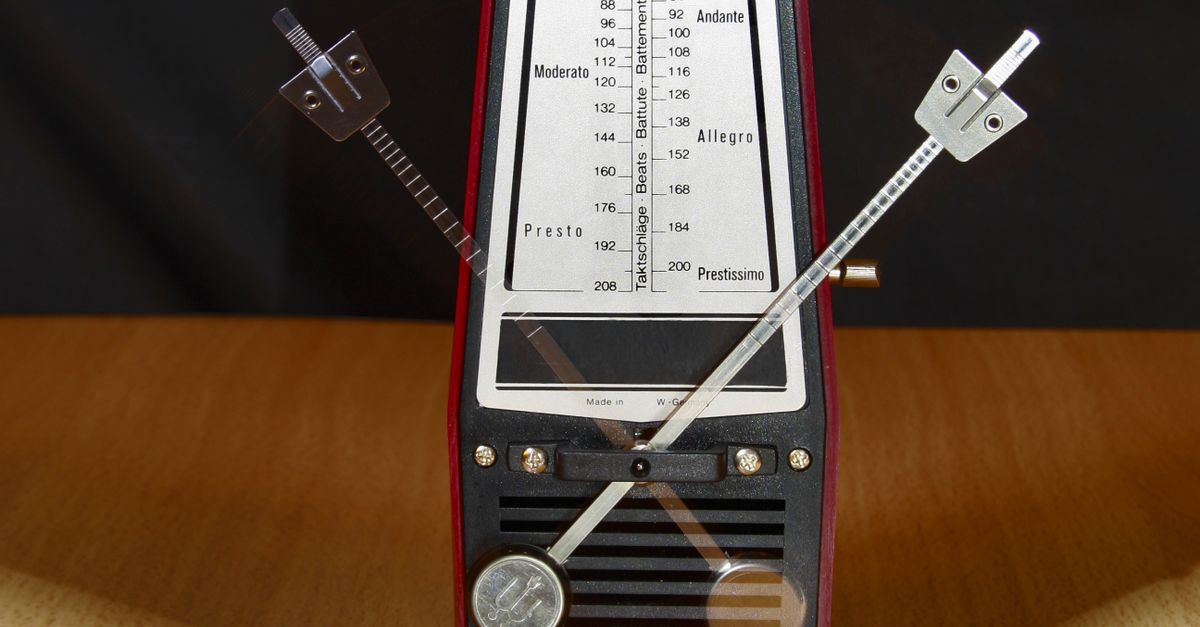
Identify which part of the metronome failed
Local click generation does not make every browser problem disappear. The page still has to load, the browser must support Web Audio, and the sound must reach the output device you are listening through. Once the display is advancing but the sound is not arriving on time, browser scheduling becomes the likely limitation.
| What you notice | Likely layer | Next action |
|---|---|---|
| The page does not load | Site or browser access | Reload the page and try another browser or device. If access remains blocked, use an offline-capable physical or native fallback. |
| An error appears after selecting Start | Web Audio is unavailable or startup was rejected | Try a browser or device with working Web Audio support. The tool reports the failure rather than leaving a stale playing state. |
| The display advances but no click is audible | Audio output | Check device volume, mute controls, selected speakers or headphones, and browser gain. |
| Clicks arrive late or feel uneven | Browser and operating-system scheduling | Keep the tab in the foreground, close busy tabs, and review power-saving or Bluetooth effects. |
| A tempo or measure value is rejected | Input validation | Enter a whole decimal number within the supported range without spaces, signs, decimal points, exponent notation, or units. |
Test one layer at a time. Repeatedly selecting Start will not repair a missing audio route or unsupported browser, while changing valid tempo settings may solve a rejected-input problem.
Set up a working browser click track
The supported workflow is short, but each input and playback control has a specific role.
- Open the Online Metronome in a browser tab. Confirm that the browser supports Web Audio before relying on it. The tool generates short clicks locally in the current tab and does not request microphone access, record audio, upload a file, require an account, or send audio to a server.
- Enter the tempo. Use a whole decimal number from 30 through 240 BPM. Spaces, signs, decimals, exponent notation, units, and blank values are rejected rather than rounded or capped.
- Choose the number of beats per measure. Enter a whole number from 1 through 12, then select Start.
- Listen for the accented first beat. Beat one uses a higher pitch than the remaining beats, making the start of each measure easier to identify.
- Restart after changing a setting. Editing either the tempo or measure length stops the existing playback before the new value takes effect. Enter the revised value and select Start again so the display and active timer do not continue out of step.
- Select Stop before leaving the page. Stop cancels the next scheduled click, closes the audio context, resets the visual beat, and returns the tool to a stopped state.
Begin with a low device volume, particularly when using headphones. The tool is useful as a lightweight pulse for scales, rhythm exercises, reading, or checking a rough tempo.
Restore an audible click
Actual loudness depends on device volume, speakers, headphones, browser gain, and the listening environment. The metronome does not calibrate sound pressure or protect your hearing. If the beat display is moving but you hear nothing, check the selected output device, confirm that it is not muted, raise the device and browser gain gradually, and try the other built-in speaker or headphones.
Bluetooth equipment can introduce audible delay even when the browser is scheduling clicks on time. Wired headphones or speakers may make it easier to judge the pulse when that matters. A busy main thread, power-saving mode, browser policy, background tab, or operating-system scheduling task can also postpone the next callback.
If selecting Start produces an error because Web Audio is unavailable or startup is rejected, changing the tempo will not help. Use a browser or device with working Web Audio support, or use a physical or native metronome until you can. Keep the working tab in the foreground during ordinary practice.
Understand the browser timing limit
The nominal beat interval is 60 divided by BPM, with the result in seconds. For 120 BPM, 60 ÷ 120 = 0.5, so the intended spacing is 0.5 seconds per click. That formula defines the requested pulse, but it does not guarantee that every browser callback or audible sound arrives exactly on schedule.
The W3C Web Audio API supports the sound generation, while the browser schedules the next callback for the metronome. Background tabs, power-saving modes, busy main threads, Bluetooth latency, browser policies, and operating-system scheduling can delay audible clicks. The result is therefore not a sample-accurate studio clock. For a closer look at this boundary, see Online Metronome accuracy in a browser tab.
Use the browser click for ordinary practice and tempo reference, not for precise recording alignment. The tool does not claim DAW synchronization, MIDI clock output, tap-tempo analysis, latency calibration, subdivision patterns, swing, polyrhythm, or recording alignment. A dedicated software or hardware timing source is the better choice when those capabilities are required.
Pick a fallback that matches the task
A fallback does not need to copy every feature of the browser tool. Choose one based on the requirement that is causing the problem, then verify its tempo range, measure controls, and timing claims before relying on it.
| Your requirement | Practical fallback | Why it may fit |
|---|---|---|
| A simple practice pulse | A native metronome app on your phone or tablet | It avoids dependence on a web page and can provide the basic steady beat needed for exercises. |
| No browser or page access | A physical mechanical or electronic metronome | It operates independently of browser support, site access, and Web Audio. |
| Precise recording alignment | A DAW or dedicated sync-capable click source | You can inspect its synchronization and timing specifications instead of relying on browser scheduling. |
If an app is intended to solve a connectivity problem, confirm that it works offline rather than assuming every installed metronome does. If measure boundaries matter, select a fallback that provides a clear first-beat accent. If the online issue is temporary, use the fallback for the session and return to the browser tool later with validated values.
For a deeper look, see Online Metronome Setup: Tempo, Measure, Sound, and Stop.