An online metronome can provide a repeatable pulse for practice without installing an app. This browser-based tool accepts a tempo from 30 through 240 BPM and a measure length from 1 through 12 beats. It is intended as a lightweight reference for ordinary practice, not as a sample-accurate recording clock.
Before starting, check the accepted inputs, how the click is produced, what the first-beat accent means, how browser timing can affect delivery, and how playback ends. The Online Metronome creates its clicks locally in the current browser tab.
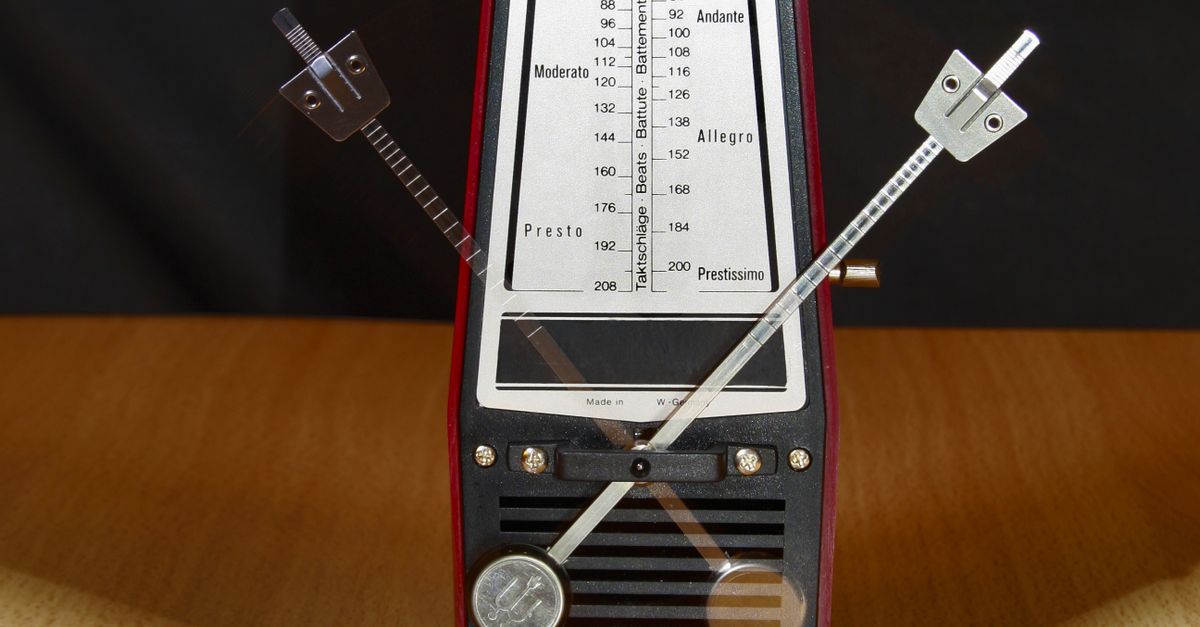
What This Browser Metronome Provides
The Online Metronome produces a simple repeating click with the Web Audio API in the current browser tab. No microphone, recording, file upload, account, or server audio is involved. Each click is synthesized from a short oscillator and gain envelope rather than relying on a recorded sound.
The browser's Web Audio API specification describes the framework used to generate browser audio, while MDN's OscillatorNode reference explains the oscillator used to synthesize a tone.
Beat one uses a higher pitch than the remaining beats, making the measure boundary easier to hear. Specifically, the first beat uses 1320 Hz and later beats use 880 Hz. These frequencies are product cues, not claims about a standardized concert pitch, note name, tuning system, or ideal practice sound. The visual beat display advances through the chosen measure with a wrap-safe integer counter.
Set the Tempo, Measure, and Playback
Use this sequence to start and control the metronome:
- Enter the tempo. Type a whole tempo from 30 through 240 BPM. Use digits only because signs, spaces, decimal points, exponent notation, units, and blank values fail validation rather than being rounded or capped.
- Choose the measure length. Select one through twelve beats per measure, then select Start. The tool produces a repeating click and uses a higher pitch for beat one.
- Listen and follow the display. Use the accented click to identify the beginning of each measure and the visual counter to track the current beat.
- Change or stop playback. Editing either value stops playback before the new value can take effect, so select Start again after making a change. Select Stop before leaving the page; it cancels the next scheduled click, closes the audio context, resets the visual beat, and returns the tool to a stopped state.
Understand BPM and Browser Timing
BPM describes the rate of the beats, while the click interval is calculated as 60 divided by BPM: interval = 60 ÷ BPM seconds. At 60 BPM, the interval is one second. At 120 BPM, it is 0.5 seconds. At 240 BPM, it is one quarter second.
The browser schedules the next JavaScript callback from that calculated interval. This approach is suitable for an ordinary practice pulse or rough tempo reference, but it is not a sample-accurate studio clock. Background tabs, power-saving modes, a busy main thread, Bluetooth latency, browser policies, and operating-system scheduling can delay audible clicks.
The displayed value remains the requested BPM even when browser scheduling delays a click. To understand the distinction between a requested tempo and precisely delivered audio timing, see Online Metronome accuracy in a browser tab. When consistent timing is important, keep the browser tab in the foreground and account for possible device or operating-system delays.
Input Rules and Playback Safeguards
The playback workflow includes several rules that affect how settings are accepted and how playback ends:
- Entries must be whole numbers. Tempo and measure length are validated as untrimmed whole decimal numbers. A sign, space, decimal point, exponent notation, unit, or blank field fails rather than being converted. The same applies to tempos outside 30–240 BPM and measure lengths outside one through twelve; values are not rounded or capped.
- Editing pauses the active clock. Changing the tempo or measure length stops playback before the new value takes effect. This prevents the displayed tempo and active timer from drifting apart, and playback must be started again.
- Start replaces an older session. Starting closes any older audio context before creating a new one. A synchronous playing guard also disables duplicate starts while playback is already active.
- Stop performs a full reset. It clears the timeout, closes the audio context, resets the visual beat, and returns the tool to its stopped state. The same cleanup runs when the component leaves the page, although selecting Stop makes the end of playback explicit.
- Startup failure is reported. If Web Audio is unavailable or startup is rejected, the tool shows an error and does not leave a stale playing state active.
Control the Listening Level
Begin with the device volume low, especially when using headphones. Actual loudness depends on device volume, speakers, headphones, browser gain, and the listening environment, so the same setting will not produce the same perceived level on every device.
Each synthesized click uses a conservative gain envelope: gain starts at 0.2, decays exponentially to 0.001 over 50 milliseconds, and the oscillator stops after 60 milliseconds so old audio nodes do not accumulate. Those internal values shape the click, but they do not determine the final level reaching your ears.
The metronome is not hearing protection, a calibrated sound-pressure source, or a medical device. It also does not guarantee that a displayed BPM will remain sample-accurate under every browser condition.
Match the Tool to the Practice Task
Not every timing job belongs in a browser tab. This comparison shows where the Online Metronome fits and where its verified limits matter.
| Practice task | Fit | What to expect |
|---|---|---|
| Scales and rhythm exercises | Useful | A repeating reference pulse can support ordinary practice. |
| Reading practice | Useful | The higher first beat makes each measure boundary easier to identify. |
| Checking a rough tempo | Useful | You can select a whole tempo from 30 through 240 BPM and follow the displayed beat. |
| DAW or MIDI synchronization | Not supported | The tool does not provide a DAW clock, MIDI clock, or synchronized recording clock. |
| Recording alignment or latency calibration | Not supported | Browser scheduling can delay clicks, and the tool does not calibrate latency. |
| Tap-tempo analysis, subdivisions, swing, or polyrhythm | Not provided | These features are outside the tool's verified operating capabilities. |
Use the metronome as a simple pulse for practice. A timing source designed specifically for recording alignment, DAW synchronization, or MIDI timing is more appropriate when those requirements control the task.
Build a Repeatable Practice Routine
- Choose a whole tempo from 30 through 240 BPM and a measure length from one through twelve beats.
- Confirm that both fields contain valid whole numbers without signs, spaces, decimal points, units, or other extra characters.
- Set the device volume low, select Start, and listen for the higher first-beat accent.
- Follow the visual display through at least one complete measure to confirm that the beat count and accent feel familiar.
- If you edit either setting, remember that playback stops and select Start again when the new value is ready.
- Select Stop when the exercise ends, especially before leaving the page, so the audio context is closed and the visual beat is reset.
If clicks feel irregular, check whether the tab is in the background, whether the device is using a power-saving mode, whether another task is occupying the main thread, and whether Bluetooth, browser policies, or operating-system scheduling may be introducing delays. Those factors can affect when a click becomes audible without changing the tempo you entered. If Web Audio is unavailable or startup is rejected, the tool reports an error rather than continuing with a stale playing state.
If you're weighing options, What Should I Review After Using an Online Metronome? covers this in detail.