Using an online metronome should produce a steady repeating click in your browser, with a higher-pitched first beat marking each measure.
That basic output is what you should expect from the Online Metronome: choose a tempo and measure length, start playback, and listen to short clicks in the current browser tab. It provides a practice pulse for scales, rhythm exercises, reading, or checking a rough tempo. It does not create a backing track, record your playing, or export an audio file.
Knowing the expected result also helps you distinguish a bad setting from a normal limitation: browser scheduling can delay a click, but a missing accent or rejected value is a different issue.
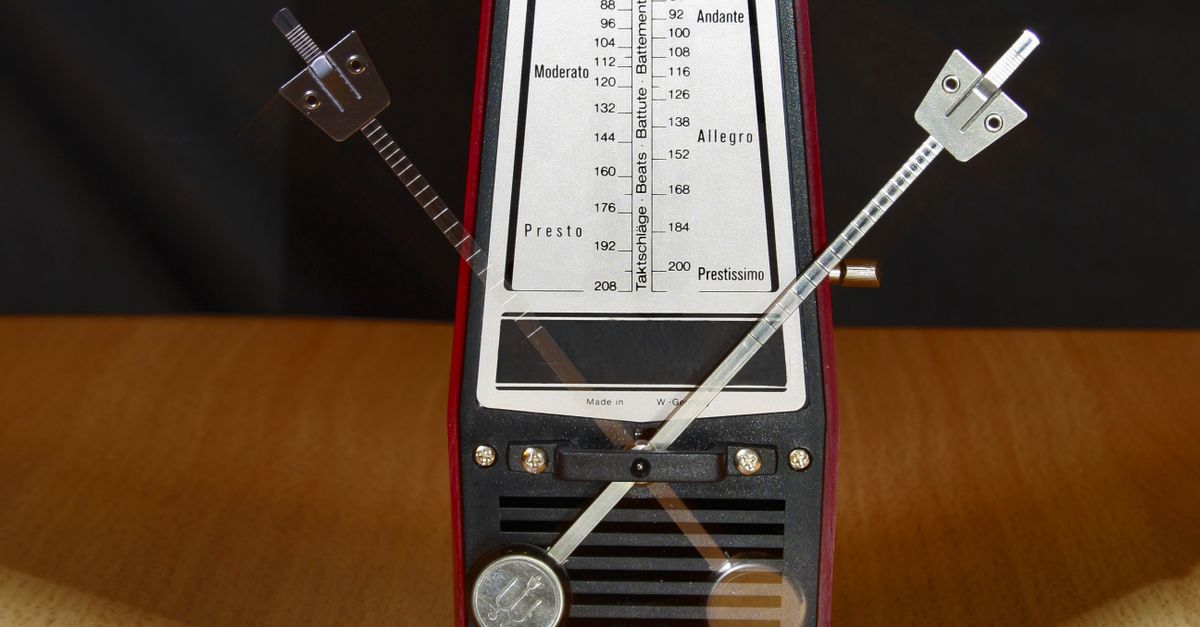
Expected Output at a Glance
The metronome produces one simple repeating click. The first beat of each measure uses a higher pitch than the remaining beats, making the measure boundary easier to follow. The beat display advances through the chosen measure length and wraps safely back to beat one.
Use the following table as a quick output check. It describes the supported browser workflow rather than a recording result or a guarantee of laboratory timing accuracy.
| Setting or control | Accepted input | Expected result |
|---|---|---|
| Tempo | Whole number from 30 through 240 | A repeating click with an interval calculated as 60 ÷ BPM |
| Beats per measure | Whole number from one through twelve | Beat one is accented, and the display advances and wraps through the measure |
| Start | Select after entering both values | Short oscillator clicks play locally in the current browser tab |
| Stop | Select when playback is active | The next scheduled click is canceled and the audio context is closed |
“Repeating” means the same basic pulse continues while playback is active. It does not mean every browser callback is sample-accurate. Start is the point at which sound generation begins; no click is playing before that action.
Set Up the Click Pattern
Set the tool up in this order so the audible result matches your intended tempo and measure.
- Lower the device volume before starting, particularly if you are using headphones. The metronome follows the browser and device output rather than setting a safe sound level for you.
- Enter a whole-number tempo from 30 through 240 BPM. Do not add a unit such as “BPM” to the field.
- Choose a whole-number measure length from one through twelve beats, then select Start.
- Listen for the higher first-beat click, followed by the lower clicks for the other beats in the measure. Use that pulse for the exercise you planned.
- When finished, select Stop before leaving the page. This cancels the next scheduled click, closes the audio context, clears the visual beat, and returns the tool to a stopped state.
If you edit either the tempo or measure length while playback is active, editing stops playback before the new value can take effect. Start it again to hear the revised setting. This prevents the displayed setting from continuing to drive an older timer.
Input handling is strict. Tempo and measure length must be untrimmed whole numbers. Signs, spaces, decimal points, exponent notation, and units fail rather than being rounded, trimmed, or capped. Blank values and values outside the accepted ranges also fail, so correct the field before selecting Start.
How Tempo and Meter Shape the Pulse
BPM is a rate, so the tool converts it into the time between beats by dividing 60 seconds by the entered BPM. The measure length works separately: it determines how many clicks make one measure and where the higher accent falls. Changing the measure count does not by itself make the individual beats faster or slower.
Worked example: the interval formula is 60 ÷ BPM. Substituting 120 gives 60 ÷ 120 = 0.5 seconds between clicks.
The click is intentionally simple. This implementation does not add subdivision patterns, swing, polyrhythm, tap-tempo analysis, or alignment to a recording, so you should not expect those results.
| Aspect | What this metronome provides | What it does not claim |
|---|---|---|
| Pulse | One repeating click with an accented first beat | Subdivisions, swing, polyrhythm, or tap-tempo analysis |
| Timing | A browser-scheduled interval based on BPM | Sample-accurate studio timing or latency calibration |
| Integration | Ordinary practice and tempo reference | DAW synchronization, MIDI clock, or recording alignment |
| Audio path | Local oscillator clicks in the current tab | Microphone input, uploaded audio, recording, or server audio |
These distinctions matter because “metronome result” can refer to different things. For ordinary practice, the accent and requested pulse are the useful outputs. For production timing, this browser tool does not replace a dedicated clock or a synchronized setup.
Where Browser Timing Can Drift
The metronome schedules its next JavaScript callback from the calculated interval. Under an unobstructed page, that supports a steady reference for practice. It is not a sample-accurate studio clock, however, because the callback and the sound reaching your ears can be delayed.
Background tabs, power-saving modes, a busy main thread, Bluetooth latency, browser policies, and operating-system scheduling can all affect the timing you hear. A delayed click does not mean the tempo field was silently changed; it means browser timing is not guaranteed under every condition.
Actual loudness also comes from device volume, speakers or headphones, browser gain, and the listening environment. Start quietly and raise the level only as needed. The tool is not hearing protection or a calibrated sound-pressure source.
If Web Audio is unavailable or audio startup is rejected, the page shows an error and does not leave a stale playing state. If the sound is irregular but no setting was rejected, check whether the tab was backgrounded or the device was under load before changing the tempo.
Local Generation and Privacy
The clicks are generated locally in the current browser tab with the Web Audio API. The W3C Web Audio API specification describes the browser audio interfaces used for this kind of local sound generation, while MDN’s OscillatorNode documentation explains the oscillator used to generate the waveform. Each click is built from a short oscillator and a gain envelope rather than from a microphone signal or an uploaded track.
There is no microphone request, recording, file upload, account, or server audio in the supported workflow. You should therefore expect sound from the current tab, not a captured version of your instrument or a processed download.
The pitch contrast is a product cue. Beat one uses 1320 Hz while later beats use 880 Hz. Those frequencies identify the tool’s first-beat accent; they are not claims about standardized concert pitch, a note name, a tuning system, or an ideal practice sound.
Stopping provides a complete reset for this simple workflow. It closes the audio context and cancels the pending click, and the same cleanup happens when the component leaves the page. On a successful later Start, the tool creates a new context after closing any older one.
A Quick Result Check
Before a longer practice session, confirm these visible and audible points:
- The tempo and measure fields were accepted without changing the values you entered.
- Selecting Start produces clicks in the current tab.
- The first beat of each measure is audibly higher than the others.
- The display advances and returns to beat one at the measure boundary.
- Selecting Stop silences the clicks and resets the beat display.
For a simple exercise, play in time with the basic pulse and let the accent mark each new measure. If you need a different tempo, edit the field, then press Start again because the edit has already stopped the previous run. This gives you a repeatable browser-based reference without claiming the precision of studio synchronization.
So the expected result is a local, repeating, accented click at your chosen whole-number tempo and measure length, with strict input limits and normal browser timing variability. It is well suited to ordinary practice and tempo reference; it is not a recorder, MIDI clock, or latency-calibration instrument.
Related reading: What Beginners Should Know Before Using an Online Metronome.
Related reading: What Result to Expect When Using Audio Effects Online.