Beginners should know that an online metronome is a browser-generated pulse, not a recording or a sample-accurate studio clock.
Before pressing Start, get clear on five points: BPM, beats per measure, the accented first beat, a comfortable monitoring level, and what browser timing can promise. The Online Metronome supports a focused workflow for these basics: set a whole-number tempo from 30 through 240, choose one through twelve beats per measure, play an accented click in the current browser tab, and stop it when finished.
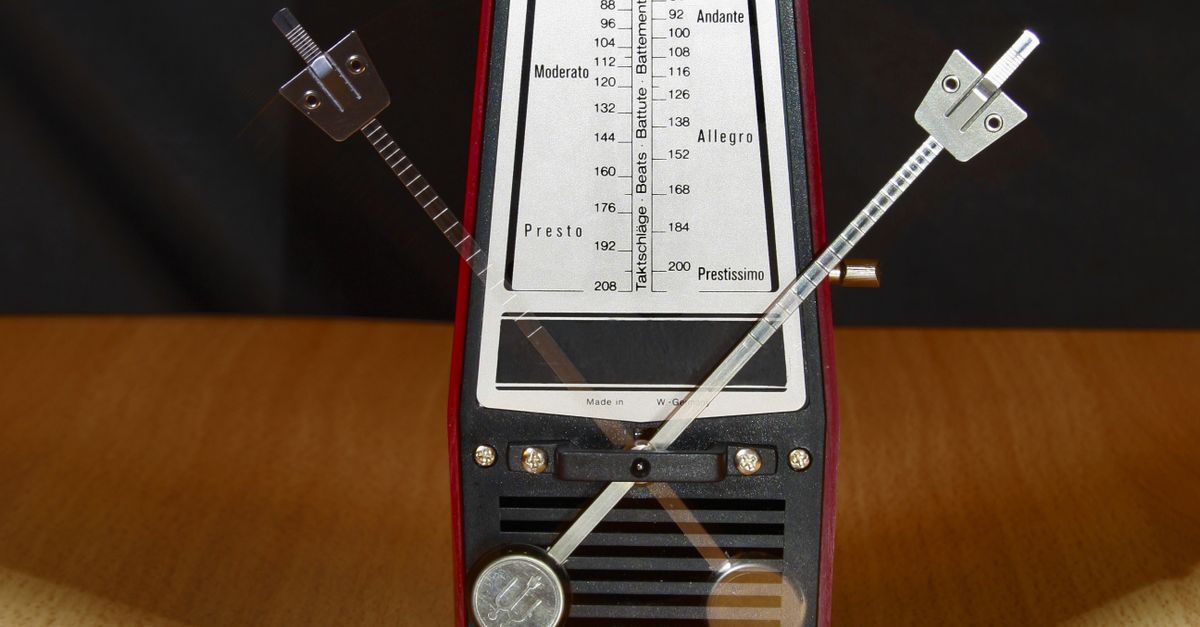
Five checks before your first session
A short readiness check can prevent most beginner frustrations. These checks are less about memorizing musical terminology and more about setting realistic expectations for the tool.
- Choose a workable tempo: BPM means beats per minute. The supported entry range is 30 through 240, and the value must be a whole number.
- Match the grouping to your exercise: The beats-per-measure setting determines how many beats occur before the higher first-beat accent returns.
- Recognize the accent: Beat one uses a higher pitch than the remaining beats, making the measure boundary easier to follow.
- Control the listening level: Begin with device volume low, particularly when using headphones, and raise it only as far as needed.
- Use it for the right purpose: A browser click is suitable for ordinary practice and rough tempo reference, but it is not designed for laboratory-accurate recording alignment.
Tempo, grouping, and the first-beat accent
Tempo and measure length solve different problems. Tempo controls the intended rate of the clicks. Beats per measure controls the repeating pattern: the first beat receives the accent, the remaining beats use a lower pitch, and the pattern then wraps back to beat one.
The intended interval is calculated from the beat rate: Interval = 60 ÷ BPM seconds. At 120 BPM, substitute 120 into the formula: 60 ÷ 120 = 0.5 seconds per beat. This describes the scheduled spacing; a busy browser or background activity can still delay when a click is actually heard.
The pitch difference is intentional. The first beat uses 1320 Hz, while later beats use 880 Hz. These frequencies are product cues rather than claims about concert pitch, note names, a standardized tuning system, or an ideal practice sound.
| Control or output | Supported behavior | What beginners should notice |
|---|---|---|
| Tempo | Whole-number entry from 30 through 240 BPM | It sets the intended click rate without promising sample-accurate delivery. |
| Beats per measure | Whole-number entry from one through twelve | It determines the number of beats between accented downbeats. |
| First-beat accent | 1320 Hz for beat one and 880 Hz for later beats | The pitch change provides an audible measure boundary. |
| Audio output | Short oscillator clicks generated in the current browser tab | No microphone, recording, file upload, account, or server audio is involved. |
Technically, the browser creates each click through the Web Audio API specification. A short OscillatorNode feeds a gain envelope, producing a compact click without requiring an audio file or microphone input.
Start and control the click track
Use the following workflow for a clean beginning and an explicit stop.
- Open the metronome in a browser tab. Keep that tab available while you practice. The tool produces its clicks locally, so it does not request microphone access or send audio to a server.
- Enter the tempo. Use a whole number from 30 through 240 BPM. Enter digits only: blank values, spaces, signs, decimal points, exponent notation, and BPM units are rejected rather than rounded or capped.
- Choose the measure length. Select a whole number from one through twelve beats per measure. This sets the number of clicks in the repeating group before the accent returns.
- Select Start. The current tab begins generating the repeating click, with the higher-pitched sound on the first beat. Starting again will not create a duplicate playing layer.
- Listen for the measure boundary. Play along and use the higher first beat as your orientation point. If you edit either the tempo or measure length, playback stops before the changed value can take effect; select Start again to play with the new setting.
- Select Stop before leaving the page. Stop cancels the next scheduled click, closes the audio context, and resets the visual beat. Cleanup also runs when the tool leaves the page.
If Web Audio is unavailable or the browser rejects startup, the tool displays an error and does not leave a stale playing state behind.
Keep the click comfortable and controlled
Start with a low device volume, especially if you are using headphones. The click is deliberately short and decays quickly, but the sound level you hear still depends on device volume, speaker or headphone output, browser gain, and the surrounding listening environment.
Raise the volume gradually until the pulse is clear without obscuring the instrument or exercise. The higher first-beat accent can attract attention differently from the lower clicks, so listen to the complete repeating pattern rather than judging only one sound.
This metronome is not hearing protection, a calibrated sound-pressure source, or a medical device. It should not be used to judge safe exposure or to assume that one browser volume setting will produce the same loudness on every device.
Understand browser timing and feature boundaries
The browser calculates the beat interval and schedules the next JavaScript callback from that value. That approach works well for a lightweight practice pulse, but it is not a sample-accurate studio clock. Background tabs, power-saving modes, a busy main thread, Bluetooth latency, browser policies, and operating-system scheduling can delay audible clicks.
For more consistent everyday use, leave the metronome tab in the foreground and avoid demanding tasks that could occupy the main thread. Keep the tool open long enough to recognize any delay rather than assuming the displayed BPM guarantees perfectly spaced sound under every condition.
There are also clear features the tool does not provide. It has no DAW synchronization, MIDI clock, tap-tempo analysis, latency calibration, subdivision patterns, swing, polyrhythm, or recording-alignment function. A conceptual guide to metronome subdivisions can help explain the distinction, but subdivisions are not added to this basic tool.
| Practice goal | Fit and expectation |
|---|---|
| Scales or simple rhythm exercises | Good fit for a basic, browser-scheduled pulse at the selected tempo. |
| Reading or following a measure grouping | Useful when the chosen beats per measure match the grouping and the accent is easy to hear. |
| Checking a rough tempo | Suitable as a quick reference, subject to normal browser scheduling conditions. |
| Synchronizing with a DAW or MIDI device | Not supported because the tool provides no external clock or synchronization. |
| Recording alignment or latency measurement | Not supported because the clicks are not sample-accurate or calibrated for alignment. |
| Tap tempo, subdivisions, swing, or polyrhythm | Not included; the supported workflow covers tempo, measure length, Start, and Stop. |
Use a simple first-session routine
There is no universal beginner BPM. Select a pace at which you can keep the exercise even enough to hear where each beat falls. If the pulse feels too fast, stop, enter a lower whole-number tempo, and start again.
- Set the tempo before choosing the measure length, then confirm that the accented beat marks the grouping your exercise expects.
- Start the metronome and listen through a full measure before joining in, using the higher sound to identify beat one.
- Play a short passage and make one timing adjustment at a time rather than changing the tempo and meter together.
- After an edit, remember that playback has stopped and Start is needed to hear the new setting.
- Stop the click when the exercise ends so no scheduled sound remains active.
If clicks are missing, delayed, or seem inconsistent, use a symptom-led guide to troubleshooting an online metronome. The central point remains simple: treat the browser click as a practical practice reference, not a precision synchronization source.