Bass is centered at 100 Hz, Mid is centered at 1,000 Hz, and Treble is centered at 10,000 Hz in the Audio Equalizer tool. Each control runs a single peaking biquad filter with a Q value of 1, applying a gain between -12 and +12 dB that you set as a whole number. The three filters are cascaded in Bass, Mid, then Treble order, which means the signal passes through the low control, then the middle control, then the high control before the tool checks the result. When the decoded sample rate does not allow a 10 kHz center, the Treble control drops to 45 percent of that sample rate so the filter stays below the Nyquist limit instead of asking a digital filter to operate outside the spectrum the decoder actually delivered. All of this runs locally in your current browser tab, so the source file and the EQ settings never leave the device. The output is a new PCM16 WAV, not a modified copy of the original compressed container.
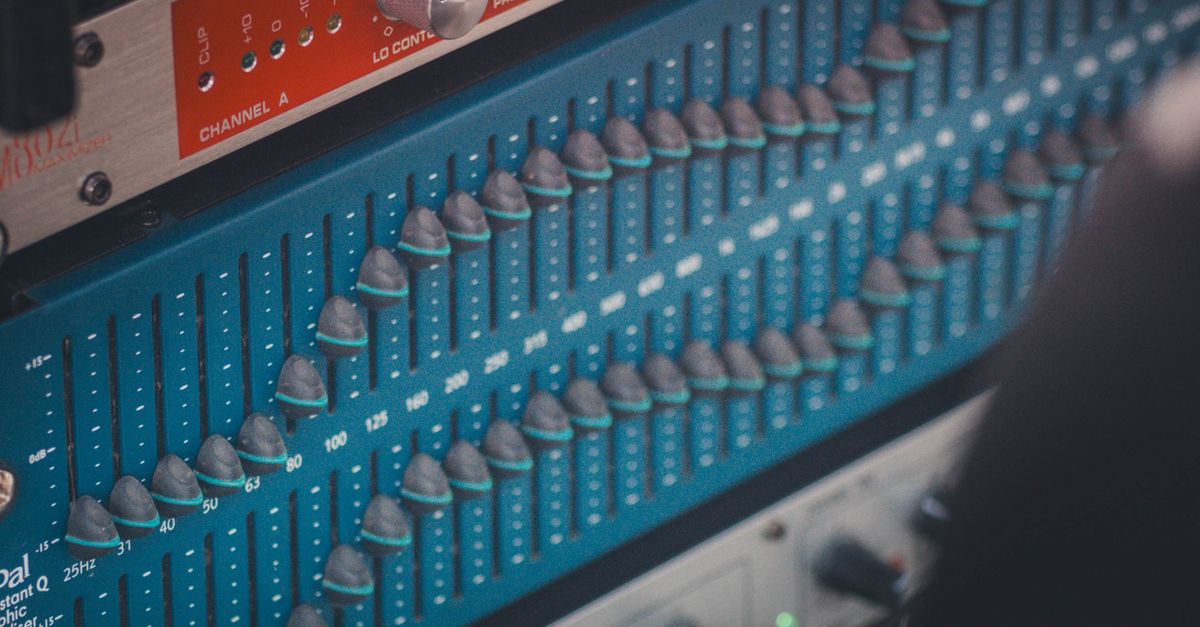
Bass at 100 Hz, Mid at 1 kHz, Treble at 10 kHz
Each of the three sliders in the Audio Equalizer targets one disclosed center frequency. Bass targets 100 Hz, which sits in the lower bass region where kick fundamentals, bass guitar notes, and low-end room rumble tend to live. Mid targets 1,000 Hz, the middle of the audible spectrum where vocals, snare body, and the fundamental of many acoustic instruments carry their weight. Treble targets 10,000 Hz, well into the "air" region where cymbal shimmer, breath noise, and high-frequency detail become audible.
The three centers, their gain range, and their Q value are fixed by the tool. Nothing about them is inferred from the source file.
| Control | Center frequency | Gain range | Q |
|---|---|---|---|
| Bass | 100 Hz | -12 to +12 dB (whole numbers) | 1 |
| Mid | 1,000 Hz | -12 to +12 dB (whole numbers) | 1 |
| Treble | 10,000 Hz, or floor(sampleRate × 0.45) when that rate is lower | -12 to +12 dB (whole numbers) | 1 |
A positive gain boosts the energy around that center, and a negative gain cuts it. Because each control is a peaking filter, the curve is not a hard shelf; it lifts or lowers a region and returns toward flat further away from the center. Zero on all three controls is a true flat path, and the tool copies the channel samples through without running any nonzero filter section.
What Q=1 Means for Each Peaking Filter
A peaking equalizer has three meaningful parameters: center frequency, gain, and Q. The center is the disclosed value from the table above. The gain is whatever integer you choose between -12 and +12 dB. The Q is fixed at 1 for every band in this tool, which is a deliberate product choice that keeps each adjustment broad rather than surgical. Q=1 means the filter affects a wide region around the center; a narrower band would require a higher Q value, which the page does not expose and which cannot be changed here.
The tool derives its filter coefficients from the peaking-EQ biquad formulas published in the W3C Audio EQ Cookbook. For each band, it converts the integer decibel value into the A parameter defined by that note, computes the five biquad coefficients (b0, b1, b2, a1, a2), and normalizes every coefficient by a0 so the filter runs as a stable second-order recursive section. Each accepted channel is filtered independently with identical settings, so a mono file, a stereo file, and a multichannel file all receive the same per-band gain at the same time.
How Bass, Mid, and Treble Are Applied in Order
The three sections run in a fixed cascade: Bass first, Mid second, Treble third. Every decoded channel sample passes through the Bass biquad, then the Mid biquad, then the Treble biquad. The order matters because each filter's output is the next filter's input, and the final processed samples for that channel come out of the Treble section.
Cascading three peaking filters means that energy added by one band can be lifted again by the next. A +6 dB Bass, +6 dB Mid, and +6 dB Treble does not produce +18 dB everywhere, because the bands overlap only at their skirts, but the combined peak can still climb above digital full scale. The Audio Equalizer measures that risk before it writes the WAV, and a practical three-band walkthrough shows how to test small adjustments before stacking large boosts.
Set the Three Controls in the Audio Equalizer
- Open the Audio Equalizer page and choose one browser-decodable audio file that stays within the 50 MiB size cap and the five-minute decoded duration limit. Web Audio can decode MP3, WAV, M4A, AAC, Ogg, WebM, or FLAC when the browser and operating system actually support the codec inside the container; a familiar extension is not a guarantee, and a decode failure produces an error rather than a stale download.
- Set the Bass control to a whole number from -12 to +12 dB. Bass is fixed at 100 Hz with Q=1, so a positive value adds energy around that center and a negative value reduces it. Leave it at 0 to keep the low band flat.
- Set the Mid control to a whole number from -12 to +12 dB. Mid is fixed at 1,000 Hz with Q=1, the same peaking behavior as Bass but at a center in the vocal range.
- Set the Treble control to a whole number from -12 to +12 dB. Treble is normally fixed at 10,000 Hz with Q=1; when the decoded sample rate is too low for that, the tool automatically lowers the center to 45 percent of the sample rate so the filter stays below Nyquist.
- Apply the equalizer locally. Processing runs in your current browser tab and does not upload the file, the decoded samples, or the EQ settings. The page reports the raw peak, output peak, safety scale, sample rate, and frame count for the processed result.
- Preview the processed audio in the same tab. Compare the result against the original at a similar perceived level before judging the change, since louder output can sound better without actually being a better mix. If the result sounds right, download it as a PCM16 WAV with a header written for the actual channel count, sample rate, byte rate, block alignment, bit depth, and complete data length.
When the Treble Center Drops Below 10 kHz
A peaking filter at 10,000 Hz cannot operate correctly above half the sample rate, which is the Nyquist limit. At a 44.1 kHz or 48 kHz decode, 10 kHz is comfortably below Nyquist and the Treble band centers there as documented. At a lower decoded sample rate, the tool sets the Treble center to floor(sampleRate × 0.45) instead, which keeps the filter inside the spectrum the decoder actually delivered. The Bass and Mid centers stay at 100 Hz and 1,000 Hz respectively because those values are almost always well below Nyquist on a supported sample rate.
This is also why the page reports the actual decoded sample rate after applying the equalizer. Web Audio may resample while decoding, so the value the interface prints is the one the filter ran against, not the rate the original container advertised. The Web Audio AudioBuffer specification defines how decoded sample data is exposed to scripts, including its sample rate and channel count, which is why the result panel can report those values precisely.
Peaks, Safety Scale, and the PCM16 WAV Download
After the three cascaded filters finish, the tool measures the absolute peak across every processed sample on every channel. If that raw peak is at or below 0.99, the page writes the WAV directly. If the raw peak exceeds 0.99, the tool applies one uniform scale factor to every processed channel so the largest magnitude becomes 0.99. The interface reports the raw peak, the output peak, and the exact safety scale used.
This step prevents the PCM16 encoder from chopping individual peaks into harsh digital clipping. It does not target LUFS, RMS, replay gain, or any streaming-platform specification, and it can reduce the overall level. The download is a brand-new uncompressed PCM16 WAV whose header records the actual channel count, sample rate, byte rate, block alignment, bit depth, and complete data length, in the format described by the Microsoft WAVEFORMATEX reference. The original compression, bitrate, artwork, tags, chapters, loop markers, and container metadata are not preserved.
Listen on the speakers or headphones that matter to your final use, treat the preview and reported numbers as a check rather than proof of a desirable mix, and reach for a full audio editor when you need precise center frequencies, adjustable Q, spectrum analysis, automation, linear-phase processing, loudness metering, dithering controls, codec selection, or metadata preservation.