Planning the steps to use an audio equalizer means deciding in advance which file to load, which Bass/Mid/Treble values to set, and which output numbers to verify before downloading the processed PCM16 WAV. The Audio Equalizer is a local, browser-based three-band peaking equalizer that runs in your current tab without uploading audio bytes. The page applies disclosed biquad filters with centers at 100 Hz, 1,000 Hz, and 10,000 Hz, a Q value of 1, and whole-number gains from -12 through +12 dB. Because the controls are fixed and the processing pipeline is deterministic, the planning step is about file fit, gain choice, and verification rather than menu exploration. Reading the reported raw peak, output peak, and safety scale numbers before saving the WAV closes the loop and turns a click-through into a reproducible workflow.
Most readers arrive at the equalizer with a specific audio file in mind and a vague sense that they want it to sound warmer, clearer, or less harsh. The plan below translates that intent into concrete decisions that match what the tool actually exposes: three slider positions, one apply action, and one set of numbers to read. A useful side resource for capturing the result of that plan is the steps-to-document guide, which walks through recording the same inputs and outputs you will use here.
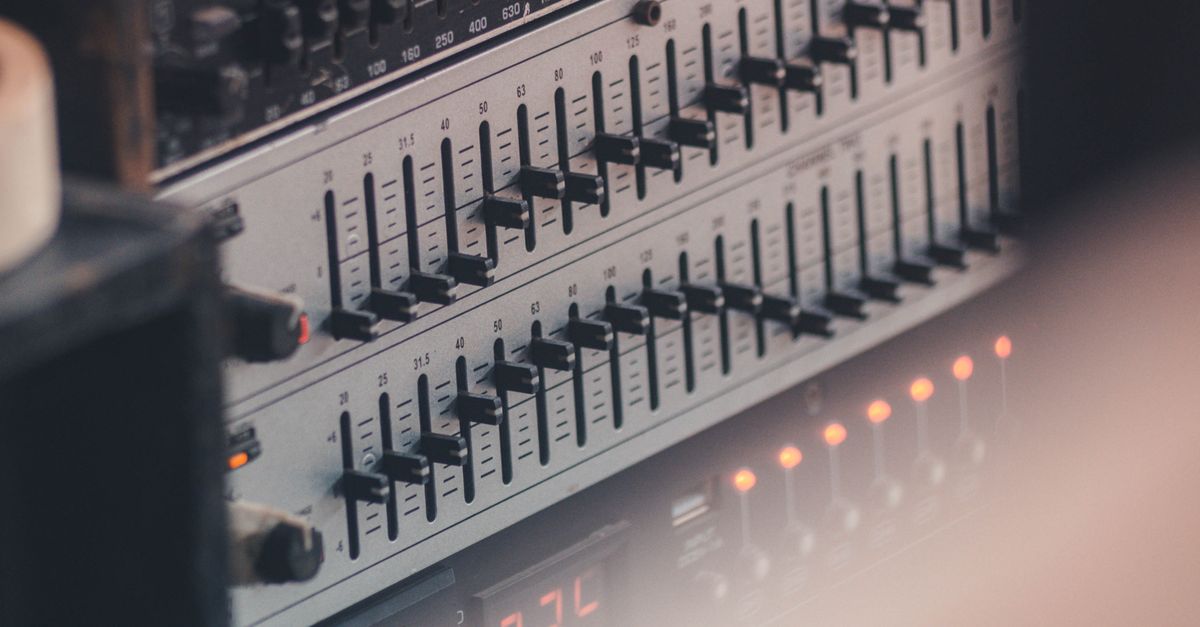
What to Confirm Before You Open the Equalizer
Pre-run checks are the cheapest part of the plan and the most commonly skipped. The tool rejects an over-limit file before any filter runs, so confirming the file fits the published bounds prevents wasted clicks and silent surprises. The page enforces these caps on the input:
- Size cap: 50 MiB on the raw file before decode.
- Duration cap: five minutes of decoded audio.
- Channel count: one through eight channels per file.
- Sample rate: 8,000 Hz through 192,000 Hz after decode.
- Sample budget: no more than 30 million channel samples in total.
- Codec: the browser must be able to decode the actual codec inside the container; a familiar extension is not a guarantee.
If any of those checks fail, the page surfaces an error and never offers a stale download. A quick way to pre-screen is to open the file in a player that shows duration, sample rate, and channel count, then compare those numbers to the list above. Skipping this step is the most common cause of "the equalizer did nothing" reports, because the file was rejected before any EQ ran.
The Three Controls and What They Actually Do
Each band is a peaking biquad filter using the equations in the W3C Audio EQ Cookbook, normalized by a0 and cascaded in Bass, Mid, Treble order. The page converts the slider value in decibels into the coefficient parameter defined by that cookbook and runs the resulting second-order recursive filter over each decoded channel independently with identical settings. The published center frequencies are 100 Hz for Bass, 1,000 Hz for Mid, and 10,000 Hz for Treble when the decoded sample rate permits it; at a low sample rate the treble center drops to 45 percent of that rate so it stays below the Nyquist limit rather than asking an invalid digital filter to operate outside the available spectrum. Q is fixed at 1, which is a broad, forgiving adjustment — the page does not infer a different Q from the source file and does not expose Q as a control.
Zero on all three sliders is a genuine flat path. In that case the tool copies the decoded channel samples without running any nonzero filter section, which is why starting at 0,0,0 is the cleanest reference for any later A/B comparison. Positive values boost energy around the center, negative values cut it, and a peaking filter affects a region around the center rather than a hard shelf below or above it. Because the three bands are cascaded, planning a run also means budgeting how much boost to stack — three +6 dB settings do not produce a +6 dB result, they produce something that may exceed digital full scale and trigger the safety scale.
How to Plan and Run the Equalizer Steps
Once the file passes pre-flight and the bands are understood, the actual run is short. The plan below maps each decision to the page's controls and reports.
- Load one browser-decodable audio file. Pick a single file within the 50 MiB and five-minute decoded limits. Web Audio will decode MP3, WAV, M4A, AAC, Ogg, WebM, or FLAC when the current browser and operating system actually support the codec inside the container.
- Set Bass, Mid, and Treble to whole values from -12 through +12 dB. Start at 0,0,0 to confirm a flat reference pass, then move one slider at a time. Plan cuts before stacking boosts; a single -6 dB cut is usually safer than three +4 dB boosts.
- Apply the equalizer locally. The page runs three cascaded peaking biquads on each decoded channel with Q=1 and integer gains, then measures the raw peak across every processed sample on every channel.
- Check the raw peak, output peak, safety scale, sample rate, and frame count. These five numbers are the verification contract for the run. A safety scale below 1 means a uniform scale-down was applied to keep the output peak at 0.99 and avoid PCM clipping.
- Preview and download the PCM16 WAV. Use the preview as a sanity check, then save the file. The download is a fresh uncompressed PCM16 WAV that does not preserve the original codec, bitrate, tags, artwork, chapters, loop markers, or container metadata.
Reading the Output Numbers the Page Reports
After the equalizer applies, the page surfaces five values that map directly to the plan you just executed: the raw peak across all processed channels before any safety scale, the output peak after any safety scale, the safety scale factor itself, the decoded sample rate, and the frame count. A safety scale of 1.000 means no scale-down was needed and the cascaded result stayed within digital full scale. A safety scale below 1.000 means at least one cascaded combination pushed the raw peak above 0.99 and the entire processed result was uniformly scaled so the largest magnitude becomes 0.99.
This is not loudness normalization. The page does not target LUFS, RMS, replay gain, or any streaming-platform specification — it only prevents the PCM encoder from chopping individual peaks. Listening at matched perceived level against the original is the only honest A/B; the equalized file may sound louder simply because it survived the safety scale at 0.99 instead of clipping. Treat the preview and the reported numbers as checks, not as proof of a desirable mix.
Quick Reference: The Three Bands and Their Fixed Properties
The following table summarizes the fixed, disclosed properties of each band. None of these values are inferred from the source file, and none can be changed on the page.
| Band | Center frequency | Gain range | Q value | What it tends to affect |
|---|---|---|---|---|
| Bass | 100 Hz | -12 to +12 dB, whole numbers | 1 | Low-end weight, kick, bass guitar fundamentals |
| Mid | 1,000 Hz | -12 to +12 dB, whole numbers | 1 | Vocal body, instrument presence, snare crack |
| Treble | 10,000 Hz, or 45% of decoded sample rate if that is lower | -12 to +12 dB, whole numbers | 1 | Air, cymbals, sibilance, hiss |
When a Three-Band Plan Is Not Enough
The equalizer is intentionally compact: three fixed centers, one fixed Q, integer gains, no spectrum view, no automation, no linear-phase mode, and no loudness metering. That covers the common "make it warmer / clearer / less harsh" use case but leaves a number of jobs to a full audio editor. Move to a desktop editor when you need precise center frequencies, adjustable Q, spectrum analysis, automation curves, linear-phase processing, loudness metering in LUFS, dithering controls, codec selection, or metadata preservation.
Strong boosts can also emphasize noise, sibilance, rumble, or existing distortion that the equalizer cannot see. The plan-friendly rule is to cut before boosting and to verify with headphones or speakers that matter rather than trusting the output peak alone. For readers who want a broader walkthrough of the controls before planning a run, the three-band explainer covers the same controls in more depth. On the file-format side, the page only writes PCM16 WAV and the Web Audio decoder may resample while decoding, so the reported sample rate is the decoded rate rather than the container's advertised rate.
Putting the Plan Together
A short pre-run checklist captures the whole workflow in one place. Confirm the file is under 50 MiB, under five minutes of decoded audio, one to eight channels, and a sample rate between 8,000 and 192,000 Hz. Decide the order of slider moves, starting at 0,0,0 for a flat reference. Apply, then read raw peak, output peak, safety scale, sample rate, and frame count. Preview against the original at matched level, accept the safety scale if it engaged, and download the PCM16 WAV. Processing stays in the current browser tab and the page never sends audio bytes, decoded samples, EQ settings, filenames, or results to a server, so the only artifacts of the plan are the slider values you chose and the WAV on your disk.