The right approach to using an online metronome is to pick a browser-based tool whose BPM range, beat-per-measure setting, and accented first beat match the piece you are practicing, then keep the displayed tempo and the audible clicks in sync by leaving the tab open and stopping playback with the built-in control. A practical approach has four moving parts: a tempo you set in whole numbers, a measure length between one and twelve beats, a click sound loud enough to hear without strain, and a clear way to mark where each measure begins. When those four parts are aligned with your exercise — scales, rhythm drills, reading practice, or rough tempo reference — the metronome becomes a steady guide rather than a distraction. The Lizely Online Metronome covers that exact workflow with tempo from 30 to 240 BPM, one to twelve beats per measure, a higher first-beat accent at 1320 Hz, and an immediate Stop control that closes the audio context cleanly when you finish.
Match the Metronome's Settings to Your Practice Goal
Choosing the right approach begins before you press Start. Decide what the click is supposed to do for you in this session, because the right tempo and meter depend entirely on the answer. A slow warm-up scale wants a low BPM and a simple beat count. A piece in 6/8 wants six beats per measure so you can feel the two larger pulses inside each bar. A sight-reading drill on unfamiliar notation may want a moderate tempo and a four-beat bar so you can phrase in groups of four. If you treat tempo and meter as two separate knobs you can tune to the music in front of you, the metronome stops being a generic click and starts being a tool shaped around the work.
It also helps to think in ranges rather than exact numbers when you plan a session. Beginners often sit between 60 and 90 BPM for foundational exercises, intermediate work drifts into the 90 to 140 BPM band, and fast passages sit above that. Setting a tempo range in advance keeps you from chasing a single number that may not suit the exercise. The same applies to meter: pick the measure length that matches the time signature you are studying, not the time signature you wish you were studying.
Privacy and portability are the other half of the decision. An online metronome that runs clicks locally in your current browser tab, without asking for a microphone, signing you in, or uploading anything, is easier to use on shared computers, in classrooms, and on devices you do not own. That kind of browser-side approach also avoids the install step that blocks quick practice on a borrowed laptop. Once you confirm those basics, the rest of the workflow comes down to how the tool handles tempo, meter, and stopping.
Set Up an Online Metronome Approach in Three Steps
Once you know what you want to practice, the mechanics are short. The Online Metronome accepts whole numbers only, which removes the ambiguity that comes from rounded values, and exposes a Start button plus a Stop button you can use immediately. The same cleanup runs whether you click Stop, edit a value, or navigate away from the page.
- Open the Online Metronome in your current browser tab and enter a whole number between 30 and 240 in the tempo field. Leave the BPM outside that range, add a decimal, add a sign, or leave the field blank, and the tool will refuse the value rather than rounding or capping it.
- Choose a beats-per-measure value from one through twelve that matches your exercise — four for common time, three for waltz, six for compound meter, two for a slow duplet drill, and so on. Select Start.
- Listen for the higher-pitched click that marks beat one, then use the Stop button before you close or navigate away from the page so the audio context is closed and the visual beat counter resets.
Editing either field while the metronome is playing also stops playback before the new value can take effect, which prevents the displayed tempo and the active timer from drifting apart during a session. That safety is useful when you decide to push the tempo up by five BPM halfway through a run.
Common Tempo Intervals at a Glance
The interval between clicks is calculated as 60 divided by BPM seconds. The values below come from that formula applied to the BPMs you are most likely to set during practice. They are not generated by the tool for you; they are the direct result of the definition of beats per minute, which is the same definition used by physical and software metronomes.
| Tempo (BPM) | Interval Between Clicks | Typical Use |
|---|---|---|
| 30 | 2.000 s | Very slow drills, long note values |
| 60 | 1.000 s | Beginner warm-ups, adagio phrasing |
| 90 | 0.667 s | Moderate practice, basic reading |
| 120 | 0.500 s | Moderate-to-fast exercises, common pop tempos |
| 150 | 0.400 s | Up-tempo work, brisk passages |
| 180 | 0.333 s | Allegro runs, technique drills |
| 210 | 0.286 s | Fast technical passages |
| 240 | 0.250 s | Top of the supported range, very fast click track |
Worked example: at 90 BPM, the interval is 60 ÷ 90 ≈ 0.667 seconds, so each click is roughly two-thirds of a second after the previous one. Doubling the BPM halves the interval, which is why 120 BPM (0.500 s) feels noticeably quicker than 60 BPM (1.000 s) without sounding twice as fast to the ear.
Compare Metronome Approaches at a Glance
Online metronomes are one option among several, and the right approach depends on what you value in a session. The table below compares the browser-based approach to dedicated mobile apps and physical pendulum metronomes on the dimensions that matter for everyday practice. The figures for the online column come from the documented behavior of the Online Metronome; the other columns describe general category behavior rather than a single product.
| Dimension | Browser Online Metronome | Mobile App | Physical Metronome |
|---|---|---|---|
| Setup time | Open the page, type tempo, click Start | Install once, then launch | Wind the spring, set the weight |
| Install required | No | Yes | No |
| Account or sign-in | None | Sometimes | None |
| Microphone or upload | None | Varies by app | None |
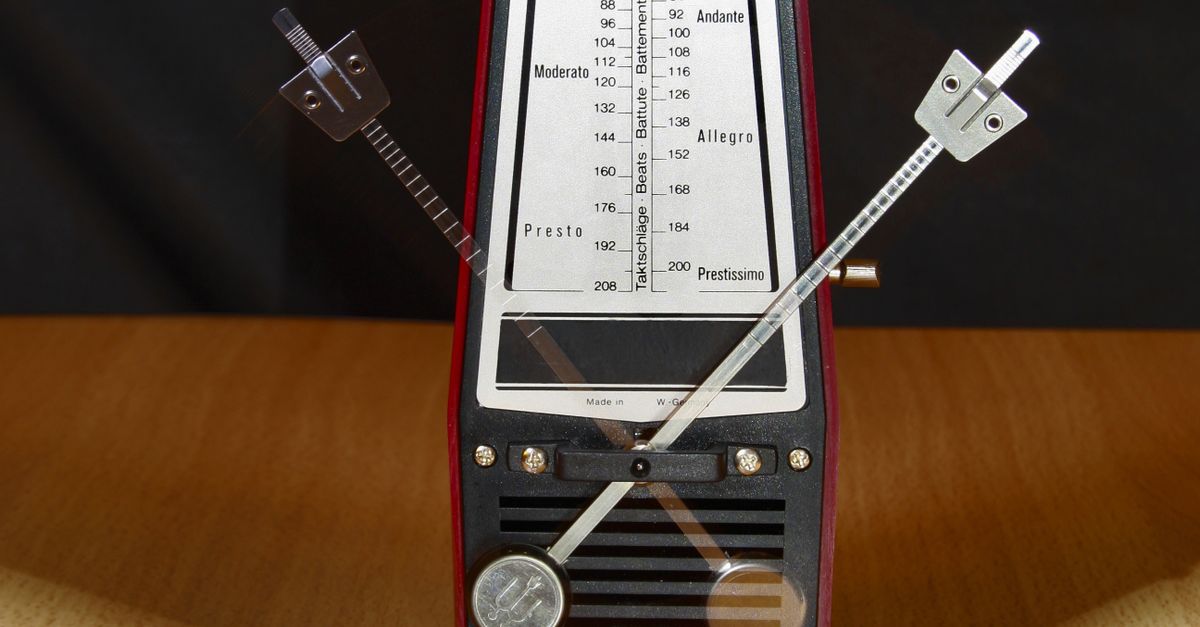
| BPM range | 30–240 whole numbers | Often wider, with finer resolution | Typically 40–208 mechanical |
| Beats per measure | 1–12 | Often 1–12 or wider | Usually 0–6 with bells |
| Accent on beat one | Yes (1320 Hz vs 880 Hz) | Yes, with more sound options | Yes, via bell at the end of winding |
| Timing precision | Browser-dependent, not sample-accurate | Usually more stable than a browser tab | Mechanical, can drift slightly |
| Portability across devices | Any device with a browser | Tied to installed platforms | Tied to the physical object |
The browser approach wins on portability and zero setup, loses on raw timing precision, and ties on the core tempo-and-meter features that ordinary practice needs. For deeper background on how the browser approach works under the hood, see Online Metronome Explained: How It Works in Your Browser.
How the First-Beat Accent Marks Each Measure
One detail that decides whether a metronome feels usable is how it tells you where each measure begins. The Online Metronome uses a small pitch contrast to do that work: the first beat of every measure plays at 1320 Hz, and every later beat plays at 880 Hz. The two pitches are close enough that the click character stays consistent, but different enough that your ear locks onto the downbeat without needing a subdivision engine or a bell sample. For most exercises in 2, 3, 4, or 6, that contrast is enough to feel the grouping without further help.
Behind the scenes, the visual beat counter wraps with a zero-based tick modulo the measure length, so the display always restarts at beat one without counting past the value you set. Each click is built from a short oscillator and a gain envelope that decays from a conservative 0.2 to 0.001 over 50 milliseconds, and the oscillator is stopped after 60 milliseconds so old audio nodes do not pile up. Because the gain starts low, you can raise device volume without the click becoming harsh, but the loudness you actually hear is still shaped by your speakers, headphones, browser gain, and the room you are in.
Limits of a Browser-Based Click Track
A browser tab is not a sample-accurate studio clock, and the Online Metronome does not claim to be one. The next click is scheduled from the interval you set, but actual delivery depends on what the browser and operating system are doing at that moment. Background tabs, power-saving modes, a busy main thread, Bluetooth audio latency, browser throttling policies, and OS scheduling can all delay audible clicks by a few milliseconds or, in extreme cases, by more than that.
The tool is also deliberately narrow. It does not synchronize to a DAW, send MIDI clock, perform tap-tempo analysis, calibrate latency, generate subdivision patterns beyond the accented first beat, apply swing, stack polyrhythms, or align to a recording. If your session needs any of those features, the browser click track is the wrong starting point and you should reach for a dedicated app or hardware that supports them. For ordinary scales, rhythm exercises, reading practice, and rough tempo reference, the browser approach is a sensible default.
Tuning Your Workflow Over Time
Once the basics feel comfortable, the next level of refinement is to treat the metronome as a small workflow you adjust session by session rather than a single setting. Begin each practice with device volume low, especially when you wear headphones, so the click stays below the level that masks tone or causes ear fatigue. Step the tempo up by small whole-number increments — the validation requires whole numbers anyway, so the tool naturally nudges you toward clean adjustments. Stop the click before you leave the tab so the audio context closes and the visual beat counter resets to a clean state for next time.
If the displayed BPM does not seem to match what you hear, the most common causes are tab throttling, Bluetooth latency, or a system volume that compresses the click. Closing other heavy tabs, switching to wired headphones, or moving the metronome tab to the foreground usually brings the perceived tempo back in line with the displayed value. None of those steps change the formula the tool uses; they just reduce the noise around it, which is the most practical refinement you can make to a browser-based click track.