An online metronome is a browser-based click generator that plays timed audio pulses inside the current tab, so you can practice or check a tempo without installing software or uploading sound. The Online Metronome reads a whole-number tempo from 30 to 240 beats per minute and a measure length from 1 to 12 beats, then schedules short oscillator clicks through the Web Audio API. Each click is generated locally on your device, which means no microphone, no recording, no server audio, and no account is involved. The interval between clicks equals 60 divided by BPM seconds, which is why 60 BPM produces one click per second and 120 BPM produces one click every half second. Beat one of each measure plays at 1320 Hz while the remaining beats play at 880 Hz, creating a higher accent on the downbeat so the start of the bar is audible without any extra control. Stop closes the audio context and cancels the next scheduled click, which returns the tool to a clean idle state. Because timing is driven by JavaScript callbacks scheduled in the browser, the click is suitable for ordinary practice, scale exercises, and rough tempo reference but is not a sample-accurate studio clock.
An Online Metronome, Plain and Simple
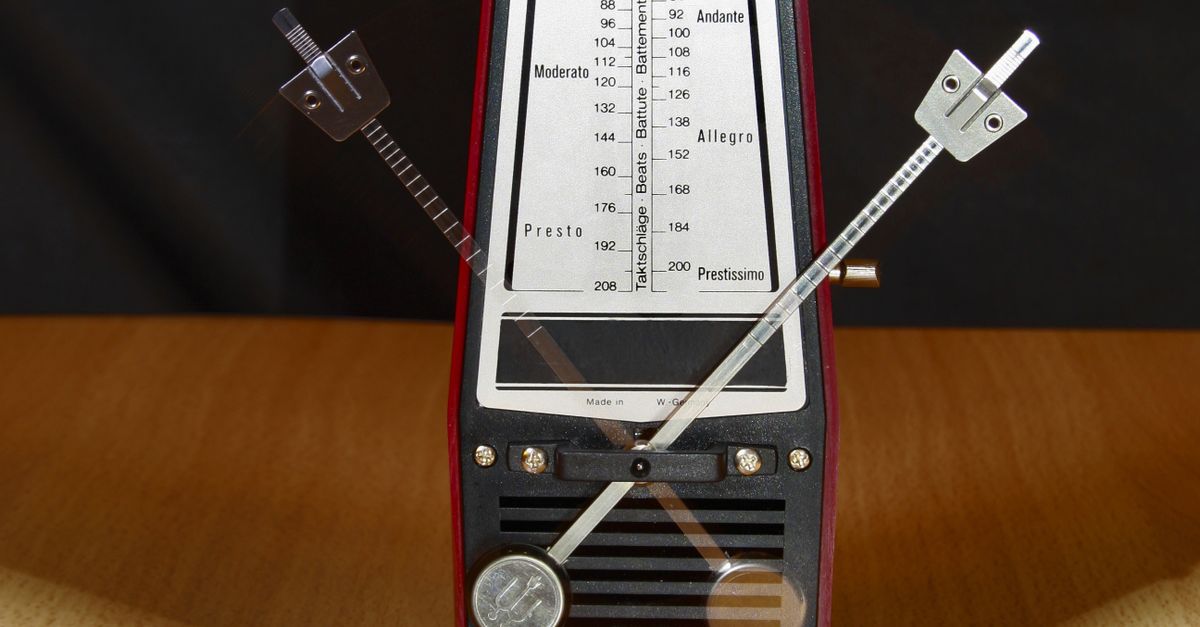
A metronome, in any form, is a device that marks time at a steady rate so a musician can play in tempo, count subdivisions, or check that a recorded take holds its pace. An online metronome performs that same job from inside a browser tab, using the Web Audio API to synthesize short clicks instead of relying on a mechanical pendulum, a downloaded sample, or an uploaded audio file. The whole processing chain lives on the local device: the tool parses two numbers you type, validates them against a fixed range, and creates a fresh audio context that schedules each pulse with a single oscillator and gain node per click.
Because every pulse is synthesized on the spot, an online metronome is fast to start, easy to share, and free of the licensing or storage concerns that come with sample-based tools. You are not uploading a backing track to a server, you are not asking for microphone permission, and you are not streaming a file across the network. The browser generates the sound, schedules the next callback, and lets you stop playback the moment you are done. That local-first design is also why the tool works the same way on a laptop, a desktop, or a phone, as long as the browser supports the Web Audio API.
Compared with a hardware metronome or a digital standalone unit, an online metronome trades a few capabilities for convenience. You will not find a sample-accurate clock, a MIDI output, or a tap-tempo analyzer inside a basic browser click track. What you get instead is a deterministic pulse derived from a mathematical definition: tempo in BPM maps directly to seconds per beat, and the tool schedules the next pulse from that interval. That predictability is the whole point, and it is what makes the concept easy to explain and the tool easy to trust for everyday practice.
The Math Behind the Click: From BPM to Seconds
Beats per minute is a rate, not a duration, so the click interval is the reciprocal. The definition is straightforward: the interval in seconds equals 60 divided by BPM. At 60 BPM, that gives a one-second interval; at 120 BPM, it gives a half-second interval; at 240 BPM, it gives a quarter-second interval. Because the formula is the definition of BPM itself, the timing does not depend on any internal clock the tool invents — the tool simply divides and schedules the next callback after that many seconds.
You can see the relationship across the full operating range of the Online Metronome in the table below. Each row shows a tempo in beats per minute and the corresponding click interval in moments, computed directly from 60 divided by BPM. The product supports any whole number from 30 to 240, so the rows cover the lower bound, the upper bound, and several useful values in between.
| Tempo (BPM) | Click interval (seconds) | Use case |
|---|---|---|
| 30 | 2.000 | Slow Largo, ballad practice |
| 60 | 1.000 | Adagio marking, count-in reference |
| 90 | 0.667 | Andante, walking pace |
| 120 | 0.500 | Moderato, common pop and rock tempo |
| 150 | 0.400 | Allegro, fast practice runs |
| 180 | 0.333 | Vivace, technical drills |
| 210 | 0.286 | Presto, advanced studies |
| 240 | 0.250 | Upper limit, fastest supported tempo |
The same idea is what lets you reason about tempo in conversation. If a piece is marked Allegro at 132 BPM, the click interval is 60 divided by 132, which works out to about 0.455 seconds per beat. The exact figure is not something you need to memorize; the relationship is the point. Once you know the interval, you know how long each beat lasts, and from there you can estimate any subdivision by simple division.
For a worked example, take 120 BPM. The formula is interval = 60 divided by BPM. Substituting the value gives 60 divided by 120, which equals 0.5. So at 120 BPM the tool schedules a click every 0.5 seconds. At the lower bound of 30 BPM, the same formula gives 60 divided by 30, which equals 2.0 seconds per click, the slowest pulse the tool will produce.
How to Use an Online Metronome in Three Steps
The control surface is intentionally small: two number fields, a Start button, and a Stop button. The tool parses your input strictly, validates it against the published limits, and starts playback only when both fields pass. If you want a deeper walk-through of the controls, the guide Metronome BPM: What It Means and How to Set It covers the tempo side in more detail. The steps below are the shortest path from a blank tab to a steady click.
- Enter a whole-number tempo from 30 through 240 in the BPM field. Use untrimmed whole numbers only — values with decimals, signs, exponent notation, units, or blank input fail rather than being rounded or capped.
- Choose a beats-per-measure value from 1 through 12, then select Start. The tool closes any older audio context, parses the two inputs, creates a new audio context, and schedules the first click on beat one at 1320 Hz.
- Listen for the higher first-beat accent on each measure, then select Stop when you finish practicing. Stop clears the timeout, closes the audio context, resets the visual beat counter, and returns the tool to a stopped state before you leave the page.
If you need to change tempo or beats per measure mid-session, edit either field. Editing stops playback first and then accepts the new value, which prevents the displayed tempo and the active timer from drifting apart. This guard exists so you never see one BPM on screen while hearing another tempo in your headphones.
The Accent Pattern: Why Beat One Sounds Higher
A measure is a counted group of beats, and the first beat is conventionally the strongest. The Online Metronome makes that audible by giving beat one a higher pitch: 1320 Hz on the downbeat and 880 Hz on every beat that follows. The contrast is large enough to hear through laptop speakers, headphones, or earbuds, and the tool schedules each click as its own oscillator with a short gain envelope that decays from 0.2 to 0.001 over 50 milliseconds before the oscillator stops at 60 milliseconds. That envelope prevents the clicks from stacking up as overlapping tails and keeps the pulse clean even at fast tempos.
The two frequencies are product cues, not claims about a concert pitch, a specific note name, or a standardized tuning system. The tool does not try to make beat one a concert A and beats two through twelve some other recognized pitch. It simply picks 1320 Hz and 880 Hz because that contrast reads clearly at low device volumes and through small speakers. If you want a more detailed look at the sound design, the article Online Metronome Accuracy: Timing in a Browser Tab covers the audio path in more depth.
The visual side mirrors the audio side. A wrap-safe integer counter advances through the chosen measure length, so a 4-beat measure counts 1, 2, 3, 4 and wraps back to 1 on the next click. The counter does not lead or trail the audio; it advances from the same scheduled callback, which keeps the on-screen beat and the audible click aligned as long as the browser is honoring its timers normally.
What a Browser Click Track Cannot Do
A browser-based metronome is a practical tool, not a studio instrument, and the boundaries are worth understanding before you rely on one for serious recording work. The tool is designed for ordinary practice and rough tempo reference, not for sample-accurate synchronization. The Web Audio API gives precise scheduling primitives, but the actual click you hear is gated by the same JavaScript timer that runs the rest of your tab, which means background throttling, power-saving modes, a busy main thread, Bluetooth audio latency, browser policies, and operating-system scheduling can each introduce small delays. On a quiet desktop with the tab in focus, the click is steady; on a phone with the tab in the background or with several apps competing for resources, the click can wobble.
For that reason, the tool does not promise DAW synchronization, MIDI clock output, tap-tempo analysis, latency calibration, subdivision patterns, swing feel, polyrhythm, or recording alignment. It is a single repeating click with a higher first beat and a wrap-safe counter. If you need any of those features, the tool will not pretend to provide them. Equally, the tool is not a hearing-protection device, a calibrated sound-pressure source, a medical instrument, or a guarantee that any specific BPM will remain sample-accurate under every browser condition.
There is also a strict validation policy that affects what you can enter. Tempo and beats per measure must be untrimmed whole decimal numbers. Signs, spaces, decimals, exponent notation, units, blank values, BPM below 30 or above 240, and measure lengths outside 1 through 12 fail rather than being rounded or capped. This is by design: silent rounding looks like it works and then quietly breaks the math, while a clean rejection tells you exactly what to fix. The same validation runs on every Start press, so you can trust that whatever tempo you see on screen is the tempo the tool is actually scheduling.
Putting the Online Metronome to Work
For everyday music practice, the right setup is simple. Pick a tempo that is slower than your target so you can play the passage cleanly, then raise the BPM in small steps as your accuracy holds. Start the metronome, listen for the higher first beat to confirm the measure boundary, and use the click as a steady reference for scales, rhythm exercises, sight-reading, or quick tempo checks on a recorded take. Begin with the device volume low, especially with headphones, so the click is loud enough to time to but not loud enough to mask the sound of your own playing.
Two notes about the audio context matter once you start practicing. First, the tool creates a fresh audio context on Start and closes any older context before doing so, which is why hitting Start twice does not double the playback: a synchronous playing guard disables duplicate starts while a click is already scheduled. Second, when you finish, always select Stop before navigating away. Stop clears the timeout, closes the context, resets the visual beat, and frees the audio thread. Closing the tab without stopping leaves the browser to clean up on its own, which is usually fine but is not the documented path.
If Web Audio is unavailable in your browser, or if the audio context is rejected at startup for any other reason, the tool surfaces an error message and does not leave a stale playing state behind. That means a failed start cannot trap you in a half-running session; the next Start press starts fresh. Combined with the strict input validation, the result is a small tool with predictable behavior: enter two numbers inside the documented range, press Start, listen for the accent, press Stop, and the browser does the rest.