An online metronome without an app is a browser-based click track you can start in any modern tab, with no download, installer, account, or microphone access required — just open the page, type a tempo between 30 and 240 BPM, choose 1–12 beats per measure, and select Start to hear a repeating click with a higher first-beat accent. Because everything runs through the Web Audio API on your own device, the sounds never travel to a server, no extension is added to your browser, and nothing is left running after you leave the tab or hit Stop. That makes the workflow a fit for any device that has a current browser: a Chromebook in a school music room, a Windows laptop at a rehearsal, a Mac in a home studio, or a phone in a pinch. The trade-off is also clear: a browser metronome gives you a reliable everyday pulse for scales, rhythm drills, and rough tempo reference, but it is not a sample-accurate studio clock and it doesn't promise DAW synchronization or MIDI output.
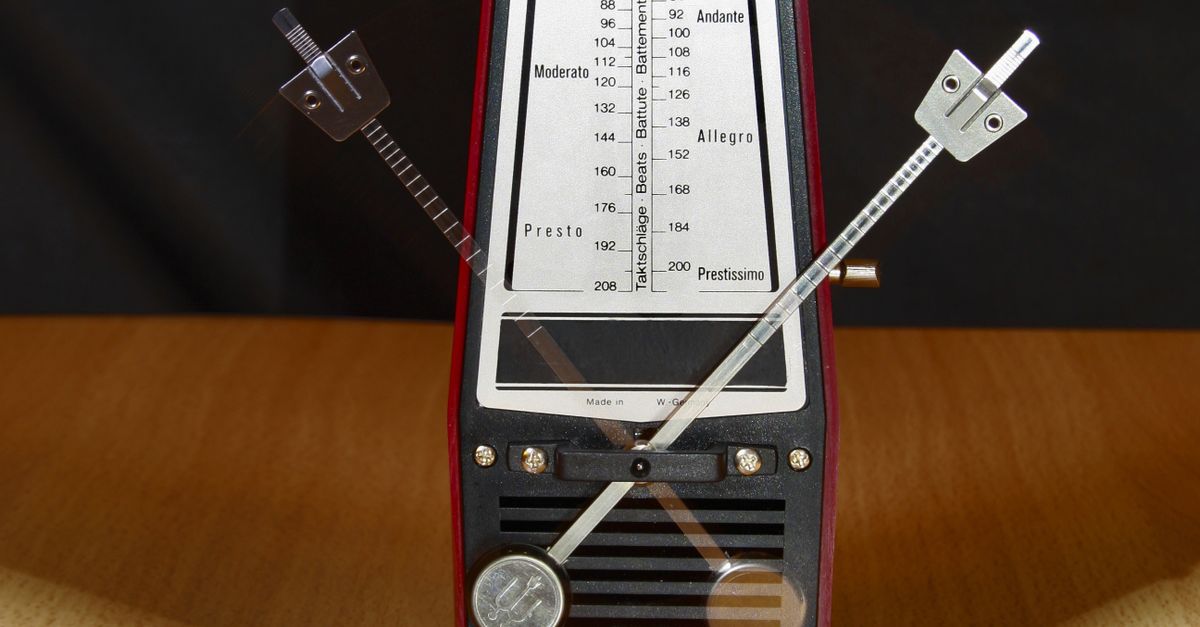
Why a Browser Metronome Works Without Installing Anything
The technical answer sits in one web standard: the Web Audio API, which lets JavaScript create short oscillator clicks directly in your current tab. When you open the Online Metronome page and select Start, the page spins up an AudioContext, generates a tiny sine-wave click for each beat, applies a quick gain envelope so the click doesn't pop, and schedules the next click from the tempo you typed. The browser hands the resulting audio to your operating system, which sends it to your speakers or headphones. No native app, sandboxed permission, or installation step sits between you and the sound — only the page itself, your browser's audio layer, and your device's output.
That architecture also explains why a "no app" metronome is genuinely zero-friction. The page never asks for microphone access, never uploads anything to a server, and never stores a profile. The audio context is created on demand, the oscillators are torn down a few milliseconds after each click, and stopping the metronome closes the context entirely so it leaves nothing scheduled behind. As long as your browser supports Web Audio — which covers Chrome, Edge, Firefox, Safari, and the mobile versions of all four — the metronome runs in the tab you already have open.
What "Without an App" Actually Gets You
Skipping the app step removes several points of friction. You don't have to clear app-store permissions, accept a privacy disclosure, grant microphone access, allow notifications, or wait through a multi-megabyte download. You don't add another icon to your home screen or worry about updates. You also avoid the most common app-store constraints: regional availability, age gates, family-share restrictions, and the paid-tier prompts that show up after a trial expires.
It also keeps the metronome portable across devices. The same click track runs in a Windows browser, a Mac browser, a Chromebook, a Linux laptop, an iPhone in Safari, and an Android phone in Chrome, because the page itself is the interface. That matters in classrooms, where students may bring any of those devices, and in rehearsal spaces, where you might borrow a friend's laptop for two minutes to check a tempo. The only platform-specific thing you need is a working browser and a working audio output.
How to Start the Click Track in Your Browser
- Open the Online Metronome page in any current browser.
- Type a whole-number tempo in the BPM field between 30 and 240 — for example 120.
- Choose a beats-per-measure value from 1 through 12 — for example 4 for common time.
- Select Start and listen for the first click, which plays at 1320 Hz; later clicks in the same measure play at 880 Hz so the downbeat is easy to hear.
- Keep the page open while you practice scales, rhythm drills, or sight-reading.
- Select Stop before you close or refresh the tab so the audio context closes cleanly.
That's the entire workflow. There is no save button, no login, no sync, and editing either the tempo or the beats-per-measure value while playing stops the click so the new value takes effect without drift.
Set the Tempo and Beats Per Measure
The metronome only accepts whole decimal numbers in both fields. You cannot type "120.5" or "4/4"; the page would fail to validate and the click would not start. The valid tempo range is 30 through 240 BPM, and the valid measure length is 1 through 12 beats. Anything outside those ranges — a sign, a decimal, an exponent, a unit suffix like "bpm", a blank field, or a value of 29 or 241 — is rejected rather than rounded or capped.
| Common Practice Tempos | BPM | Interval Between Clicks |
|---|---|---|
| Slow ballad | 60 | 1.00 second |
| Moderate ballad | 80 | 0.75 second |
| Walking pace | 100 | 0.60 second |
| Common pop/rock | 120 | 0.50 second |
| Up-tempo | 160 | 0.375 second |
| Fast practice | 200 | 0.30 second |
| Top of range | 240 | 0.25 second |
The interval is calculated directly from the SI definition of beats per minute: each interval in seconds is 60 divided by BPM. At 60 BPM the click lands once per second, at 120 BPM once every half second, and at 240 BPM four times per second. The on-screen beat counter wraps from the chosen measure length back to 1, so a 4-beat measure advances 1, 2, 3, 4, 1, 2, 3, 4 rather than running forever. For odd meters or unusual accents, the Online Metronome With Time Signature: Set Any Meter guide walks through meters above 12 and other accent patterns.
Inside the Click: Frequencies, Accent, and Timing
Every click is a short sine-wave oscillator paired with a gain node. The first beat of each measure uses a 1320 Hz tone, and every subsequent beat uses an 880 Hz tone, which produces the audible "tick — tick tick tick" pattern that signals where the measure begins. The 1320 Hz and 880 Hz frequencies are product choices for the click sound itself; they are not claims about a standardized concert pitch, a note name, a tuning system, or an ideal practice timbre. Each click's gain starts at a conservative 0.2 and decays exponentially to 0.001 over 50 milliseconds, then the oscillator stops after 60 milliseconds so old nodes don't pile up in memory.
That architecture is why the click feels crisp rather than buzzy. The exponential decay kills the click before it can ring into the next interval, the short oscillator lifetime keeps the audio graph light, and the conservative starting gain means you can raise your system volume without harshness. Two practical consequences follow. First, the loudness you actually hear is shaped by your device volume, your speaker or headphone level, your browser's audio gain, and your room — not by the tool itself. Second, starting the metronome at a low device volume and gradually raising it is the safe approach, especially with headphones.
The Web Audio specification is published by the W3C and the OscillatorNode interface is documented on MDN, so if you want to verify exactly how the click is generated you can read the W3C Web Audio API spec or the MDN OscillatorNode page directly.
Real Limits: When a Browser Click Track Is Not the Right Tool
A no-app metronome is excellent for ordinary practice and rough tempo reference, and it is not a substitute for a few specialized tools. It does not claim sample-accurate studio timing. Browser timers can be delayed by background tabs, power-saving modes, a busy main thread, Bluetooth latency, browser policies, and operating-system scheduling, so a click that looks like 120 BPM on the page may drift by a few milliseconds in practice. The metronome also does not offer tap-tempo analysis, latency calibration, subdivision patterns, swing, polyrhythm, MIDI clock output, or DAW synchronization, so if you need any of those, you need a different tool.
There are also input limits to respect. You cannot enter a tempo of 25 or 250 — both are rejected. You cannot enter 120.5 or 1.5 beats per measure — both are rejected. You cannot enter "120 bpm" with a unit — it is rejected. And editing either value while playing automatically stops the click rather than letting the timer run ahead, so the displayed tempo and the audible click never disagree. None of these limits make the metronome worse for everyday practice; they just define what it can and cannot promise.
The cleanup is also worth knowing. Stop closes the audio context, cancels the next scheduled click, resets the visual beat counter, and returns the tool to a stopped state. The same cleanup runs when you navigate away from the page, so leaving the tab does not leave a phantom click running. A second Start click while already playing is also blocked, so you cannot accidentally double up the audio. If Web Audio is unavailable, or the audio context fails to start, an error message appears and no stale "playing" state remains on the page.
Practical Practice Uses for a No-Install Metronome
A click track without an install step is useful in the kinds of situations where installing an app is impractical. You can keep the page bookmarked on a phone for a quick tempo check before a lesson. You can pull it up on a classroom computer that doesn't allow software installs. You can use it on a borrowed device for two minutes to verify a tricky passage before a rehearsal. You can also keep it on a second monitor while transcribing audio so a steady reference tick doesn't fight the playback.
The standard practice uses still apply. A slow 60 BPM setting is a starting point for new finger patterns. 80–100 BPM works well for sight-reading. 120 BPM is the everyday default for pop, rock, and most contemporary practice material. 160–200 BPM covers fast runs that need to begradually built up. You can switch from 4 beats per measure to 3 for waltz feel, to 6 for compound meter, and to 5 or 7 for odd-meter drills — anything from 1 through 12 is supported. Stop the metronome before you close the tab, and the audio context closes with it, leaving no background work for your browser to clean up later.
For a deeper look, see Does an Online Metronome Use a Mic or Upload Audio?.