An online metronome tap usually means a clicker that listens for finger taps and guesses the tempo. The Online Metronome takes a different path: you type a whole tempo from 30 through 240 BPM, choose one to twelve beats per measure, and hit Start. Each interval between clicks is 60 divided by BPM seconds, so 60 BPM gives a one-second pulse, 120 BPM gives a half-second pulse, and 240 BPM gives a quarter-second pulse. The first beat of every measure uses a higher 1320 Hz tone so the downbeat is easy to hear, while the rest of the beats use 880 Hz. Each oscillator is gated by a short gain envelope that begins at 0.2 and decays to 0.001 over fifty milliseconds, then stops after sixty milliseconds. Every click is created locally in your browser tab through the Web Audio API, so there is no microphone access, no recording, no upload, and no account. The tool is meant as a lightweight tempo reference for scales, rhythm drills, sight reading, and rough practice, not as a sample-accurate studio clock.
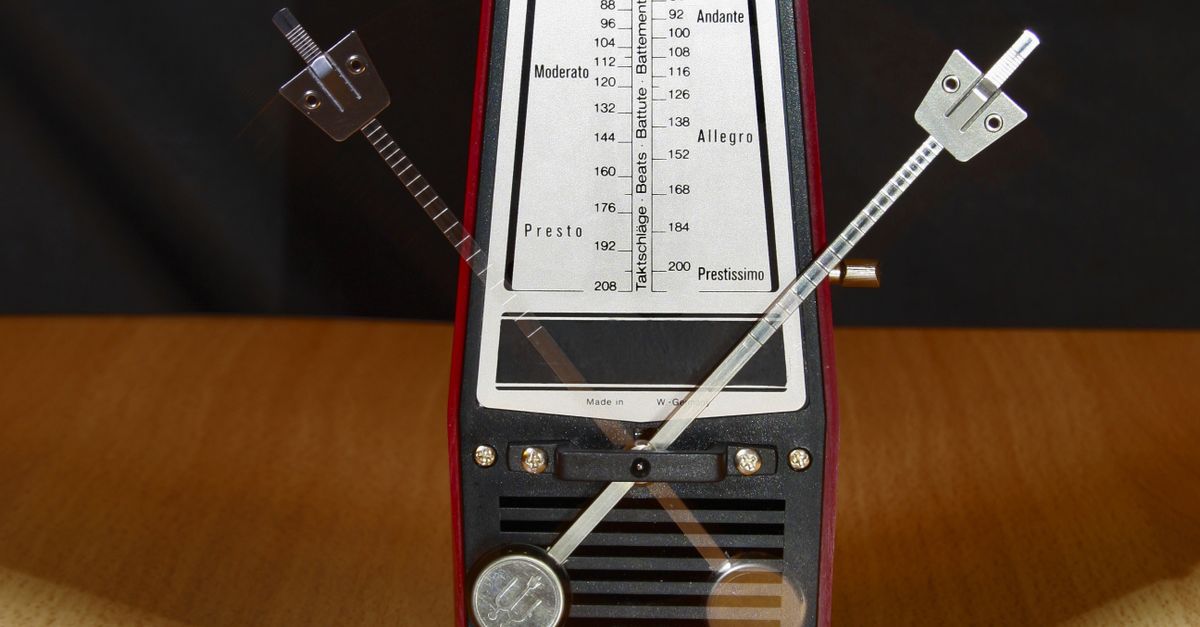
What "Tap" Usually Means on a Metronome Site
When you search for an online metronome tap, you usually want one of two things. The first is a metronome you can launch with a single finger press and stop with another. The second is a tap-tempo feature, where you tap a button in time and the tool averages your rhythm to estimate a BPM. Both patterns are common across practice apps and music software, and both can be useful for different reasons.
The Online Metronome covers the first idea but not the second. It is built around two number inputs and a Start button rather than microphone analysis or click-pattern averaging. That choice has a clear upside for practice. Once you enter a tempo, the tool commits to it and keeps it stable. You are not negotiating with a guess from finger timing or worrying about whether your taps were even or uneven. You are reading a number, hearing it back, and working against it. The trade-off is that you need to know the tempo you want, or at least be willing to estimate it, before you press Start.
For most readers searching "online metronome tap" who actually want a tempo they can trust for a half-hour of scales, direct entry is a closer fit than tap detection. The section below compares the two patterns feature by feature so you can pick the one that matches the moment.
How Direct Entry Compares to Tap Detection
The split between tap-style and direct-entry metronomes is not just a UI choice. It shapes what kind of session you can have. A tap-tempo metronome is essentially a measurement tool that turns rhythm into a number. A direct-entry metronome is a playback tool that turns a number into a steady pulse. The table below lines up the practical differences.
| Aspect | Tap-tempo pattern | Direct BPM entry (Online Metronome) |
|---|---|---|
| How tempo is set | User taps a button repeatedly | User types a whole BPM from 30 to 240 |
| Input tolerance | Depends on the evenness of the taps | Whole numbers only; non-integers and out-of-range values are rejected |
| First-beat accent | Often configurable or absent | Fixed 1320 Hz on beat one, 880 Hz elsewhere |
| Microphone or audio capture | Sometimes, for ambient detection | None; clicks are synthesized locally |
| Stability over a session | Locked to the captured average | Locked to the entered number |
| Edit behavior | Re-tap to change | Editing the value stops playback before the new value takes effect |
| Best for | Capturing an unfamiliar tempo you can already hear | Working at a known target tempo for a sustained drill |
The table shows the practical split. Tap detection is helpful when you have a song in your head and want a number to type in somewhere else, or when you want to chase a player on a recording. Direct entry is helpful when you already know the tempo you want, whether from a printed exercise, a piece marked 4 = 120, or a teacher's instruction, and you want the click to stay there without drift for the length of the drill.
Run a Practice Session
This section walks through a full session on the Online Metronome. The order matters, because editing a tempo or measure length while playing stops the current beat before the new value takes effect. That behavior keeps the displayed tempo and the active timer from drifting apart, which is the easiest way to lose track of where you are in a long scale routine.
- Open the Online Metronome in a current browser tab and lower your device volume, especially if you are using headphones.
- Type a whole tempo from 30 to 240 in the BPM field. Decimals, signs, spaces, units, and out-of-range values are rejected rather than rounded, so the field will not accept 119.5 or 250, and a blank value fails validation.
- Pick a beats-per-measure value from one to twelve. Use one for an unaccented pulse, four for common time, three for waltz feel, or six for compound feel.
- Select Start. The tool closes any older audio context, creates a new one, and schedules the first click immediately. A synchronous guard disables duplicate starts, so clicking twice does not stack two timers.
- Listen for the higher first-beat tone. Beat one is 1320 Hz, and later beats in the measure are 880 Hz, so the downbeat stands out without any extra setup.
- When you finish the drill, select Stop. Stop clears the timeout, closes the audio context, resets the visual counter, and returns the tool to a stopped state, so no clicks are left running after you close or move away from the tab.
If Web Audio is unavailable in your browser or startup is rejected, the tool shows an error and does not leave a stale "playing" state behind. If you only want a quick tempo check, the same steps work with a one-beat measure and the Start and Stop buttons alone.
What the Click Actually Sounds Like
The click is generated entirely inside the browser tab, so there is no audio file to download and no server round-trip. One short oscillator node per click and one gain envelope shape each beat. Beat one uses a 1320 Hz tone, and every other beat in the measure uses 880 Hz. The pitch difference is large enough that the downbeat cuts through without any additional accent, volume boost, or percussion sample.
The gain envelope is fixed. It begins at 0.2 and decays exponentially to 0.001 over fifty milliseconds, and the oscillator itself stops after sixty milliseconds. The short stop time keeps old nodes from piling up while the next tick is queued, which matters at higher tempos where many beats per second are firing.
The interval between scheduled clicks is the canonical BPM definition: sixty seconds divided by the tempo. Worked example for 90 BPM: 60 divided by 90 equals 0.6667 seconds, roughly two-thirds of a second per beat. The same formula gives 0.5 seconds at 120 BPM and 0.25 seconds at 240 BPM. The visual beat counter advances with a wrap-safe integer modulo, so a four-beat measure shows 1, 2, 3, 4, 1, 2, 3, 4 in step with the audio.
Two things are worth knowing about the frequencies. First, 1320 Hz and 880 Hz are product cues chosen for clarity, not claims about a concert pitch, a tuning system, or a reference note. Second, your device volume, speaker or headphone response, browser gain, and the room you are in will all shift how loud or harsh the click sounds, so begin with the volume low and raise it as needed. For more on how the underlying nodes work, the MDN reference for OscillatorNode and the Web Audio API specification describe the scheduling model in detail.
Browser Timing, Volume, and Background Tabs
The metronome is suitable for ordinary practice and tempo reference, but it is not a sample-accurate studio clock. The browser schedules the next tick using a JavaScript callback queued from the calculated interval, and several conditions can delay that callback in the real world:
- Background tabs may be throttled by the browser to save power, which stretches the gap between audible clicks.
- Power-saving modes on laptops and phones can stretch timers further when the device is on battery.
- A busy main thread, for example while a tab loads or a heavy script runs, can push a tick late.
- Bluetooth audio adds its own latency on top of the scheduling delay.
- Operating-system scheduling varies by platform and version, so the same browser behaves differently across machines.
If a tick sounds late or skips, the tool has not "lost tempo" in any lasting way; it has simply waited one extra browser cycle. For most practice scenarios that is fine, because the next tick still falls on the next intended interval from the callback. For DAW synchronization, MIDI clock, sample-accurate recording, or alignment with another software instrument, this metronome is not the right tool, because it does not attempt to do those jobs.
For a quiet setup, begin with the device volume low and a single click of test tone. Headphones at a moderate level are usually the most even way to hear the downbeat accent across a long session. If you cannot hear the first beat clearly in your room, switch from speakers to headphones or move closer to a single speaker before raising the volume.
Common Practice Uses and Honest Limits
Direct-BPM metronomes like this one are well suited to scales and warm-ups at a printed target tempo, sight reading at a deliberately slow tempo to internalize a rhythm before speeding up, rhythm drills where the downbeat matters, checking a rough tempo against a song or backing track you already have, and compound or asymmetric meters. The tool accepts any measure from one to twelve, so 5, 7, or 11 work the same way as 4 or 6.
The tool is not a hearing-protection device, calibrated sound-pressure source, or medical instrument. It is not a replacement for a sample-accurate studio clock or a DAW transport. It is not a tap-tempo analyzer, polyrhythm generator, swing engine, subdivision player, or recorder, because it never captures audio and never asks for the microphone.
If you have a beat in mind and want to capture it as a number before you start, tap it out on a table, count six seconds, and divide your tap count by six to estimate BPM. Type that estimate into the Online Metronome to lock it. If you already know the tempo and want the click to stay there for the next thirty minutes, this tool is exactly that simple. For a broader walkthrough of starting and stopping the tool inside a browser tab, the Online Metronome browser guide covers the same workflow in more detail.
If you're weighing options, Online Metronome: Browser Click Track at 30-240 BPM covers this in detail.