An online metronome on a laptop is a browser-based click track that runs entirely inside the current tab, generating audio locally through the Web Audio API with no download, account, or microphone access required. For laptop users the appeal is straightforward: any modern browser already on the machine can host a working metronome without installing a dedicated program. The Online Metronome tool accepts a whole-number tempo between 30 and 240 beats per minute and a measure length from one to twelve beats, then schedules repeating clicks through the page's audio context. Each interval is calculated as 60 divided by BPM in seconds, so a 120 BPM setting produces a click every half second. The first beat of every measure plays at 1320 Hz, while the remaining beats use 880 Hz, creating a higher accent that marks the downbeat. Stopping playback, editing either input, or leaving the page closes the audio context and cancels the next scheduled tick, so the metronome never leaves a stale pulse running in the background.
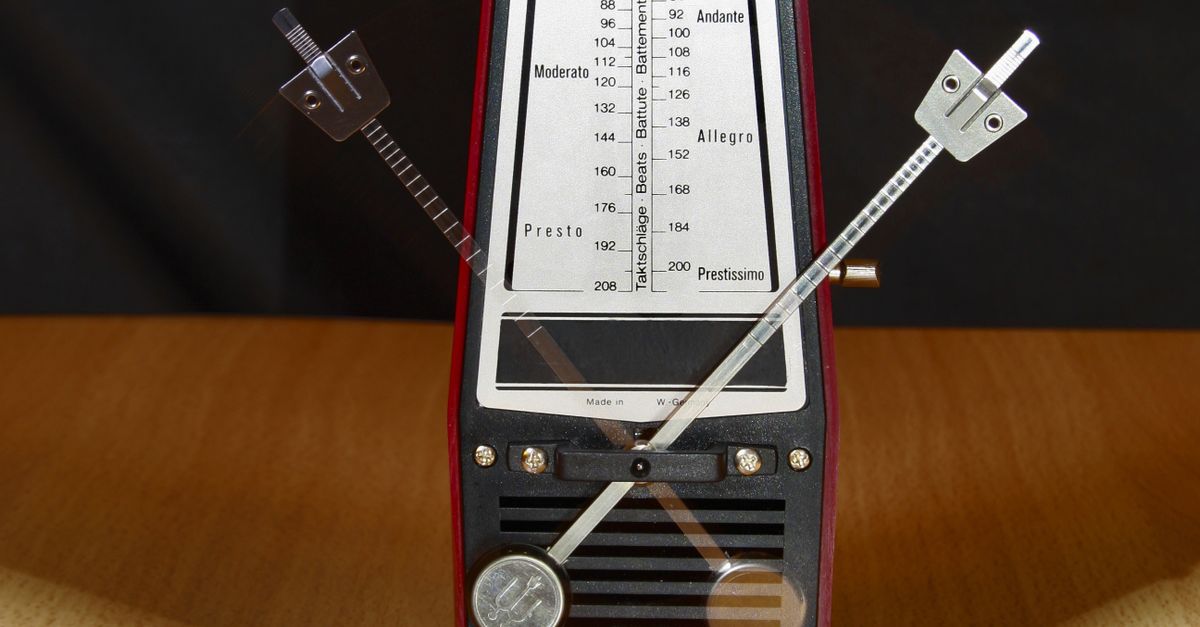
Why a Laptop Works Well as a Practice Metronome
A laptop is one of the most flexible devices you can use to run a metronome because it already combines the inputs and outputs that a practice session needs. The built-in keyboard lets you type a new BPM value directly into the tempo field instead of tapping or scrolling through presets, and the screen is large enough that you can read the measure counter and the entered values at a glance without leaning in. The headphone jack and Bluetooth support on most laptops mean the clicks can route to whatever you are wearing or to a pair of desktop speakers without buying extra adapters. The browser tab already loaded for sheet music, a DAW, or a video lesson can host a metronome in a second tab, so nothing needs to be installed and nothing needs to be signed up for. Because the tool runs locally in the page, the same metronome follows you between home and a practice room as long as the laptop carries the browser with it.
Set Up the Online Metronome on Your Laptop
A laptop browser gives you all the room you need to drive the tool from its two input fields and one button, so the actual setup takes only a moment. To get a working click track on a laptop browser, follow these steps in order:
- Open a laptop browser and navigate to the Online Metronome tool page.
- In the tempo field, type a whole number from 30 to 240 beats per minute. Decimals, spaces, signs, exponent notation, and unit suffixes cause the input to fail rather than be rounded, so enter the integer only.
- In the measure length field, type a whole number from 1 to 12 to set the beats per measure. Pick 4 for common time, 3 for waltz, or another value to match the exercise.
- Select Start. The browser builds a fresh audio context, schedules the first click immediately, and queues subsequent ticks at 60 divided by BPM seconds apart.
- Listen for the higher 1320 Hz click on beat one and the lower 880 Hz clicks on the remaining beats of each measure.
- Select Stop when you are done, close the tab, or edit either input. All three actions stop playback before a stale click can keep playing.
If you want a deeper walkthrough of practice techniques that pair with the tool, the guide on how to use a digital metronome for practice covers the same inputs from a practice angle.
BPM Range, Measure Length, and What They Mean
The Online Metronome accepts any whole-number tempo from 30 to 240 BPM, which covers slow practice scales, walking tempos, moderate pop songs, and brisk drills. The interval between clicks is calculated as 60 divided by BPM, expressed in moments. The table below shows how the interval changes across representative points in the supported range, with the same mathematical relationship that applies to every value in between:
| BPM | Click interval (seconds) | Practical feel |
|---|---|---|
| 30 | 2.000 | Very slow, largo |
| 60 | 1.000 | Grave to adagio |
| 90 | 0.667 | Andante, walking pace |
| 120 | 0.500 | Moderato, common pop |
| 150 | 0.400 | Allegro |
| 180 | 0.333 | Vivace |
| 210 | 0.286 | Presto |
| 240 | 0.250 | Prestissimo, drill tempo |
Slower tempos than 30 BPM are not supported, so very slow rubato exercises need a different approach, and tempos above 240 BPM are not supported either, so click tracks that fast require a different tool. The whole-number requirement is strict, so 119.5 or 120.0 will not be accepted; the tool either accepts the input as a clean integer or it fails the validation step.
The measure length field, also called beats per measure, sets how many ticks happen before the higher first-beat accent repeats. A value of 4 gives a standard four-beat measure with the accent on every fourth tick, while 3 gives a waltz feel with the accent on every third tick. Choosing 1 removes the lower-pitched variation entirely, because every tick becomes the first beat of a one-beat measure.
How the Browser Produces Each Click
When you select Start, the page creates a Web Audio AudioContext and schedules short oscillator nodes at each calculated interval. For every click the tool instantiates one oscillator and one gain node. The oscillator's frequency is set to 1320 Hz on beat one and 880 Hz on the remaining beats, which produces the accented first-beat sound. The gain node is initialized at 0.2 and decays exponentially to 0.001 over 50 milliseconds, shaping the click into a short percussive blip rather than a sustained tone. After 60 milliseconds the oscillator is stopped so old audio nodes do not accumulate and slow down the tab. A counter modulo the chosen measure length decides which frequency each new tick uses, and the same counter drives the visual beat indicator shown in the page.
Because everything happens inside the current browser tab, the metronome never sends audio to a server and never requests microphone access. The page also closes any older audio context before starting a new one, so selecting Start twice in a row does not double the click rate, and a synchronous playing guard disables duplicate starts altogether. The visual indicator and the actual click stay synchronized as long as you do not edit either input mid-playback; editing either value stops playback before the new value can take effect, which prevents the displayed tempo and the active timer from drifting apart. The individual oscillators are built from the standard OscillatorNode type documented in the Web Audio API specification.
Getting Clear Sound From Your Laptop
The clicks are short, but several factors affect how loud and how clean they actually sound on a laptop. The tool itself only controls the gain envelope from 0.2 down to 0.001 over 50 milliseconds; everything past that point depends on the device. Start with the laptop's master volume low, especially if you are using headphones, and raise it until the accent is clearly audible against any background noise. Bluetooth headphones add a small amount of latency, so a wired connection or the laptop's built-in speakers give the most direct sense of timing. Closing other heavy browser tabs and unplugging the laptop from a power-saving mode can reduce throttling on some machines, which keeps the click intervals more even during long practice blocks. The metronome is not a hearing-protection device or a calibrated sound-pressure source, so treat it as a useful practice pulse rather than a clinical instrument.
Timing Limits on a Laptop Browser
The metronome is suitable for ordinary practice and tempo reference, but it is not a sample-accurate studio clock. Browser timers can be delayed by background tabs, power-saving modes, busy main threads, Bluetooth latency, browser policies, and operating-system scheduling. On a laptop this usually shows up as occasional slight gaps between clicks during heavy multitasking, especially when the metronome tab is not the focused window. For most practice, scale studies, reading exercises, and rhythm drills the timing is more than steady enough. For DAW synchronization, MIDI clock work, latency calibration, tap-tempo analysis, subdivisions, swing, polyrhythm, or recording alignment, the metronome does not make those claims and a different tool is the right choice. If Web Audio is unavailable or the browser rejects the start request, an error message appears and the metronome does not leave a stale playing state behind, so a reload is enough to reset it. Readers who want more detail on this trade-off can read the breakdown of online metronome accuracy and timing in a browser tab.