An online metronome on iPhone is a click track that plays inside your iPhone's mobile browser — usually Safari — using the Web Audio API to generate short oscillator clicks locally, so you can keep time without installing an app, creating an account, or sharing audio with any server. The Online Metronome fits this description exactly: it accepts a whole-number tempo from 30 to 240 BPM and a measure length from one through twelve beats, then schedules browser-side clicks with a higher-pitched first beat so you can hear where each measure starts. Because every sound is created inside the current Safari tab and nothing is recorded or uploaded, you can open the page, press Start, and begin practicing within a few seconds of unlocking your iPhone.
For most iPhone users, the practical question is not "what is a metronome" but "can my phone do this without an extra download?" The answer is yes, and the rest of this guide explains how to set it up, what the controls do, and where to set realistic expectations about timing.
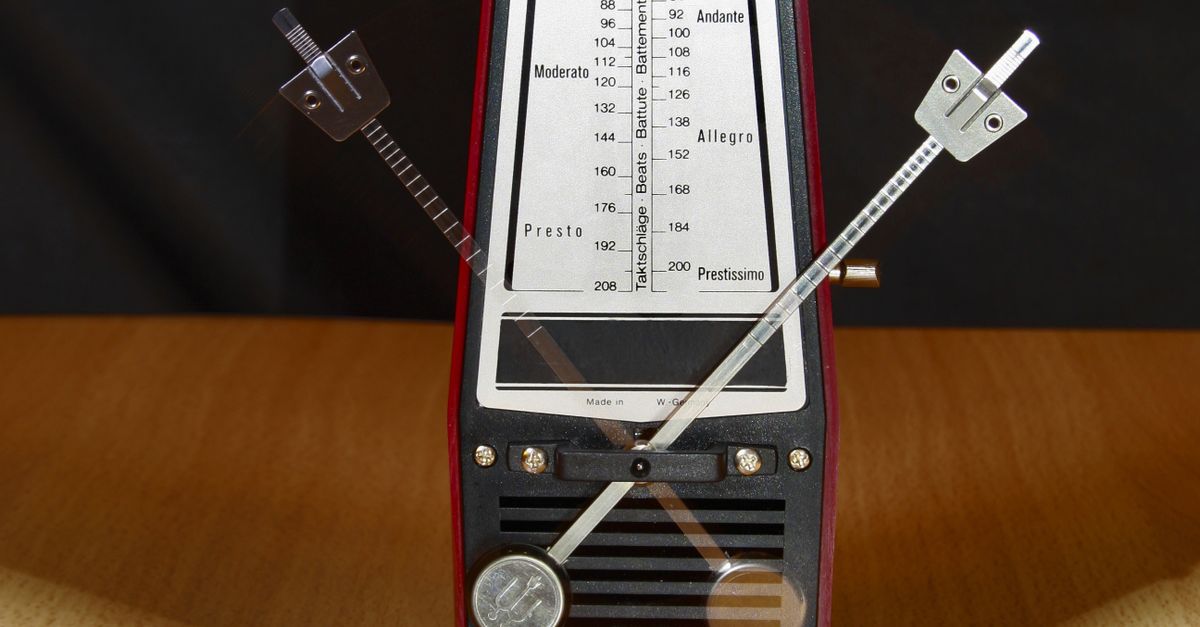
How an Online Metronome Runs in iPhone Safari
When you load the Online Metronome page on an iPhone, Safari asks the Web Audio API to create an audio context inside that tab. Each click is a tiny OscillatorNode paired with a GainNode, both created on demand and discarded after roughly 60 milliseconds, which keeps memory use small and prevents old nodes from accumulating during a long practice session. The browser schedules the next click using a JavaScript timer, with the delay calculated as 60 divided by the BPM you entered.
Three properties make this approach well suited to an iPhone:
- Nothing is installed. The page is just a URL, so you can bookmark it, add it to your Home Screen, or share it through Messages.
- The microphone is not used. The tool never asks for microphone access, never records, and never uploads audio, so there is no privacy surface beyond the page itself.
- No account is required. You do not sign up, sign in, or sync settings to a cloud profile.
The trade-off is that timing depends on the browser tab and the operating system. If you lock the screen, switch apps, or let iOS apply aggressive power saving, scheduled callbacks can be delayed and clicks can drift. Treat the click as a practice pulse, not as a DAW-grade clock.
Set Up the Online Metronome on Your iPhone
The iPhone setup is short, and the order matters because iOS routes audio differently depending on which output you pick. Use this sequence the first time you open the page.
- Open Safari and load the Online Metronome page. Any current iPhone Safari version that supports the Web Audio API will work; you do not need a special browser flag.
- Check the silent switch and volume. Flip the side switch on the left edge of the iPhone so the orange band is not visible, then raise the volume a few notches. If the ringer/silent toggle is set to silent, clicks played through the speaker will be muted even though Safari is allowed to play audio.
- Plug in headphones if you want a clean click. Lightning, USB-C, or Bluetooth headphones all work. Bluetooth adds a small amount of latency that can shift the click slightly relative to your playing, so wired headphones give the most stable timing.
- Enter a whole-number tempo between 30 and 240 BPM. Type the number directly; do not paste in decimals, spaces, or units, because the field rejects anything other than a whole decimal value.
- Choose one through twelve beats per measure. Use the input for measure length. Leaving it at four covers most pop, rock, and classical practice; switch to three for waltzes and to six or twelve for compound meters.
- Tap Start. The first click plays immediately. If you do not hear anything, raise the device volume, confirm the silent switch position, and try again.
From the second time onward, you can skip most of these and go straight to typing the tempo and tapping Start.
Start Playing and Adjust the Click
Once the tool is open on your iPhone, the routine is small enough to memorize.
- Enter a whole-number tempo between 30 and 240 BPM.
- Pick a measure length between one and twelve beats.
- Select Start and listen for the higher-pitched first click.
- Adjust the device volume until the click is clearly audible over your instrument or your foot taps.
- Edit either value to change tempo or meter; editing automatically stops the current playback so the new setting takes effect cleanly.
- Select Stop before navigating away or closing the tab so the audio context is released.
The tempo and measure inputs are validated strictly. Signs, spaces, decimals like 119.5, exponent notation, blank values, BPM below 30 or above 240, and measure lengths outside one through twelve fail rather than being rounded or capped, so you can trust that a successful Start really is the value you typed. If Web Audio is unavailable or startup is rejected for any reason, an error appears and no stale playing state remains, which means you can reload and try again instead of wondering whether anything is running.
Why Beat One Sounds Higher
The Online Metronome uses two different oscillator frequencies on purpose. Beat one of every measure plays at 1320 Hz, and every later beat plays at 880 Hz. The pitch difference is not a claim about a standardized concert pitch, a tuning system, or an ideal practice sound; it is a product cue that helps your ear locate the downbeat inside a stream of identical-looking clicks.
On an iPhone, this accent is even more useful than on a laptop because the built-in speaker is small and tends to compress low-frequency detail. The higher first-beat frequency cuts through the speaker's response curve more reliably than a deeper tone would.
| Click position | Frequency | What you hear |
|---|---|---|
| Beat 1 of the measure | 1320 Hz | Brighter downbeat that marks the start of each measure |
| Beats 2 through end of measure | 880 Hz | Lower steady pulses that mark the rest of the bar |
The audible loudness is shaped by a short gain envelope: gain starts at a conservative 0.2 and decays exponentially toward 0.001 over about 50 milliseconds, and the oscillator stops near 60 milliseconds. Your actual listening level depends on device volume, speaker size, headphones, and the room you are in, so treat the 0.2 starting value as a safety baseline rather than a target loudness.
Timing You Can Expect on an iPhone
The interval between clicks is calculated as 60 divided by the BPM. Worked through once for a common tempo: at 120 BPM the formula gives 60 divided by 120, which equals 0.5 seconds per click, so you hear two beats per second. The same formula scales cleanly to slower and faster settings: at 60 BPM the interval is one full second, and at 240 BPM it shrinks to 0.25 seconds.
Browser timers are not sample accurate, and iOS introduces a few specific sources of jitter that you should know about before relying on the click for tight ensemble work.
- Background tab throttling. When Safari is not the front app, iOS may postpone scheduled callbacks by tens of milliseconds, which the ear perceives as a slow click.
- Low Power Mode. Enabling Low Power Mode reduces CPU and timer resolution, which can lengthen intervals and add irregular gaps.
- Bluetooth latency. AirPods and other Bluetooth headphones introduce a small, fixed delay between the scheduled time and the audible click. Wired headphones do not.
- Busy main thread. Many open tabs, a heavy web app, or background downloads can starve the timer and push clicks off schedule.
For solo practice, scales, sight-reading, and rough tempo reference, this level of timing is plenty. If you need sample-accurate alignment with a DAW or a backing track, a hardware metronome or a dedicated MIDI clock is a better tool than any browser tab.
Practice Scenarios That Work Well on an iPhone
Different practice goals call for different tempo and meter combinations. The table below pairs common iPhone use cases with suggested settings you can dial in directly. Treat the BPM ranges as starting points; your own repertoire and teacher may push you higher or lower.
| Practice scenario | Suggested BPM range | Beats per measure | Why this fits an iPhone |
|---|---|---|---|
| Slow scales and long tones | 40 to 60 | 4 | Slow clicks give your ear time to track each note; the higher first beat anchors each new pitch. |
| Reading new rhythms at sight | 70 to 100 | 4 or 3 | Mid tempos let you read without feeling rushed while still hearing the meter clearly. |
| Pop and rock song practice | 100 to 140 | 4 | Common popular music tempos sit comfortably in the middle of the 30 to 240 BPM range. |
| Faster technical runs | 140 to 200 | 4 | Short intervals make the accent on beat one more useful for locking the start of each phrase. |
| Waltz feel | 90 to 180 | 3 | Three beats per measure highlight the strong-weak-weak feel characteristic of 3/4. |
| Compound meter feel | 60 to 120 | 6 | Six clicks per measure give a 6/8 compound feel without needing extra subdivision buttons. |
If you want a deeper walkthrough of three-beat practice on the same tool, see the guide to Online Metronome 3/4 waltz practice in your browser. For any scenario not covered here, change both numbers. The tool revalidates on every edit, and editing either field automatically stops the current playback so the new tempo and meter take effect from a clean start.
Things to Avoid When Using a Browser Metronome on iPhone
A few habits on iOS quietly undermine the click, and they are easy to fix once you know to look for them.
- Leaving Safari in the background. The metronome is not a background audio app. As soon as you switch to Messages or lock the screen, iOS may suspend the timer.
- Starting with the volume too high. The default gain envelope is conservative, but maxed-out iPhone volume through earbuds is loud. Begin low, especially with in-ear headphones.
- Pasting fractional tempos. A pasted value such as "119.5" is rejected, which can look like a bug. Type a whole number instead, or round deliberately before you paste.
- Expecting DAW-grade alignment. The tool is a practice pulse, not a synchronized clock. Treat small drift as expected, especially over Bluetooth.
Closing the tab or pressing Stop before you leave the page releases the audio context so the next session starts fresh. If Web Audio ever fails to start in a particular iOS configuration, the tool surfaces an error message rather than leaving you staring at a stopped counter, so you can reload and try again instead of wondering whether anything is playing.
For a closer look at the Web Audio building blocks behind the click, the MDN reference for OscillatorNode describes the same primitives that drive this kind of metronome. The W3C Web Audio API specification is the authoritative source if you want to understand the scheduler semantics in detail.
For a deeper look, see Online Metronome on Laptop: Type a Tempo, Hear Clicks.