An online metronome alternative that runs entirely in your browser produces a click every 60 over BPM seconds, where BPM is a whole number from 30 to 240 that the user sets directly on the page. The interval formula means 60 BPM yields one click per second, 120 BPM yields one click every 0.5 seconds, and 240 BPM yields one click every 0.25 seconds. The accent on beat one sits at 1320 Hz, while every other beat uses 880 Hz, so the start of each measure is audible even without watching the visual counter. Because the audio is generated locally with the Web Audio API in the current tab, no microphone permission is requested, no audio file is uploaded, and no account or sign-up is required. The reader also chooses a beats-per-measure value from 1 through 12, which sets the accent cycle and the visual counter that wraps through the chosen meter without skipping or repeating.
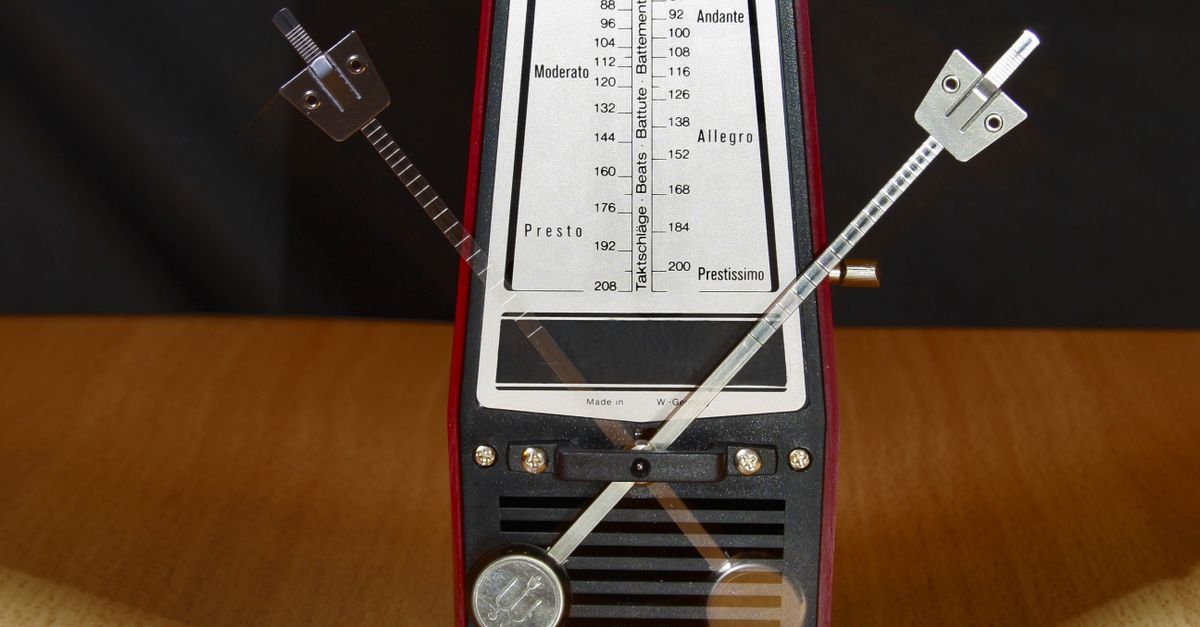
What to Look for in an Online Metronome Alternative
When someone searches for an online metronome alternative, they usually want a tool that fixes one or more pain points from whatever they had been using. The most common frustrations are ads interrupting practice, mandatory sign-ups, audio that depends on a slow server, or a missing first-beat accent that makes downbeats hard to find. A practical alternative should cover a few specific criteria: it must run in the current browser tab without an install, set a wide tempo range, group beats into a measure that matches the music being rehearsed, and stop cleanly when practice ends. Privacy matters too, because readers who want a no-upload alternative expect audio to be produced locally rather than sent through a remote service.
A second batch of criteria separates a polished alternative from a casual click generator. Strict input validation matters because rounded values cause audible drift between the displayed tempo and the actual beat. A clean stop control matters because leaving an audio context running in the background burns CPU and can keep clicks playing after the tab is closed. A visible beat counter helps when practicing away from the screen, because the user can glance back and confirm the measure position at a glance.
How a Browser Click Track Works Without Uploading
The online metronome generates every click in the current tab using the Web Audio API, which is the browser's built-in engine for synthesizing sound in real time. Each scheduled tick creates one short oscillator node with a short gain envelope. The gain starts at a conservative 0.2 and decays exponentially to 0.001 over 50 milliseconds, after which the oscillator stops at 60 milliseconds so old nodes do not accumulate. This produces a sharp percussive sound without needing any audio file, sample, or microphone input.
The frequencies used for the click are 1320 Hz on beat one and 880 Hz on every other beat. These are product cues chosen to make the measure boundary easy to hear, not a claim about concert pitch, a specific tuning system, or any standardized note name. The contrast between the higher first-beat accent and the lower downbeats is what gives the listener a clear sense of "one" without needing to watch the visual counter. Anyone curious about the underlying building block can read the W3C Web Audio API specification or the MDN OscillatorNode reference for the engine that powers the click.
Set Up the Click Track in Three Steps
For readers who want to start a practice session immediately, the steps below show the exact sequence to get a clean click running in the browser.
- Enter a whole tempo between 30 and 240 BPM. The input accepts only whole numbers, so type the value directly without commas, decimals, or unit suffixes. For example, type 90 for a moderate practice tempo or 180 for a fast passage.
- Choose a beats-per-measure value from 1 through 12 and select Start. Common meters are 4 for common time, 3 for a waltz feel, and 6 for compound meter. The Start control closes any older audio context before opening a new one, so selecting it twice will not stack sounds on top of each other.
- Listen for the higher first-beat click, then select Stop before navigating away from the page. Stop clears the scheduled timeout, closes the audio context, and resets the visual beat counter to its starting position.
Editing either the tempo or the beats-per-measure value stops playback before the new value takes effect, which prevents the displayed tempo from drifting away from the audible timer. Playback stays stopped until Start is pressed again, so the listener must restart the tool to hear the new interval take effect.
Hear the Accent and Track the Measure
The accent is the single most useful audio feature in a browser metronome, and it is easy to miss on a first listen. Beat one produces a 1320 Hz tone, which is noticeably brighter and slightly higher than the 880 Hz tone used on every subsequent beat. That contrast is what lets a player feel the start of a measure even when attention is on the instrument rather than the screen. For pieces in 4 the pattern is HIGH-low-low-low, for 3 it is HIGH-low-low, and for 6 it is HIGH-low-low-low-low-low.
The visual counter wraps through the chosen measure using a wrap-safe integer count, so on a 4-beat measure the counter cycles 1-2-3-4-1-2-3-4 without skipping or repeating. The first position always aligns with the higher accent, which means the counter and the sound tell the same story even if one is missed. For readers who want a deeper walkthrough of how those frequencies and the accent interact, the guide on the online metronome with sound, accent, and click covers the audible design in more detail.
Tempo Range and Interval Reference
Because the click interval comes from the formula 60 divided by BPM, every tempo choice corresponds to a fixed time between clicks. The table below lists whole BPM values from the lower bound to the upper bound along with the resulting interval in seconds, which is useful for planning exercises that target a specific pulse rate.
| BPM | Click interval (seconds) | Practical use |
|---|---|---|
| 30 | 2.000 | Very slow sight reading, long tone warmups |
| 60 | 1.000 | One second per beat, useful as a reference pulse |
| 90 | 0.667 | Moderate practice tempo for most exercises |
| 120 | 0.500 | Allegro range, common fast practice tempo |
| 180 | 0.333 | Very fast passages, finger pattern drills |
| 240 | 0.250 | Upper limit, used for endurance sprints |
These figures come directly from 60 divided by BPM. For any tempo not listed, the same formula gives the interval. Tempo values below 30 or above 240 are not accepted, and fractional or non-numeric entries are not rounded — they fail validation, which keeps the displayed tempo and the actual beat aligned.
Timing Limits You Should Know About
A browser-based click track is suitable for ordinary practice and tempo reference, but it is not a sample-accurate studio clock. The next click is scheduled by a JavaScript timeout computed from the validated interval, so the actual audible moment can drift when the browser is busy, when the tab is in the background, when power-saving modes are active, when Bluetooth speakers add latency, or when the operating system delays a callback. None of these conditions are corrected in real time because the tool does not include latency calibration, MIDI clock output, or DAW synchronization.
The honest expectation is that a reader using headphones plugged into the computer, with the page in the foreground, will hear clicks close enough to the intended BPM for scales, rhythm exercises, sight reading, and tempo reference. Listeners using wireless speakers in another room or working in a backgrounded tab should treat the metronome as a rough pulse rather than a precision reference. For readers who want a longer discussion of how browser timing affects accuracy, the guide on online metronome accuracy in a browser tab walks through the conditions that can delay a click.
Practice Uses for a Browser Click Track
The lightest and most useful role for this kind of metronome is as a quick pulse source during everyday practice. Scales and arpeggios land on a click without any setup beyond entering the tempo. Rhythm exercises and reading drills benefit from the accent, because the higher first-beat tone gives a clear downbeat for entries. Slow-tempo sight reading at 60 to 80 BPM is a common use, since the one-beat-per-second pace leaves room for a player to sound each note without rushing. Fast tempos near the upper bound work well for finger pattern drills and endurance sprints where the goal is to keep a steady pulse rather than to perfect phrasing. The metronome is not a recording device and it does not analyze performance, but it does the one job that practice depends on: it provides a steady, audible, repeatable beat on demand.