A virtual drum kit is a browser-based step sequencer that synthesizes kick, snare, and hi-hat sounds on demand, arranged across a fixed 16-step grid so each beat can be toggled on or off and looped continuously at a tempo you choose. The full workflow takes three actions: pick a tempo between 40 and 240 BPM, click cells on the grid to build a pattern, then press play to hear the beat repeat. Everything runs locally in your browser, so no audio files are uploaded, no account is required, and you can clear the grid and start a new beat whenever you want.
Step sequencers like this have been the backbone of electronic and hip-hop production for decades. Classic drum machines such as the Roland TR-808 and TR-909 used the same idea: a small set of drum voices, a grid of steps, and a tempo dial that drives the whole loop. Modern browser versions keep that workflow intact but replace analog circuitry with web audio synthesis, which means you can sketch a beat on any laptop or tablet that has a current browser. If you have ever wondered how producers build grooves without a full recording studio, the answer usually starts right here, on a simple grid.
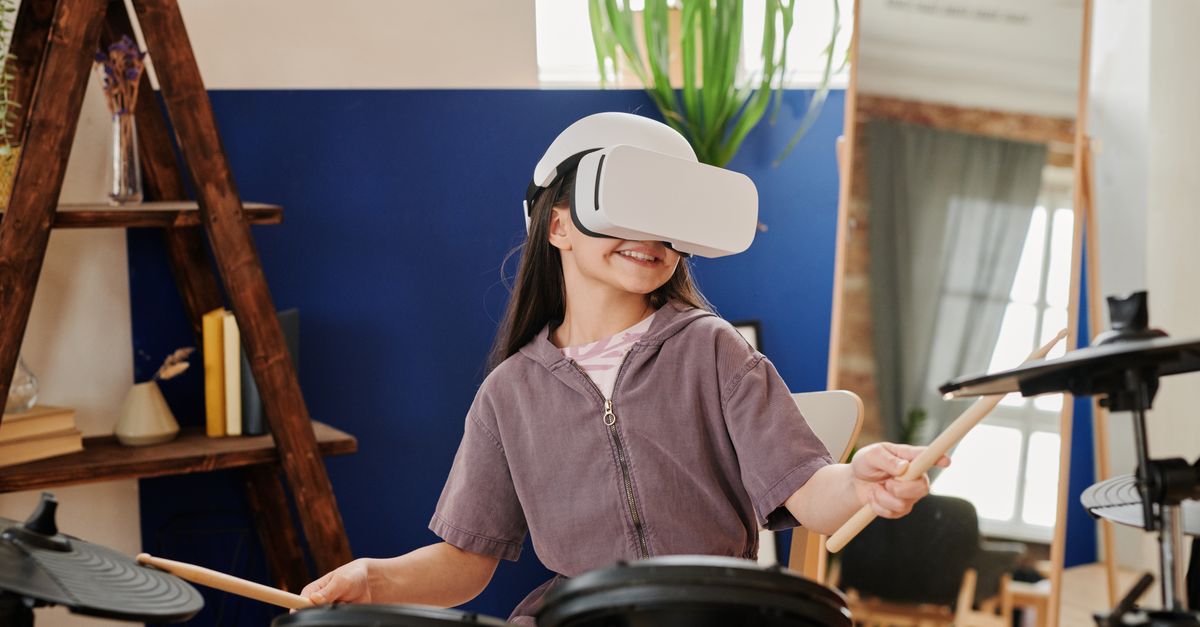
What a Virtual Drum Kit Actually Does
At its core, a virtual drum kit has three jobs. First, it generates three drum voices, kick, snare, and hi-hat, using short synthesized tones rather than recorded samples. Second, it arranges those voices across a 16-step grid so you can switch each beat on or off with a single click. Third, it loops the active steps at a steady tempo so you can hear how your pattern sounds in motion.
The grid is split into three rows, one per drum voice, with sixteen columns representing sixteenth notes inside a single bar of 4/4 time. Each column is one sixteenth note, so four columns equal one quarter note, and all sixteen columns add up to one full bar. Turning a cell on schedules that drum to fire on that step; turning it off silences it for the loop. This is the same pattern format used by hardware drum machines, software plugins, and many digital audio workstations, so a beat you build in the browser translates directly to other tools later on.
Because every sound is synthesized inside the page, the kit works even when you are offline, leaves no audio data on a server, and starts almost instantly. That makes it well suited to sketching ideas, teaching rhythm concepts, or just playing around without committing to an install.
Choosing the Right Tempo
Tempo is the first decision you make, and it shapes everything that comes after. The kit accepts a whole-number BPM value between 40 and 240, where BPM stands for beats per minute and BPM is interpreted as quarter notes per minute. A quick reference for common musical feels:
| Tempo (BPM) | Quarter-note speed | Typical feel |
|---|---|---|
| 40–60 | about one beat every 1.0–1.5 seconds | slow ballads, hip-hop grooves |
| 80–100 | slightly slower than a resting heart rate | downtempo, R&B, reggae |
| 110–130 | close to two beats per second | house, pop, disco |
| 140–180 | around two and a half beats per second | techno, drum and bass, punk |
| 200–240 | three to four beats per second | fast hardcore, speed metal |
Start at a tempo that matches the song you imagine. If you are not sure, 120 BPM, two quarter notes per second, is a safe default for most pop and rock patterns because it divides cleanly into the 16-step grid.
Building a Beat Step by Step
Now to the hands-on part. Open the Online Drum Machine in any modern browser and follow the same workflow a hardware sequencer would use.
- Set the tempo. Type a whole-number BPM between 40 and 240 into the tempo field. Remember that BPM equals quarter notes per minute, so 120 BPM gives you one kick on every quarter at a comfortable walking pace.
- Sketch a kick pattern. Click cells on the kick row first. A classic four-on-the-floor house kick uses columns 1, 5, 9, and 13. A hip-hop or rock kick often sits on 1, 5, 11, and 13 instead.
- Place the snare. Click cells on the snare row, usually on the backbeat at columns 5 and 13 so the snare reinforces beats 2 and 4 inside the bar.
- Add hi-hat motion. Click cells on the hi-hat row to fill in the remaining rhythm. Eighth-note hats cover every other column; sixteenth notes cover every column and pair naturally with the 16-step grid.
- Press Play. The pattern loops from column 1 to column 16 and repeats until you stop it. Listen for places where steps feel crowded or empty.
- Adjust on the fly. Click any lit cell to turn it off, or click any empty cell to add a hit. The loop keeps running, so you hear each change as it happens.
- Stop and reset. Press Stop to silence the audio immediately, or use the Clear pattern button to turn every step off and wipe the grid clean.
Work in layers rather than all at once. Land the kick and snare first, loop them, and only then start layering hi-hats on top. Mixing voices in stages makes it much easier to hear what each row is contributing.
Pattern Starters You Can Try Right Away
Three short recipes get you going while you build intuition for how the rows interact.
Four-on-the-floor
Turn on kick cells at 1, 5, 9, and 13. Turn on snare at 5 and 13. Add closed hi-hat on every odd column, so 1, 3, 5, 7, 9, 11, 13, and 15. Set tempo between 120 and 128 BPM. This is the basic house and techno template and a good sanity check that your tempo field is responding correctly.
Boom-bap hip-hop
Turn on kick at 1, 7, and 11. Turn on snare at 5 and 13. Add a long hi-hat roll on every even column, then experiment with muting a few hats to create swing. Tempo around 88 to 95 BPM gives a head-nodding groove that lines up with classic 1990s East Coast production.
Driving rock beat
Kick on 1 and 9, snare on 5 and 13, and open or closed hi-hat on every column. Raise the tempo toward 130 to 150 BPM. This is a quick way to feel how hi-hats glue the backbeat to the kick, and it shows why the closed hi-hat is treated as a timekeeper on top of the kick and snare.
Tips for Getting Better Sounding Beats
Once you can build a clean pattern, small refinements make a big difference.
- Leave breathing room. Not every step needs a hit. Empty cells are part of the groove, especially between the snare on beat 2 and the kick on beat 3.
- Vary the hi-hat density. Constant sixteenth-note hats can feel mechanical. Try switching to eighth notes for two bars, then back to sixteenths.
- Trust your ear over theory. If a kick placement feels wrong for the song you hear in your head, move it. The grid is a starting point, not a rule.
- Use Clear as a feature. When you reach a dead end, click Clear pattern and rebuild from a single kick on column 1. You will often find a stronger beat the second time around.
- Pair the kit with other tools. Once a beat feels finished, you can move it into a full project. For a quick tempo reference while you practice real drums, the Online Metronome plays an accented click from 30 to 240 BPM with a stop control so you can match the drum-machine tempo exactly.
Quick Answers
Even a simple sequencer prompts a few common questions, especially the first time you open one in a browser.
Do I need to install anything?
No installation is required. The kit runs as a web page and synthesizes its sounds in JavaScript, so any modern desktop or mobile browser with Web Audio support can play it.
Can I change the tempo while the pattern plays?
Yes. Update the BPM field and the next loop iteration picks up the new value. This is handy for testing the same groove at different speeds before you commit to a final tempo.
How is BPM related to the 16-step grid?
BPM counts quarter notes per minute, while the grid counts sixteenth notes per bar. There are four sixteenth notes for every quarter note, so the kit fires four grid steps per quarter beat, sixteen grid steps per bar, and the bar repeats as long as play is running.
What does Clear pattern actually do?
The Clear pattern control turns every cell off across all three rows in a single action. It does not change the tempo or stop playback, so the next loop simply has nothing to trigger until you click new cells.
Can I save my beat?
The browser version is designed for quick sketching rather than project management. Once you have a pattern you like, write down the active cells as a list of step numbers, or pair the kit with a guide on tuning audio in your browser when you start layering recorded instruments alongside the beat.
Related reading: How to Use a Digital Metronome for Practice.
Related reading: How to Generate White Noise in Your Browser.
Related reading: Create Custom Beats Instantly with an Online Beat Maker.