You need a volume changer when the audio file itself must have its sample amplitudes multiplied by a chosen linear gain, and the Volume Changer supports 0% through 400%. Use it when you need a downloadable copy with quieter or louder samples, want to mute a file while preserving its decoded duration, sample rate, and channel count, or need to test how much gain a clip can tolerate before producing a new WAV. Do not choose it when a device or app volume slider would do: that changes playback level rather than the stored samples. The tool also cannot repair distortion already clipped into a source, normalize loudness to a measured target, master a track, apply a limiter, or guarantee broadcast compliance. The deciding question is whether the file must change, not merely how the file sounds during playback. With the Volume Changer, gain is applied to decoded channel samples entirely in the current browser tab. At 100%, samples retain their decoded amplitude; lower settings attenuate them, and higher settings amplify them. Values beyond digital full scale are clipped and counted, so choose a conservative setting, listen to the complete result, inspect its peak and clipped-sample count, and download only when the full output is acceptable.
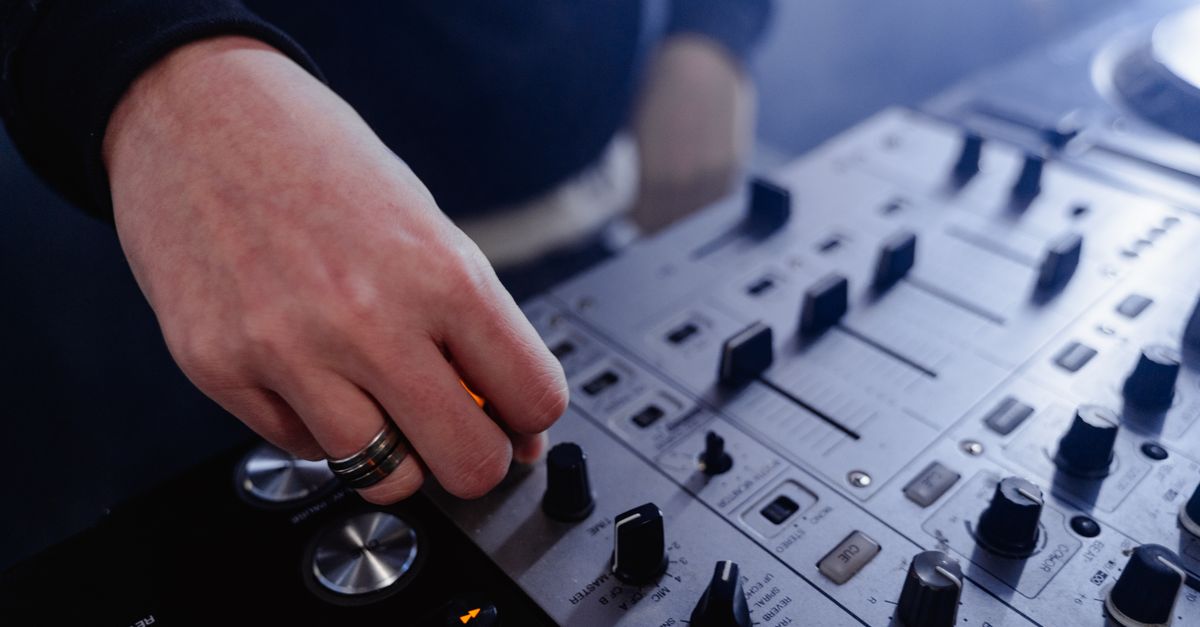
Choose between a playback adjustment and a file edit
A playback control is the better choice when the goal is temporary: hear a recording more quietly during review, turn up a video without creating a new audio asset, or adjust output through speakers and headphones. A volume changer is the better choice when another person, system, or workflow must receive a changed audio file. That distinction matters because the operation writes new samples into a new WAV rather than changing the original file.
| Goal | Decision | Reason |
|---|---|---|
| Make a quieter downloadable copy | Use it | A linear gain below 100% reduces decoded sample amplitudes. |
| Make a louder downloadable copy | Use it, then check clipping | A gain above 100% can exceed digital full scale. |
| Mute a file but retain its structure | Use 0% | The output is silence with decoded duration, sample rate, and channel count preserved. |
| Hear more volume only during this session | Usually skip it | Playback volume is simpler and does not create a new file. |
| Restore clipped detail or meet a mastering target | Skip it | Gain cannot recover lost detail and is not normalization, mastering, limiting, or compliance processing. |
Before deciding to amplify, establish what is wrong. If dialogue is quiet but clean, a modest gain may be appropriate. If the source is already distorted, more gain may expose that distortion rather than repair it. If the goal is consistent perceived loudness across several recordings, use a measured workflow with a target the Volume Changer does not calculate. Start with 100% as the neutral reference, then make one deliberate change and compare the full result.
Check whether the source can be processed
The source must be a browser-decodable MP3, WAV, M4A, AAC, Ogg, WebM, or FLAC file. “Browser-decodable” is the important qualifier: support depends on the browser, operating system, and codec build, so a filename extension is not proof that the file can be opened. The Web Audio API's decodeAudioData operation decodes an encoded file into channel samples before gain is applied.
- Input file: No larger than 50 MiB.
- Decoded duration: No more than five minutes.
- Channel count: No more than eight channels.
- Total decoded channel samples: No more than 30 million.
These limits apply after decoding as well as at upload, so a compressed file can fail because it expands substantially in memory even if its selected file size is below 50 MiB. If decoding fails, the tool stops with an error instead of creating an empty or partial output. Check that the filename appears after selection, then address any error before changing the percentage.
Change the volume and export the result
- Choose a supported audio file no larger than 50 MiB, and wait until its filename appears in the tool.
- Set the linear output volume from 0% through 400%, then select Change volume.
- Preview the generated WAV, inspect its peak and clipped-sample count, listen to the complete result, and download only after the output passes your check.
All stages—decoding, gain, WAV encoding, preview, and download—occur in the current browser tab. The source is not uploaded, queued, analyzed by an external service, or retained by Lizely. Changing the selected file or percentage invalidates the previous result and revokes its temporary download URL, so save the result you want before making another change. The generated download is also temporary: it disappears when the tab closes or another operation replaces it.
Use 100% as a baseline when evaluating the source. For a safe boost, choose only a small step above it, preview through suitable headphones or speakers, and reduce the percentage if the result becomes harsh or distorted. If the objective is silence, select 0%; the tool writes silence while preserving decoded duration, sample rate, and channel count.
Interpret gain, peak, and clipped samples
The setting is a direct linear amplitude multiplier, not a decibel control. The percentage is divided by 100 to obtain the multiplier, and the browser multiplies each finite decoded sample before encoding the output. The following values are defined by the tool:
| Selected setting | Sample multiplier | Effect |
|---|---|---|
| 0% | 0 | Writes silence while retaining decoded duration, sample rate, and channel count. |
| 50% | 0.5 | Multiplies every sample by one-half of its decoded amplitude. |
| 100% | 1 | Retains the decoded sample amplitude. |
| 200% | 2 | Doubles sample amplitude and may cause clipping. |
| 400% | 4 | Applies the strongest available boost and may cause clipping. |
At 200%, the linear amplitude increase is approximately 6.02 dB before clipping, not 200 dB. A higher percentage can push samples above +1 or below -1, at which point the tool clamps them to digital full scale. Its clipped-sample count records the crossings, and its peak is reported after clipping. A nonzero count is evidence that the gain may have introduced audible distortion; zero clipped samples does not guarantee ideal perceived loudness or remove distortion already present in the source. The companion guide Volume Changer Test Online: Inspect Peak and Clipping provides a closer look at those indicators.
Linear gain is not loudness normalization, mastering, limiting, compression, noise reduction, or broadcast-compliance processing. The tool does not calculate LUFS, true peak, replay gain, or platform targets, and perceived loudness also depends on frequency balance, duration, dynamics, speakers, and listening conditions. For professional delivery, use a measured audio workflow and monitor the exported file instead of assuming that a higher percentage solves a mix-level problem.
Review what the WAV export changes
Every successful export is the complete result as a 16-bit PCM WAV file, even when the source was compressed. The file uses a RIFF container, little-endian integer fields, format code 1 for uncompressed PCM, the original decoded sample rate and channel count, and interleaved channel samples. These fields correspond to the documented WAVEFORMATEX structure. WAV is broadly inspectable and avoids adding another lossy codec dependency, but it is usually much larger than MP3, AAC, or Ogg. The downloaded filename ends in -volume-adjusted.wav.
The export is not a metadata-preserving version of the source. It does not carry over source tags, album art, chapters, loop points, cue markers, encoder metadata, or the original compression settings. Keep the source file, because the gain operation cannot restore information already clipped and repeated PCM conversions can complicate version control. Before replacing a production asset, verify the downloaded duration and channel count.
Use a final go-or-no-go checklist
Proceed when all of the relevant conditions are true:
- The required outcome is a changed audio file, not temporary playback volume.
- The input is within the file and decoded-audio limits and can be decoded by the browser.
- Your chosen percentage matches the objective: attenuation, 0% silence, or a cautious boost.
- You have listened to the entire preview, not only its opening.
- The peak and clipped-sample report do not reveal a problem you are willing to accept.
- You have saved the WAV and verified its duration and channels.
If any item fails, stop and revise the plan rather than downloading by reflex. Lowering the gain may remove gain-induced clipping, but no setting can reconstruct clipped source detail. When the goal is playback convenience, keep the original and use the device or application volume control. When the goal is a new deliverable, the Volume Changer provides a clear local workflow from source selection through full-result inspection and WAV download.
If you're weighing options, Is My Audio Uploaded When I Use Audio Pitch Changer? covers this in detail.