No—your audio is not uploaded when you use Audio Pitch Changer: file reading, decoding, pitch shifting, and WAV encoding happen locally in the current browser tab, and neither the source nor the rendered audio is sent to Lizely. The distinction is important: this is not a workflow where the page receives your file, stores it on a remote server, and returns a link. You choose a local file, the browser decodes it, and the tool performs the complete resampled render on your machine. The resulting WAV is then offered as a local download. That makes the tool suitable for quick creative experiments, practice tracks, sound effects, and rough edits that you would prefer not to submit to an online audio service. You can verify the intended flow directly: choose the file, set the semitone value, create the local render, and download the new file from the same tool page. Privacy and sound behavior are separate questions, however. The tool is local, but its playback-rate method changes pitch, speed, and duration together; it does not deliver a fixed-duration mastering result.
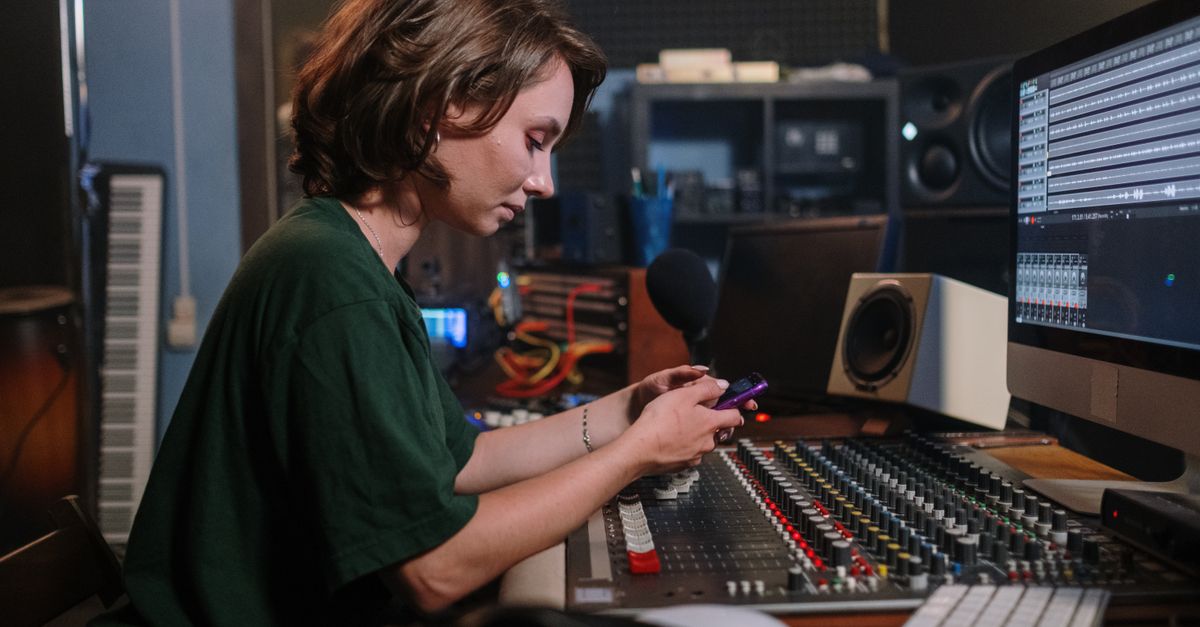
What local processing means for your file
Choosing a file does not send it to a Lizely server. The browser reads the selected file and decodes it inside the current tab. The tool then renders the shifted samples through an OfflineAudioContext and encodes those samples into a WAV in that same tab. The privacy guarantee covers both sides of the workflow: neither the source audio nor the rendered audio is uploaded to Lizely. Processing and sample data remain in the open browser tab until the result is downloaded, replaced, or the tool page is closed.
After a successful render, download the WAV and open it in a trusted local player. The page intentionally does not create a blob-backed in-page preview because of the site's media policy. The practical sequence is therefore straightforward: select the source locally, render it locally, and download the completed result locally.
How pitch and duration change together
The Audio Pitch Changer raises or lowers the perceived pitch of one audio file directly in the browser. It uses playback-rate resampling rather than a time-stretching algorithm. For a whole-number shift of n semitones, the playback rate is 2^(n/12). This follows twelve-tone equal temperament. McGill University's MIDI and frequency conversion notes explain that an octave contains twelve equal semitones, each with a frequency ratio of 2^(1/12), and that one semitone equals 100 cents.
According to MDN's AudioBufferSourceNode playbackRate documentation, playbackRate is a proportion of the original sampling rate: values below one slow the audio, values above one speed it up, and a non-unit rate causes resampling. Audio Pitch Changer sets that rate to the equal-tempered pitch ratio, renders at the decoded sample rate, and calculates the required output length from the full input frame count.
| Setting | Playback rate | Duration result | Pitch result |
|---|---|---|---|
| +12 semitones | 2× | Roughly half the original duration | One octave higher |
| 0 semitones | 1× | Original duration | Original pitch |
| -12 semitones | 0.5× | Roughly twice the original duration | One octave lower |
These are consequences of resampling, not hidden tempo correction. Raising the pitch makes a voice or instrument sound faster and shorter, while lowering it makes the material slower and longer. The tool does not promise to preserve tempo, speech cadence, beat positions, or the exact original duration after a nonzero shift. A zero shift keeps the pitch and timing relationship unchanged, although the downloaded file is still newly encoded.
Create a pitch-shifted WAV in the browser
- Choose one audio file. Select a browser-decodable file no larger than 50 MiB. Common accepted types include MP3, WAV, M4A, AAC, Ogg, WebM, and FLAC, but actual decoding still depends on the current browser. A recognized extension does not guarantee that every unusual codec profile will work.
- Set a whole-number semitone shift. Choose a value from -12 through +12. Positive values raise the pitch, negative values lower it, and zero retains the original pitch. Remember that changing pitch also changes speed and duration with this tool.
- Create the complete local render. Start the render and wait for the browser to finish the full offline processing job. The tool checks the returned channel count, sample rate, and expected frame count. If the output cannot be allocated or would exceed the output budget, it reports an error and creates no download instead of returning a partial file.
- Review the stated duration change. Check the displayed duration before downloading. A positive shift should produce a shorter, faster result, while a negative shift can produce a longer, slower result. Confirm that this timing change suits your intended use.
- Download the PCM16 WAV. Save the newly encoded file and play it in a trusted local player. The page deliberately omits a blob-backed preview, so the downloaded WAV is the intended way to audition the completed render.
Limits that can stop a render
The file-size limit is only the first check. The browser must also decode the source within the permitted duration, channel count, sample rate, and sample-budget limits. The pitch-shifted output has a separate budget, which matters especially when lowering the pitch because that direction requires more output frames.
| Check | Limit | What it means |
|---|---|---|
| Selected encoded file | 50 MiB maximum | The source file must fit within the input-size limit. |
| Decoded duration | Five minutes maximum | Longer decoded material is outside the permitted input range. |
| Decoded channels | Eight maximum | More than eight decoded channels are rejected. |
| Decoded sample rate | 8,000–192,000 Hz | Sample rates outside the supported range are rejected. |
| Decoded input | 30,000,000 channel samples maximum | The decoded source has its own sample budget. |
| Pitch-shifted output | 30,000,000 channel samples maximum | An oversized result is rejected without truncation. |
A source can pass the decoded-input limit and still fail after a substantial downward shift because the longer result exceeds the separate output limit. In that case, the tool states that the requested shift is over budget and produces no download. There is no silent tail cut, hidden output-duration cap, or incomplete-file fallback. If the browser also cannot allocate the expected result, the render fails without a download.
Empty files, unsupported types, invalid decoded dimensions, and failed decodes are rejected. Changing the input file or semitone value invalidates the previous result, and an older running job cannot replace a newer selection. These checks help ensure that the file you download corresponds to the complete, current render.
What the downloaded WAV contains
The download is a newly encoded, uncompressed, interleaved, little-endian PCM16 file inside a RIFF/WAVE container. It is not a byte-for-byte copy of the source and does not preserve the original codec, compression quality, bitrate, tags, artwork, chapters, cue points, loop metadata, or other container metadata.
Floating-point samples are clipped to the legal -1 through +1 interval before PCM16 conversion, and quantization can differ from the decoded source. Browser resampling quality is implementation-defined. Strong upward shifts may also expose aliasing or codec artifacts that were less noticeable in the original. For that reason, the output is useful for quick creative experiments, practice tracks, sound effects, and rough editing, but it should not be treated as a transparent mastering process.
When this pitch-changing method fits
This local workflow is a good fit when privacy is important and the audio may change length along with its pitch. It is especially practical for experimenting with a phrase, creating a practice version, or producing a deliberately faster or slower sound effect without installing desktop editing software.
If the production must keep the original duration, tempo, or timing locked, use a dedicated phase-vocoder or another time-stretching workflow instead. In that situation, choose the right pitch-changing approach before processing the file. A simple rule is to use Audio Pitch Changer when a resampled duration change is acceptable; choose a fixed-duration method when timing cannot move.
If you're weighing options, How Do I Document the Steps to Use Volume Changer? covers this in detail.