Drum pads online are tap-style cells inside a browser drum machine that you toggle on or off to program a beat, and the Online Drum Machine gives you 48 such pads arranged as a 16-step grid with three tracks: kick, snare, and hi-hat. Each of the sixteen steps holds a pad for every track, so toggling any cell sets that instrument to fire on the corresponding sixteenth-note position. Because the audio is synthesized with browser Web Audio API nodes rather than recorded samples, no file is downloaded or uploaded, no account is required, and no network connection is needed to load sounds. Tempo is entered as a whole number from 40 to 240 BPM, and BPM is defined here in the musical, quarter-notes-per-minute sense. At 120 BPM each sixteenth-note pad fires every 0.125 seconds and a full bar lasts two seconds, which is fast enough to sketch hip-hop, rock, or house pulses while staying simple enough for first-time sequencer users to read on a phone, tablet, or laptop screen.
What "Drum Pads Online" Means in a Browser
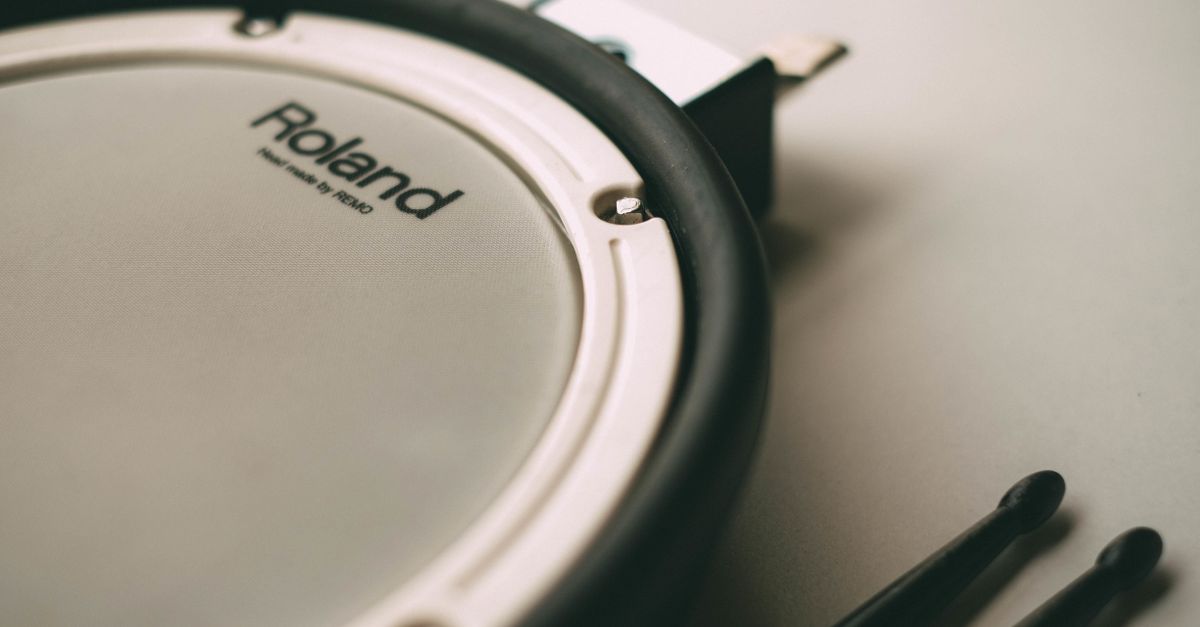
The phrase "drum pads online" is used to describe two different things. In some search results it points to physical drum practice pads sold by retailers, the rubber and mesh surfaces drummers tap with sticks. In a browser this same phrase is used for tap-style cells that trigger drum sounds when you click or tap them. Both share the core idea: a pad is something you strike to make a drum sound. The Online Drum Machine treats every cell on its grid as a pad you toggle on or off to decide whether a kick, snare, or hi-hat fires on that sixteenth-note step.
That distinction matters because the grid is not a single big drum you hit whenever you want. It is a sequencer. You arrange the pattern first, then press Play to hear it loop. There are no velocity layers, no accent tracks, and no finger-drumming mode. Instead each pad is a binary decision — it either plays during its slot or stays silent — which makes the tool readable for beginners who are still learning where snare backbeats and closed hi-hats fall on the bar.
How the 16-Step Grid Works as 48 Drum Pads
The grid is the heart of the tool. It is laid out as three rows of sixteen buttons, one row per drum voice: kick, snare, and hi-hat. Each column is one sixteenth-note step within a four-beat bar. That means there are exactly 48 drum pads in the entire interface (3 tracks × 16 steps), and pressing any pad toggles that instrument on or off for its assigned slot.
A moving outline shows the current step while the pattern loops, so you can see which sixteenth note is sounding. Pressing Clear pattern turns off every one of the 48 pads at once, which is useful when you want to start sketching from silence rather than muting cells one at a time. Pressing Stop does not change the pattern — it only releases the audio context so playback truly stops — which means your arrangement is preserved when you press Play again.
| Track | Pads per bar | How the sound is built | Initial pattern |
|---|---|---|---|
| Kick | 16 pads | Short sine oscillator with a falling pitch and gain decay | On quarter notes (steps 1, 5, 9, 13) |
| Snare | 16 pads | Locally generated noise buffer through a high-pass filter and gain envelope | On beats 2 and 4 (steps 5 and 13) |
| Hi-hat | 16 pads | Shorter, quieter noise burst with a higher high-pass cutoff | On every eighth note (steps 1, 3, 5, 7, 9, 11, 13, 15) |
The starting pattern is a simple four-on-the-floor example you can replace at your own pace. Treat it as a safety net rather than a finished beat: clicking any pad flips it from on to off, or off to on, with no undo history to worry about.
Set a Tempo and Program a Beat
- Open the Online Drum Machine in a current desktop or mobile browser.
- Type a whole number from 40 to 240 into the tempo field. 120 BPM is a comfortable starting pulse.
- Click any cell on the kick row to add a kick to that sixteenth-note step, or click again to remove it.
- Click cells on the snare row to place snare hits. A classic placement puts them on steps 5 and 13.
- Click cells on the hi-hat row to add closed hi-hat. Eighth-note placement puts a hat on every odd step.
- Press Play. The browser creates an AudioContext on this first click, schedules events on its timeline, and a moving outline marks the current step.
- Press Stop when you want playback to end. Pressing Play again restarts the loop from step 1.
- Press Clear pattern to turn all 48 pads off so you can sketch a new idea from silence.
If you change the BPM to a new whole number during playback, the tool stops the current run, releases its audio context, and waits for you to press Play again. This avoids overlapping events from two tempos at once. Editing pads while Play is running is fine: those changes feed into the next scheduling window without restarting the loop. Tempo input is strict — empty fields, decimals, signs, exponent notation, unit text, and values outside the 40 to 240 range each show a recoverable error so you can correct and try once more.
BPM Math and How Long Each Pad Lasts
BPM in this tool is defined as quarter notes per minute, the same convention documented by the W3C MusicXML specification. The bar holds four quarter notes, and each quarter note is split into four sixteenth-note steps, so there are sixteen steps in one loop. The duration of each pad slot is therefore 60 ÷ BPM ÷ 4 seconds.
| Tempo (BPM) | Pad slot duration (60 ÷ BPM ÷ 4 s) | Full 16-step bar length |
|---|---|---|
| 40 | 0.375 s | 6.000 s |
| 80 | 0.1875 s | 3.000 s |
| 120 | 0.125 s | 2.000 s |
| 160 | 0.09375 s | 1.500 s |
| 240 | 0.0625 s | 1.000 s |
A worked example for the default tempo: at 120 BPM, the duration of one sixteenth-note pad is 60 ÷ 120 ÷ 4 = 0.5 ÷ 4 = 0.125 seconds. Multiply that by sixteen pads and you get 16 × 0.125 = 2.000 seconds for the full bar. Because step 1 of the loop is identical to step 17, the pattern plays back seamlessly as long as Play is held. The same scheduling function backs both the unit tests and the live audio scheduler, so the values you hear match the values the test suite guarantees.
Why the Sounds Are Synthesized, Not Recorded
Every sound you hear is generated at playback time using browser Web Audio API nodes. The kick uses a sine oscillator whose frequency drops rapidly while its gain decays, producing the soft "boom" of a synthesized kick drum. The snare is built from a freshly created noise buffer routed through a high-pass filter and gain envelope, and the closed hi-hat uses a shorter, quieter noise burst with a higher high-pass cutoff. None of those sounds come from a downloaded sample library, so the tool never has to contact a sample host or inherit a third-party license.
That design has a few practical consequences. First, starting the tool does not require an internet connection beyond loading the page itself. Second, the snare and hi-hat noises are regenerated for every hit, so the exact timbre can vary slightly between hits, between browsers, between operating systems, and between audio output devices. Third, there is no recorded nuance to preserve: every kick sounds like the same quick sine pulse, every hat sounds like the same short noise burst. If you want sample-identical renders across sessions or devices, you will need to render the pattern in a dedicated digital audio workstation that ships fixed samples.
What These Drum Pads Cannot Replace
It helps to know the edges of the tool before you commit your idea to it. The drum pads do not swing, do not support triplets, do not carry velocity or accent values, and do not offer per-track volume or effects like reverb and delay. There is no record button, no export to WAV or MIDI, no MIDI synchronization, and no support for arbitrary time signatures — the bar is always four quarter notes divided into sixteenths.
There are also limits on the listening environment. The audible sources use their scheduled Web Audio start times rather than JavaScript callback times, which reduces ordinary main-thread jitter, but heavy browser throttling, suspended background tabs, device changes, and high system load can still alter what you hear. Background playback is not guaranteed. If you need to lock a tempo to a click on another device, render stems, or calibrate latency, transfer the pattern concept into a dedicated music application.
Tips for First-Time Users
Start with one track at a time so the grid stays readable. A common warm-up is to clear the pattern, put the kick on steps 1, 5, 9, and 13, then add snare on 5 and 13, then drop hi-hat on every odd step. Press Play and listen. Then delete one or two hi-hat pads to break up the constant eighths, swap the snare placement, or move a kick onto step 8 to make the bar roll. Because there are only 48 pads, you can audition each change immediately without scrolling or zooming.
Keep your device volume moderate before pressing Play, especially through headphones. Synthesized transients can sound louder than you expect on some output systems, and the tool does not apply a master limiter. The step indicator uses color and outline only, and color transitions are disabled when your device asks for reduced motion, so you can still see the moving pad without animation if you prefer. If you want a free walk-through of how 16-step grids are usually structured, see Beat Maker Online Free: Sketch a 16-Step Drum Beat for a beginner-focused companion piece.
For a deeper look, see Reverb Online: What the Amount Slider Does to Wet Taps.