The Online Drum Machine is a browser-based, free online beat maker that programs a 16-step pattern across three synthesized voices — kick, snare, and hi-hat — at a tempo between 40 and 240 BPM, plays the loop through Web Audio, and never uploads a file or downloads a sample. It runs entirely in your browser, so there is no account, no installation, and no audio sent to a server. You open the page, click cells on the grid to turn each instrument on or off for the corresponding sixteenth-note step, set a whole-number BPM, and press Play. The default starting pattern is a four-on-the-floor loop with kick on quarter notes, snare on beats two and four, and closed hi-hat on eighth notes; you can replace it one step at a time. Stop releases the playback resources, Clear pattern turns all 48 cells off, and editing tempo during playback stops the loop cleanly so a new tempo does not mix with the old scheduler.
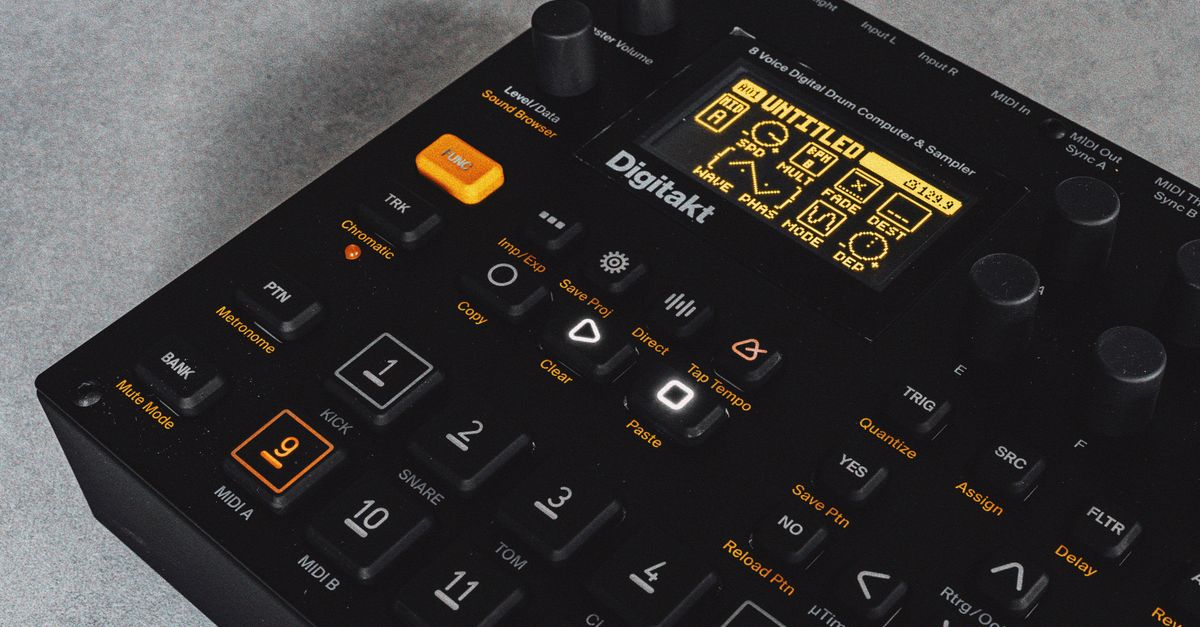
What a Free Online Beat Maker Should Give You
Searching for a "beat maker online free" usually means four practical things at once: no signup wall, no software install, no upload step, and no audio fee. Most people who type that phrase want to test a rhythm idea in a browser tab and hear it back quickly. Some expect a multi-track DAW in disguise. Some just want to learn how a kick-snare-hat groove fits together.
The Online Drum Machine sits in the focused category on purpose. It is a compact 16-step sequencer with three tracks, one tempo field, and three transport buttons. That focus is the reason it can be genuinely free without hidden limits: every sound is synthesized at playback time using Web Audio nodes, so the page never has to contact a sample host or honor a third-party license. According to the W3C Web Audio API specification, this is the model the browser's own audio graph supports natively, with oscillators, noise buffers, filters, and envelopes wired together in code rather than fetched from disk.
That distinction matters because many "free" beat makers on the open web gate their best sounds behind an account or stream samples from a server. The Online Drum Machine's tradeoff is the opposite: instead of hundreds of voices, you get exactly three simple synthesized ones. For sketching a pulse, learning step sequencing, or testing whether a tempo feels right, that constraint is usually an asset.
Build a Beat with the Online Drum Machine
The tool's controls are intentionally small, which is what makes the workflow fast. You can open the page and have a beat running in under a minute. The full loop, start to finish, looks like this:
- Open the Online Drum Machine in any modern desktop or mobile browser. The grid loads with a four-on-the-floor default pattern already toggled in.
- Decide on a tempo and enter a whole decimal number between 40 and 240 in the BPM field. The tool reads BPM as quarter notes per minute, so 120 means 120 quarter notes per minute.
- Click any cell in the kick, snare, or hi-hat row to toggle that sixteenth-note step on or off. A pressed cell means the voice plays on that step; an empty cell stays silent.
- Press Play to start the loop. A moving outline shows which of the sixteen steps is currently sounding so you can watch the beat scroll.
- Edit cells while playback runs. New toggles are read by the next scheduling window, so changes land within roughly 100 milliseconds without restarting the loop.
- Press Stop to release the AudioContext and free playback resources. The pattern is preserved, so the next Play resumes from step one.
- Press Clear pattern to turn all 48 cells off if you want to start from silence, then build a new groove one step at a time.
Keep your device volume moderate before pressing Play, especially with headphones, because the synthesized kick and hi-hat can sound louder on some output systems than expected.
How the 16-Step Grid and Tempo Math Work
The grid is always four quarter-note beats divided into sixteen equal sixteenth-note steps. Each row corresponds to one instrument: kick, snare, or hi-hat. The visual layout matches the underlying data, which is a validated record of three unique tracks containing exactly sixteen booleans each. Nothing about the math is hidden from the sequencer. Every step number, every timestamp, and every active-track snapshot is built by the same pure functions used in tests, so the production player cannot drift away from the documented behavior.
Tempo follows the meaning documented in the W3C MusicXML 4.0 specification, where the sound element treats BPM as quarter notes per minute. A quarter note therefore lasts 60 divided by BPM seconds, and each sixteenth-note step lasts one quarter of that. That gives the formula for any cell:
Step duration in seconds = 60 / BPM / 4
Three anchored tempos illustrate how that formula behaves at the boundaries and at the default:
| BPM | Step duration | Full 16-step bar |
|---|---|---|
| 40 | 0.375 s | 6 s |
| 120 | 0.125 s | 2 s |
| 240 | 0.0625 s | 1 s |
At the lower 40 BPM boundary each step feels almost half a second apart, which suits slow ballads and half-time practice. At the default 120 BPM the entire bar lasts two seconds, the canonical feel for hip-hop, house, and pop practice. At the upper 240 BPM ceiling the bar collapses to one second, useful for fast breakbeat sketches or for stress-testing how a browser handles dense scheduling.
The tempo input is strict on purpose. Empty input, decimal fractions, signs, exponent notation, unit text, and values outside the range show a recoverable error rather than silently snapping to a different number. The 40 to 240 range is a deliberate usability and scheduling guard, not a claim about the absolute limits of musical tempo.
Why Tempo Edits Stop Playback
Changing BPM mid-playback cancels the current run and releases its audio context. Pressing Play after entering a valid value starts cleanly at step one. The behavior exists because playback uses a look-ahead scheduler that places upcoming events up to 100 milliseconds ahead on the AudioContext timeline, with a lightweight browser timer checking every 25 milliseconds. If the previous scheduler kept running, already-scheduled events at the old tempo could collide with new events at the new tempo, producing audible drift or double-triggers.
Stopping before applying a new tempo prevents that overlap. Pattern edits do not need the same protection because they do not change the step clock. Toggle changes are simply read by the next scheduling window, which means you can reshape a hi-hat line while the kick keeps marching and hear the result within roughly 100 milliseconds. Editing tempo is a global change to timing, so it deserves a global reset.
Where This Tool Stops and a DAW Begins
A focused sequencer is not a substitute for a full digital audio workstation, and the Online Drum Machine is honest about that line. It is built for sketching straight sixteenth-note ideas, learning how step sequencing maps to groove, and testing a basic pulse at a chosen tempo. It is not built for arranging an entire song.
| In scope | Out of scope |
|---|---|
| 16-step loop, three synthesized voices | Swing, triplets, accents, per-track volume |
| Tempo 40–240 BPM (whole numbers) | Recording, export, rendered stems |
| Play, Stop, Clear pattern, live toggling | MIDI sync, AudioWorklet engine |
| Web Audio synthesis, no samples loaded | Sample-identical rendering across devices |
The voices themselves are intentionally simple. The kick is a short sine oscillator whose frequency drops rapidly while its gain decays. The snare uses a freshly generated noise buffer shaped by a high-pass filter and gain envelope. The hi-hat uses a shorter, quieter noise burst with a higher high-pass cutoff. These are synthetic drum sounds, not recordings of physical drums, and their tone can vary slightly with browser audio implementation, output hardware, sample rate, and the random noise generated for each hit. Heavy browser throttling, suspended tabs, device changes, high system load, and operating-system audio latency can still affect what you hear. If you need exact inter-device synchronization, production arrangement, or latency calibration, transfer the pattern concept to a dedicated music application, or try the virtual drum kit guide for a hands-on playing approach.
Quick Patterns to Try
The default four-on-the-floor loop is only a starting point. Three small experiments show what the grid can do without leaving the browser:
- Boom-bap sketch: clear the grid, put the kick on steps one and nine (beats one and three), the snare on steps five and thirteen (beats two and four), and a sparse hi-hat on steps one, five, nine, and thirteen. Slow the tempo to 90 BPM and listen to the bar breathe.
- Half-time groove: keep the snare on beats two and four, but move the kick to beats one and three (steps one and nine), and add a steady closed hi-hat on every even step. The feel stretches even though the math is identical.
- Hi-hat motion proxy: with no swing or triplet support, you can fake motion by removing every third hi-hat step. The result sounds slightly uneven, which is a useful reminder that the grid is locked to straight sixteenth notes.
None of these patterns require an account or a sample library. Each is just forty-eight boolean cells and a tempo field. When an idea deserves more, lift the pattern mentally into a real DAW. When the goal is to hear whether a tempo works, this is the fastest way to find out.
Related reading: Web Audio Drum Sequencer: 16-Step Browser Pattern Maker.