An online metronome is a page that synthesizes short clicks in your browser tab using the Web Audio API, and the right moment to use one is when the task ahead is light practice, scales, rhythm drills, sight reading, or roughly gauging a tempo you already have in your head. That decision usually hinges on whether you only need a steady pulse, how strict the timing must be, and whether installing an app or paying for a device feels worth it for the moment. A browser-based tool fits a wide range of musicians, students, teachers, and hobbyists because it needs no download, no microphone, no account, and no upload, since every tick is built locally from an oscillator and discarded before the next one fires. Once the goal shifts toward studio recording, MIDI clock sync, sample-accurate alignment with a digital audio workstation, or any rhythm that needs subdivisions, swing, or polyrhythm, a hardware metronome or a dedicated DAW clock becomes the stronger choice.
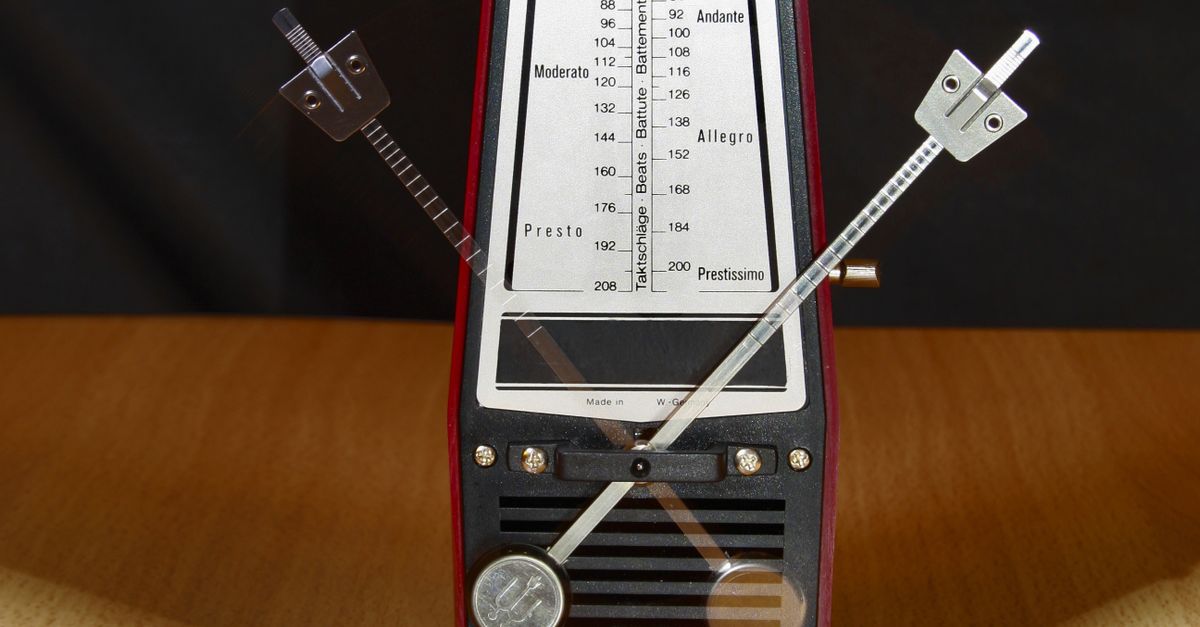
Signs You Actually Need an Online Metronome
A browser metronome is the right pick when the goal is practical and the constraints are loose. Here are the strongest signals that the tool will earn its keep:
- You already have a tempo in mind and just want to confirm it audibly. Typing a whole number between 30 and 240 BPM gives you a steady reference quickly.
- You want to practice scales, long tones, or single-line reading and need a clean pulse to track your place. The page plays a click on every beat with no microphone and no recording.
- You cannot or do not want to install an app or buy a device. A browser tab is portable across laptops, tablets, and phones and leaves no footprint behind.
- You are teaching or studying and want a shared reference tempo in the room. Anyone with the page open hears the same click pattern as long as device volume matches.
- You need a quick sanity check on whether a recorded piece is drifting. The page plays in real time and stops when you close it, so it is easy to set up and tear down between takes.
These signals line up with the limits spelled out in the product contract. The tool draws the interval from the formula 60 divided by BPM, plays beat one on a slightly higher pitch than the rest, and stops cleanly when you leave the page or press Stop. That scope is exactly what most practice sessions need, and exactly what sets it apart from heavier tools built for production work.
When a Browser Metronome Is Not the Right Pick
Skip the browser metronome when timing matters more than convenience. The published scope rules out the following jobs, so a different tool will serve you better:
- Studio recording that must lock to a DAW. The product contract explicitly does not claim DAW synchronization, MIDI clock, tap-tempo analysis, or recording alignment.
- Pieces that require subdivisions, swing, or polyrhythm. The tool only places a single accent on beat one and a flat click on every other beat, so triplet or sixteenth-note subdivisions are not part of its design.
- Live performance where latency is critical. Background tabs, power-saving modes, a busy main thread, and Bluetooth audio can delay the audible click by a noticeable amount.
- Long offline sessions. The page needs to stay in a foreground tab; it cannot cache itself for airplane use or for rehearsal spaces without reliable Wi-Fi.
- Calibrated pitch, hearing protection, or medical use. The oscillator frequencies of 1320 Hz on beat one and 880 Hz on later beats are product cues, not a concert pitch standard, and the page is not a sound-pressure meter.
When any of those conditions apply, a hardware metronome, a dedicated metronome app, or the clock built into your DAW is the safer fit. If you want to weigh the tradeoffs in more depth, the guide on picking the right online metronome approach for practice walks through the same decision with extra scenarios.
BPM and Beats: What Your Decision Rests On
Two numbers define every click the tool produces: the tempo in beats per minute and the measure length in beats per measure. They are validated as untrimmed whole decimal numbers and they sit inside narrow ranges. The table below captures the official limits:
| Input | Accepted range | Behavior outside the range |
|---|---|---|
| Tempo (BPM) | 30 to 240, whole numbers | Entry fails; the page does not round or cap |
| Beats per measure | 1 to 12, whole numbers | Entry fails; the page does not round or cap |
| Edited value while playing | Stops playback first | Prevents drift between display and active timer |
| Signs, spaces, decimals, exponent notation, units, blank values | Rejected | Treated as invalid; no fallback formatting |
The tempo window covers slow etudes at 30 to 60 BPM, moderate practice at 60 to 120 BPM, fast runs at 120 to 180 BPM, and very fast passages or tricky meter studies at 180 to 240 BPM. The measure length window of one through twelve covers everything from whole notes in a 1/4 feel up to compound meters like 12/8. If your piece calls for 7/8 with sixteenth-note subdivisions, or for 15 BPM, the page will not match the music without workarounds, and another tool is the better choice.
Set the Tempo and Start Clicks in Your Browser
Once the decision is made, the routine is short and works in any modern browser tab:
- Open the Online Metronome page in your current browser tab.
- Enter a whole tempo from 30 through 240 BPM and a measure length from one through twelve beats.
- Select Start, listen for the higher first-beat accent, and select Stop before you close the tab.
The page creates one short oscillator and one gain node for each click, decays the gain from 0.2 to 0.001 over 50 milliseconds, and stops the oscillator after 60 milliseconds so old nodes do not pile up. Beat one uses 1320 Hz and later beats use 880 Hz, so the boundary between measures is easy to hear even at low volume. If you edit either value while playing, playback stops before the new value can take effect, which prevents the displayed tempo and the active timer from drifting apart.
Browser Timing: What to Expect from an Online Click
The click interval is derived directly from the BPM you type, using the standard definition of beats per minute. The formula is:
interval in seconds = 60 ÷ BPM
The worked example below traces 120 BPM, a common moderate tempo, through the same formula:
- Interval = 60 ÷ 120
- Interval = 0.5 seconds per click
- At 60 BPM, the same formula gives 60 ÷ 60 = 1 second per click
- At 240 BPM, the same formula gives 60 ÷ 240 = 0.25 seconds per click
That arithmetic is exact, but the audible result is not sample accurate. The browser schedules each click from a JavaScript callback, and that callback can be delayed by background tabs, power-saving modes, a busy main thread, Bluetooth audio latency, browser policies, and operating-system scheduling. The page is suitable for ordinary practice and tempo reference, but it is not a substitute for a studio clock. For a fuller breakdown of what affects timing, see the guide on online metronome accuracy and timing in a browser tab. For the technical underpinning, the Web Audio API specification describes the scheduling model the page relies on.
Picking a Routine Around an Online Metronome
Once the tool is the right fit, the easiest way to build a habit is to keep the routine short. A few habits hold up well across instruments and experience levels:
- Start with device volume low, especially when using headphones. The page begins at a gain of 0.2 and decays quickly, but your speakers and headphone amplifier still set the final loudness.
- Match tempo to the task. Use 60 to 80 BPM for scales and long tones, 80 to 120 BPM for reading and drills, and 120 to 200 BPM for fast passages once accuracy is clean.
- Stop between sections. Pressing Stop clears the timer, closes the audio context, and resets the visual beat counter so the next section begins on a clean display.
- Use it as a pulse for rhythm exercises, not as a recording tool. If you want to capture your playing, pair the metronome with a separate recorder or move to a DAW.
- Treat the click as a reference, not a judge. The audible pulse is meant to expose unevenness in your own playing, not to declare a tempo permanently correct.
The page closes any older audio context before creating a new one, runs a synchronous guard against duplicate starts, and unmounts cleanly when you leave the tab, so each practice session resets to a known state without leftover clicks or stale timers. If Web Audio is unavailable or startup is rejected, an error is shown and no stale playing state remains. The same cleanup runs when the component leaves the page, which is why stopping the click and closing the tab is enough to release every resource the tool opened.