Comparing approaches to use an online metronome means weighing where the click runs, how tempo and measure settings behave, and whether the timing stays steady while you play. The most direct approach is a browser tool that plays a local click track, accepts a tempo from 30 to 240 BPM, and marks the downbeat with a higher pitch so each measure starts cleanly. Online metronomes fall into three broad approaches: a browser tab that synthesizes clicks locally, a downloadable app that runs on your device, and a hosted page that streams audio from a server. The biggest practical differences come from where the audio is generated (in your browser tab vs. on a remote server), which inputs the tool accepts (whole numbers, decimals, or tap input), and whether the click includes extras such as accents, subdivisions, or compound meters. The Online Metronome tool described here keeps its scope narrow on purpose. It uses the Web Audio API to create short oscillator clicks in your current tab, validates your tempo and beats-per-measure as whole numbers from 30 to 240 and 1 to 12, and stops cleanly the moment you press Stop or close the page. That limited feature set is the main reason people choose it for casual practice.
What Counts as an Online Metronome Approach
An approach is more than the device that produces the sound. It includes the inputs you set, the way timing is delivered, and the trade-offs you accept for convenience. When people compare approaches to use an online metronome, they usually compare four practical dimensions:
- Where the audio is generated: in JavaScript inside the tab, in an installed app, on a remote server, or in a physical box with a pendulum.
- What inputs are accepted: whole-number tempo only, decimal or fractional BPM, tap-tempo entry from a button or key, or pre-programmed markings on a dial.
- What the click offers: a flat tick, an accented downbeat, a fixed subdivision, a swing feel, or polyrhythmic patterns.
- What you give up: microphone access, an account, file uploads, install permissions, or sample-accurate timing.
Listing these dimensions up front lets you sort a tool in seconds, instead of trying each one and judging by feel.
Main Categories Compared
A quick side-by-side view makes the differences obvious. The table below compares four common approaches on the dimensions that matter most for a practice session. Use it as a starting map, not a final verdict, because exact features change from tool to tool.
| Approach | Where audio runs | Inputs accepted | Click style | Privacy trade-off | Timing quality |
|---|---|---|---|---|---|
| Browser-local click track | In your tab via Web Audio API | Whole-number tempo and beats per measure | Accented first beat, flat clicks after | No mic, no upload, no account | Good for practice; depends on browser load |
| Hosted page that streams audio | From a remote server | Whole or decimal tempo, often tap input | Varies; sometimes sampled sounds | Network latency, possible data logging | Depends on connection and server load |
| Installed metronome app | On your device, often offline | Full tempo range, tap, subdivisions, accents | Rich, often customizable | Install permission, occasional mic for tap | Usually stable; better than a busy browser |
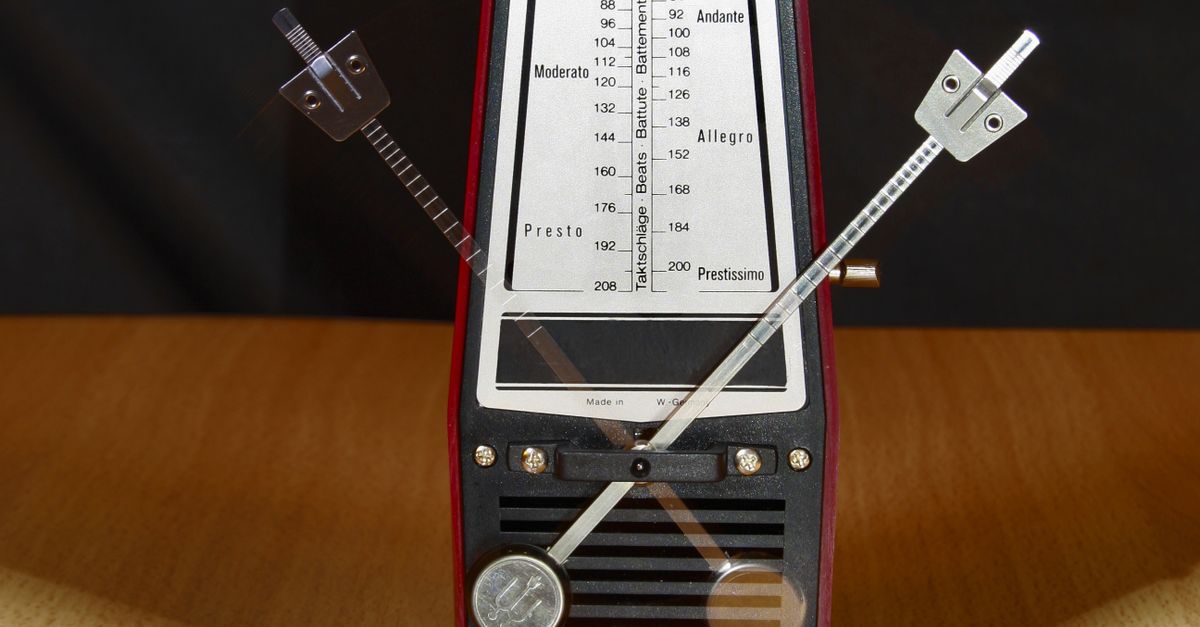
| Physical metronome box | In the device itself | Mechanical dial markings or fixed presets | Mechanical pendulum or electronic beep | No data, no network | Practical reference only; limited tempo range |
Set Up the Online Metronome in Three Steps
Once you pick an approach, the next step is running it. The browser-local click track path is the shortest setup, and the steps below are the exact ones the Online Metronome follows.
- Enter a whole tempo from 30 through 240 BPM in the tempo field. Use only digits; signs, decimals, exponents, spaces, and unit suffixes are rejected rather than rounded.
- Choose a beats-per-measure value from one through twelve and select Start. The tool validates both inputs, closes any older audio context, and schedules the first click at the calculated interval.
- Listen for the higher first-beat accent so each measure boundary is unmistakable. Select Stop before closing the tab if you want the audio context closed immediately and the visual counter reset.
If you edit either value while playback is running, the metronome stops the current sequence, accepts the new value only if it passes validation, and waits for a fresh Start. That guard keeps the visible counter and the audible timer from drifting apart, which is a common annoyance in lighter-weight metronome pages.
How Timing and Sound Actually Work
The Online Metronome derives every click from one formula. The interval in moments equals 60 divided by the BPM you entered, so the relationship is linear: doubling BPM halves the gap between beats. Working through a simple case makes this concrete.
At 100 BPM, the click interval is 60 ÷ 100 = 0.6 seconds, which means each beat lands 600 milliseconds apart and you hear about 16.67 beats in ten seconds.
The same formula gives the rest of the range:
| Tempo | Interval (60 / BPM) |
|---|---|
| 30 BPM | 2.0 seconds |
| 60 BPM | 1.0 second |
| 90 BPM | 0.667 seconds |
| 120 BPM | 0.5 seconds |
| 180 BPM | 0.333 seconds |
| 240 BPM | 0.25 seconds |
These are the product-defined relationships. The visible beat counter is a wrap-safe integer that runs from zero up to the measure length minus one, then resets. Beat one fires at 1320 Hz and the rest of the beats fire at 880 Hz; both tones are short oscillator bursts with a gain envelope that starts at 0.2 and decays to 0.001 over 50 milliseconds. The oscillator stops after 60 milliseconds, which prevents old audio nodes from piling up.
This design has consequences for sound. The clicks are clean sine-like tones rather than sampled drums or wood blocks, so you can hear pitch differences but you do not get realistic percussion. The accent on beat one is a frequency change, not a volume change, which keeps the loudness steady and easy on the ears during long sessions.
Timing is browser-scheduled, not hardware-scheduled. The next click is set with a JavaScript timer based on the validated interval, and that callback can be delayed by background tabs, power-saving modes, a busy main thread, Bluetooth latency, browser policies, or operating-system scheduling. For ordinary practice, reading, scales, and rough tempo reference, this is workable. For recording alignment, DAW synchronization, or studio-grade quantizing, it is not a sample-accurate reference.
Picking the Right Approach for Your Goal
The right choice depends on what you actually need. Different practice goals favor different approaches, and the table below lines up common goals with the approach that tends to fit best.
| Goal | Best fit | Why |
|---|---|---|
| Quick warm-up or short drill | Browser-local click track | Opens in one tab, no install, no signup |
| Long focused practice with many tempo changes | Installed metronome app | Faster input, more stable timing across the session |
| Practice away from a network or in a noisy environment | Physical metronome or offline app | Works without a browser or Wi-Fi |
| Drill a specific compound meter (6/8, 12/8) | Browser-local or app with measure support | Beats-per-measure lets you set the meter cleanly |
| Share a tempo with a student in another room | Browser-local on two devices | Same BPM and measure length produce the same pulse on each side |
If your goal is a casual practice pulse, the browser-local approach is usually the lowest-friction choice. The Online Metronome described above covers the case where you want a clean accented click from 30 to 240 BPM with up to twelve beats per measure, and you can read a deeper walkthrough in the Online Metronome Meaning: BPM, Accent, and How to Use It guide for a term-by-term explanation.
Trade-offs Worth Knowing Before You Commit
Every approach has limits, and comparing them honestly means naming the ones that matter for practice.
- Browser-local click tracks run inside a single tab. A background tab, a system power-saver, or a busy main thread can delay a click. This is workable but not studio-grade, and the Online Metronome Accuracy: Timing in a Browser Tab guide goes into the specifics.
- Hosted pages that stream audio add a network dependency. Connection lag and server load can shift timing, and the page may log usage data or set cookies.
- Installed apps ask for system permissions. They can be more stable, but they also update independently of your browser and may request microphone access for tap-tempo features.
- Physical metronomes give the most stable reference but the least flexibility. They cannot match an exact arbitrary BPM, they have no subdivisions, and they cannot be reset without a mechanical step.
- Whole-number input is a feature, not a bug. Decimals, signs, exponents, units, and blank fields are rejected rather than rounded, which keeps your saved settings repeatable across sessions.
Once the trade-offs are visible, the comparison becomes a quick match against your goal instead of a hunt through menus. The Web Audio API behavior the Online Metronome relies on is documented in the W3C Web Audio API specification, so the local-click design is grounded in an open standard rather than a vendor-specific trick.