A beat maker you can use online from your computer keyboard is a browser-based tool that lets you program drum patterns by clicking cells on a 16-step grid, with no software install and no audio sample uploads. The Online Drum Machine fits that description exactly: it runs in your browser, exposes three tracks (kick, snare, and hi-hat) across sixteen equal sixteenth-note steps, and plays the result through Web Audio synthesis. You set the tempo in BPM, click any cell to turn that drum on or off, and press Play to loop the pattern. Because every voice is generated locally with oscillators and noise buffers, nothing is fetched from a sample host and no account is required. The grid always represents four quarter-note beats divided into sixteen equal sixteenth-note steps, which matches how MusicXML defines tempo as quarter notes per minute. That single design choice is what makes the math behind the tempo input predictable: at 120 BPM, one step lasts 60 ÷ 120 ÷ 4 = 0.125 seconds, so the full 16-step bar lasts exactly 2.0 seconds. If you are looking for a clean way to sketch drum ideas without leaving the browser, this is the simplest path that still gives you real per-step control.
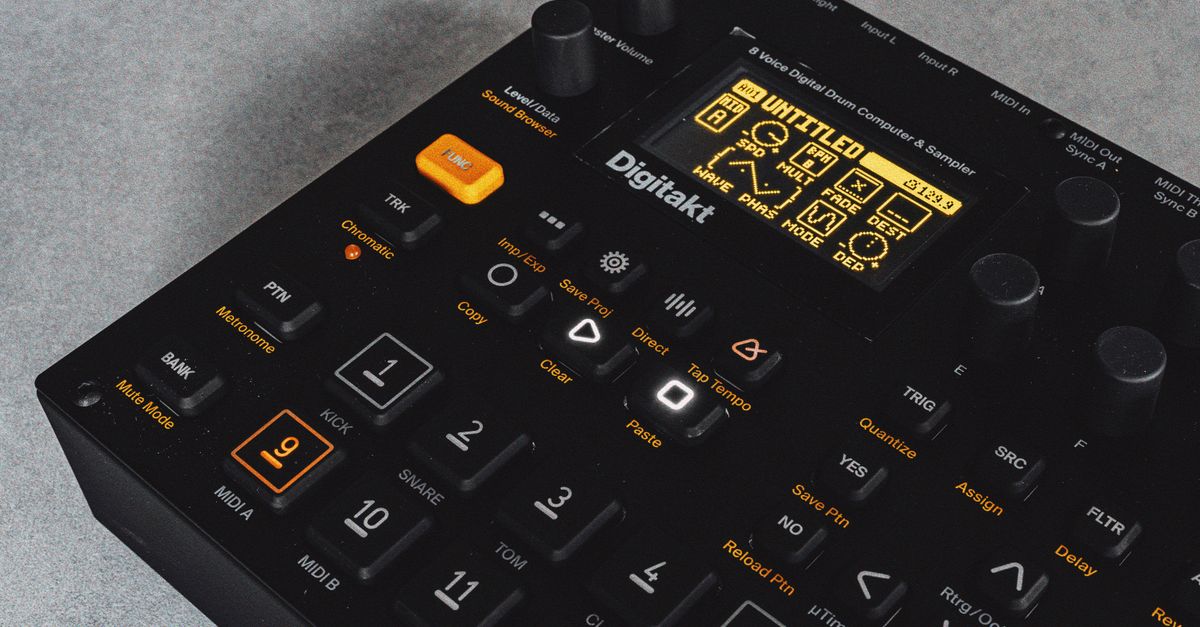
What the Online Drum Machine Gives You
The Online Drum Machine is a small, focused 16-step rhythm sequencer that lives entirely in your browser. You get exactly three drum voices — kick, snare, and hi-hat — arranged as three horizontal rows of sixteen cells each. Click a cell to switch that drum on for the matching sixteenth-note step; click it again to switch it off. The interface starts you off with a four-on-the-floor example (kick on every quarter note, snare on beats two and four, closed hi-hat on every eighth note) so the loop plays something musical the moment you hit Play, and you can replace any step one at a time. Above the grid sits a tempo field that accepts whole numbers from 40 to 240 BPM, plus Play, Stop, and Clear pattern controls. A moving outline shows which step is currently sounding so you can see the loop position at a glance. Everything is synthesized at playback time through the Web Audio API, which means no sample downloads, no uploads, and no waiting for a network asset to load.
Program a Beat on the 16-Step Grid
- Open the Online Drum Machine in your browser and decide on a starting tempo. Enter a whole number between 40 and 240 in the BPM field; empty input, fractions, signs, or out-of-range values produce a recoverable error you can correct without losing your pattern.
- Look at the three rows of the grid: kick on top, snare in the middle, hi-hat on the bottom. Each row has sixteen cells representing one full bar of sixteenth notes, divided evenly into four quarter-note beats (four steps per beat).
- Click any cell to switch that drum on for that step; click it again to switch it off. The default four-on-the-floor pattern is a fine starting point if you just want to hear something, but you can clear it first if you prefer a blank slate.
- Press Play. The audio context is created on this user gesture, so browsers that require a tap before audio starts will behave correctly. A moving outline tracks the current sixteenth-note step as the loop runs.
- Edit cells while playback continues. Changes are picked up by the upcoming scheduling window, so you can reshape the pattern live without stopping.
- Press Stop to release audio resources, or click Clear pattern to switch every one of the forty-eight cells off and start fresh. Changing the tempo also stops the current run so the scheduler can restart cleanly at step one with the new value.
How BPM Maps to Step Timing
On the Online Drum Machine, BPM is treated exactly as the MusicXML specification defines tempo: quarter notes per minute. Because each quarter note is split into four sixteenth-note steps on the grid, every step lasts 60 ÷ BPM ÷ 4 seconds, and the full bar of sixteen steps lasts 240 ÷ BPM seconds. At the default 120 BPM, each step is 60 ÷ 120 ÷ 4 = 0.125 seconds and the bar takes 16 × 0.125 = 2.0 seconds to complete. At the lower 40 BPM boundary, each step stretches to 60 ÷ 40 ÷ 4 = 0.375 seconds and the bar takes 6 seconds. At the upper 240 BPM boundary, each step compresses to 60 ÷ 240 ÷ 4 = 0.0625 seconds and the bar takes 1 second. The table below lists a few useful anchors you can use when sketching patterns at different tempos:
| BPM | Step duration (seconds) | Full 16-step bar (seconds) |
|---|---|---|
| 40 | 0.375 | 6.000 |
| 60 | 0.250 | 4.000 |
| 90 | 0.1667 | 2.667 |
| 120 | 0.125 | 2.000 |
| 150 | 0.100 | 1.600 |
| 180 | 0.0833 | 1.333 |
| 240 | 0.0625 | 1.000 |
These figures all come straight from the formula 60 / BPM / 4, so any tempo you can enter produces the same predictable step length. Editing the tempo mid-playback always stops the current run; that is by design, because scheduling events at two different tempos on the same audio context would cause overlapping attacks. The 40 to 240 range is a deliberate usability and scheduling guard, not a claim about the limits of musical tempo in general.
What the Tool Does and What It Leaves Out
Knowing the limits up front saves time. The Online Drum Machine covers the narrow task of programming a straight sixteenth-note loop with three synthesized voices and playing it back in your browser. It does not include swing, triplets, velocity layers, per-track volume, mute and solo, effects, recording, bounce-to-audio, MIDI in or out, or arbitrary time signatures. It is not a digital audio workstation, an AudioWorklet engine, or a system that can guarantee sample-identical playback across devices, so you should treat it as a sketchpad rather than a final-mix environment. Heavy browser throttling, suspended background tabs, device changes, and high system load can still affect what you hear, and the synthesized kick, snare, and hi-hat can sound slightly different across browsers and output hardware because the snare and hi-hat pull from random noise buffers each hit. If you need production arrangement, exact inter-device synchronization, rendered stems, or latency calibration, transfer the idea to a dedicated music application once the pattern is shaped. Inside its scope, however, the tool is honest about its numbers: the same shared logic that drives production playback is also what the unit tests cover, so the tempo math, the modulo-16 wraparound, the initial pattern, and the immutable toggling all behave the same way you see them on screen.
Practical Tips for Tighter Patterns
A few habits make 16-step beats feel less stiff even without swing or velocity. Leave the kick on the downbeats (steps 1, 5, 9, 13) as your anchor and place the snare on beats two and four (steps 5 and 13 if you want the four-on-the-floor feel). For hi-hat, eighth-note positions on steps 1, 3, 5, 7, 9, 11, 13, 15 give a steady pulse; switch individual hats on or off to add syncopation without changing the tempo. Open hats and closed hats sound identical here because there is only one hi-hat voice, so use the cell pattern itself to imply the difference. When you change tempo, expect playback to stop and restart at step one; this is intentional and prevents two tempos from running on the same audio timeline. Keep your device volume moderate before pressing Play, especially with headphones, because synthesized transients can sound louder on some output systems. If a step seems late or early, check whether the tab is throttled in the background, then press Play again to reset the scheduler. The grid supports horizontal scrolling on narrow screens, so the touch targets stay tappable on mobile without forcing you to squint at a shrunken layout. Accessibility-wise, each grid button exposes its pressed state and a descriptive label, and the moving step indicator uses color plus an outline with motion disabled when reduced-motion is requested.
Related reading: Beat Maker Online No Sign Up: Build a 16-Step Beat.
Related reading: Drum Machine for Live Use: Build a Looping Beat in Your Browser.