A drum machine for live use is a sequencer you can run, hear, and edit in real time — typically a 16-step grid that loops kick, snare, and hi-hat voices without installing software or loading samples. The browser-based Online Drum Machine fits that definition: it exposes three tracks across sixteen sixteenth-note steps, plays the pattern as a continuous loop, and lets you toggle cells while the beat is running. Tempo is entered as a whole decimal number from 40 to 240, where BPM means quarter notes per minute, so a quarter note lasts 60 divided by BPM seconds and each sixteenth-note step lasts 60 divided by BPM divided by 4 seconds, matching the tempo meaning used by the W3C MusicXML sound element. At the default 120 BPM, each step is 0.125 seconds apart and the full bar plays in 2 seconds; at the slowest 40 BPM the bar stretches to 6 seconds, and at the fastest 240 BPM it compresses to 1 second. That predictability, combined with on-the-fly pattern editing and zero audio uploads, is what makes a browser drum machine genuinely useful in a live setting.
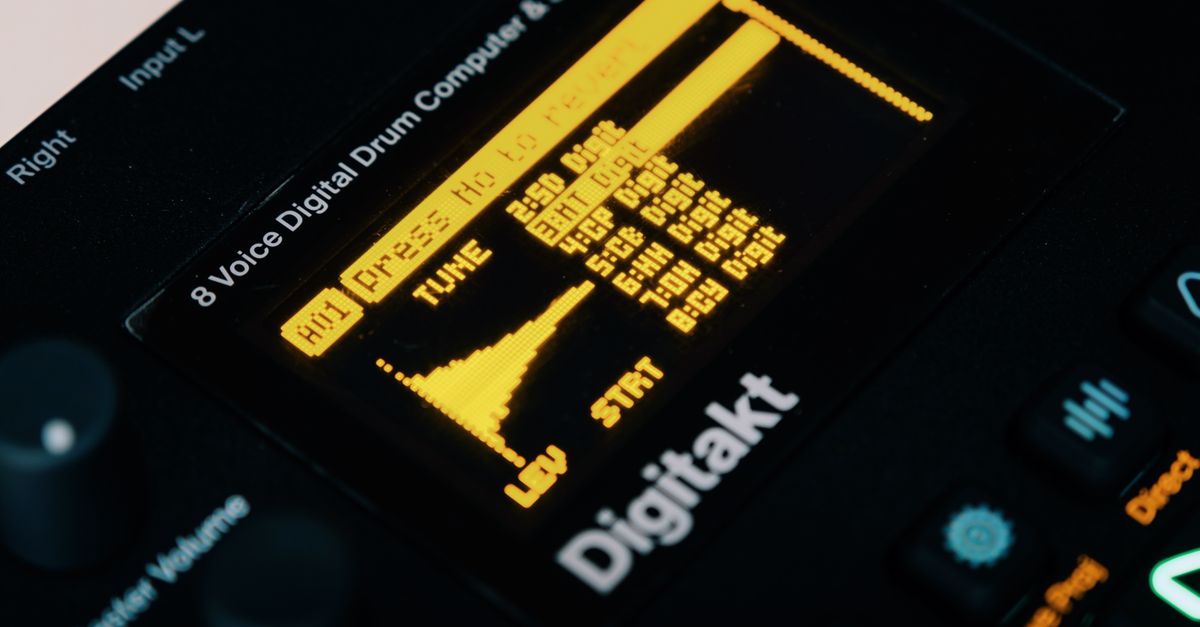
What Makes a Drum Machine Work for Live Use
Live use puts three demands on any rhythm tool: the pattern must start the moment you ask for it, the tempo must hold steady while you play or sing over it, and the controls must be reachable without leaving the page. A hardware drum machine satisfies these with buttons and a footswitch; a browser tool satisfies them with an immediate Play control, a strict tempo range that keeps the scheduler predictable, and a grid that fits on one screen. Because playback is scheduled on the audio timeline rather than a JavaScript timer callback, ordinary main-thread jitter is reduced and the loop stays tight enough to play along with. None of that depends on an account, a download, or a sample library, which is what makes a browser drum machine for live use practical for rehearsal rooms, lesson studios, and small stage setups where carrying a dedicated device is not realistic.
The Three Voices on the Grid
The drum machine exposes exactly three tracks: kick, snare, and hi-hat. That trio is the minimum needed to feel a pulse, mark the backbeat, and provide high-frequency motion for most practice and rehearsal contexts. The kick is a short sine oscillator whose pitch drops while its gain decays; the snare and hi-hat are short noise bursts shaped by a high-pass filter and a gain envelope, with the hi-hat using a higher cutoff and a quieter level. All three voices are synthesized at playback time with browser Web Audio nodes, so no sample files are fetched and no third-party license attaches to what you hear. The grid is always four quarter-note beats divided into sixteen equal sixteenth-note steps, which means every track lines up with the same step numbers and you can layer kick, snare, and hi-hat independently without any offset math.
How Step Timing Is Calculated
Tempo is interpreted as quarter notes per minute, so the duration of a single sixteenth-note step is the formula 60 divided by BPM divided by 4 seconds. A worked example at the default 120 BPM: 60 ÷ 120 ÷ 4 = 0.125 seconds per step. Sixteen steps at that rate fill the bar in 2 seconds, which is the audible loop length the browser will play. The same formula applies at any tempo in the allowed range, which is why the bar length scales smoothly as you move between 40 and 240 BPM. The grid is fixed to sixteenth notes, so the bar is always four quarter-note beats regardless of the tempo you enter — there is no support for compound meters, triplets, or swing in this focused tool. If you need those, the pattern concept can be transferred to a full music application; the live-use tool here stays deliberately simple.
Build and Run a Live Beat in the Browser
- Open the Online Drum Machine in your browser and keep the device volume moderate before pressing Play, especially with headphones, because synthesized transients can sound louder on some output systems.
- Enter a whole-number tempo from 40 to 240 BPM that matches the song, lesson, or click track you are playing along with; the input is strict and rejects empty values, decimals, signs, exponent notation, unit text, and numbers outside the range.
- Place the kick on the four quarter-note positions of the grid — steps 1, 5, 9, and 13 — to anchor a steady four-on-the-floor pulse that works for most live practice.
- Place the snare on beats two and four by clicking the snare cells at steps 5 and 13 (steps 5 and 13 fall on beats two and four because each quarter note covers four sixteenth steps), producing the standard backbeat.
- Fill the hi-hat row with closed-hat hits on the eighth-note positions — steps 1, 3, 5, 7, 9, 11, 13, and 15 — to keep the rhythm active during long runs.
- Press Play to start the loop. The AudioContext is only created after this user gesture, which respects browser policies that require a tap before audio can begin.
- Use Stop to release playback resources and silence the loop; press Play again when you are ready to restart from step one.
- Use Clear pattern to turn all 48 cells off in a single action so you can start sketching a new groove from silence.
Editing the Pattern While It Plays
One of the reasons a browser drum machine for live use is appealing in rehearsal is that you can keep playing while you change the pattern. The grid stays clickable during playback, and edits are read by the upcoming scheduling window, so toggling a hi-hat cell will be heard on its next sixteenth-note pass rather than forcing you to stop and restart. A moving step outline shows the current position inside the bar so you can see exactly where the loop is at any moment. The accessible label of every cell describes whether it is on or off, which keeps screen-reader users oriented, and the step indicator relies on color and outline only — when reduced motion is requested, the color transitions are disabled so the position is still communicated without animation.
Tempo Boundaries at a Glance
The 40–240 BPM range is enforced for usability and scheduling, not as a claim about the limits of musical tempo. The table below shows the step duration and full bar length at the two extremes and at a familiar middle tempo, all directly from the tool's published timing values.
| Tempo (BPM) | Step duration (seconds) | Full 16-step bar (seconds) |
|---|---|---|
| 40 (lower boundary) | 0.375 | 6 |
| 120 (default) | 0.125 | 2 |
| 240 (upper boundary) | 0.0625 | 1 |
Changing tempo while the loop is running stops the current playback and releases its audio context. This prevents an old scheduler from continuing with a mixture of two tempos and avoids clicks from overlapping events. Once the new value is accepted, pressing Play starts cleanly at step one, which is the same behavior you would expect from a hardware drum machine after a tempo change.
What This Live Tool Does Not Do
The drum machine is intentionally narrow, and knowing what is outside its scope is part of choosing it well. It does not support swing, triplets, velocity, accents, per-track volume, or effects such as reverb or compression. It does not record your performance, export the pattern, or synchronize to MIDI or a click coming from another application. Background-tab playback is not guaranteed, because heavy browser throttling, suspended tabs, device changes, and high system load can still affect what you hear even though the look-ahead scheduler reduces ordinary main-thread jitter. If your live situation needs production arrangement, exact inter-device synchronization, rendered stems, or latency calibration, transfer the pattern concept to a dedicated music application — this tool is best for sketching straight sixteenth-note ideas, learning step sequencing, and testing a basic pulse.
Practical Tips for a Smoother Live Session
Use a recent desktop browser so the Web Audio scheduler runs on a foregrounded tab and the AudioContext is created promptly after Play. Leave the page focused throughout the session to avoid tab suspension, and keep the grid visible so the moving step outline can guide you back to step one. If you want to swap grooves in front of an audience, use Clear pattern between attempts so you always start from a known silent state, and place the kick, snare, and hi-hat one row at a time so each voice is audibly correct before the next is added. For a quick sanity check at any tempo, listen for the four-on-the-floor pulse you placed on steps 1, 5, 9, and 13; if those hits fall exactly on each beat, the scheduler is aligned and you can layer the rest of the pattern with confidence.
If you're weighing options, Beat Maker Online Accuracy: BPM Math and Scheduling covers this in detail.
If you're weighing options, Beat Maker Online Explained: 16-Step Sequencer Basics covers this in detail.