A beat maker online game is a browser-based rhythm sequencer that lets you switch on drum hits by clicking cells across a grid, with no install, account, or sample download required. The Online Drum Machine turns a 4×4 beat into 16 equal sixteenth-note steps and assigns a kick row, snare row, and hi-hat row underneath it, so every click is one toggle of one instrument at one moment in the bar. When you press Play, the running step indicator scans across the grid and the browser schedules each active cell on a Web Audio timeline, synthesizing kick, snare, and hi-hat sounds from local oscillators and noise buffers instead of pulling files from a sample host. The default pattern is a four-on-the-floor starter beat — kick on every quarter note, snare on beats two and four, closed hi-hat on every odd step — so the loop sounds musical from the very first press of Play. From there, every cell is replaceable one tap at a time, which is the part that feels most like a puzzle game: you are not recording a performance, you are solving a 48-cell pattern.
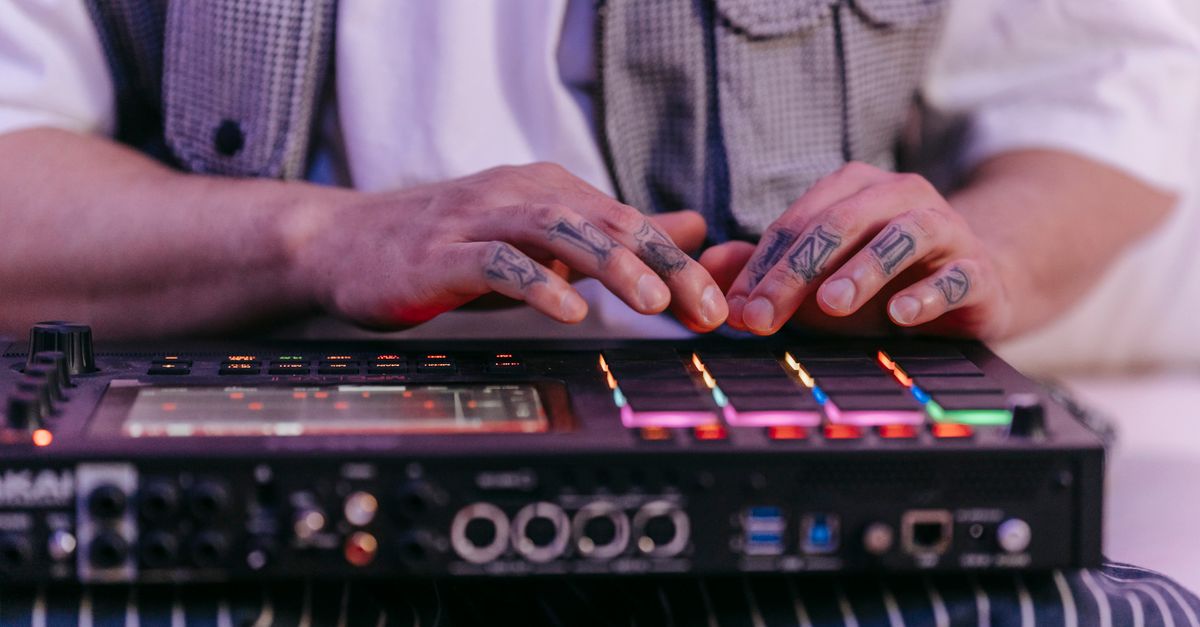
What Makes a Beat Maker Feel Like a Game?
Most drum tools feel like software — record-arm, fader-up, edit-a-region. A beat maker online game feels different because the input is binary. Every step is a single yes-or-no decision: is the kick on here, is the snare on there, is the hi-hat on the off-beat? You do not draw curves, drag loops, or audition banks. You make one move per cell, then the loop tells you immediately whether the move made the bar better or worse. The grid stays the same shape every time — 16 cells wide, three rows tall — so the level never changes; only your pattern does.
That structure borrows a lot from puzzle interfaces. The total state space is small enough to think about but large enough to keep searching: 48 cells, each either on or off, give you more possible patterns than any human will ever audition. The default four-on-the-floor starter means your first screen is already a working beat, so the game is less about building from nothing and more about transforming something recognizable. Pressing Clear pattern returns every cell to silence for a fresh start, and pressing Stop releases the audio engine so you can listen in silence before deciding the next move.
The Web Audio context is created only when you press Play, which respects the browser rule that audio cannot start without a user gesture. That detail is invisible while you play, but it is why the tool can run in a tab you opened ten minutes ago and still feel snappy on the first click of the Play button. The audio context also closes cleanly when you press Stop, when the component unmounts, on a playback error, and on every new run, so there is no leftover scheduler quietly ticking in the background.
Program Your First Loop in Five Steps
- Open the Online Drum Machine and look at the starter pattern: kick on steps 1, 5, 9, and 13 (the four quarter notes), snare on steps 5 and 13 (beats two and four), and closed hi-hat on every odd step.
- Decide on a tempo and type a whole number into the BPM field between 40 and 240. Leave it at 120 for a familiar walking-pace groove, type 90 for a hip-hop feel, or type 160 for a driving dance pulse.
- Click any cell on the kick, snare, or hi-hat row to toggle that hit on or off. Pattern edits stay active during playback, so you can sculpt the loop while it plays.
- Press Play to start the synthesized loop. The outline that moves across the grid shows the current step, and the three voices are scheduled on the AudioContext timeline using a 25-millisecond polling timer with a 100-millisecond look-ahead window.
- Press Stop to release audio resources, or press Clear pattern to turn all 48 cells off at once and start from silence.
If you change the BPM field during playback, the loop stops and the audio context closes so that the previous schedule cannot bleed into the new one. Enter a valid whole number and press Play again to start cleanly at step one. This trade-off is what keeps the audible tempo from drifting mid-bar.
How BPM and Step Timing Actually Work
BPM in this tool means quarter notes per minute, the same definition the W3C MusicXML sound element uses for tempo. Because the grid has four sixteenth-note steps per quarter note, the duration of one step is 60 / BPM / 4 seconds. Worked example: at 120 BPM, the formula becomes 60 / 120 / 4, which equals 0.125 seconds per step, and the full 16-step bar lasts 0.125 × 16 = 2 seconds. Slow the tempo to 40 BPM and each step stretches to 0.375 seconds, so the bar takes 6 seconds to wrap around. Push it to the upper boundary of 240 BPM and each step shrinks to 0.0625 seconds, making the bar last just one second.
| BPM | One step (seconds) | Full 16-step bar (seconds) |
|---|---|---|
| 40 (lower boundary) | 0.375 | 6.000 |
| 120 (default) | 0.125 | 2.000 |
| 240 (upper boundary) | 0.0625 | 1.000 |
The tempo field is strict: empty input, decimal fractions like 119.5, signs, exponent notation like 1.2e2, and unit text like "120bpm" all produce a recoverable error message. Values below 40 or above 240 are also rejected. Whole numbers from 40 through 240 inclusive are the only accepted values, which keeps the timing formula inside the guard rails the scheduler is built for. If you would rather experiment with tempos outside that range, the tool recommends transferring the pattern concept to a dedicated music application.
What Each Synthesized Voice Sounds Like
Every hit you hear is generated on the fly by your browser's Web Audio nodes — there are no downloaded samples, no external sample library, and no third-party license to inherit. According to the W3C Web Audio API, an AudioContext can build oscillators, noise buffers, filters, and gain envelopes without contacting a server, which is exactly how the three voices are shaped in this tool.
The kick is a short sine oscillator whose pitch drops fast and whose gain decays sharply, giving a thump that resembles a synthesized 808 rather than a recorded kick drum. The snare uses a freshly generated noise buffer run through a high-pass filter with a gain envelope, producing a buzzy crack on each hit. The hi-hat uses a shorter, quieter noise burst with a higher high-pass cutoff, so it sits above the kick and snare in the mix. Because each snare and hi-hat hit is built from a new noise buffer, the exact character can vary slightly between hits, between browsers, between output devices, and between sample rates.
This is intentional. The tool is a sketchpad for straight sixteenth-note ideas, not a sample-identical drum machine. Your device's audio output, the sample rate, and the random noise the browser generates all color the sound. Heavy browser throttling, suspended tabs, device changes, high system load, and operating-system audio latency can still affect what you hear, so the contract explicitly notes that the tool is not a digital audio workstation or an AudioWorklet engine. If you need production-grade stems or sample-identical rendering across devices, the recommended path is to capture the pattern concept and move it to a dedicated music application.
Limits That Matter Before You Start
Treating the tool like a game is more rewarding when you know what it will and will not do. The table below summarizes the boundary between supported and out-of-scope features so you do not bump into a missing control mid-loop.
| Inside the tool | Outside the tool |
|---|---|
| Synthesize kick, snare, and hi-hat locally | Download or upload samples |
| Loop a strict 16-step pattern | Support swing, triplets, or per-step accents |
| Accept whole-number BPM from 40 to 240 | Allow decimal tempos or text in the BPM field |
| Run in the browser with no account or upload | Record audio, export a WAV, or sync to MIDI |
| Use color plus outline for the moving step indicator | Guarantee identical playback across every device |
There are no per-track volume sliders, no effects chain, no time-signature control, no recording button, and no export. Background tabs may be throttled by the browser, which can affect playback if you switch away for long stretches. Reduced-motion users get the step outline without color transitions, and every grid button carries a descriptive accessible label so the tool stays usable without sight of the moving indicator. Horizontal scrolling keeps all sixteen steps reachable on narrow screens without shrinking touch targets into unreadable marks.
Turn the Grid Into a Game
A few small habits make the loop feel less like a static pattern and more like a session you keep returning to.
- Score yourself on restraint. Open the starter pattern, press Clear, and try to rebuild a four-on-the-floor groove using no more than 14 active cells. The constraint is what makes it a puzzle rather than a blank canvas.
- Chain three patterns. Because edits apply to the upcoming schedule, you can change the snare row while the loop plays and hear the groove shift inside the same bar, then switch to a hi-hat-only pattern as the next "round."
- Test tempo extremes. Drop BPM to 40 to hear how the snare and hi-hat spaces out, then jump to 240 to feel how compressed the sixteenth notes become. The grid shape never changes; only the audible rate does.
- Match the hi-hat to the kick. Try opening the hi-hat on every step and the kick only on steps 1 and 9. Then move the kick to steps 1, 7, and 11 and listen for how the off-beat kick changes the pocket.
- Use Clear as a reset button. Pressing it turns all 48 cells off, which is the cleanest way to start a new round without restarting the page or losing the tempo you just dialed in.
Keep your device volume moderate before pressing Play, especially with headphones, because synthesized transients can sound louder on some output systems. The audio context closes when you press Stop, when the component unmounts, on a playback error, or when you start a new run, so there is no hidden resource drain between rounds. If browser audio initialization or scheduling fails, the tool reports a recoverable message and lets you try Play again instead of leaving a false playing state on screen.
If you finish a loop you like, write down the cell pattern by hand or screenshot the grid — the tool does not save patterns, record audio, or export a WAV. The pattern is a sketch rather than a session file, which is why the loop feels like a quick round of a game instead of a long studio project. Treat the next pattern as a new level, leave the cell counter visible, and run the same tempo twice to see whether you can land the same groove from memory.
For a deeper look, see Beat Maker Online Keyboard: 16-Step Drum Pattern Maker.
For a deeper look, see Beat Maker Online No Sign Up: Build a 16-Step Beat.