An online audio equalizer adjusts audio directly in your browser, and Audio Effects Online is one such tool: it decodes a browser-supported audio file locally, applies a single bounded effect chosen from six options, and exports the result as a new PCM16 WAV that you can download without uploading the original. The six options are echo, light reverb, reverse, fade in, fade out, and peak normalization, and each one is controlled by an integer amount between 0% and 100%. Because every decode, sample operation, WAV write, and download happens inside the current browser tab, the source audio never leaves the device. Readers searching for an audio equalizer online are usually trying to clean up, shape, or add character to a recording without installing a desktop application, and that is the exact task this tool is designed for, even though it works through effects rather than frequency bands. The rest of this article walks through what the tool does, the exact steps to apply an effect, and what the six effects do and do not claim to emulate.
What People Mean by Audio Equalizer Online
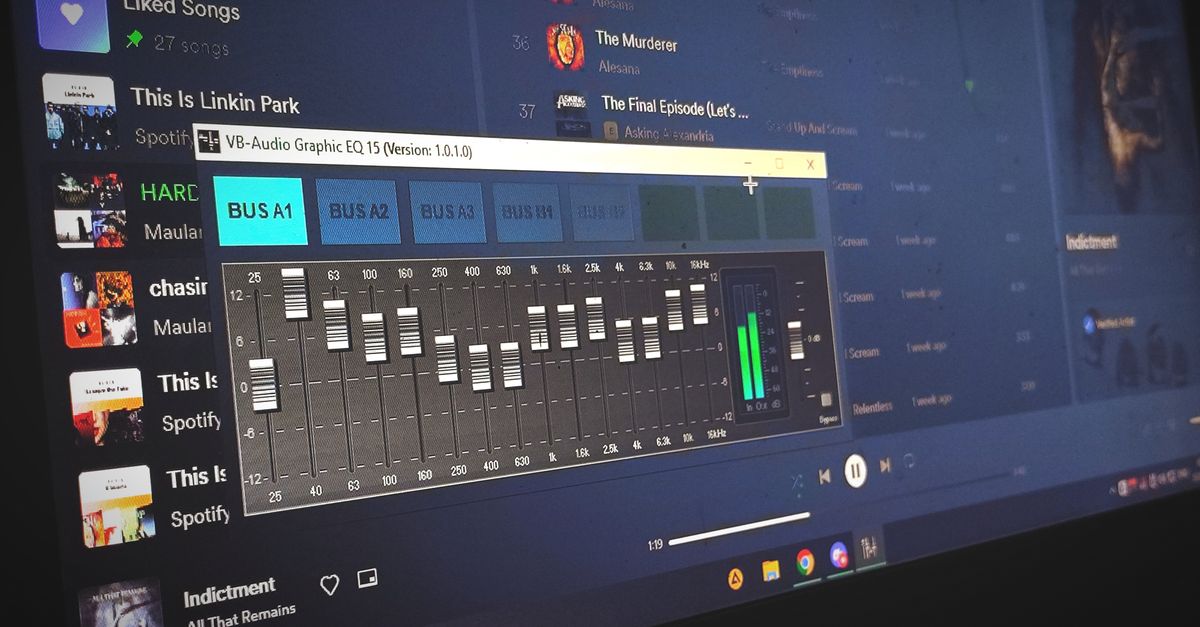
The phrase audio equalizer online covers two slightly different jobs, and it helps to separate them before choosing a tool. A traditional equalizer shapes tone by boosting or cutting specific frequency bands — bass, midrange, treble, or many narrow bands — and that is what most multi-band EQ tools focus on. An effects-based tool like Audio Effects Online covers a different but overlapping need: adding repetition, depth, reversal, fades, or dynamic range adjustment to a finished recording, all from a browser tab without uploading anything.
Both jobs share three practical requirements that explain why people search for them online. The work needs to happen without installing software, the file should not have to leave the device, and the output should be a portable audio file the user can keep. Audio Effects Online satisfies all three by decoding with the browser's Web Audio implementation, processing samples locally, and writing a standards-based PCM16 WAV that opens in any audio editor. That makes it a practical fit when the goal is to add a touch of space, a slapback echo, a fade tail, or a louder peak to an existing file rather than to retune its frequency balance.
How Audio Effects Online Works in Your Browser
When you select a file, the page asks the browser to decode it through its built-in Web Audio implementation. The decoder returns an AudioBuffer with a fixed channel count between 1 and 8 and a fixed sample rate between 8,000 and 192,000 Hz, which are the browser's contract for the W3C Web Audio specification. The page then validates that the effect choice and amount are within bounds, allocates the full output buffer including the echo or reverb tail, runs one deterministic operation across every sample, clips any finite result to the legal floating-point range of −1 to +1, and encodes the result using a separately tested PCM16 writer that follows Microsoft's WAVEFORMATEX block alignment.
The entire pipeline runs inside the current tab. The source file is read locally through a file input, the audio buffer is created in memory, and the downloaded file is built and offered through a temporary object URL. The object URL is revoked when the job is replaced or the page is unmounted, and the AudioContext used to decode the input is closed after processing so stale jobs cannot overwrite newer state. Nothing is sent to a server, and no account is required, which means there is no server render and no hidden AI transformation behind the result.
Apply an Effect Step by Step
- Choose an audio file that your browser can decode natively and that is no larger than 50 MiB. Recognized names include MP3, WAV, M4A, AAC, Ogg, WebM, and FLAC, but a recognized extension does not guarantee that a particular encoded file will decode — actual codec and profile support depends on the browser and operating system. If decoding fails, the tool creates no result.
- Select one of the six effects — echo, lightweight reverb, reverse, fade in, fade out, or normalization — and set an integer amount between 0% and 100%. The amount scales how strongly the wet signal is blended with the original for echo, reverb, and reverse, and it sets the slope for the fades.
- Apply the effect. The page reports channel count, sample rate, the input and output frame counts, the output peak, and the exact WAV byte size. Listen to or inspect the result, then download the new PCM16 WAV. Keep the original file untouched so you can re-process it later or try a different effect.
For a concrete example, when the input sample rate is 44,100 Hz, the echo delay is fixed at 200 ms, which works out to 0.200 × 44,100 = 8,820 sample frames. At 100% amount, every input sample is retained and a half-strength copy is added 8,820 frames after it; at 50% amount, that delayed copy is scaled by 0.5 × 50% = 0.25 before being added. The full tail is allocated before processing begins, so the last echo is never cut off, which matters for short inputs where a truncated tail would change the audible result.
What Each of the Six Effects Does
The six effects are deliberately narrow, and the table below summarizes the exact operation for each one. The reverb numbers — 29.7, 37.1, and 41.1 milliseconds — are documented product choices, not measurements of a real room, plate, spring, studio, or impulse response, so the result is a quick sound-design draft rather than a faithful acoustic emulation. More on what those three taps produce in practice is covered in the reverb delay times explained guide.
| Effect | Operation | Amount meaning |
|---|---|---|
| Echo | Retains each input sample and adds a half-strength copy 200 ms later. | Scales the delayed copy linearly from 0 to 0.5. |
| Light reverb | Adds three reflections at 29.7 ms, 37.1 ms, and 41.1 ms. | Multiplies the weights 0.50, 0.35, and 0.25 by the selected amount. |
| Reverse | Reads the sample frames in the opposite order. | Blends reversed and original by the selected amount. |
| Fade in | Linear ramp from the selected dry level to full level. | Sets the starting dry proportion of the fade. |
| Fade out | Linear ramp from full level down to the selected dry level. | Sets the ending dry proportion of the fade. |
| Normalization | Scales so the largest absolute sample reaches 0.95. | Amount scales the target peak below 0.95. |
Normalization finds the largest absolute decoded sample and rescales toward a 0.95 peak. It is not loudness matching, so it does not measure LUFS, perceived volume, broadcast compliance, true peak between samples, or equal loudness across different recordings. Silent input stays silent because the largest absolute sample is zero and the operation is a no-op. Echo and reverb can produce output that exceeds the output budget because their tails add frames beyond the input length, and in that case nothing is truncated — the job simply produces no file, which means it is worth lowering the amount or trimming the input when the page reports that the result would exceed the budget.
Limits and Budgets Worth Knowing
The tool exposes explicit resource boundaries so the result is predictable rather than silently truncated. The input file may be at most 50 MiB, and the decoded input and the complete effect output may each contain no more than 30 million channel samples. Because echo and reverb add samples beyond the input length, a file that fits the input budget can still fail the output budget — in that case nothing is truncated and no file is created.
Other limits are practical rather than numeric. The tool applies exactly one effect per run, so to build a chain you download a result, inspect it, and use that WAV as the input for the next run. Changing the file, effect, or amount invalidates the older result. Repeated lossy decode and PCM processing can reveal or create audible artifacts, and repeated normalization changes dynamics, so it is worth keeping the original file aside rather than feeding the same processed result back through the pipeline over and over.
The downloadable file is a new interleaved little-endian PCM16 RIFF/WAVE. It does not preserve the source codec, bitrate, compression quality, tags, artwork, chapters, cue points, loop markers, or container metadata. Floating samples are quantized to signed sixteen-bit PCM, which is why the output peak reported on the page is a float and the byte size is exactly 44 bytes of header plus two bytes per mono frame or four bytes per stereo frame, following the block alignment Microsoft documents for sixteen-bit PCM.
When to Use Audio Effects Online vs a Frequency Equalizer
Choose Audio Effects Online when the adjustment you want is a single, well-defined effect: a slapback echo on a voice take, a touch of space on a dry guitar, a reverse pass for a sound-design draft, a fade tail to soften an edit, or a peak-normalization pass to give a quiet recording more headroom. The output is a new PCM16 WAV that opens in any DAW or audio editor, and the original file stays untouched on your device throughout the run.
Choose a true frequency equalizer when the change you want is a tonal one: cutting low-end rumble, boosting presence in the midrange, or rolling off highs. For that task, a three-band peaking equalizer that processes locally and downloads a WAV is the right fit. Audio Effects Online is the right fit when the change is shape, depth, reversal, or dynamics rather than frequency content, and the two tools can be used in sequence if a recording needs both tonal and spatial adjustment.
Related reading: Plan the Steps Needed to Use an Audio Equalizer.