Before you use an audio equalizer, know that the Audio Equalizer shapes audio with three broad peaking filters centered at 100 Hz, 1,000 Hz, and normally 10,000 Hz, and it protects the final signal with one uniform scale when the processed peak exceeds 0.99. An equalizer should correct a tone problem you can hear, not simply make a file sound bigger. This tool offers Bass, Mid, and Treble controls, each accepting whole-number gains from -12 through +12 dB. Positive values boost energy around a band center; negative values reduce it. With all three controls at zero, decoded channel samples follow a flat path rather than passing through nonzero filter sections. This is a compact tone-shaper, not automatic room correction, a graphic 10-band system, or a linear-phase mastering processor. Processing stays in the current browser tab: the source is not uploaded, and no audio bytes, decoded samples, EQ settings, filename, or result are sent to the service. The download is a new, complete PCM16 WAV rather than a copy of the source codec. Before filtering, confirm browser decodability and every size, duration, channel, rate, and sample limit; afterward, read the raw peak, output peak, and safety scale before judging the preview.
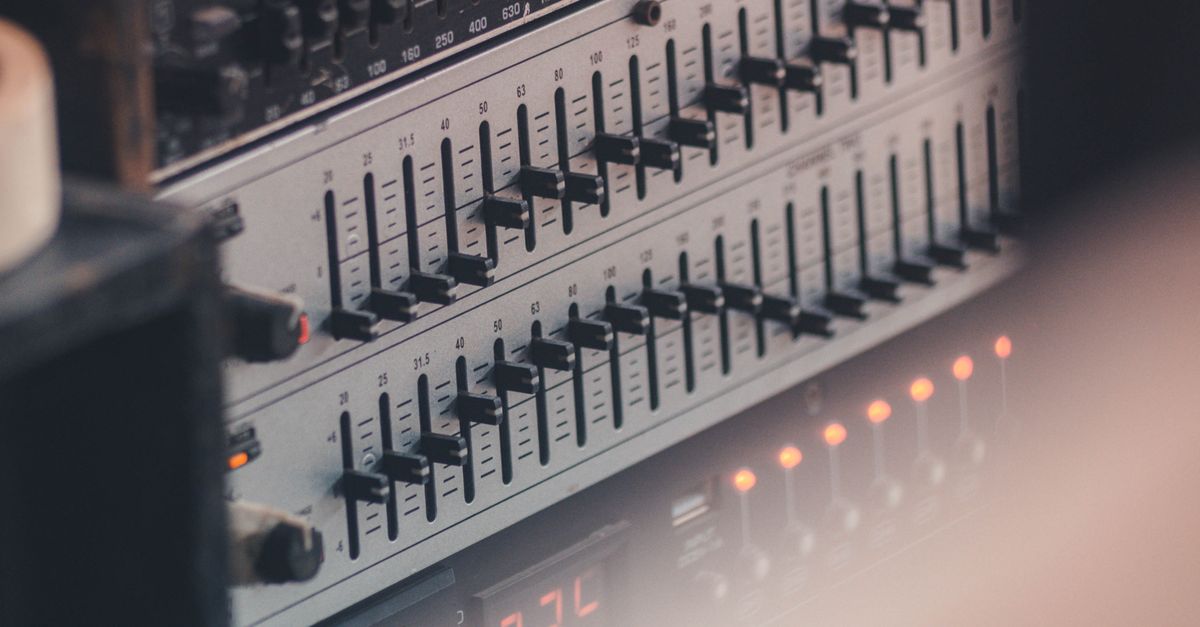
Understand the exact three-band model
These controls are peaking EQ filters, so each one changes energy around its center frequency rather than treating every frequency below or above a hard boundary as part of the same band. The implementation follows the peaking biquad equations in the W3C Audio EQ Cookbook. It converts the selected decibel gain into the corresponding filter parameter, normalizes the coefficients by a0, and runs a second-order recursive filter over each decoded channel.
| Control | Center frequency | Effect of the gain | Important limitation |
|---|---|---|---|
| Bass | 100 Hz | Boosts or cuts energy around the bass center. | Q is fixed at 1, producing a broad adjustment. |
| Mid | 1,000 Hz | Boosts or cuts energy around the midrange center. | The center and Q cannot be changed. |
| Treble | Normally 10,000 Hz; otherwise min(10,000 Hz, floor(decoded sample rate × 0.45)). | Boosts or cuts energy around the treble center. | The center moves below 10,000 Hz at lower sample rates to remain under the Nyquist limit. |
The filter sections run in Bass, Mid, then Treble order. Q=1 is a disclosed product choice rather than a value inferred from the source, and it gives each control a relatively broad influence. Setting all three controls to zero creates a flat signal path at the decoded-sample stage. That does not guarantee an identical source file, because browser decoding may resample the audio and the final output is still converted to PCM16.
Check every input boundary before filtering
The selected file must be decodable by the current browser and operating system. Supported possibilities include MP3, WAV, M4A, AAC, Ogg, WebM, and FLAC when the browser can decode the actual codec. A familiar file extension is not a guarantee because a container can contain a codec the browser cannot read. Decoding uses Web Audio and produces a decoded AudioBuffer. A decode failure produces an error, and no stale download is presented.
All of the following limits must be satisfied for the tool to complete the job:
| Input check | Accepted range |
|---|---|
| Source file size | 50 MiB maximum |
| Decoded duration | Five minutes or shorter |
| Decoded channel count | One through eight channels |
| Decoded sample rate | 8,000 through 192,000 Hz |
| Decoded channel samples | No more than 30 million |
An over-limit file is rejected before filtering, and the tool never silently truncates the end. Web Audio may resample while decoding, so the result reports and writes the decoded sample rate instead of claiming that the source container rate survived unchanged.
Equalize one file from selection to WAV
- Choose one browser-decodable file. Confirm that the source is no larger than 50 MiB and that its decoded duration, channel count, sample rate, and channel-sample total remain within the accepted limits.
- Set the three gains. Choose whole-number Bass, Mid, and Treble values from -12 through +12 dB. A positive value boosts the region around that center, while a negative value reduces it.
- Apply the equalizer locally. The Bass, Mid, and Treble peaking sections are cascaded in that order over each accepted channel. Every channel receives identical settings but is filtered independently.
- Inspect the reported values. Check the raw peak, output peak, exact safety scale, decoded sample rate, and frame count. The frame count confirms that every channel retains the same number of sample frames.
- Preview the processed result. Listen on the speakers or headphones that matter and compare the result with the original at a similar perceived level. Do not judge the adjustment only by whether the output sounds louder.
- Download the complete PCM16 WAV. The new file contains the full processed audio rather than a truncated preview or a renamed copy of the source.
Interpret peak safety without mistaking it for loudness
The raw peak is the largest absolute sample value found across every processed sample and every channel. If that value exceeds 0.99, the tool calculates one uniform scale factor and applies it to the entire processed result so the largest magnitude becomes 0.99. This prevents the PCM encoder from having to chop individual peaks independently, but it can reduce the overall signal level.
- Raw peak: The peak measured after filtering but before safety scaling.
- Output peak: The peak after the uniform safety scale has been applied.
- Safety scale: The exact multiplier used across all processed channels.
- Sample rate: The decoded rate written into the result.
- Frame count: The number of sample frames retained for each channel.
Peak safety is not loudness normalization. It does not target LUFS, RMS, replay gain, or a streaming-platform specification, and it cannot make a weak recording consistently loud across different tracks. A scale below 1 is a signal that the combined filter result exceeded the safe peak and was reduced uniformly.
Listen for artifacts rather than chasing larger numbers
Use the preview and reported numbers as technical checks, not proof of a desirable mix. Strong boosts may emphasize noise, sibilance, rumble, or distortion already present in the source. A cut is often safer than stacking several boosts, especially when the original recording already has a clear tonal imbalance.
Compare the original and processed versions at a similar perceived level on the playback system you care about. This helps separate a genuine tonal improvement from the impression that one version is simply louder. Broad controls can address obvious bass, midrange, or treble problems, but they cannot diagnose the exact source of a problem or reproduce the transparency and control of a fully parametric processor.
Account for the PCM16 WAV trade-offs
The download is a new, uncompressed PCM16 WAV. Float samples are converted to signed 16-bit little-endian PCM and interleaved by frame. Its header records the actual channel count, sample rate, byte rate, block alignment, bit depth, and complete data length. The original MP3 or AAC bitrate, compression mode, tags, artwork, chapters, loop markers, and container-specific metadata are not preserved.
That trade-off is appropriate when the goal is to apply a disclosed three-band adjustment and obtain a complete WAV for further use. Use a full audio editor when you need precise center frequencies, adjustable Q, spectrum analysis, automation, linear-phase processing, loudness metering, dithering controls, codec selection, or metadata preservation. For a straightforward browser-based tone adjustment, the essential preflight is simple: confirm that the file can be decoded, verify every limit, choose conservative gains, understand the safety scale, and judge the result by careful listening.
Related reading: What Should I Review After I Use an Audio Equalizer?.
Related reading: When Should I Use an Audio Equalizer? A/B Listening Test.