An audio equalizer circuit is a filter path that boosts or attenuates selected frequency regions, and the Audio Equalizer implements that idea as three cascaded peaking biquads with defined Bass, Mid, and Treble centers.
Here, “circuit” refers to the browser tool’s signal-processing path rather than a component-level schematic. Physical implementations may use passive networks or active components, but this tool does not calculate component values or provide wiring instructions. It processes one selected audio file locally and creates a new PCM16 WAV.
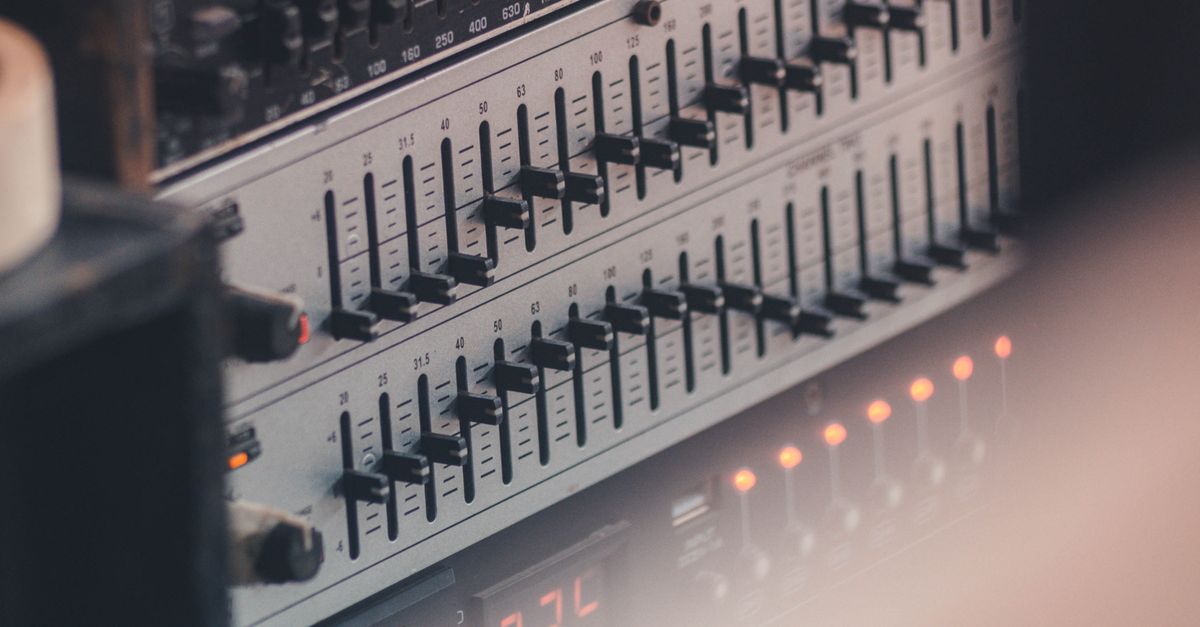
How equalizer circuits change tonal balance
Each equalizer stage calculates an output signal using current and previous samples. A peaking-EQ biquad boosts or attenuates a broad region around a selected center frequency instead of applying every frequency below or above that center the same way. The selected decibel gain becomes a coefficient parameter, the coefficients are normalized by their a0 value, and the resulting second-order recursive filter runs across the decoded audio.
The construction follows the peaking-EQ equations in the W3C Audio EQ Cookbook. In this tool, the three sections are cascaded in Bass, Mid, then Treble order, so the Bass output feeds the Mid stage and the Mid output feeds the Treble stage. Every accepted channel is filtered independently with identical settings, and each channel retains the same number of sample frames.
Setting all three controls to 0 dB produces a genuine flat filter path: the tool copies the decoded channel samples without running a nonzero filter section. Flat describes the EQ processing, not byte-for-byte preservation of the source file, because decoding may resample the audio and the export is converted to a new PCM16 WAV.
The role of each filter stage
The frequency controls are deliberately broad and fixed rather than resembling the many narrow bands found in a graphic equalizer.
| Control | Center frequency | Gain range | Effect |
|---|---|---|---|
| Bass | 100 Hz | Whole-number values from -12 to +12 dB | Broad peaking adjustment around 100 Hz |
| Mid | 1,000 Hz | Whole-number values from -12 to +12 dB | Broad peaking adjustment around 1,000 Hz |
| Treble | min(10,000 Hz, floor(decoded sample rate × 0.45)) | Whole-number values from -12 to +12 dB | Broad peaking adjustment around the available treble center |
At lower sample rates, the Treble center is reduced to 45 percent of the decoded sample rate, remaining below the Nyquist limit instead of asking an invalid digital filter to operate outside the available spectrum. Every band uses a fixed Q value of 1, which provides a broad adjustment and cannot be changed on the page. Positive values boost energy around the center; negative values cut it. Q=1 is a disclosed design choice rather than a value inferred from the source recording.
This is a compact, manual three-band equalizer. It is not a 10-band graphic equalizer, a linear-phase mastering processor, an automatic room-correction system, or a promise that one setting will improve every recording.
Run a local three-band equalization workflow
- Choose one compatible audio file. Select a browser-decodable file no larger than 50 MiB. After decoding, it must be five minutes or shorter, contain one through eight channels, use a sample rate from 8,000 through 192,000 Hz, and contain no more than 30 million channel samples. Web Audio can decode MP3, WAV, M4A, AAC, Ogg, WebM, or FLAC when the current browser and operating system support the actual codec. A familiar extension does not guarantee decodability because a container can hold an unsupported codec. An over-limit file is rejected before filtering, the end is never silently truncated, and a decode failure produces an error without presenting a stale download.
- Set the Bass, Mid, and Treble gains. Enter a whole-number value from -12 through +12 dB for each control. Zero leaves that band unadjusted, while a positive or negative value requests a boost or cut around its center.
- Apply the equalizer locally. The tool decodes the file, runs the Bass, Mid, and Treble peaking filters in that order, and processes every accepted channel independently with the same settings. Processing remains in the current browser tab. The source is not uploaded, and Lizely does not receive the audio bytes, decoded samples, EQ settings, filename, or result.
- Check the reported measurements. Review the raw peak, output peak, exact safety scale, decoded sample rate, and frame count. The interface also reports the applied centers and output size. These figures reveal what happened during processing, although they cannot judge whether the tonal balance sounds better.
- Preview and compare the result. Listen to the processed file and the original through the speakers or headphones that matter. Compare them at a similar perceived level rather than treating greater loudness as improvement. Strong boosts may expose noise, sibilance, rumble, or distortion already present in the recording.
- Download the complete PCM16 WAV. Save the equalized result after previewing it. The export contains the complete processed frames, but it is a new WAV rather than the original compressed file with its container information intact.
Why the safety scale may be below 1
After filtering, the tool measures the absolute peak across every processed sample and every channel. Cascaded boosts can create samples above digital full scale even when the source recording never clipped. If the raw peak exceeds 0.99, one uniform scale factor reduces the entire processed result so its largest magnitude becomes 0.99. The same factor applies to every channel and every sample; it does not selectively trim individual peaks.
This global reduction prevents the PCM encoder from independently clipping peaks, but it can lower the overall level. The interface reports the raw peak, output peak, and exact safety scale so the change is visible. A scale below 1 therefore means the complete equalized signal was reduced to remain within the chosen ceiling.
The safety stage is not loudness normalization. It does not target LUFS, RMS, ReplayGain, or a streaming platform’s delivery specification. When several increases would push the signal too far, a cut is often safer than stacking multiple boosts.
What the PCM16 WAV does and does not preserve
The export keeps the complete, equal-length processed channels, interleaves them by frame, and converts floating-point samples to signed 16-bit little-endian PCM. Its WAV header records the actual channel count, sample rate, byte rate, block alignment, bit depth, and complete data length. The Microsoft WAVEFORMATEX reference documents the principal fields used in this format.
Web Audio may resample while decoding, so the tool reports and writes the decoded sample rate rather than claiming that the source container rate survived unchanged. The Web Audio API AudioBuffer documentation describes the decoded channel data on which the browser processing operates.
The download is a new uncompressed PCM16 WAV. It does not retain the source MP3 or AAC bitrate, compression mode, tags, artwork, chapters, loop markers, or container-specific metadata. Those omissions do not affect the processed sample data, but they matter when the original file’s organization must be preserved.
When a full editor is the better choice
The browser tool suits broad tonal adjustments on an existing recording when a new WAV is an acceptable deliverable. More advanced editing requirements call for a different workflow.
| Requirement | Audio Equalizer | What to seek in a full editor |
|---|---|---|
| Precise frequency shaping | Fixed centers and Q=1 | Adjustable center frequencies and Q |
| Time-based or phase-accurate processing | No automation or linear-phase processing | Automation, spectrum analysis, and linear-phase options |
| Loudness measurement | Raw and output peaks, but no LUFS targeting | Loudness metering and delivery-target controls |
| Output control | PCM16 WAV without original metadata | Codec selection, metadata preservation, and dithering controls |
Use a full audio editor when the task depends on those capabilities. The Audio Equalizer remains useful for a controlled three-band pass, especially when local processing and a predictable WAV export are the main requirements.
Judge the sound rather than the numbers alone
Peak readings and the safety scale confirm the processing state, but they do not prove that a mix is desirable. Listen to the original and the processed version through the same output system at a similar perceived level. A louder bass section may conceal a balance problem, while a treble increase can make sibilance or high-frequency noise more obvious. A mid cut may reduce harshness, and a bass cut may reveal that energy was already excessive.
Use zero on all three controls as a neutral baseline, compare deliberate changes one at a time, and stop when the result stops serving the recording. No fixed Bass, Mid, or Treble setting improves every source; preview and reported measurements are checks, not substitutes for critical listening.
If you're weighing options, Audio Waveform Generator for Precise SVG Output covers this in detail.
If you're weighing options, Audio Equalizer for iPhone: Adjust Bass, Mid, and Treble covers this in detail.