An audio waveform generator converts a browser-decodable audio file into a static SVG that maps time from left to right and sample amplitude vertically.
The Audio Waveform Generator performs that conversion locally in the current browser tab. You choose one audio file, set the output dimensions and colors, calculate a bounded minimum and maximum peak envelope, inspect it, and download the same SVG string shown in the inspector.
Its purpose is a precise static graphic rather than a spectrum, loudness measurement, or replacement for the original recording.
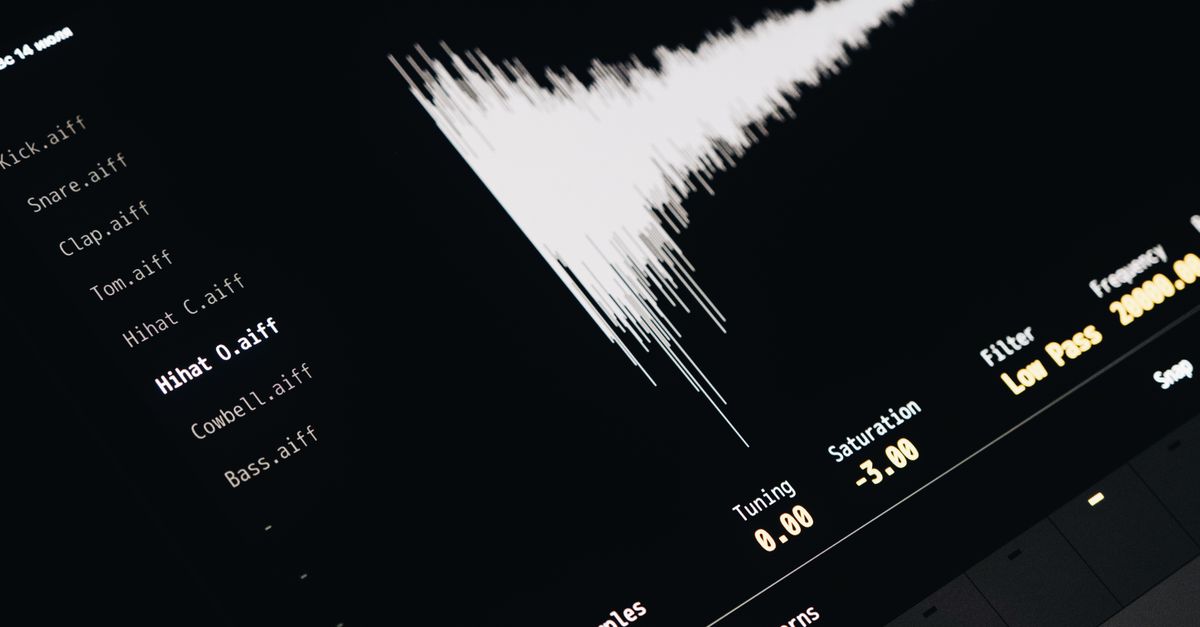
What the Audio Waveform SVG Represents
Each SVG column summarizes a contiguous range of decoded audio frames. The generator finds the minimum and maximum finite sample in that range across every decoded channel, defensively clamps out-of-range values to −1 through 1, and draws one vertical line from the bucket maximum to the bucket minimum. Using both extremes preserves short positive and negative peaks more reliably than selecting one arbitrary sample from each range.
The decoded frames are obtained through the browser’s Web Audio API AudioBuffer. The generator then applies its own deterministic bucketing and SVG coordinate rules.
- Horizontal position: Time advances from left to right across the requested image width.
- Vertical span: Each line shows the minimum-to-maximum sample amplitude within its time range.
- Channel treatment: All decoded channels contribute to one combined peak overview.
The resulting picture is a static amplitude summary. It does not contain the audio, rewrite the source, or calculate frequency content, beats, notes, loudness, speech, transients, or musical structure.
Supported Files and SVG Settings
The input and output limits below determine whether the tool can process a file and produce the requested SVG.
| Item | Accepted value | What it controls |
|---|---|---|
| Source format | One browser-decodable MP3, WAV, M4A, AAC, Ogg, WebM, or FLAC file | The browser and operating system must support the file’s real codec |
| Compressed size | At most 50 MiB | The maximum accepted size of the selected file |
| Decoded duration | No more than five minutes | The length of the decoded audio |
| Channels | 1 through 8 | All channels contribute to the combined envelope |
| Sample rate | 8,000 through 192,000 Hz | The decoded sample rate must remain inside the accepted range |
| Decoded size | No more than 30 million channel samples | The browser processing budget for decoded audio |
| SVG width | 320 through 1,600 pixels | Sets the output width and participates in the column-count calculation |
| SVG height | 120 through 600 pixels | Sets the output height, center position, and amplitude extent |
| Colors | Six-digit hexadecimal values | Controls the background and waveform colors |
An over-limit file is rejected as a whole; the generator does not silently create a waveform using only the beginning. Unsupported, corrupt, empty, or disguised files also return an error rather than an incomplete graphic.
Generate and Download the Waveform
Use this browser-based workflow to create a vector peak overview from a local audio file.
- Choose the source audio. Select one MP3, WAV, M4A, AAC, Ogg, WebM, or FLAC file that the current browser and operating system can decode. Confirm that it remains within the compressed and decoded limits listed above.
- Set the SVG appearance. Choose a width from 320 through 1,600 pixels and a height from 120 through 600 pixels. Enter the background and waveform colors using the browser’s six-digit hexadecimal controls.
- Generate the local peak envelope. Start the generation process. The browser decodes the selected audio, extracts the bounded minimum and maximum values, and builds the SVG without uploading the file to Lizely.
- Check the reported values. Confirm the decoded frame count and peak-column count shown by the tool. The expected column count is the smaller of the requested width, 1,000, and the decoded frame count.
- Inspect the result. Review the preview and open the expandable SVG inspector. Check the fixed pixel dimensions, matching viewBox, background rectangle, peak-line group, and selected colors in the actual SVG text.
- Download the exact SVG. Save the text-based SVG produced from that same inspected string. It is not a PNG, JPEG, video, or audio download.
Peak Column Math and Coordinates
The output uses this rule:
Peak-column count = min(requested image width, 1,000, decoded frame count)
For example, a request for a 1,200-pixel-wide image with 8,000 decoded frames produces 1,000 peak columns because 1,000 is smaller than both 1,200 and 8,000.
A short recording therefore does not invent more independent measurements than it contains, while a long recording remains within the bounded SVG and processing budget. The decoded frames are divided into equal index ranges. Bucket boundaries use integer frame indices: the first begins at frame zero, the last reaches the final decoded frame, and accepted frames are not omitted between adjacent ranges.
Coordinates are deterministic for the decoded input and selected options. The vertical center is half the requested height. A full-scale positive or negative sample reaches 45 percent of the requested height above or below that center, leaving a five-percent margin at the top and bottom. Columns are distributed evenly across the requested width.
For stereo and multichannel audio, a bucket’s minimum and maximum can come from different channels. The result is one combined peak overview, not an averaged mono signal, and it does not preserve channel identity or create separate left and right lanes.
Verify and Reuse the SVG
Use the generated SVG inspector as the source of truth before placing the file into a layout or opening it in an SVG-aware editor. A quick review should confirm:
- The width and height match the selected output dimensions.
- The peak-column count agrees with the calculation based on width and decoded frames.
- The background and waveform colors appear in the SVG markup.
- The file contains one background rectangle and a group of peak lines with a matching viewBox.
- The downloaded string is identical to the string shown in the inspector.
Because the output is SVG, it stays sharp when displayed at another size. Extremely large print or detailed editing workflows may still require different stroke widths or a more detailed source representation. The graphic is static and does not provide playback controls.
Its fixed dimensions also make it practical for web pages, editorial layouts, product presentations, and other design contexts where a predictable vector asset is needed. The SVG supplies the waveform graphic; audio playback requires a separate audio component. The original recording is never rewritten.
What This Waveform Can and Cannot Tell You
| Question or use case | What the SVG provides | Important boundary |
|---|---|---|
| Where did amplitude change over time? | A combined minimum-to-maximum peak overview | Time detail depends on the number of peak columns |
| Is the recording loud? | A visual comparison of peak ranges | It is not a calibrated loudness measurement |
| What frequencies, notes, or beats are present? | No frequency analysis | Use a spectrogram or frequency analyzer for that task |
| How do the stereo or multichannel tracks differ? | One combined envelope | Separate channels require an editor that exposes them as individual tracks |
| Did clipping, phase, or mastering problems occur? | No diagnostic conclusion | The picture cannot establish clipping history, phase, or mastering compliance |
A peak waveform is not a loudness meter. Two recordings can display similar peaks while sounding very different because perceived loudness depends on duration, frequency balance, dynamics, and playback conditions. The image also should not be used to diagnose hearing or equipment problems.
Local Processing and Browser Boundaries
Browser decoding, peak extraction, SVG generation, preview, and download all happen in the current tab. Neither the selected audio file nor the generated graphic is uploaded to Lizely.
Web Audio can read the listed formats only when the current browser and operating system support their real codecs. A familiar extension or MIME label cannot guarantee successful decoding, so a valid-looking filename is not proof that the browser can open the file.
The tool also prevents stale output from being mistaken for a current result. Selecting a replacement file, changing an option, generating again, or leaving the page revokes the obsolete object URL. Always review the latest preview, counts, and SVG text after making a change.