Online reverb accuracy refers to whether the math behind a reverb effect is transparent, reproducible, and bounded by disclosed limits — not whether the effect emulates a real room. When you add reverb to audio online through a browser-based tool, accuracy has two distinct meanings. It can describe how closely the effect mimics a physical acoustic space, such as a concert hall, plate, spring, or convolution-reverb processor. It can also describe how predictable, documented, and reproducible the underlying signal processing is from one run to the next. A lightweight reverb built on three fixed reflections with published coefficients is highly accurate in the second sense, because every output sample can be traced back to a specific input sample and a specific blend rule, even though the result is intentionally not a hall, plate, spring, studio, or impulse-response emulation. Tools that publish their delays, weights, blend curve, and clipping rule let the user predict what will happen before clicking apply, which is the practical meaning of accuracy for drafting and educational work.
Readers who search for "add reverb to audio online accuracy" usually want one of three things: confirmation that the effect will sound consistent every time, clarity about what the tool is actually doing to their audio, and assurance that nothing hidden will alter their file beyond the chosen operation. All three concerns map directly to the design contract of Audio Effects Online, which applies exactly one deterministic operation per run, reports the resulting frame counts and peak, and never touches the untouched original.
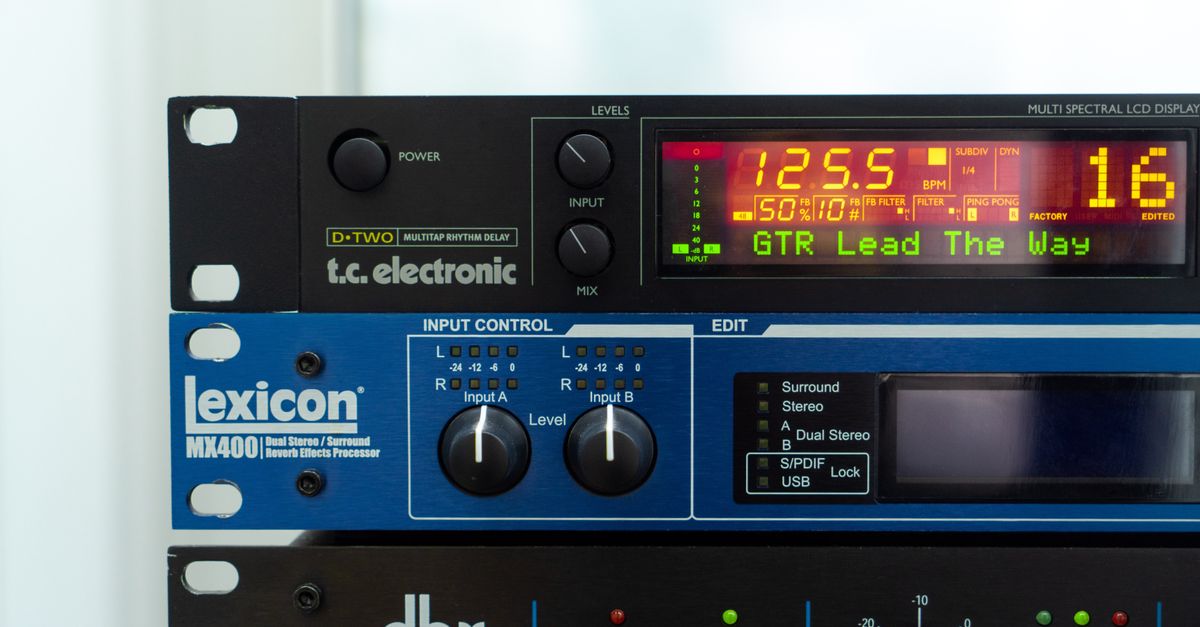
What Reverb Accuracy Means Online
Accuracy, in the context of an online reverb tool, is most useful when it is documented. A reverb that quietly applies an unstated impulse response, an undisclosed diffusion network, or a proprietary machine-learning model cannot be inspected or reproduced by the user; the user has to trust the operator. A reverb that lists its delays, weights, blend curve, and clipping rule can be reasoned about, predicted, and reasoned against — that is the kind of accuracy that matters for sound-design drafting, educational demonstrations, and consistent second-pass processing.
Audio Effects Online is explicit on this point. The reverb is described as a lightweight three-tap reflection design rather than a room simulator. The taps fire at 29.7, 37.1, and 41.1 milliseconds with disclosed weights of 0.50, 0.35, and 0.25 multiplied by the selected amount from 0% through 100%. There is no frequency-dependent decay, no stereo diffusion, no damping model, no pre-delay, and no convolution against a measured impulse response. The output is therefore predictable: doubling the amount doubles the contribution of each delayed tap, halving it cuts the contribution in half, and so on. Every output sample is the linear sum of dry and delayed samples at known positions, which is the literal definition of mathematical accuracy.
This deterministic math is what the tool means by accuracy, and it is the same accuracy promised across the broader pipeline. The W3C Web Audio API specification defines the AudioBuffer length in sample frames and the browser decoding contract that the tool relies on, and that contract is what allows the reverb coefficients to be stated in exact milliseconds and weights instead of vague artistic terms. For a parallel example of the same disclosure approach applied to a different transform, the Audio Pitch Changer accuracy walkthrough documents its resampling limits the same way.
The Six Effects and How Each Is Calculated
Audio Effects Online offers exactly six operations per run, and the accuracy of each one is documented in the same way. Looking at the six side by side makes it easier to pick the right effect for a given draft.
| Effect | Mathematical rule | What "accuracy" means here |
|---|---|---|
| Echo | Retain every input sample; add a half-strength copy 200 ms later; scale the delayed copy linearly by amount. | Tail length is fully allocated; last repeat is never truncated; reproducible per frame. |
| Reverb | Add three taps at 29.7, 37.1, and 41.1 ms with weights 0.50, 0.35, 0.25 scaled by amount. | Lightweight early-reflection design with published coefficients; not a room simulation. |
| Reverse | Read decoded frames in reverse order; blend with original according to amount. | Reversal is exact at 100%; lower amounts crossfade deterministically. |
| Fade in | Linear ramp from the selected dry proportion at the start to full level at the end. | Predictable level curve; first and last frames are exact. |
| Fade out | Inverse of fade in: full level at start, selected proportion at end. | Same predictable curve in reverse direction. |
| Normalization | Find the largest absolute decoded sample; scale the entire buffer toward a 0.95 peak. | Sample-peak accuracy only; not LUFS or perceived loudness. |
Each row of this table is taken from the disclosed product contract, not from general category assumptions. The echo is described in the same release notes as "deliberately simple and reproducible," and the reverb is described as a "lightweight early-reflection design rather than a room simulator." Both phrasings appear because the tool's accuracy claim is precision and disclosure, not acoustic realism. Silent input stays silent under normalization because the largest absolute sample is zero, so no scaling happens.
How to Add Reverb (and Other Effects) with Audio Effects Online
- Open Audio Effects Online in a current browser tab. No account is required and no install is needed.
- Choose one audio file the browser can decode. Recognized filenames include MP3, WAV, M4A, AAC, Ogg, WebM, and FLAC, but actual codec and profile support depends on the browser and operating system; a recognized filename is not a guarantee that a specific encoded file will decode, and a decode failure produces no result at all.
- Confirm the file is no larger than 50 MiB before selection. The tool rejects larger encoded files, and the decoded data must also stay within the channel, sample-rate, duration, and channel-sample budgets inherited by the local audio pipeline.
- Select reverb from the effect list, or choose one of the other five operations if reverb is not the right fit for the draft.
- Set a whole-number amount between 0% and 100%. The amount scales the reverb tap weights, the echo delayed copy, the reverse blend, the fade-in or fade-out endpoints, or the normalization target intensity, depending on the effect chosen.
- Apply the effect locally. Input decoding uses the browser Web Audio implementation, so the file is not uploaded to any server.
- Inspect the displayed channel count, sample rate, input and output frame counts, output peak, and exact WAV byte size. If the reverb tail pushes the output above the 30-million channel-sample budget, the tool produces no file at all rather than a truncated result.
- Download the resulting PCM16 WAV. Keep the untouched original so any second pass — including a chained reverb run or a normalization cleanup — can start from a clean source.
Output Format and Verified Limits
The downloadable file is always a new interleaved little-endian PCM16 RIFF/WAVE. Microsoft documents PCM block alignment as channels multiplied by bits per sample divided by eight; at sixteen bits this works out to two bytes per mono frame and four bytes per stereo frame, which is the exact figure reported in the byte-size readout after processing. Floating-point samples are clipped to the legal -1 through +1 range before quantization, which prevents wrap-around distortion when strong settings overlap dry and delayed samples.
The limits are explicit and they interact. The decoded input and the complete effect output may each contain no more than thirty million channel samples. Echo and reverb can pass the input budget yet fail the output budget because their tails add frames; in that case nothing is truncated and no file is created. The browser must report between one and eight equal-length channels, a sample rate between 8,000 and 192,000 Hz, and an integer effect amount from 0 to 100. Any violation of those bounds prevents processing from starting. The tool also applies only one effect per run; to build a chain, download a result, inspect it, and use that WAV as a later input.
Changing the file, the effect, or the amount invalidates older work. Decode contexts are closed, stale jobs cannot replace newer state, and temporary object URLs are revoked on replacement and unmount. The reliable contract is narrow on purpose: decode one supported file, apply the exact disclosed operation to every frame, preserve the complete calculated tail within budget, encode a standards-based PCM16 WAV, and state clearly what the lightweight effect does not claim to emulate. All file reading, decoding, sample processing, WAV encoding, and download creation happen in the current browser tab; audio is not uploaded, not stored in an account, and not transformed by a hidden AI step.
When Lightweight Reverb Is and Is Not Enough
The reverb built into Audio Effects Online is the right tool for quick sound-design drafts, podcast demos, voiceover experiments, and educational material where the point is to hear what a small amount of added reflection does to a dry signal. It is also the right tool for any workflow where reproducibility matters more than realism: a tutor can ask a class to apply reverb at 30% and every student will get the same result, which is exactly what "accuracy" should mean in a classroom or a comparison study.
The reverb is not the right tool for a finished mix that needs the depth of a real plate, the diffusion of a vintage chamber, the controlled decay of a professional convolution engine, or any effect that depends on frequency-dependent damping. The product contract explicitly states that the design does not model room dimensions, frequency-dependent decay, stereo diffusion, damping, pre-delay, or convolution. Strong settings can also clip when dry and delayed samples overlap, which is why output samples are constrained to the legal range before WAV quantization; the result is a clean ceiling rather than a transparent ceiling.
For users who want to layer more than one operation, the documented workflow is to download the WAV, inspect it, and use that file as the input for a second pass — for example, applying reverb first, downloading, and then running a separate fade or normalization pass. Repeated lossy decode and PCM processing can surface source artifacts, and repeated clipping or normalization can change dynamics, so the untouched original should always be preserved alongside any intermediate WAVs. Normalization in particular should not be treated as loudness matching: it scales toward a 0.95 sample peak and does not measure LUFS, perceived volume, broadcast compliance, dynamics, true peak between samples, or equal loudness across different recordings.
Related reading: Add Reverb to Audio Online Explained in Plain Terms.