Adding reverb to audio online means applying a reverb transformation to a sound file inside a web page so the original dry recording comes out with audible reflections, even though nothing leaves your device. Audio Effects Online is one browser-based tool that does exactly this by decoding your file through the browser's Web Audio implementation, passing every decoded sample through a transparent three-tap reflection pattern, and re-encoding the result as a local WAV. The reverb you hear is created by adding three short delayed copies of each sample to the dry signal at disclosed millisecond offsets, then blending that combined signal by an amount slider that runs from zero to one hundred percent. Files up to 50 MiB are accepted, processing stays entirely on the page, and the WAV you download is a fresh PCM16 file rather than a re-muxed version of your input. Because every operation is disclosed and deterministic, the same file with the same amount always produces the same bytes.
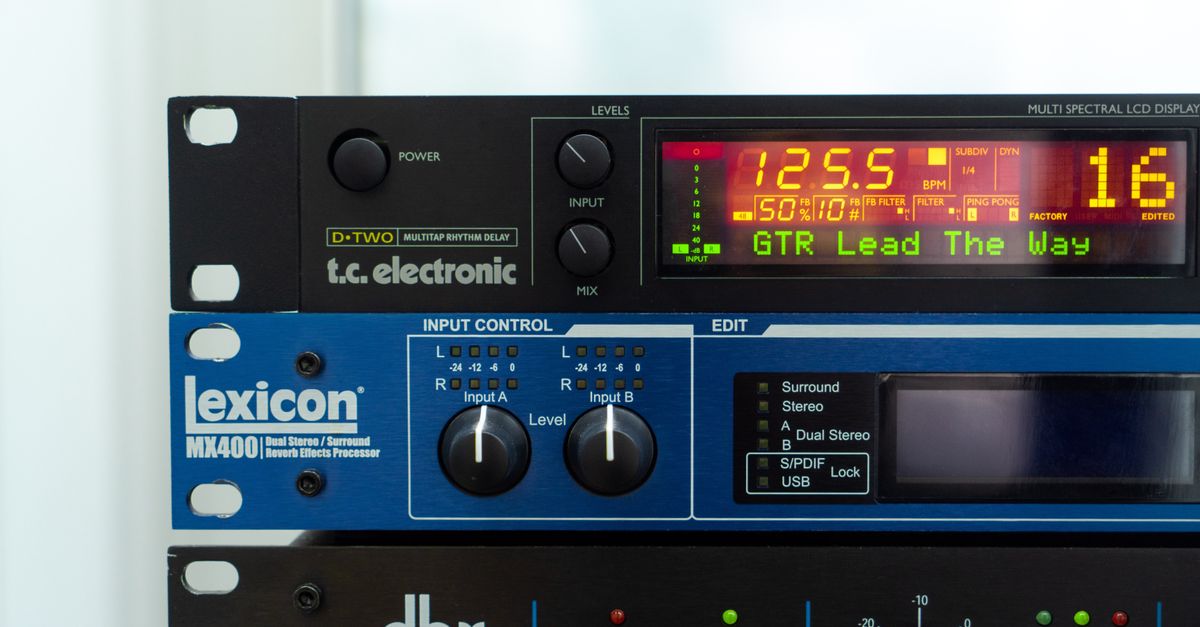
What Reverb Does to a Sound File
When an engineer talks about "adding reverb," they mean blending a delayed copy of a sound back into itself so the brain hears reflections that suggest a room. A dry recording played through a small speaker in a carpeted bedroom sounds close and intimate; the same recording played back with reverb sounds as if it is sitting inside a hallway, a hall, or a cathedral. The illusion is created entirely with delay and level: early reflections arrive within tens of milliseconds and tell the ear roughly how far away the nearest surface is, while a longer tail of decaying copies fills in the size of the space.
Reverb is not the same as echo, even though the two share a family of techniques. Echo is a single, clearly audible repeat, often long enough to count. Reverb is the dense, smoothed-out collection of reflections that arrives faster than the ear can separate. Both operations live in the same code path of an audio processor because reverb is, at heart, many echoes at once.
Because reverb is just math applied to samples, it can be performed offline on a decoded buffer just as easily as it can be performed live. An online reverb tool that decodes a file locally is doing the same work a desktop plugin would do, with the difference that it commits the result to a downloadable WAV instead of routing the audio to a monitor.
How Browser-Based Reverb Differs From a Desktop Plugin
A browser-based tool sits inside a page using JavaScript and the Web Audio API. That brings real limits compared to a desktop digital audio workstation:
- No impulse-response library. A real reverb often starts from a recorded impulse response of a real room, plate, or spring; an offline browser tool cannot easily ship multi-megabyte IR collections with the page.
- No convolution. Studio reverbs run convolution, a heavyweight multiply-and-sum that walks every sample through the IR. A lightweight online effect uses a small fixed number of disclosed delays instead.
- Sample-by-sample determinism. Each sample flows through a known formula, so the same input bytes always produce the same output bytes.
- One effect per pass. Stacking effects requires downloading intermediate WAVs and feeding them back in, because the pipeline accepts one selection at a time.
The trade-off is that online reverb is fast, transparent, and repeatable. Nothing is hidden behind a black-box slider labelled "Hall"; every coefficient is in the page.
How to Add Reverb to Audio Online
Open Audio Effects Online in a current desktop or mobile browser. The steps below walk the entire flow from file to WAV.
- Choose one browser-decodable audio file. The selector accepts names ending in MP3, WAV, M4A, AAC, Ogg, WebM, or FLAC, but support for any specific codec is set by the browser, not by the page; the file must be no larger than 50 MiB.
- Select "lightweight reverb" from the effect list. Echo, reverse, fade in, fade out, and normalization are also available; reverb is the one to choose for this task.
- Set an amount as a whole number from zero through one hundred percent. Zero percent leaves the dry signal unchanged; one hundred percent applies the disclosed weights at full strength.
- Apply the effect locally. The page decodes the file using the W3C Web Audio API contract, runs the reverb on the buffer, clips finite samples to the legal -1 through +1 range, and reports the channel count, sample rate, input and output frame counts, output peak, and exact WAV byte size.
- Download the PCM16 WAV. Keep your original file untouched, because the output is a new interleaved little-endian RIFF/WAVE file and not a remux of the source.
The whole flow takes place inside the open tab. There is no upload, no server render, and no account state.
The Exact Reverb Formula
The reverb inside Audio Effects Online is a lightweight early-reflection design, not a convolution plugin. Three copies of every input sample are added back at fixed millisecond offsets, each at a disclosed weight multiplied by the amount slider.
| Tap | Delay | Weight at 100% amount |
|---|---|---|
| 1 | 29.7 ms | 0.50 |
| 2 | 37.1 ms | 0.35 |
| 3 | 41.1 ms | 0.25 |
These numbers are not measurements of a concert hall, plate, spring, studio, or any branded processor. They are fixed product choices chosen for a quick sound-design draft, not for room simulation.
A worked example shows how the slider scales the taps. Suppose a single sample has dry level 1.0 and the amount is set to fifty percent. The three delayed copies arrive at 29.7, 37.1, and 41.1 milliseconds with weights 0.50 x 0.50 = 0.25, 0.35 x 0.50 = 0.175, and 0.25 x 0.50 = 0.125. Adding the three to the dry sample gives 1.0 + 0.25 + 0.175 + 0.125 = 1.55, which exceeds the legal 1.0 ceiling. The page clips finite samples to the -1 through +1 floating-point range before quantizing to PCM16, so the final value is 1.0 after clipping.
A smaller amount keeps the sum below the ceiling and prevents clipping. Lower amounts also keep the dry signal louder in the blend, which is often what a beginner wants when testing.
When This Reverb Works and When It Doesn't
Lightweight three-tap reverb is built for moments when a touch of space is more useful than realism.
| Situation | Does three-tap reverb fit? | Why |
|---|---|---|
| Quick draft of a vocal or podcast intro | Yes | A small amount of reverb adds presence without rebuilding a room. |
| Sound design sketch for a game UI click | Yes | Three short taps suggest a small enclosure and disappear fast. |
| Mastering for commercial release | No | There is no frequency-dependent decay, no stereo diffusion, and no long tail. |
| Matching a real recorded IR of a venue | No | The taps are fixed product choices, not measurements of any specific room. |
| Building a chain of more than one effect | Partial | Apply reverb first, download the WAV, then re-upload it to add another effect in a second run. |
The page also runs the effect through tight output budgets: the decoded input and complete effect output each have to stay within thirty million channel samples. Adding tails pushes the output higher than the input, so a file that decodes inside the budget can still fail the output budget without being truncated.
Other Effects in the Same Control
The reverb option shares the page with five other operations. All six follow the same input, effect, download pattern, and the WAV that lands on your computer follows the Microsoft WAVEFORMATEX block-alignment rules at sixteen bits.
| Effect | What it does | Amount control |
|---|---|---|
| Echo | Adds a 200-millisecond half-strength copy of every sample to itself. | 0-100% scales the delayed copy. |
| Lightweight reverb | Adds three taps at 29.7, 37.1, and 41.1 ms with weights 0.50, 0.35, 0.25. | 0-100% scales all three weights. |
| Reverse | Reads sample frames in the opposite order and blends with the original. | 0-100% mixes dry and reversed signal. |
| Fade in | Scales from the selected dry proportion at the start to full level at the end. | 0-100% sets the start level. |
| Fade out | Scales from full level at the start to the selected dry proportion at the end. | 0-100% sets the end level. |
| Normalization | Finds the largest absolute decoded sample and scales toward a 0.95 peak. | 0-100% scales how far toward 0.95 the result moves. |
Normalization in particular is not loudness matching. It does not measure LUFS, perceived loudness, dynamics, true peak between samples, or equal loudness across different recordings. Silent input stays silent. Picking the right effect for the goal is more useful than pushing every slider to one hundred percent.
Related reading: Add Reverb to Audio Online: A Beginner's Clear Walkthrough.
Related reading: Create an LRC File from Text: Plain Lyrics to Timed Output.