Video to audio conversion is the process of isolating the sound inside a video file and saving it as a standalone audio track you can play, edit, or repurpose without the picture. Most modern videos are really two streams packaged together — picture frames in one track and sound in another — so separating the sound is a routine task whenever only the audio matters. People convert video to audio to reuse interview clips as podcasts, save a song from a recorded performance, capture ambient sound for a project, archive a spoken-word presentation, or pull a clean reference track from footage they own. Container formats like MP4, MOV, and WebM already keep picture and sound as separate tracks inside the same file, which is why extraction can usually happen without re-recording the audio in the real world. A local browser tool that decodes the file in the current tab and records only the audio track makes that separation possible without uploading the source anywhere.
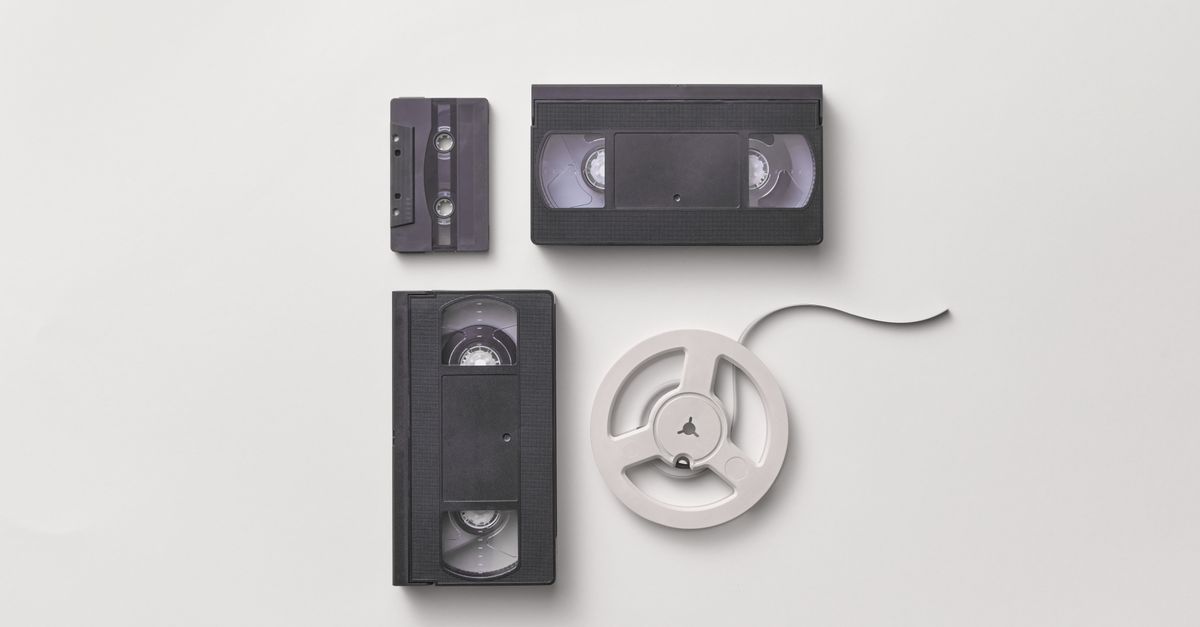
Why Convert Video to Audio: Practical Reasons and Limits
Motivation matters because the output format and quality choice should fit the reason you are converting in the first place. Pulling a podcast intro, saving a lecture for offline listening, lifting a guitar riff from a home performance, or grabbing a clean voice memo from a screen recording all sit on the same spectrum — you have a video and you only need what was recorded into it. Video to Audio Converter is built for exactly that situation: short clips you already own, processed locally so the source never leaves the browser tab.
Six reasons come up most often:
- Repurpose speech as audio. Interviews, presentations, sermons, lectures, and webinars often sit inside video files that are awkward to share. The audio alone travels well in messaging apps, podcast feeds, and email attachments.
- Save a song or performance. When a rehearsal, livestream VOD, or screen capture is the only place a song exists, extracting the audio gives you a file you can actually play in a music library.
- Capture ambient or foley sound. Background atmosphere, room tone, or natural sounds recorded with a camera are far more useful as isolated audio than as part of a video file.
- Build a reference track. Editors and producers sometimes pull a single vocal or instrument stem from a rough mix video for comparison against a new recording.
- Reduce file size for sharing. Audio-only files are dramatically smaller than the videos they came from, which matters when storage or bandwidth is tight.
- Archive voice notes. Quick camera memos are easy to record but hard to search; converting them to audio makes them playable in any audio app.
How the Browser Separates Sound from Picture
The mechanics behind a browser-based extraction are different from a desktop converter that can copy the original compressed audio packets directly. When you open a local video in a tab, the browser decodes both the picture and the audio into separate media tracks. According to the MDN reference for HTMLMediaElement.captureStream, a media element exposes a live MediaStream that can include the audio track, the video track, or both. A browser tool can then build a new MediaStream that contains only the audio, hand it to a MediaRecorder configured for an Opus WebM container, and play the original media element from time zero while the recorder captures the decoded audio in real time.
That is why the captured audio is not a bit-for-bit copy of the original audio packets. The compressed audio inside an MP4 may have been AAC; the browser decodes it into uncompressed samples during playback, and the recorder re-encodes those samples into Opus inside a WebM container. Quality and file size therefore depend on the recorder's bitrate rather than on the source audio's compression settings.
Extract Audio from a Local Video in Your Browser
The end-to-end workflow for a local extraction is short, but every step matters because each one feeds the next.
- Choose one supported local video with an audio track. Acceptable containers are MP4, WebM, MOV, M4V, or Ogg, and the file must be 500 MiB or smaller. Confirm that the clip actually contains audio — a silent export means the source had no audio track to begin with.
- Select Extract audio and keep the tab open while the video is processed in real time. The browser plays the media element while MediaRecorder captures the exposed audio track, so the run time matches the video length.
- Check the duration and file size that the tool reports, then download the Opus WebM audio file. The reported duration comes from a Segment Info patch that lets compatible players display a finite timeline instead of an "unknown duration" label.
While extraction is running, the on-screen preview is muted so the browser does not double-play the sound. The recorded stream still receives the audio because MediaRecorder is wired to the captured MediaStream, not to the speakers. The tool also exposes a Cancel control that stops the current job without producing a partial file.
What the Output File Actually Is
The result of a browser-based extraction is a WebM container with a single Opus audio track, not MP3, WAV, AAC, or FLAC. The recording uses an Opus WebM MIME type at 128 kbps when the browser supports it. That choice has several practical consequences worth understanding before you commit to the output.
- Codec change. If the source audio was AAC inside an MP4, the new file will be Opus inside WebM. Most modern players handle Opus in WebM, but older devices and some professional pipelines may not.
- Re-encoding quality. Because the audio is decoded and then re-encoded, very subtle quality differences are possible. A 128 kbps Opus track is widely considered transparent for speech and acceptable for music, but it is not a lossless copy of the original compressed stream.
- File size. A one-minute clip typically lands in the low hundreds of kilobytes to roughly one megabyte, far smaller than the original video but larger than a bit-exact stream copy would have been.
- Metadata. The WebM container is patched with the measured media duration so compatible players report a finite timeline. Tags, chapters, embedded artwork, and lyrics from the source video are not preserved.
For a fuller picture of what a finished extraction looks like in practice, the guide What Result to Expect When You Convert Video to Audio walks through the typical numbers in more detail.
Limits and Failure Cases to Know About
A browser-based converter cannot accept every video. The tool rejects inputs that exceed its hard limits or that the browser cannot decode, and it stops with a visible message rather than producing a broken file. Knowing the limits ahead of time saves a wasted attempt.
| Limit | Value | Why it exists |
|---|---|---|
| File size | Up to 500 MiB | Bounds the memory the browser must hold while decoding |
| Decoded duration | Up to 5 minutes | Keeps the playback-and-record session short enough to complete in one tab |
| Longer edge of frame | Up to 4096 pixels | Limits decoded picture memory and per-frame processing cost |
| Total pixel area | Up to 3840 × 2160 | Catches ultra-wide or stacked resolutions that would still slip past the edge limit |
| Audio track | At least one required | A silent file would be useless, so the tool fails explicitly instead |
| Output codec | Opus inside WebM at 128 kbps | Uses the browser's built-in MediaRecorder without adding a media dependency |
Two real-world failure modes deserve a callout. First, a file extension only identifies the container; the codecs inside that container still have to be supported by the browser. A ".mp4" file with an exotic video codec can still fail to decode. Second, Safari and some other browsers do not expose captureStream or a compatible MediaRecorder format, so the tool cannot run there even when the file itself would decode. Decode errors, unsupported recorders, empty output, invalid duration, excessive dimensions, and canceled work all surface as explicit messages rather than as silent failures.
When a Browser Tool Is the Right Choice
Browser-based extraction is a strong fit when the source is a short clip you already own, the output can reasonably be Opus in WebM, and you want the file to stay on your machine. It is the wrong fit for long recordings, lossless production work, multichannel preservation, precise trimming, or when the deliverable must be a specific codec such as MP3 or WAV. In those cases, a dedicated desktop audio editor with explicit export settings is the safer path.
Two usage rules apply in either case. Extract audio only from content you own or have permission to reuse, because the act of converting does not change who owns the underlying work. And do not expect browser tools to bypass DRM, platform access controls, protected streams, remote URLs, or copyright restrictions — the tool processes local files only and explicitly does not promise to defeat those protections.
For most everyday reasons people convert video to audio — saving an interview, lifting a song, archiving a lecture, capturing ambient sound — a local browser path is the fastest way to get a clean audio file without installing software or uploading the source. Pick the video, run the extraction in your tab, and download the resulting WebM audio when the recording completes.
Related reading: When Should You Use Video Crop: Triggers and Limits.