A video-to-audio converter takes a file that stores both moving pictures and synchronized sound and produces a new file that stores only the sound, re-encoded into the Opus codec inside a WebM container rather than copied bit-for-bit from the original compressed packets. The video track is discarded, leaving no frames, no motion data, and no visual information in the output, while the captured audio is decoded, played back through the browser, and recorded as a fresh Opus stream that the MediaRecorder writes into a WebM file. Because the output is re-encoded rather than stream-copied, its bitrate, file size, and exact byte layout will not match the audio portion of the source video. The container also changes: most source videos use MP4 or MOV with AAC audio, while the converted file uses WebM with Opus audio. Those structural differences — tracks dropped, codec swapped, container rewritten — are the core of what "video to audio" actually changes.
What a Video File Actually Contains Compared to an Audio File
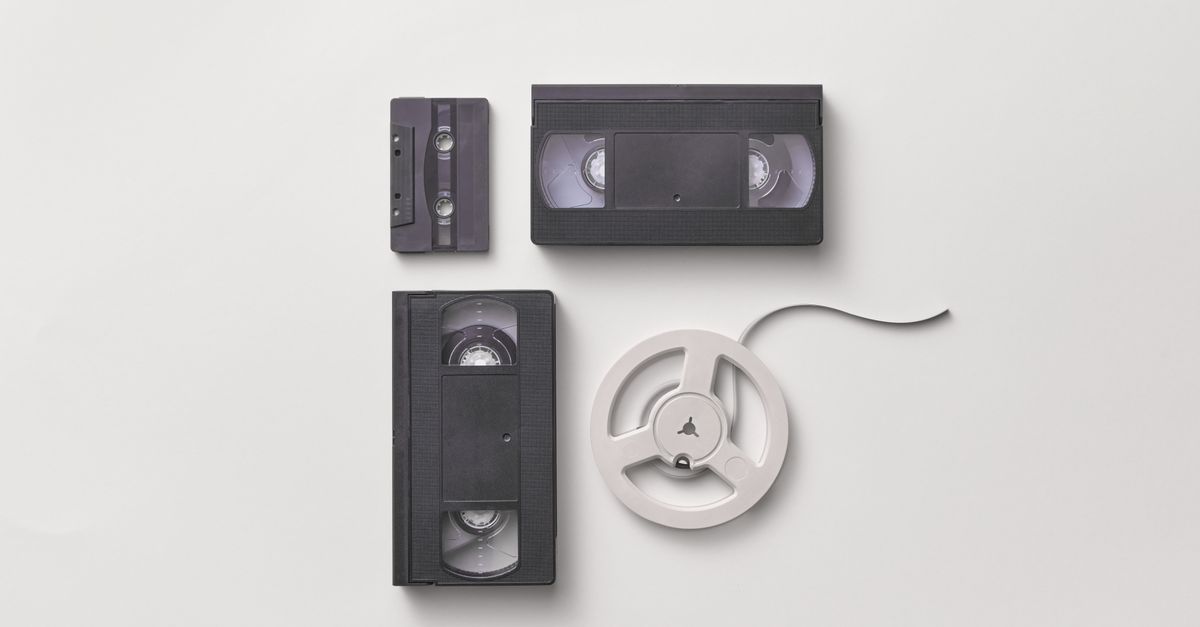
A video file is not a single thing. It is a container that holds one or more independent streams, called tracks, and each track is encoded with its own codec. A typical MP4 or MOV recording from a phone or camera contains at least a video track (encoded with H.264, HEVC, or VP9) and an audio track (encoded with AAC, Opus, or sometimes MP3). The container also stores metadata such as timestamps, dimensions, and duration, but those are coordination data, not content. An audio file is the same kind of object with one track removed: it is a container holding a single audio stream plus metadata. Whether the extension is .mp3, .m4a, .opus, or .webm, the file is just a container wrapped around one or more encoded tracks.
| Aspect | Video file (typical source) | Audio file (converter output) |
|---|---|---|
| Container | MP4, MOV, WebM, M4V, Ogg | WebM (audio-only) |
| Tracks | 1 video track + 1 audio track (sometimes more) | 1 audio track only |
| Video codec | H.264, HEVC, VP9, AV1 | None — discarded |
| Audio codec | AAC, MP3, Opus (varies by source) | Opus at 128 kbps |
| Pixel data | Present (frames) | Absent |
| Sample data | Present (audio samples) | Present (re-encoded audio samples) |
| Typical extension | .mp4, .mov, .webm, .m4v, .ogg | .webm (with Opus inside) |
The key difference is not that "video is bigger" or "audio is smaller" — both file types are containers of compressed data, and both can be small or large depending on codec choice and bitrate. The difference is what they carry. A video file carries two coordinated streams over time; an audio file carries one.
What the Converter Keeps, Drops, and Re-encodes
When you run a video-to-audio conversion locally in a browser, three things happen to the data. First, the video track is dropped: every frame, every motion vector, every pixel is discarded, and the output file contains none of it. Second, the audio track is captured and re-encoded: the browser decodes the source audio, plays it back through a media element, and records the playback as a fresh Opus stream at 128 kbps. Third, the container is rewritten from whatever the source used (MP4, MOV, M4V, Ogg, WebM) into a WebM container that wraps the new Opus audio.
That re-encoding step is the part most users misunderstand. Because the audio is being decoded and recorded again rather than copied from the source stream, the output file is not a lossless copy of the original audio. It is a fresh compression pass with its own bitrate, its own quantization choices, and its own file size. If the source audio was already Opus at 128 kbps, the output will sound similar but will not be byte-identical. If the source was AAC at 256 kbps, the Opus re-encode at 128 kbps will usually be smaller but may lose subtle detail.
Why the Output Uses Opus Inside WebM Instead of MP3 or WAV
The format choice is not a preference — it is a constraint of the browser environment. A browser-based converter that runs entirely in a tab without uploading the source cannot invoke arbitrary encoders. It relies on the browser's built-in MediaRecorder API, which only writes formats the browser already supports natively. The tool records with the first Opus WebM MIME type the MediaRecorder supports, which produces WebM with Opus audio. MP3 encoding would require a separate codec dependency, and WAV would be uncompressed and excessively large.
That is why the Video to Audio Converter produces .webm files with Opus audio rather than .mp3, .wav, .aac, or .flac. The output container looks similar to a video WebM file, but inspecting it reveals a single audio track with no video stream — the same structural shape as any audio file, with the WebM container produced by the recording step.
How to Extract the Audio Track From a Local Video
The full procedure using the Video to Audio Converter tool is short and stays inside the current tab.
- Open the tool and choose one supported local video file — MP4, WebM, MOV, M4V, or Ogg — up to 500 MiB. The file must contain an audio track.
- Select Extract audio. Keep the tab open while the browser processes the file in real time. Processing runs at playback speed, so a one-minute video takes about one minute.
- Watch the progress label follow playback time. The preview is muted during recording, but the captured MediaStream still contains the source audio when the browser supports media-element capture.
- When recording finishes, check the measured duration and file size shown beside the result.
- Download the Opus WebM audio file. The source video is never uploaded and the output is not retained; only the result Object URL is revocable from the page.
If the browser cannot decode the source codecs — for example, a Safari build that lacks captureStream or a compatible MediaRecorder MIME type — the tool stops with a visible message rather than producing a broken file. The same explicit failure happens when the source has no audio track, when dimensions exceed 4096 pixels on either side or 3840 × 2160 pixels in total area, when the decoded video runs past five minutes, or when the file exceeds 500 MiB.
Limits That Change What the Output Looks Like
The structural difference between video and audio is one thing; the practical difference in the file you receive is shaped by the tool's hard limits. The source must be a file the browser can decode, not just a file with a familiar extension. A filename or MIME type only identifies the container; the codecs inside it still have to be supported by the current browser. The audio track must actually exist — a video with no audio fails explicitly instead of generating a silent file. Decode errors, unsupported recorders, empty output, invalid duration, excessive dimensions, and canceled work all stop with a visible message.
The decoder enforces size and dimension caps to bound memory and playback time: files up to 500 MiB, video no longer than five minutes, no side longer than 4096 pixels, and no total area larger than 3840 × 2160 pixels. These caps keep the capture-and-record loop inside what a typical browser tab can sustain without crashing. Long recordings, multichannel audio, or work that requires a lossless copy of the original audio packets will not fit these limits and should use a desktop editor with explicit export settings.
Recording happens in real time because the MediaRecorder captures the media element during playback. The browser plays the decoded stream from time zero to ended, and the recorder collects non-empty chunks along the way. There is no faster path without changing the underlying API. Once the file is written, the WebM container is patched with the measured media duration so downloaded files report a finite timeline in compatible players — without that patch, some players would show the audio as infinite or zero-length.
When Conversion Is the Wrong Tool for the Job
Pulling the audio out of a clip is useful when you want speech, music, ambient sound, or a reference track and Opus inside WebM is an acceptable delivery format. It is the wrong tool when you need a specific codec (MP3, AAC, FLAC), when you need lossless preservation of the original audio packets, when the recording exceeds five minutes, when you need multichannel or surround audio preserved, or when you need precise trimming at frame accuracy. For those cases, use a dedicated desktop audio editor and confirm its export settings before committing to a workflow.
The converter also does not bypass DRM, platform access controls, protected streams, remote URLs, or copyright restrictions. It extracts audio from a local file you already have on disk; it cannot reach a streaming URL or strip a content-protection layer. Only extract audio from videos you own or have permission to reuse.
For more detail on how codec choice affects the accuracy of the extracted audio, the guide on extracting audio with attention to codec and limits walks through the same re-encoding tradeoffs in more depth. The MediaRecorder and captureStream behaviors described here are documented on the MDN MediaRecorder reference.
Related reading: Compare Approaches to Trim Video: Local vs Cloud.