Planning a video crop means mapping four whole-pixel values—X, Y, width, and height—against the decoded source dimensions before you record, so the rectangle stays inside every frame and the output fits the 3840 by 2160 area cap. The Video Cropper does not trim by time, resize, blur, or track motion; it applies one fixed rectangle to every frame and re-records that region locally as a WebM, so the planning stage is where you decide exactly which pixels survive. Treat the plan as a short written procedure: confirm the source is a browser-decodable MP4, WebM, MOV, M4V, or Ogg file up to 500 MiB and five minutes, note its decoded width and height, then sketch a rectangle that stays inside those dimensions with X and Y as nonnegative offsets and width and height each at least two pixels. Because processing happens in real time and the tab must stay open, your plan should include the moment you will hit Crop, the moment you will hit Stop, and the moment you will review the downloaded WebM for duration, audio, and crop accuracy.
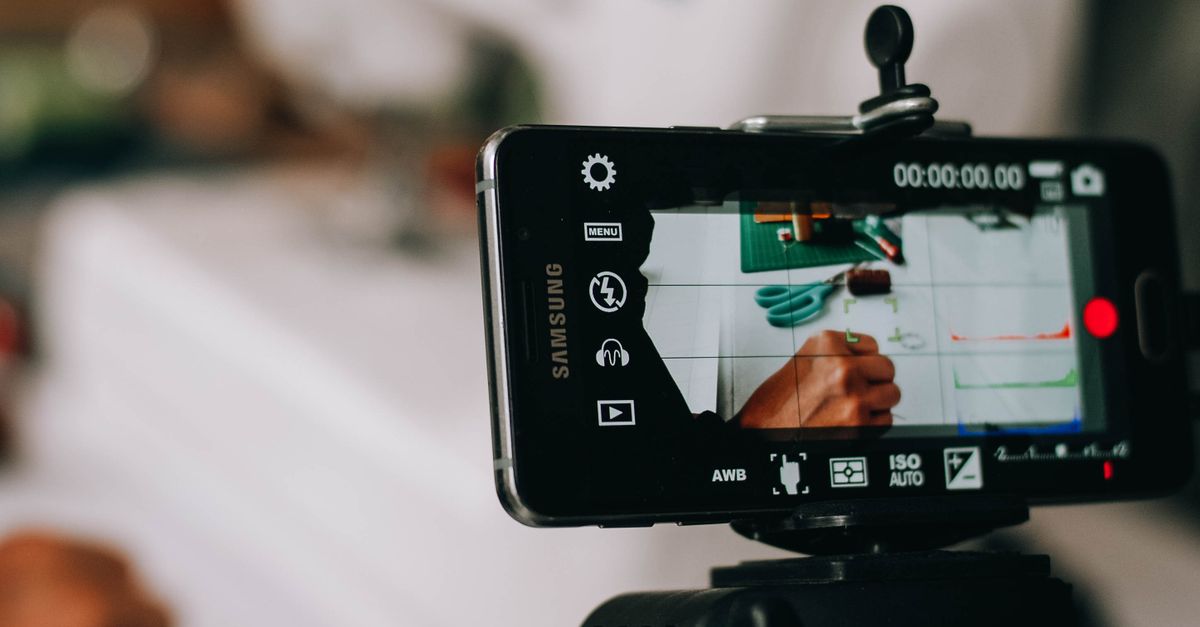
What Planning a Video Crop Actually Involves
Many readers arrive at a cropper expecting a single click, then discover that a pixel-accurate crop requires a small plan before any recording starts. Planning a video crop is the part where you translate a goal—say, removing a static border, tightening a letterbox, or matching a fixed-frame requirement—into four whole numbers that the tool can validate. The Video Cropper records exactly the region you name, with no shifting, no clipping, no rounding, and no partial file when the inputs are invalid. That precision is useful only if your numbers describe the rectangle you actually want, which is why the planning step is the place to measure the source frame, not the place to guess.
Think of the plan as three short lists: a list of inputs you will provide, a list of limits you must respect, and a list of checks you will run after the WebM downloads. The tool does not upload your file, does not move the rectangle during playback, and does not know what is in the frame, so any decision about what to keep or cut is yours to make on paper first. Once the plan is written, the actual crop becomes a short mechanical pass that can be repeated or revisited without guesswork.
Source Limits and Output Limits to Map First
Before sketching the rectangle, write down the boundaries your source and the output both have to fit inside. The Video Cropper shares an explicit video safety budget with the local pipeline: positive files up to 500 MiB, decoded duration above zero and no more than five minutes, no source side above 4096 pixels, and no source area above 3840 by 2160. The output rectangle has its own ceiling of 3840 by 2160 pixels, and width and height each have to be at least two pixels for the Canvas to have a usable drawing surface.
| Item | Limit or Rule |
|---|---|
| Accepted extensions | MP4, WebM, MOV, M4V, Ogg (codec support depends on the browser) |
| File size | Positive file up to 500 MiB |
| Duration | Above zero, no more than five minutes |
| Source side | No side above 4096 pixels |
| Source area | No area above 3840 by 2160 pixels |
| Output area | No area above 3840 by 2160 pixels |
| Coordinates | Untrimmed nonnegative whole pixels |
| Width and height | Each at least two pixels |
| Rectangle | X plus width and Y plus height must stay inside the source frame |
| Output container | WebM recorded at 30 fps with finite Matroska Duration |
If your source is outside any of these limits, the crop cannot complete as planned. In that case the right next step is to use a different tool first—for example, trimming to a shorter section with Video Trimmer or resizing to a smaller frame with Video Resizer—and only then planning the crop.
Coordinate Fields and What Each One Does
Every planning note has to define the same four fields in the same way, because the tool applies one fixed rectangle to every frame and never reinterprets your numbers. Coordinates start at the source frame's top-left corner; X moves the crop right, Y moves it down, width sets the horizontal extent, and height sets the vertical extent. Values are untrimmed nonnegative whole pixels, so a leading space, a trailing zero from a decimal, or a negative offset will fail validation rather than silently adjust.
| Field | Unit | Direction or Role | Minimum |
|---|---|---|---|
| X | Whole pixels | Offset right from the top-left corner | 0 |
| Y | Whole pixels | Offset down from the top-left corner | 0 |
| width | Whole pixels | Horizontal extent of the crop | 2 |
| height | Whole pixels | Vertical extent of the crop | 2 |
Two quick checks belong on the planning sheet: X plus width must be less than or equal to the source width, and Y plus height must be less than or equal to the source height. If you are unsure of the source dimensions, open the file in a player that reports them, or rely on the decoded-dimension readout that the Video Cropper surfaces once the source has loaded. For a deeper sanity pass, the pre-crop checklist for a video cropper walks the same items in checklist form.
Pre-Crop Checklist Before You Click
Walking the plan through a short checklist turns the crop into a repeatable procedure and catches the inputs that usually fail validation. The items below come straight from the documented limits and the verified operating steps, so each one changes whether the tool can finish the job.
- Source extension is MP4, WebM, MOV, M4V, or Ogg and the file is at most 500 MiB.
- Decoded duration is greater than zero and no longer than five minutes.
- Decoded width and height are no greater than 4096 on either side and no greater than 3840 by 2160 in area.
- X and Y are nonnegative whole-pixel offsets from the top-left corner.
- Width and height are whole pixels, each at least two, and the rectangle stays inside the source.
- Output area does not exceed 3840 by 2160 pixels.
- The tab can stay open for the full real-time pass.
- The destination player is ready to verify duration, crop, and audio.
Tick each item on the planning sheet before opening the tool. If any item fails, fix the source first rather than re-running the crop with the same numbers.
Run the Crop Step by Step in the Video Cropper
Once the plan is written and the checklist is signed off, the crop itself is a short mechanical pass. The steps match the verified operating steps of the Video Cropper and run in the current tab without uploading the file.
- Choose a browser-decodable video and wait for its source dimensions to load. The decoded width and height are the basis for every coordinate below.
- Enter whole-pixel X, Y, width, and height values that stay inside every source frame. Confirm X plus width is within the source width and Y plus height is within the source height.
- Select Crop video, keep the tab open during real-time processing, then download and fully review the WebM. A one-minute source takes about one minute to record, so leave the tab open until the download appears.
Audio handling sits inside step three. When the browser exposes an audio track through media capture, the tool appends it to the Canvas stream; when it does not, the output is silent. Either way, verify both sound and picture in the destination player, because support varies by browser and by codec. The Canvas drawing itself follows the WHATWG HTML specification, so the same region you named on paper is the region that lands in the output.
Verify the Output Before You Replace the Original
The plan is not finished when the WebM downloads. Several properties that the source carried can change during a local re-recording, and a quick verification pass protects you from replacing the original with a flawed copy. Duration is the most important check: the tool patches a finite Matroska Duration into TimestampScale ticks using the shared duration writer, and the patched WebM still has to play at the expected length in your player. The Matroska container specification describes how that Duration field is stored, and the tool follows that layout rather than guessing.
Other properties do not survive the crop and should be confirmed if your workflow needs them. The crop does not preserve subtitles, chapters, attachments, rotation tags, HDR signaling, or color metadata, and it changes only the visible frame region—it is not a trim-by-time, resize, compress-only, redact, blur, or object-removal tool. After recording, the tool releases object URLs, timers, recorder tracks, and playback on replacement, error, stale completion, or unmount, so leaving the tab open during verification is safe. Only delete the original after the entire output has been reviewed in the destination player.
When the Plan Should Redirect You to a Different Tool
Planning honestly also means naming what a cropper cannot do for you. If your goal is to shorten a long recording to a section of time, the right tool is Video Trimmer, which keeps the full frame and cuts by start and end. If the frame is the right size but the file is too large to ship, Video Compressor re-encodes locally with bounded bitrate and reports the actual size. If you need a smaller output frame, Video Resizer produces a bounded WebM at exact or aspect-preserving dimensions. The Video Cropper fits when the rectangle is static and the goal is to remove the outer area of every frame at pixel accuracy—nothing more, nothing less. Using it for the wrong job is the fastest way to lose audio, duration, or metadata that another tool would have kept.
Related reading: Repeat a Video Crop and Get the Same Result Every Time.