Correctly extracting a video frame means producing a PNG still that captures the nearest decoded frame the browser could seek to at or near the requested time, at the decoded frame's native dimensions, with no re-encoding, resizing, or filtering applied. The result is only as trustworthy as three upstream conditions: the browser must be able to decode the chosen file's container and codec, the requested time must fall inside the reported duration, and the underlying decoder must be able to return a decoded frame near the requested position. When all three hold, the Video Frame Extractor hands you a still at the decoded frame's native dimensions, named with the time you entered, and saved locally as a PNG. When decode, seek, canvas, or encoding failures occur, the tool surfaces an error message rather than handing back an empty file. Landing on a nearby decoded frame is normal browser behavior caused by keyframes, variable frame rates, edit lists, and timestamp rounding, not a failure response. Knowing where the pipeline can drift is what separates a verified extraction from a hopeful one.
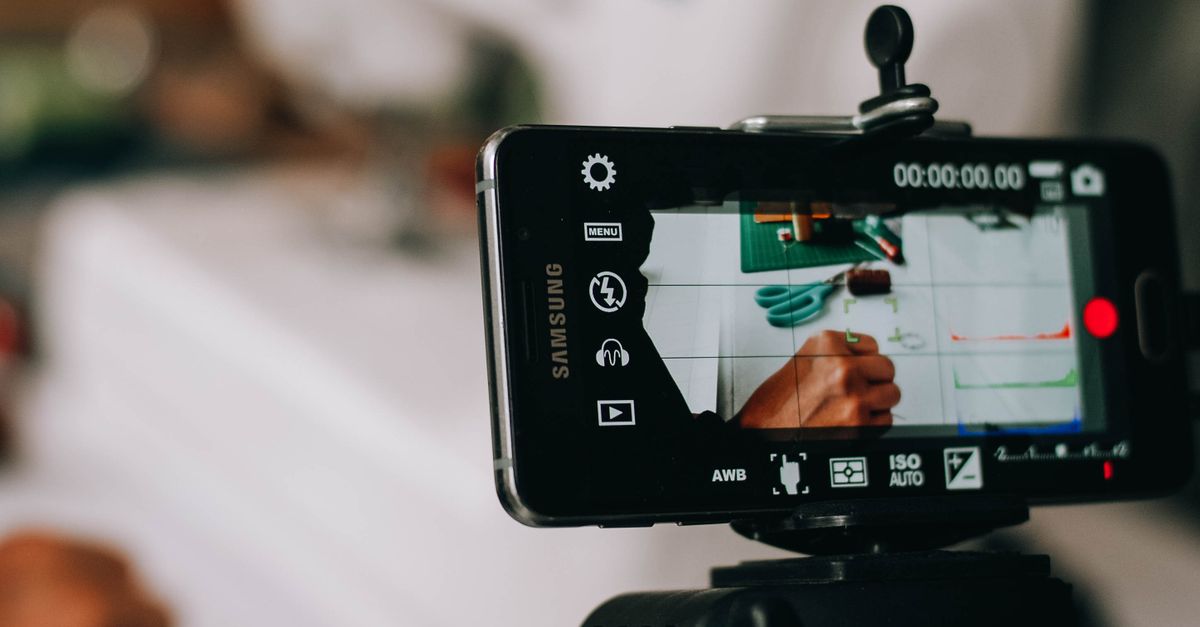
What "Correctly" Means When You Extract a Video Frame
"Correct" is doing a lot of work in that search query, so it helps to split it into four measurable checks. A frame was extracted correctly only if all four pass: the source file decoded without errors, the time you typed maps to a finite position inside the reported duration, the still shows the nearest decoded frame the browser could seek to at or near that position, and the saved PNG matches what you saw in the preview at the decoded frame's native size. If any of those fail, the extraction looks successful but is wrong in a way that bites later when the image is used as a thumbnail, reference, or slide.
Those four checks line up with the steps in the browser pipeline. Decoding depends on whether the container and codec are supported by the browser. The time check depends on whether the requested value is finite and inside the reported duration. The visual check depends on whether the decoder returned a decoded frame near the requested position; browsers may land on a nearby decoded frame because of keyframes, variable frame rates, edit lists, or timestamp rounding, and that is normal behavior rather than a failure. The fidelity check depends on whether the PNG was written from the same canvas state you saw in the preview, at the same dimensions, with no resize or filter applied between draw and download. Keeping that mental model makes it easier to attribute any problem to the right stage instead of blaming the wrong step.
| Check | What you verify | Where it can fail |
|---|---|---|
| File decodes | The browser reports a duration and renders a preview. | Container opens but the codec inside is unsupported. |
| Time is valid | The entered value is a finite number between 0 and the reported duration. | Empty field, negative number, or a value past the end of the clip. |
| Still matches the screen | The previewed image looks like the moment you wanted. | Decoder may land on a nearby decoded frame because of keyframes, variable frame rates, edit lists, or timestamp rounding — normal browser behavior, not a failure. |
| PNG matches the still | The downloaded file is the same image, same dimensions, no extra processing. | A resize, crop, or filter ran between draw and encode. |
Choose a File the Browser Can Actually Decode
The most common reason a "correct" extraction goes wrong starts before you ever enter a time: the file you picked is in a container the browser recognizes but uses a codec the browser cannot decode. The Video Frame Extractor lists five supported extensions — MP4, WebM, MOV, M4V, and Ogg — but a matching extension is necessary, not sufficient. The browser still has to recognize the audio and video streams stored inside that container, and that decision is made by the browser's media stack, not by the file picker.
How this shows up in practice: the file appears to load, but the duration field stays empty or the preview stays blank. That is the symptom of a decode failure rather than a workflow mistake. The supported file rules are summarized below.
| Container | Extension accepted | Decode depends on |
|---|---|---|
| MP4 | .mp4, .m4v | The browser's installed codec set; H.264 is broadly supported, HEVC and H.265 less so. |
| WebM | .webm | VP8, VP9, or AV1 in the installed browser build. |
| MOV / QuickTime | .mov | Codec inside; ProRes and other edit-friendly codecs are rarely browser-decodable. |
| Ogg | .ogg, .ogv | Theora video and Vorbis audio in older browsers. |
If the duration does not appear, pick a different local file from the same source rather than retrying the same one, or remux the original with a more broadly supported codec before extracting. Uploading the file to a converter is the wrong reflex for a tool designed to run locally — the entire point of the local pipeline is that nothing leaves the device.
Enter a Time the Browser Can Actually Hit
The time field accepts a finite number, including decimals, between zero and the video's reported duration. That range is enforced by the tool, so values outside it are rejected before the seek runs. Inside the range, the value you type is a media timeline position, not a guarantee of source-frame precision. The browser's media element seeks to that time and reports the nearest decoded frame, and the canvas captures whatever the element is showing when the seek completes. The seek itself is implemented through the currentTime property on the underlying HTMLMediaElement, documented in the MDN reference for HTMLMediaElement.currentTime.
Why "nearest"? Video is compressed with keyframes and delta frames, and the decoder can usually land directly only on a keyframe. Between keyframes the browser may round to the closest one and then decode forward. Variable frame rates, edit lists, and timestamp rounding compound that drift. The result is still a real frame from the same timeline, but it can be one or more decoded frames away from the literal source frame that would sit at your exact number. For a thumbnail, a reference image, or a slide, that drift is invisible. For frame-accurate editorial work, the answer is to use a dedicated desktop tool that walks packets and identifies exact numbered source frames.
Choosing a time value that helps the decoder land where you want is mostly about staying close to a keyframe-rich region. Mid-second decimals such as 1.250, 1.500, and 1.750 are typical frame-rate-style values for 30 fps material, and the tool accepts them. If the still looks off by a beat, change the value by one frame interval (for example, 1/30 ≈ 0.033 s) and re-extract.
Extract a Frame Correctly with the Video Frame Extractor
The full workflow, in the order the tool expects it:
- Open the Video Frame Extractor and choose one supported local video. Wait for the duration to appear and the preview to render. If either stays empty, the file did not decode — pick a different local file rather than retrying the same one.
- Read the duration that the browser reports, not the duration shown by another player. Those can disagree by milliseconds when edit lists are present, and the tool uses its own reported value as the upper limit on the time field.
- Enter a frame time as a number of seconds. Use a plain integer for ordinary seconds and a decimal for milliseconds or frame-rate positions (for example, 2.500 for 2 seconds and 500 ms). The field accepts fractional seconds from zero through the displayed duration.
- Select Extract PNG frame. The browser seeks the underlying media element, waits for the seek to complete, draws the decoded frame into a same-size canvas using drawImage as documented for CanvasRenderingContext2D.drawImage, and encodes the result as a PNG in the current tab.
- Verify the still in the preview area. Compare it with what you expected to see at that time. If the moment looks right, download the PNG.
- Open the downloaded file once to confirm dimensions, file size, and that the image is the one you saw in the preview. The PNG keeps the decoded frame's native dimensions, and the filename includes the time you entered.
If the extract button reports an error instead of producing a file, do not treat the absence of a download as a successful empty extraction. The tool is designed to surface decode, seek, canvas, and encoding failures rather than hand back an empty PNG.
Verify the Result Before You Trust the PNG
"Correct" is a verdict you give the result, not a property the tool prints on it. Three quick checks turn a download into a verified extraction:
- File opens at the expected dimensions. Open the PNG and check the pixel width and height against the source video. The PNG uses the decoded frame's native dimensions, so the numbers should match the original. A mismatch is the only way resizing could have happened, and the tool does not resize, crop, sharpen, interpolate, or apply filters.
- Image matches the in-tab preview. If the still you see in the browser preview is the same one you saved, the encode step preserved the canvas state. If the saved PNG looks subtly different — softer, sharper, or tinted — something outside the tool touched the file after download.
- Filename records the requested time. The output filename includes the time you typed. That is a built-in paper trail for which position produced which file, and it lets you re-run the same extraction later and compare the two PNGs byte for byte.
These checks are cheap, and they are the only way to tell a correct extraction from one that happens to have downloaded. If the result fails any of the three, re-extract at a slightly different time before you reuse the file.
When the Browser Approach Is Not Enough
The Video Frame Extractor is built for a specific shape of task: one local file, one time, one PNG, no upload. Outside that shape, the tool deliberately stops. The shared video safety policy caps input files at 500 MiB and five minutes, with no side longer than 4096 pixels and no area larger than 3840 × 2160 pixels. Footage longer than five minutes, larger than 500 MiB, or shot at resolutions outside those bounds will not load. Long clips that do fit those bounds may still seek inaccurately because the browser's media stack has to scan a bigger index before the seek lands.
The tool also draws a deliberate line at one frame per run. There is no batch mode, no frame-number selector, no packet walk, and no alpha-channel guarantee. Transparency in the output depends on whether the browser's decoded video frame actually provides it; the tool preserves what the decoder hands it, nothing more. For batch extraction, exact numbered source frames, HDR or color-managed output, alpha workflows, or formats the browser cannot decode, the right answer is a dedicated desktop tool that walks the encoding directly. For readers who want to confirm the privacy side of the local pipeline, the no-upload extraction guide walks through the local processing in more detail. For readers who want the same task done with command-line tools instead of a browser, the FFmpeg frame extraction guide covers the equivalent commands.