Extract a video frame when you need a single still image captured at one specific moment in a clip, whether that still is for a thumbnail, a reference image in a slide deck, a social media post, a product photo pulled from footage you own, or a visual note from a screencast. A frame is the right output when motion is no longer useful and only one image at one timestamp will do. If instead you need a different moment from the same clip, a shorter cut of the whole sequence, or audio only, frame extraction is the wrong tool. The decision rests on three questions: is one still image enough, do you have the right to use the video, and does your clip sit inside the supported file, size, and duration limits. If all three answers are yes, a local browser tool like Video Frame Extractor gives you the still without uploading the clip or installing anything.
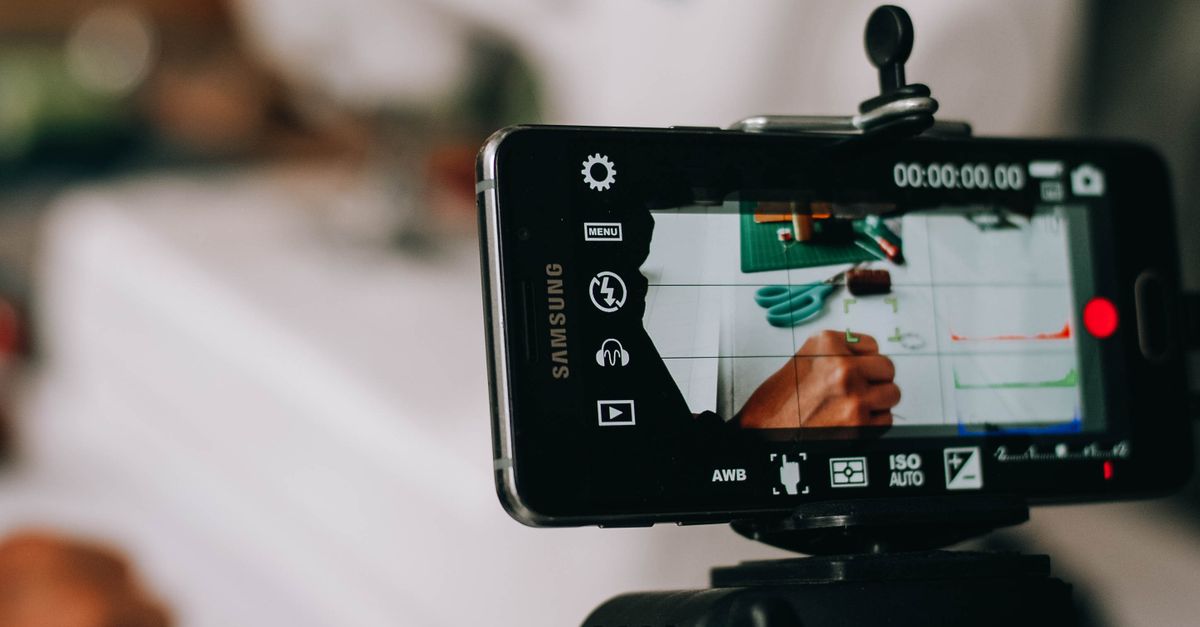
Signs You Actually Need to Extract a Video Frame
Frame extraction solves a narrow task: one image at one moment. Pull a frame when your goal matches that task and nothing more.
- You need a thumbnail or cover image. A video platform, blog post, or presentation asks for a single representative still rather than a moving clip.
- You need a reference image. A slide, report, or document needs a picture that illustrates one event, not a sequence of events.
- You need a printable still. A poster, business card, photo book, or print-on-demand product wants one captured moment.
- You need a quick still from media you own. Home video, a screencast, a tutorial, or product footage you shot yourself, and you only want one frame.
- You need an asset without audio. The frame drops the audio track by design, which is useful when you want a quiet image.
If three or more of those fit your task, frame extraction is the right move. If fewer fit, the answer is usually a different video tool, not a different frame tool.
When Frame Extraction Is the Wrong Choice
Sometimes the symptom looks like "I need a picture from a video" but the real need is something else. Step back before you start.
- You need a shorter version of the whole clip. Trimming the file, not pulling a still, is the right action. The matching tool on this site is Video Trimmer.
- You only need the audio. If you want music, a podcast segment, or a voice memo with no picture, frame extraction gives you nothing useful. Reach for an audio extraction tool.
- You need every frame. Building a frame-by-frame contact sheet, a sprite sheet, or training data calls for batch extraction, which is outside what one-frame tools offer.
- You need an exact numbered source frame. Browsers seek to the nearest decoded frame; a requested time is a media timeline position, not a guarantee of source-frame precision.
- You need to resize, sharpen, or color-correct the output. Frame extraction preserves the decoded dimensions without filters, so finishing work belongs to an image editor.
The core question is whether the output is one still or something else. If the output is one still, frame extraction fits. If the output is a shorter video, an audio file, a contact sheet, or a finished photograph, it does not.
Match Your Situation to the Right Action
This quick table maps common situations to the action that actually solves them. Use it as a sanity check before you start.
| Situation | Best action |
|---|---|
| One thumbnail from a short clip | Extract one PNG with Video Frame Extractor |
| Print still from home video | Extract one PNG, then finish in an image editor |
| Five-second teaser from a longer video | Trim the clip with a video trimmer |
| Audio from a music video | Extract the audio track separately |
| Full-frame contact sheet from a tutorial | Use a desktop tool with batch extraction |
| Frame from an HDR or log-encoded master | Use a color-managed desktop tool |
| Frame that must match a numbered source frame exactly | Use a frame-accurate desktop tool |
| Frame from a clip over 5 minutes or 500 MiB | Use a desktop tool that handles long footage |
If your situation sits in the top two rows, frame extraction is on the right path. If it sits in the middle, frame extraction is the wrong tool. If it sits at the bottom, frame extraction may still work but the precision, color, or scale limits may push you toward a desktop app.
How to Extract a Frame With Video Frame Extractor
Once the decision is yes, the run itself is short. The tool seeks inside a local file and writes a PNG to your downloads, without uploading the video.
- Choose one supported local video from your device and wait for its duration and preview to load. Supported containers are MP4, WebM, MOV, M4V, and Ogg. The file must fit the shared video safety policy: up to 500 MiB and five minutes, no more than 4096 pixels per side, and no greater than 3840 by 2160 pixels in area.
- Enter a frame time between zero and the displayed duration. The time field accepts fractional seconds, which is useful for millisecond values, frame-rate-style decimals, and times beyond one minute. The displayed duration is the upper bound, not a guess, so use it as your reference.
- Select Extract PNG frame and wait for the still to render. The browser seeks to that point, draws the decoded frame at its native dimensions, and creates a downloadable PNG in the current tab.
- Verify the still in the preview area before downloading. If the image does not match the moment you wanted, change the time and run the step again.
- Download the local PNG when the still is right. The output filename includes the selected time, which makes it easy to keep multiple captures organized.
The PNG is the decoded frame at its native pixel dimensions. The video file itself is not modified, and nothing is sent to a remote server.
Limits That Change the Decision
A few hard limits can flip the answer from yes to no. Read these before you commit, because each one can change whether the tool can complete the task.
- File size and duration cap. The shared video safety policy is up to 500 MiB and five minutes. A two-hour lecture, a full podcast episode, or a 4K feature film will not open in the tool.
- Pixel bounds. No more than 4096 pixels per side, and no greater than 3840 by 2160 pixels in area. A 6K or 8K source will not decode at full resolution in the browser.
- Container versus codec. MP4, WebM, MOV, M4V, and Ogg are containers. The browser must also support the specific codec stored inside the container. A file with the right extension can still fail to decode if the codec is unsupported.
- Browser seeking precision. Browsers may seek to a nearby decoded frame because of keyframes, variable frame rates, edit lists, timestamp rounding, and codec behavior. The displayed time records the requested position; the tool does not inspect packet timestamps or identify an exact numbered source frame.
- No resize, sharpen, or filter. The PNG is the decoded frame at native dimensions. Cropping, scaling, sharpening, and color grading happen in an image editor, not here.
- Transparency is conditional. The PNG preserves transparency only if the browser's decoded video frame provides it. Most decoded video frames are opaque, so do not assume an alpha channel is present.
- No batch or sequential extraction. Each run produces one still. Building a contact sheet or a sprite sheet requires running the tool repeatedly, and the tool does not stitch the results.
Per the MDN HTMLMediaElement currentTime reference, browsers seek to the requested media time but the actual decoded frame can land on a nearby keyframe. Per the MDN Canvas drawImage reference, the canvas captures the pixel data that the decoder hands it, which is why the output is a faithful copy of the decoded frame rather than a re-rendered image. Failures during decode, seek, canvas drawing, or PNG encoding are reported in the page instead of producing an empty download.
When a Desktop Tool Is the Better Answer
The decision becomes "use a desktop tool" when any of these apply.
- The clip is longer than five minutes or larger than 500 MiB. Browser memory and decoder limits make long footage risky on the web.
- You need frame-accurate numbering. Editorial work that calls out "frame 1,243 of the master" requires a tool that reads packet timestamps, not a browser that rounds to keyframes.
- You need batch extraction. Pulling every frame, every keyframe, or a fixed interval across an entire timeline belongs to a tool with batch jobs.
- You need HDR or color-managed output. Browser decoding and PNG encoding do not preserve a color-managed pipeline, so high-bit-depth, log, or HDR sources will lose their intended color values.
- You need alpha workflows. Frame-level transparency, keyed mattes, or alpha-channel edits need a desktop compositor, not a still-PNG export.
- The container or codec is unsupported. ProRes, DNxHR, AV1 in some wrappers, and other editorial codecs may not decode in the browser at all.
If none of these apply and your clip is a short file you own, this guide on choosing the right approach walks through the same decision in more detail. The short version is that the right tool is the one that matches the smallest set of needs, and frame extraction is the smallest possible need: one image, one moment, one local file.
Related reading: Document the Steps to Extract a Video Frame.