A video crop is the act of removing the outer area of every frame so the visible picture shrinks to a smaller in-frame rectangle, and comparing the available approaches means weighing where the processing happens, how the crop rectangle is specified, what format comes out, and whether the source ever leaves your device. The four families most readers run into are encoder-time command-line crops, desktop non-linear editors, browser-based pixel-exact re-recorders, and AI reframing tools that track a moving subject. Each one solves the same geometric problem in a different place: FFmpeg and HandBrake set the crop at the encode stage of a pipeline, Premiere Pro and similar editors expose the crop on a timeline, browser croppers draw only the requested region into a Canvas and record that stream, and AI reframers compute a moving rectangle frame by frame. The right pick depends on whether the source is private, whether the crop region is static, whether audio and metadata must survive, and what the destination platform expects on output.
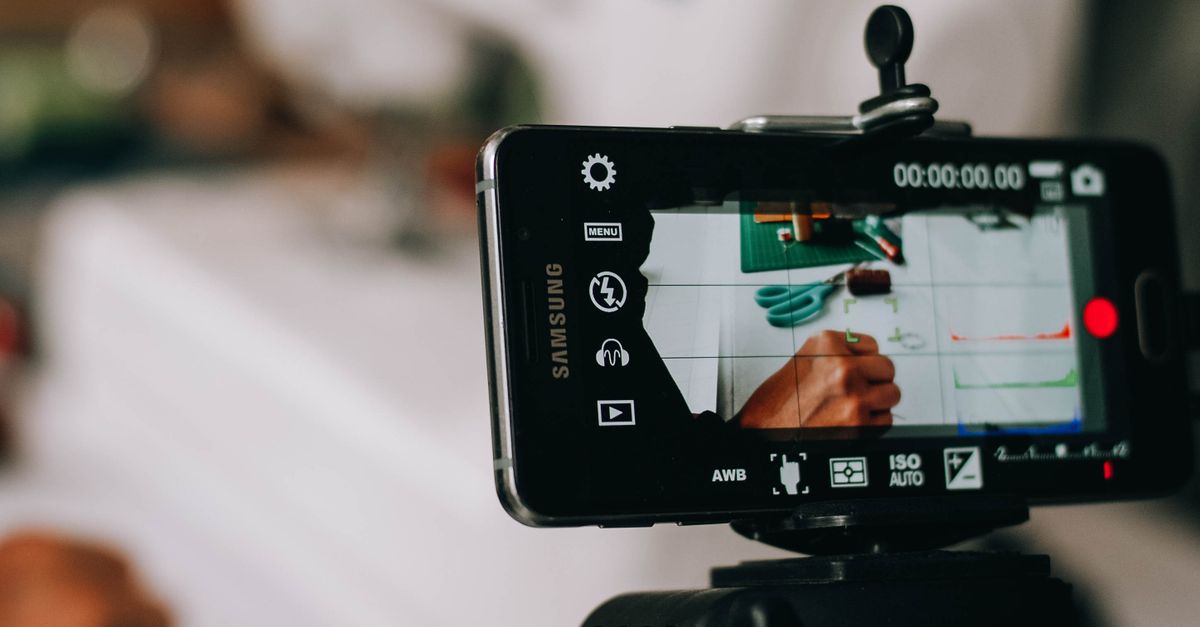
The Main Families of Video Crop Approaches
Encoder-time approaches run as part of a transcode. HandBrake applies the crop at encode time using queue-driven preset workflows, so crop regions stay consistent across batch runs but the user edits pixel values inside a preset dialog. FFmpeg expresses the same idea as a -vf crop=w:h:x:y filter, which executes during the encode pass and writes whatever container the rest of the command line requests. Both treat the crop as a fixed rectangle that does not move during playback.
Desktop non-linear editors expose cropping as a transform on a clip. Premiere Pro, DaVinci Resolve, and Final Cut Pro store the crop on the timeline; the rectangle is applied through the render path when the timeline is exported. This is convenient when the crop is part of a larger edit, but it pulls the user into a full editor interface and usually requires the source to be imported into a project first.
Browser-based pixel-exact re-recorders do not encode the original file. They play the source locally, draw only the requested rectangle into an equal-size Canvas at the source's native resolution, capture that Canvas as a stream, and write the result as WebM through the browser's MediaRecorder. The Video Cropper follows this pattern: enter X and Y offsets plus crop width and height in source pixels, and the tool records one fixed rectangle into a downloadable WebM without uploading the source anywhere.
AI reframing tools compute a moving crop that follows a face or subject. They are useful for converting landscape footage into vertical clips where the subject moves around the frame, but they cannot be described as a single rectangle, so they sit in a different category from pixel-exact cropping.
Side-by-Side Comparison of Crop Approaches
| Approach | Where it runs | Coordinate input | Output format | Audio handling | Privacy |
|---|---|---|---|---|---|
| FFmpeg / HandBrake encoder crop | Local command line or queue | Pixel values inside a filter or preset | Any container the encoder supports | Copied from source streams | Source stays on disk |
| Desktop non-linear editor | Local installed application | Effect controls or inspector panel | Project export preset | Tracks exported with the timeline | Source stays on disk |
| Browser pixel-exact re-recorder | Current browser tab | Whole-pixel X, Y, width, height in source pixels | WebM (VP9 / VP8 / generic) | Included only when the browser exposes a capturable track | Decode, draw, record, and download all stay in the tab |
| AI reframer | Local model or remote service | Subject target, no fixed rectangle | Varies by tool | Often re-encoded | Depends on whether the service uploads the source |
Why a Local Browser Pixel-Exact Cropper Fits When Privacy and Precision Matter
Two questions usually drive the comparison: does the source leave the device, and does the rectangle match the source pixel grid. A local browser pixel-exact cropper answers both at once. The decode, the Canvas draw, the WebM record, and the download all happen in the current tab, so the file never touches a remote server. The coordinates are entered as whole-pixel X and Y offsets plus crop width and crop height measured in source pixels, starting from the top-left corner of every decoded frame, so the output matches the source grid exactly rather than being rounded by an encoder's filter graph.
This shape matters when a destination platform requires a known frame, when unwanted edges are static throughout the clip, or when the user wants to verify the result before trusting it. A moving subject or a desired pan still needs AI reframing; a fixed crop does not track people or objects, and that limitation is part of why it stays precise.
How to Crop a Video Locally With Pixel-Exact Coordinates
- Open the Video Cropper in your browser and choose a browser-decodable video file (MP4, WebM, MOV, M4V, or Ogg). Wait for the source dimensions to load before continuing; decoding depends on the current browser and an accepted extension does not guarantee codec support.
- Read the reported decoded dimensions, then enter whole-pixel X and Y offsets plus crop width and crop height in source pixels. Coordinates start at the top-left corner: X moves the crop right, Y moves it down, width controls the horizontal extent, height controls the vertical extent. Leave the defaults to crop the full frame.
- Confirm that every value is an untrimmed nonnegative whole number, that width and height are each at least two pixels, that X plus width and Y plus height remain inside the decoded source, and that the requested output area does not exceed 3840 × 2160 pixels. Invalid rectangles fail without shifting, clipping, rounding, or producing a partial file.
- Select Crop video and keep the tab open. Processing happens in real time, so a one-minute source takes about one minute while the tab remains open. The source may play audibly during real-time processing if the browser exposes an audio track through media capture.
- Download the resulting WebM and review it in the destination player before deleting the original. Confirm the duration, the crop rectangle, the audio, and compatibility with the target player.
Limits and Rules That Decide Which Approach Works
Every approach has a budget, and the budget usually rejects the job before the crop runs. The Video Cropper shares an explicit safety budget with the source: positive files up to 500 MiB, decoded duration above zero and no more than five minutes, no source side above 4096 pixels, and no source area above 3840 × 2160. The output area is capped at 3840 × 2160 as well. Requested bitrate is derived from the cropped pixel area at 30 frames per second and is bounded from 180 kbps through 8 Mbps, which is a disclosed single-pass browser setting rather than a guarantee of target size or visual quality; fast motion, noise, grain, source codec, and browser encoder all change size and quality.
The crop is geometric, not temporal. It changes the visible frame region; it is not a trim-by-time, resize, compress-only, redact, blur, or object-removal tool. Subtitles, chapters, attachments, rotation tags, HDR signaling, and many container features are not preserved. Audio is included only when the browser exposes a capturable track through media capture, and that support varies. Streaming MediaRecorder output may omit a finite container duration, so the tool patches a Matroska Duration value in timestamp-scale ticks using the same standards-tested writer shared with Video Compressor; the result must remain nonempty and decode with the requested dimensions before it is offered for download. Object URLs, timers, recorder tracks, and playback are stopped or released on replacement, error, stale completion, or unmount.
Verifying the Cropped Output Before You Delete the Original
Verification matters more than the crop itself. Play the downloaded WebM in the destination player and confirm duration, crop rectangle, audio, and compatibility before deleting the source. For a longer clip split into sections, a trim tool applied after the crop is often more accurate than re-cropping. A plain checklist for the post-crop review lives in Check the Result After Video Crop, which walks through the same gates the tool enforces on output. Keep the original until the entire output has been reviewed, because real-time browser encoding is not a guarantee of visual quality.
Related reading: How to Decide If You Need to Crop a Video.