Searching for an online grocery shopping app to organize your shopping list usually leads to installed delivery services like Instacart, Walmart, or Kroger, but the task of building a clean, deduplicated checklist works just as well in a private browser tool that needs no account, no download, and no cloud sync. A browser-based checklist runs in the same tab you already have open, keeps every entry under your control, and produces a copyable export you can paste into any delivery app's search field or notes section. That distinction matters because most people who type "online grocery shopping app" into a search bar are trying to solve two different jobs at once: getting groceries delivered, and keeping track of what to order. The delivery half belongs to delivery services with trucks and personal shoppers; the tracking half is solved by a small, predictable checklist that lives only where you decide to keep it. This article focuses on the tracking half, walks through the Online Grocery List tool in detail, and shows how the output flows into any installed delivery app you already use.
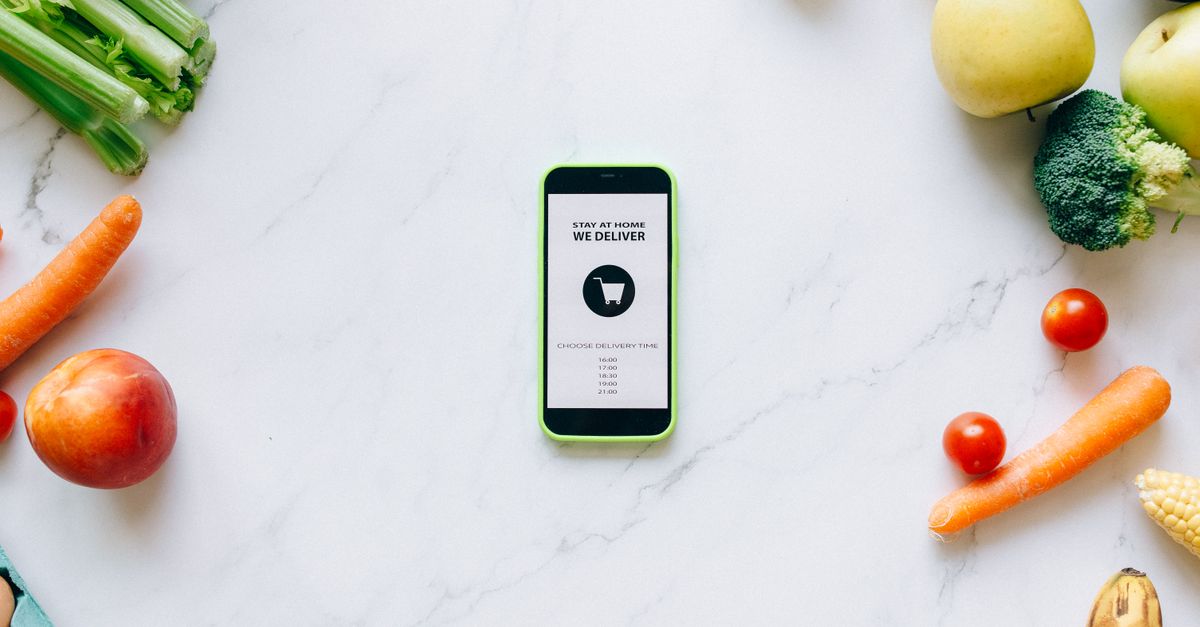
What People Mean by an Online Grocery Shopping App
Search results for the keyword usually surface delivery platforms first: Instacart, Shipt, Amazon Fresh, Walmart Grocery, and Kroger Boost. Those products are built around a logistics pipeline — store browsing, substitution rules, driver assignment, payment, and tip processing. They are not designed to be a clean, private planning surface where you can think through a week's worth of meals without being nudged toward upsells, default substitutions, or "frequently reordered" shortcuts.
If your actual job is to write down what you need before you tap "place order," a dedicated checklist is a better starting point than a delivery app's bundled planner. The checklist's job is to capture an item, label it, mark it purchased when it arrives, and produce an exact, readable export. The delivery app's job is to fulfil that export against inventory and time windows. Keeping the boundaries clean keeps each tool honest about what it does.
Where a Browser Checklist Helps Most
A small, single-purpose checklist tool is the right fit when the reader's bottleneck is the planning step rather than the fulfilment step. It also helps when the reader values control over their data — every entry stays in the local browser profile, no analytics payload ships with the list, and there is no account to create or password to manage.
| Feature | Downloaded delivery app | Private browser checklist |
|---|---|---|
| Account required | Yes | No |
| Local-only storage | Rare (cached orders only) | Yes — localStorage on this browser |
| Duplicate detection on entry | Usually absent | Case-insensitive, explicit error |
| Export format | App-specific | Plain-text checkbox lines |
| Cross-device sync | Yes | No — by design |
| Handles payment and delivery | Yes | No |
| Tracks purchased items during the trip | Sometimes (driver app) | Yes, with toggles |
| Item categories for planning | Varies by store taxonomy | Eight fixed interface categories |
The two columns describe different jobs. The left column solves logistics; the right column solves planning. Using them together — checklist first, delivery app second — keeps each step predictable and avoids installing yet another app onto a phone that already runs out of room.
Building Your Shopping Checklist Before You Open the Delivery App
The workflow that fits this kind of tool is short and repeatable: open the Online Grocery List, type items one by one with a category label, copy the formatted block, then paste it into the delivery app's notes field, search box, or a text message to a partner. The checklist never tries to become a delivery service, and the delivery service never tries to replace a focused planning surface.
Because the list is bounded — up to 100 unique items, names up to 80 Unicode code points, eight interface categories — the planning step has a built-in ceiling. That ceiling is useful: it forces a deliberate choice about what belongs on this trip rather than a running inventory that grows stale across weeks. You can wipe purchased rows at the end of the shop, see what is still unchecked, and start the next trip from a clean slate.
| Category | Typical items |
|---|---|
| Produce | Fresh fruits, vegetables, herbs |
| Dairy | Milk, cheese, yogurt, butter |
| Bakery | Bread, rolls, tortillas, bagels |
| Meat | Beef, poultry, pork, fish |
| Pantry | Canned goods, pasta, rice, oils |
| Frozen | Frozen meals, vegetables, ice cream |
| Household | Cleaning, laundry, paper goods |
| Other | Anything that does not fit the seven above |
The categories are a bounded interface organization choice, not a nutrition standard or a store taxonomy. If an item does not fit cleanly, choosing Other keeps the entry without forcing it into an awkward label.
Adding Items, Categories, and Duplicate Protection
- Open the Online Grocery List in the browser tab you normally use for shopping.
- Type the item name in the entry field. Names are trimmed and internal whitespace runs are reduced to one ordinary space, so leading spaces and repeated gaps cannot create visually accidental duplicates.
- Pick one of the eight fixed categories from the dropdown: Produce, Dairy, Bakery, Meat, Pantry, Frozen, Household, or Other.
- Click Add. The tool stores one row with a browser-generated identifier, the chosen category, the trimmed name, and a purchased flag set to false.
- If the trimmed name already exists on the list — case-insensitive — the tool returns an explicit error and does not create a second row. Milk and milk are treated as the same item.
- Stop adding when the list reaches 100 rows or when each item has a category that fits. The bounded list keeps rendering, clipboard output, and mobile interaction predictable.
Names longer than 80 code points, empty names, duplicate names, and invalid categories produce errors without changing the saved list. The tool does not merge quantities, infer brands, or decide that related names such as apple and apples are identical — if you want both, type them with a clear difference and the tool will accept them.
Tracking Purchases and Cleaning Up the List
While you shop — at the store or while watching a delivery driver's updates — the list behaves like a status board. Each row carries a purchased flag, and toggling it does not change anything else about the row. Reopening the page later shows the same list with new check marks.
Three cleanup actions keep the list focused:
- Toggle purchased on individual rows as items arrive. The flag is the only thing that changes.
- Remove a single row when you decide an item is no longer on this trip. The remaining rows keep their existing order.
- Clear purchased when the trip ends. Every checked row is removed, and every unchecked row is retained in the same order you added it.
The tool does not auto-sort by category, regroup items, or compute running totals. Order is preserved as added, so the workflow stays predictable across devices and reloads, and the planning step does not silently rearrange itself mid-trip.
Exporting the Exact Checklist to Any Delivery App
Click Copy list to push the current state to the clipboard. The exported text is formatted exactly: one item per line, with unchecked rows beginning "[ ]", checked rows beginning "[x]", and the chosen category following an em dash. A typical four-item export looks like:
- [ ] Apples — Produce
- [ ] Whole wheat bread — Bakery
- [x] Milk — Dairy
- [ ] Chicken thighs — Meat
The success message appears only after the browser confirms the write, using the standard Clipboard writeText method documented on MDN. If permission is denied, the page tells the visitor to select the visible list manually rather than silently failing.
That plain-text output drops cleanly into the notes field of Instacart, Walmart, Shipt, or Kroger, into a text message to a partner, or into any notes app on the same device. The checklist's job ends at the clipboard; the delivery app's job begins there.
Privacy, Storage Limits, and When a Delivery App Still Helps
The list is stored under a versioned localStorage key on the current browser profile and is never sent to a remote database. The parser on page load accepts structurally valid rows, rejects more than 100 stored entries, and drops malformed rows; invalid JSON returns an empty list rather than crashing or trusting arbitrary stored objects.
That local-first design has real consequences. Clearing browser storage, using private browsing, switching browsers, changing devices, or letting the browser run a cleanup policy can erase the list. The tool has no cloud recovery, no sharing link, no multi-user editing, no login, no notification, and no cross-device synchronization. Treat the checklist as a single-trip planning surface and a quick pantry reminder rather than a permanent database.
Do not place passwords, payment information, medical details, or any other sensitive data in browser storage. Anyone with access to the same browser profile may be able to view locally stored entries, and the item categories and ordering do not provide dietary, allergy, health, budgeting, or food-safety guidance. Verify labels, prices, storage requirements, and personal needs independently — the tool only records the text and state the visitor chooses.
For payment, driver routing, real-time substitutions, and order history, a real delivery app is still the right tool. The checklist complements it; it does not replace it. Together, they cover the planning and fulfilment halves of the same job, each in the place it works best.