The Text File Merger tool combines two to twenty TXT, CSV, MD, or LOG files into a single UTF-8 text file inside your browser, respecting the exact selection order from the file picker and inserting one of three explicit separators between each pair — a single newline, a blank line, or nothing at all. The combined input is capped at 10 MiB, the merge is deterministic, and no file ever leaves the active tab. For readers who land here after typing "merge text files in Notepad++" and discover that Notepad++ does not expose a clean multi-file merge, that local-browser behavior is the entire reason this tool exists.
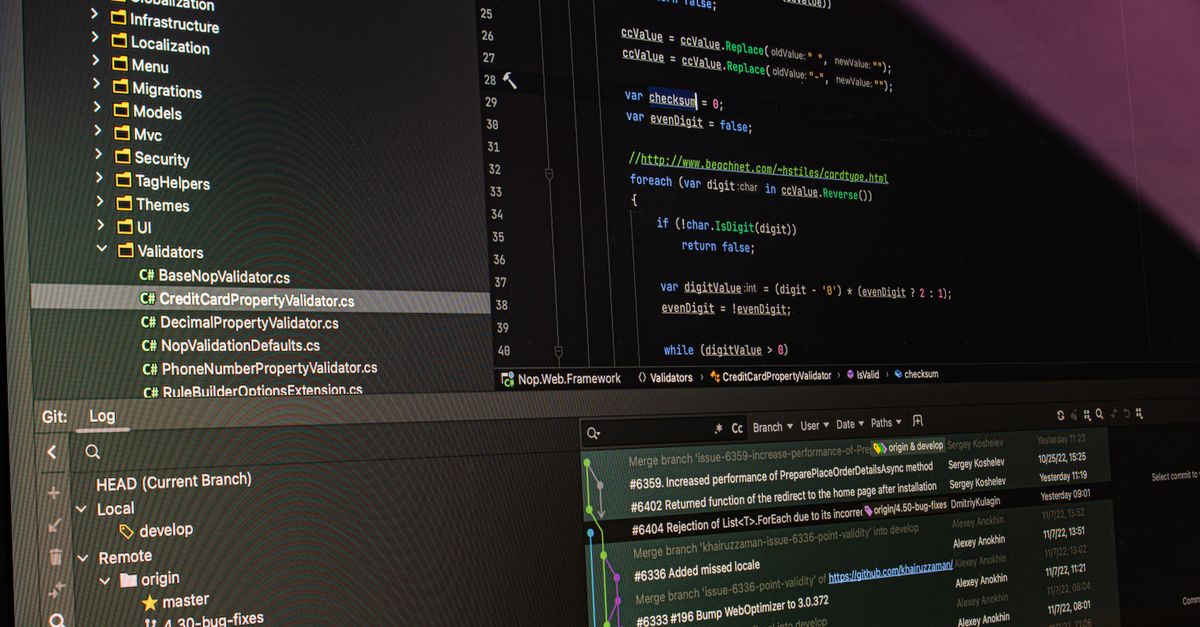
Why Notepad++ Complicates a Simple Merge
Notepad++ is a powerful editor, but its built-in merge story is fragmented. The menu entry File → Merge File only reads from documents already open in tabs, so you must open every file first and confirm each tab uses the same encoding before the command produces a sensible result. The Combine plugin helps with mixed encodings, and NppExec can call Windows copy /b for a fast binary join, but both paths introduce prerequisites: a plugin install, a script template, or careful encoding bookkeeping. For a task as everyday as stitching together exported note fragments, log excerpts, or Markdown chapter drafts, those prerequisites feel heavier than the work itself.
The deeper friction is invisibility. None of those approaches show you the exact merged string before saving. Notepad++ produces a new tab from the merged bytes, so you discover a stray double newline or a mis-ordered file only after the merge has already happened. Text File Merger reverses that order: inputs first, deterministic preview, then a single download.
What Text File Merger Does
Text File Merger accepts between two and twenty files whose names end in .txt, .csv, .md, or .log. It sums the file sizes immediately and rejects any batch whose total exceeds 10 MiB before it reads a single byte. It then decodes each accepted file in the browser using the platform's plain-text reader, joins the decoded strings in picker order with the separator you chose, and renders the complete result in a preview area so you can read it before downloading. The download button creates a Blob marked as UTF-8 plain text, exposes it through a temporary object URL, and revokes that URL as soon as the browser starts the download — see the MDN reference for createObjectURL for the lifecycle this mirrors. No account, server request, history, or background upload exists; everything described in MDN's Blob.text documentation happens locally.
Because the output is produced from a deterministic JavaScript string, the same files, the same order, and the same separator always produce the same merged-text.txt. There is no hidden reordering, normalization, or smart merging behavior layered on top.
Merging Text Files Step by Step
The entire workflow fits in three short phases. Open the tool, pick your files in the order you want them combined, and choose the separator that matches your downstream use case.
- Open Text File Merger in a fresh browser tab. No extension, account, or plugin is required.
- Click the file picker and select two to twenty files with .txt, .csv, .md, or .log extensions, in the exact order you want them concatenated. Browser file pickers normally preserve your selection order, but the preview step below is your confirmation.
- Choose a separator: One newline (a single LF between files), One blank line (two consecutive LF characters between files), or No separator (concatenation with no inserted characters). Existing leading or trailing line breaks inside each file are kept as-is, so a file that already ends in LF combined with the blank-line option will produce three consecutive LF characters before the next file begins.
- Read the batch size indicator. The total of all selected files must stay at or below 10 MiB; one byte over and the merge is rejected before any content is read.
- Run the merge. The preview pane shows the exact resulting string, in order, with the chosen separator visible between adjacent file blocks.
- Scroll the preview and verify file order. This is your only safe point to catch a mis-ordered picker result, because the tool never sorts by name, date, size, or natural-number order.
- Click Download. The browser saves the file as merged-text.txt using a UTF-8 Blob. The original files remain untouched on disk.
If your inputs need a different downstream format, such as CSV that must open in Excel with consistent delimiters, the local three-step approach described in the merge text files for Excel guide addresses that specific schema.
Separator Options Compared
The separator you select is the only transformation the tool applies between files. Every other character in the preview is exactly what your source file contained at read time.
| Separator choice | Inserted characters between adjacent files | Best for |
|---|---|---|
| One newline | Exactly one LF | Log appends, line-oriented notes where each file already ends without a trailing newline |
| One blank line | Exactly two LF | Markdown chapter drafts, exported note fragments, prose sections that need a visual break |
| No separator | None | Records that already include their own delimiters, or split CSV fragments where each block is self-contained |
Existing line endings inside each file are preserved as the browser reads them, and the tool never trims or deduplicates boundaries. If a source file ends with a newline and you select the blank-line option, the visible gap between that file and the next will be three LF characters rather than two. Plan accordingly when the merged output feeds a strict parser.
Limits, Encodings, and Empty Files
| Constraint | Value or behavior |
|---|---|
| Minimum number of files | 2 (a one-file operation is not a merge) |
| Maximum number of files | 20 |
| Accepted extensions | .txt, .csv, .md, .log |
| Combined size cap | 10 MiB total; exactly 10 MiB accepted, one byte beyond it rejected before any read |
| Processing location | Current browser tab; nothing uploaded to Lizely |
| Output encoding | UTF-8 plain text via a temporary Blob URL, no byte-order mark added |
| Empty files | Allowed; their contribution is an empty string and surrounding separators still apply |
| Source files | Never modified; filename, size, and decoded text live only in the active page |
CSV files are safe to concatenate only when their schemas, delimiter rules, encoding, headers, and quoted multiline records are compatible — the tool treats every accepted extension as plain text and does not remove repeated headers or validate a tabular schema. The same applies to Markdown: a section heading is just characters in a string, so the merged file preserves whatever structure your sources already had. For sensitive data, archival preservation, or batches beyond 10 MiB, switch to a local command-line utility with explicit encoding and streaming behavior.
Verifying the Result Before You Trust It
The preview pane is the only place where the deterministic result is visible in full. Read it once for file order, once for separator placement, and once for any unexpected replacement characters at the start or end of a block. Replacement characters usually signal a binary file renamed with an accepted extension, which the plain-text reader cannot decode losslessly. When the preview looks right, click Download and open merged-text.txt in its destination application before deleting any source file. Keeping the originals until the result has been visually confirmed in the destination is the simplest defense against silent encoding losses.
Selecting new files or switching the separator clears the previous result and validation state, so a stale preview cannot be confused with the current inputs. Repeated previews therefore do not accumulate Blob URLs in the browser, and switching context mid-task does not leave an old merged-text.txt sitting on disk from a different batch.
Related reading: Sort Text in Notepad++: A Safe Step-by-Step Workflow.