To get cursive text on iPhone, convert your words to script-style Unicode characters in Safari, copy the result, and paste it into the app where you want it.
This method is useful for an Instagram or TikTok bio, a Discord or WhatsApp message, a note, or another text field that does not offer a working font picker. It is not an iPhone keyboard setting or a conventional font. Instead, the generator replaces Latin letters with look-alike Unicode characters whose cursive shape is built into the character itself.
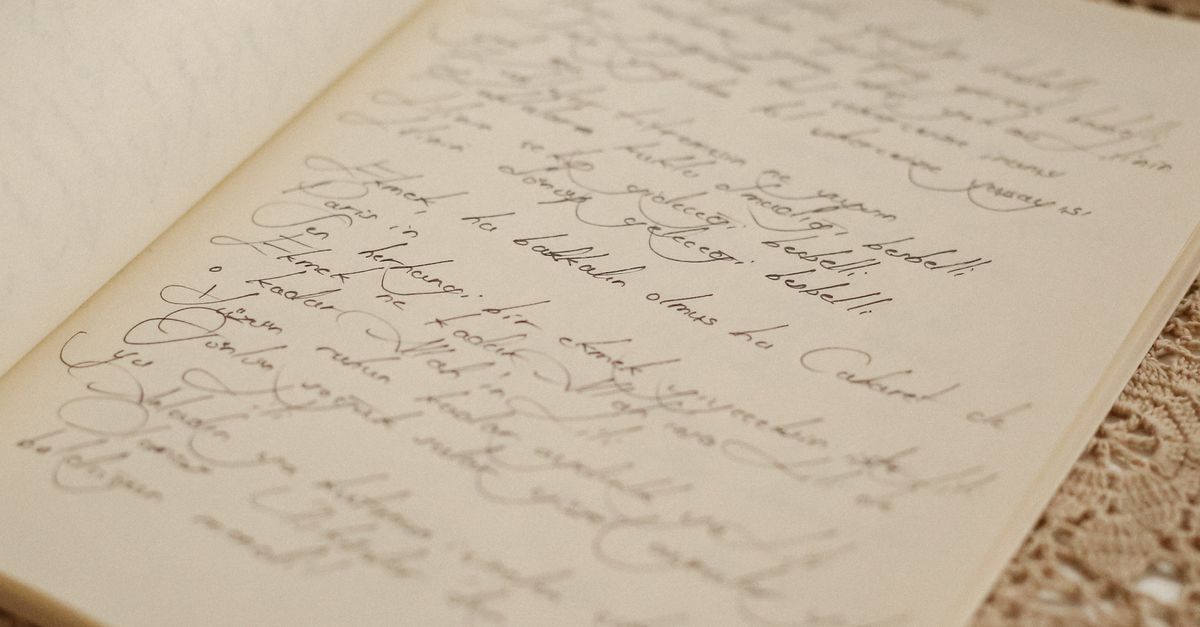
Create cursive text on your iPhone
The generator runs locally in your browser, so your text is not uploaded and it works offline. Follow this workflow to create and paste the result:
- Open the generator in Safari. Go to the Cursive Text Generator on your iPhone.
- Enter the words you want to convert. Tap the input box and type your text, or paste text that is already on your phone.
- Review the generated styles. Script and bold-script versions appear below the input box, so you can compare them before copying.
- Copy the style you prefer. Tap the Copy button next to the script or bold-script version you want to use.
- Switch to the destination app. Open the app and tap its editable text field. Press and hold in the field, choose Paste, and confirm that the full text appears.
- Preview the result before posting. Check that all letters rendered correctly and that no empty boxes appeared. If some characters are missing, try the bold-script style or paste the text into another app.
Why Unicode works where an iPhone font may not
A normal font changes how an ordinary letter is drawn, but it does not change the underlying character. If an app removes formatting, the letter returns to its standard shape. This is why choosing a handwritten-style font in a design app may have no effect inside a social bio or message field.
Unicode cursive works differently. The script form comes mainly from Unicode's Mathematical Alphanumeric Symbols area, beginning at U+1D400. A script A is a separate character from a normal A. Its cursive appearance therefore travels with it when you copy and paste it, even into a field that ignores formatting.
Unicode has one relevant complication. Several script letters were added before the main mathematical block, so they live in the Letterlike Symbols block instead. In the plain script style, the affected characters are capitals B, E, F, H, I, L, M and R, plus lowercase e, g and o. The generator explicitly maps these eleven letters to their real code points, avoiding the empty boxes that a simple fixed character offset can produce. Bold script was added as one continuous block and does not have those same gaps.
If your installed version of Notes offers a handwriting-style font in its formatting controls, that can be useful when the text will remain inside Notes. It is still a font choice, however, so its appearance may not survive copying into a social bio or message. The Unicode workflow is the more consistent option when the same text must work across several iPhone apps.
Choose between script and bold script
The two generated styles serve the same basic purpose but produce different visual weights. Choose according to the app, the available space and how prominently you want the text to stand out.
| Option | What it does | Best use | Important limitation |
|---|---|---|---|
| Script Unicode | Replaces Latin letters with flowing, handwritten-looking characters. | A decorative name, short phrase or bio accent. | Rendering, screen-reader output and search indexing may differ from plain text. |
| Bold-script Unicode | Uses a heavier script style with its own copy button. | A stronger decorative accent where the plain script style lacks a supported glyph. | It has the same general accessibility, indexing and device-rendering concerns. |
| Plain text | Leaves the original letters in their standard form. | Your real name, username, essential keywords and accessible content. | It does not create a cursive appearance. |
Neither Unicode style is a conventional cursive font. Both can be pasted into compatible text fields without relying on the destination app's font menu, but both should be previewed on the device and in the app where they will appear.
Paste the result into the iPhone app you use
After tapping Copy, switch back to the destination app and paste the text into its editable field. The exact path depends on what you are editing:
- Notes: Open a note, tap the line where you want the text, press and hold, select Paste, and check that every character appears.
- Messages: Open the conversation, tap the message field, press and hold, choose Paste, and review the result before sending it.
- Instagram or TikTok: Edit your bio or tap the caption field, paste the converted text, and preview the profile or post before saving or publishing it.
- Discord or WhatsApp: Open the relevant channel, group or chat, tap the message composer, paste the text, and confirm that it renders correctly.
For a profile, consider keeping an exact-match name or handle in plain text and using a short script phrase as an accent. This makes the profile easier to read without removing the decorative effect entirely.
Know exactly what the generator changes
Only Latin letters from A through Z and a through z are converted. Capital and lowercase letters receive their corresponding script forms, while numbers, punctuation, spaces and emoji pass through unchanged. Non-Latin scripts such as Chinese or Arabic also remain unchanged because the generator does not convert those writing systems.
For example, a word such as “Blog” is changed into script-style characters, but a number, exclamation mark or emoji beside it remains as entered. A mixed-language line can therefore look partly decorative and partly standard. That is expected behavior rather than a failed conversion.
The generator changes the appearance of letters, but it does not turn the iPhone keyboard into a handwriting engine. You still enter ordinary text first, then replace those Latin letters with the corresponding Unicode characters.
Fix empty boxes before posting
A square or empty box means the destination app or device does not contain a glyph for that character. Correctly mapping a letter to its Unicode code point cannot guarantee that every app or older device includes the necessary font coverage, so previewing in the final destination is essential.
If the plain script style shows missing characters, try the bold-script style and preview it again. You can also test the text in another app to determine whether the problem is specific to the original app. If exact legibility matters, use plain text rather than forcing an unsupported glyph into the post.
Keep important information readable and searchable
Screen readers can announce mathematical script characters awkwardly, sometimes one letter at a time or with names such as “mathematical script A.” Search engines may also fail to treat the converted characters as ordinary words. That makes script Unicode better for a decorative accent than for every important word in a bio, caption or message.
Keep your real name, username, contact details and meaningful keywords in standard text whenever possible. Use the cursive style for a short greeting, decorative label or expressive accent where losing precise word recognition would not create a problem.
The reliable iPhone workflow is straightforward: enter plain text in the generator, choose script or bold script, tap Copy, paste into the destination field, and inspect the result on the same iPhone before posting.
Related reading: How to Make a Text Generator for Circled Unicode Text.
Related reading: How to Get Cursive Text on TikTok Without a Font.