Text on screen in a screenplay is any words the audience reads rather than hears: title cards, text messages between characters, email bodies, social-media posts, news chyrons, computer screens, or street signs the camera lingers on. Unlike dialogue, this text lives on the page inside a parenthetical or action block, and the writer is responsible for both the content and the typographic look the production will recreate in post. The challenge is usually not invention but cleanup, because the words arrive from real messages, real emails, or a real social feed, complete with hard-wrapped lines, lost indents, mixed punctuation widths, and stray blank lines. Set that mess straight with Text Formatter before you paste it into your script and the page reads the way a script reader expects. One click applies a documented typesetting pipeline — paragraph reflow, indent, punctuation-width normalization, and CJK-Latin spacing — and the text is ready to drop into action or beneath a SUPER: heading.
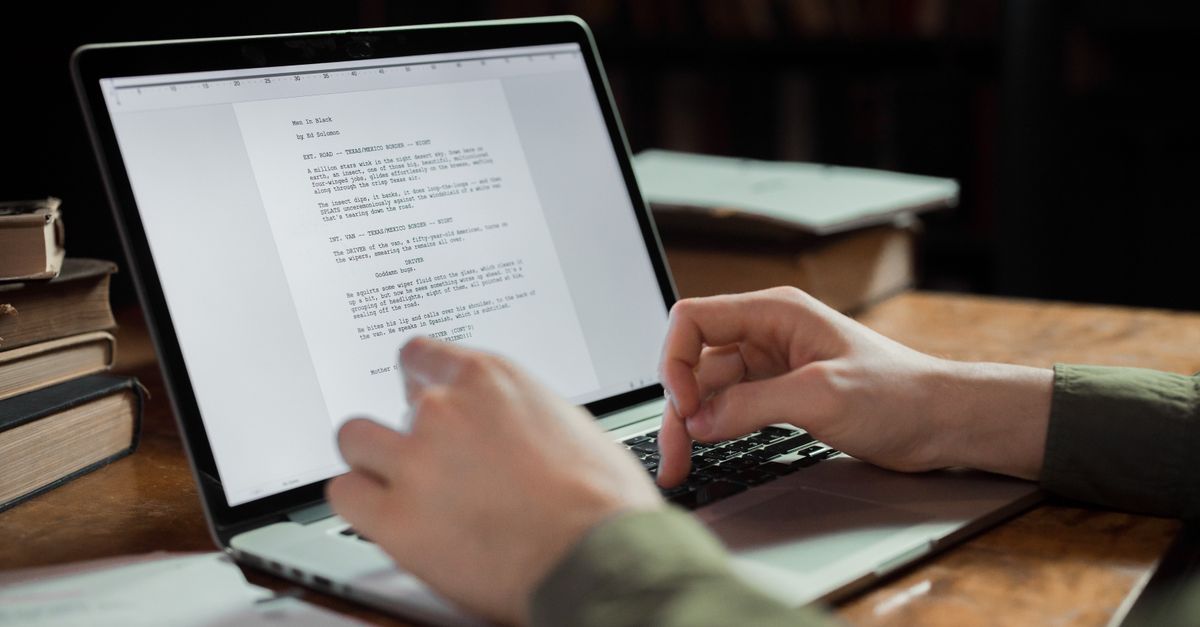
On-Screen Text: A Screenplay Category
In screenwriting, "text on screen" is a distinct category from dialogue, because the writer has to communicate both the content and the visual treatment the production will recreate. Production designers, graphic teams, and editors then build the actual on-screen look from the writer's direction. Major screenwriting software (Final Draft, Highland, Fade In) treats on-screen text as an action-line element rather than a dialogue element, and the studio reader's eye is unforgiving when the convention is ignored.
On-screen text usually appears in one of three places on the page:
- Inside an action line, as a quoted or parenthetical fragment
- Beneath a special heading like TITLE CARD:, SUPER:, or CHYRON:
- As a stand-alone element, often centered or styled in caps
The content is almost always real-world text: a real text-message thread, a real email, a real tweet, a real Instagram caption, a real headline, a real street sign. Because that text usually comes from a real source, the writer often starts with a messy paste and then has to set it for the page.
Where On-Screen Text Appears in a Script
The categories a screenwriter reaches for most often are:
- Title cards and intertitles, including opening and closing text
- Text messages and iMessage-style threads between characters
- Email bodies, with subject lines and sender info
- Social-media posts — tweets, Instagram captions, TikTok comments, Snapchat snaps
- News chyrons and lower-third graphics
- Computer, tablet, and phone screens in general
- Documents, letters, and notes held in frame
- Street signs, scoreboards, license plates, and other background text
Each of these has its own screenplay convention, and the rules for text-message threads specifically have their own well-documented treatment — formatting text messages in a screenplay the right way walks through that subcategory in detail. The rest of this article covers the broader on-screen-text category and the one-click cleanup step that makes every one of them easier to write.
Format Rules for Each Type of On-Screen Text
The table below maps the common on-screen text elements to the script conventions you will see across Final Draft, Highland, and the studio reader's desk. This is a starting point, not a binding standard — studios vary, and genre shifts things. A thriller may type a chyron in mixed case to feel raw, while a procedural goes all caps. Pick the convention that fits your world, then apply it the same way every time the element appears.
| Type | Heading or marker | How the body is set |
|---|---|---|
| Title card | TITLE CARD: | Centered, uppercase, on its own line, then content below |
| Text message | (TEXT MESSAGE) or (MESSAGE THREAD) | Indented, left-aligned, dialogue-style runs of short lines |
| Email body | (EMAIL — SUBJECT LINE) | Sender, time, subject on top; body under, with paragraph breaks preserved |
| Tweet / social post | (TWEET) or (@HANDLE) | Handle line, then the body, often under 280 characters |
| News chyron | CHYRON: or (NEWS CHYRON) | All caps, short, often one line, lower-third feel |
| Computer screen | (ON SCREEN) or (COMPUTER) | Action-block bracketing, short, screen-direction notes |
| Document / letter | (DOCUMENT) or (LETTER) | Header line, then body with paragraph breaks |
Three rules hold across every type:
- Use a parenthetical or a special heading to mark the element, so the reader (and later the editor) knows what kind of on-screen text it is.
- Keep the body text short. Real text messages and real tweets are short, and long paragraphs feel fake on camera.
- Set the text in a way that survives a quick read of the page. If you cannot parse the meaning in two seconds, the production will struggle to reproduce it in the time the camera is on it.
Clean Up Pasted Text in One Click
Before you paste a real text-message thread, a real email, or a captured social-media post into your script, run it through Text Formatter. The page applies a documented pipeline: line-ending normalization, sentence-aware paragraph reflow, whitespace cleanup, optional indentation, context-aware punctuation-width conversion, and CJK-Latin spacing. Everything is deterministic and idempotent, so running the tool twice changes nothing, and you can keep it open in a tab and re-run it as the scene grows.
Follow these steps:
- Copy the messy text from its source — a PDF, an email client, a chat log, an OCR screenshot, or a content system — and paste it into the input box on the Text Formatter page.
- Click the preset that matches the script you are writing. For English-language screenplays, choose Format as article, English. For Chinese, Japanese, or Korean scripts, choose Format as article, CJK. If you only need blank lines and trailing spaces cleaned up without changing paragraph structure, choose Plain cleanup.
- If one rule needs to behave differently in this scene — say you do not want a paragraph indent, or you want a different blank-line policy — open the advanced section and toggle that single control.
- Copy the result. The page shows paragraph, word, and CJK character counts alongside the exact line counts, so you can sanity-check what you are about to paste.
- Drop the cleaned text into your script, wrapped in the parenthetical or under the SUPER: / TITLE CARD: heading that fits the element.
Why Context-Aware Punctuation Matters
A width converter that cannot tell context apart does more damage than good. The number 3,000 contains a comma that must stay a half-width comma; the prose after a Chinese character — 您好, must become a full-width comma. The Text Formatter pipeline is verified against the Unicode Character Database and the W3C's Requirements for Chinese Text Layout, so a comma that follows a CJK character converts to full-width, while a comma inside 3,000 or inside an English clause is left exactly as typed. If you are writing a bilingual screenplay — English action with Mandarin on-screen captions — this rule is the difference between a page that reads correctly and one that has to be hand-fixed at the desk.
The CJK preset also collapses three or more periods into a proper ellipsis, inserts the customary space between CJK characters and adjacent Latin words or digits, indents each paragraph with two ideographic spaces, and normalizes blank lines to a single separator. The English preset does the Latin-script equivalent: paragraphs rejoined with single spaces at the joins, no indent, full-width punctuation brought back to half-width, whitespace tidied.
Pair the Tool With the Right Editor Mindset
Text Formatter arranges text; it does not rewrite it. That boundary is by design. Screenplay software then owns the layout: Courier 12, 1.0 line height, 1.5-inch left margin, 1.0-inch right margin, 1.0-inch top and bottom. What the formatter gives you is the cleanest possible input for that layout — paragraphs rejoined, indent applied if you want one, blank lines normalized, punctuation widths sane, and CJK-Latin spacing correct. The screenwriting software then takes care of font, margin, and slugline numbering.
One scope point worth stating plainly: the tool does not convert Simplified to Traditional Chinese, because doing that conversion correctly needs a large character mapping that this page does not carry. It does not number lines (that lives in its own tool), and it does not touch QR codes or signature blocks, which are outside what typesetting means. What this page does, it does completely: paste, one click, and the on-screen text is set.
A Short Checklist Before You Finalize the Scene
Before you hand the page over, walk this list:
- Every on-screen text element has a parenthetical or a special heading
- The text inside each element is set in the same convention as the other elements in your script
- A quick read of the cleaned text takes no more than two seconds
- Real-world text from a screenshot, an email, or a feed has been run through Text Formatter at least once
- No accidental hard-wrap from the source paste survives on the page
That last point is the one most scripts miss. A hard-wrap that survives inside what should be one paragraph reads like a formatting bug to a script reader, and it telegraphs that the writer pasted without checking. Cleaning the paste in one click is the cheapest insurance you can buy against that read, and the same input always produces the same output, so the cleanup you do today is the cleanup you can repeat tomorrow.