AutoCAD's built-in FIND command handles find-and-replace inside an open drawing, but a browser tool called Find and Replace Text gives you exact, literal substitutions on AutoCAD text you have copied out of a drawing — annotations, attribute values, block names, layer names, or MText contents — with a 1,000,000-character input limit and no regular-expression surprises. To use it, paste the AutoCAD text into the tool, type the literal string you want to find and the literal replacement, choose case-sensitive or case-insensitive mode, and decide whether to replace only the first match or every non-overlapping match. The tool then reports how many replacements were made and previews the exact transformed text so you can verify the change before copying the result back into AutoCAD or a related document. Because all matching runs locally in your browser, no AutoCAD text is uploaded, which matters when drawings contain proprietary labels, client codes, or unreleased product names.
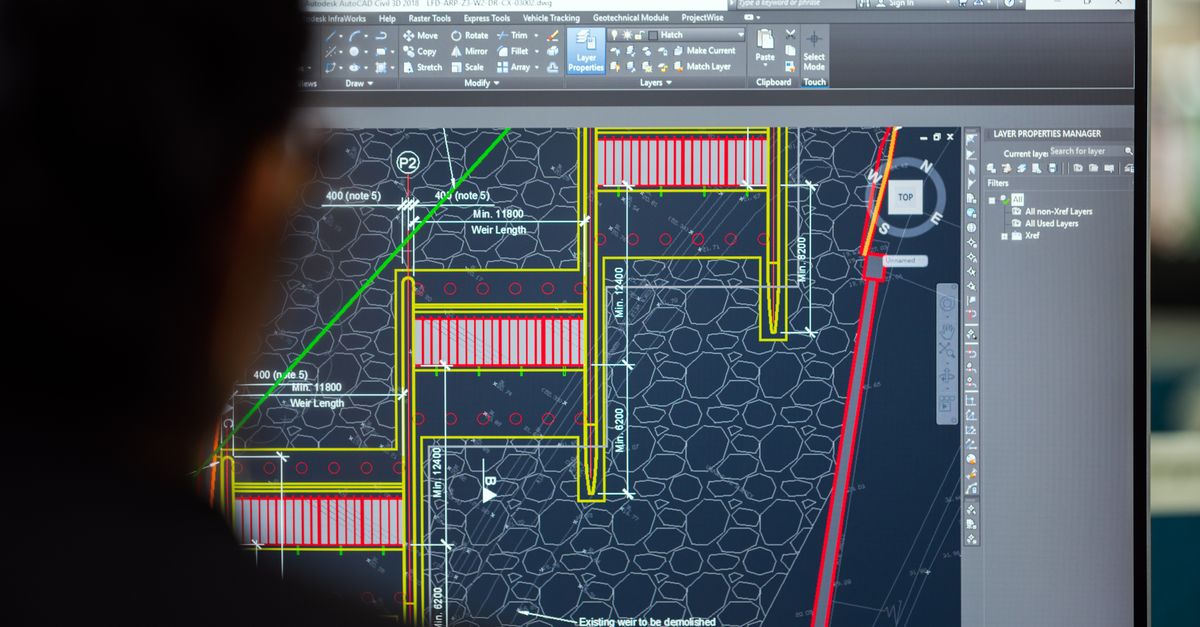
What AutoCAD's built-in FIND actually does
AutoCAD's FIND command, accessible from the ribbon or by typing FIND at the command line, searches text-bearing entities inside the active drawing. It works on TEXT, MTEXT, ATTDEF, ATTRIBUTE, and block attribute values, and exposes options such as Match Case, Whole Word, and Wildcards. For a single-drawing change in well-formed text, this is the right starting place because the changes are written straight back to the DWG.
There are common situations, however, where extracting the text first and processing it outside the drawing is faster and safer:
- You want to perform the same substitution across many drawings and prefer a uniform, reviewable preview before applying it.
- The text you need to change is buried inside a long MText string that AutoCAD's dialog truncates in its preview area.
- You want guaranteed literal behavior — no wildcard interpretation of *, ?, #, [, or ].
- You need to remove a delimiter or rename a token in hundreds of attribute definitions exported to CSV before re-importing them.
- You are building a documentation set and want to standardize phrases across text that AutoCAD itself does not see, such as titles extracted from a title-block log.
Why a literal browser tool is useful for AutoCAD text
The Find and Replace Text tool treats every character literally. Periods, asterisks, brackets, parentheses, dollar signs, and backslashes all match themselves, which is the opposite of how AutoCAD's FIND wildcard mode behaves. If your drawing text contains a literal asterisk in a code like SPEC_v2* and you want to change just that one token, the browser tool will only change the exact sequence SPEC_v2*, not every string that starts with SPEC_v2.
Practical advantages for AutoCAD workflows:
- Up to 1,000,000 characters of input — enough for nearly any extracted text dump, even full attribute exports.
- A reported replacement count and an exact preview, so you can confirm whether 0 or 47 substitutions actually occurred before copying anything back.
- Source whitespace, tabs, and line breaks are preserved exactly — no silent reflow or line-ending normalization.
- Editing any control clears the previous result, which prevents stale output from being mistaken for the current settings.
- All work runs locally in the browser; nothing about your drawing's text leaves the machine.
How to find and replace text in AutoCAD with the Find and Replace Text tool
- Copy the AutoCAD text you want to process. Use ATTEXT or DATAEXTRACTION for bulk attribute output, or double-click an MTEXT entity and copy the visible contents. Paste that text into the source field of the Find and Replace Text tool.
- Type the literal find value — for example, Rev-A, client_name=, or @@@. Do not escape punctuation; the tool does not use regular expressions, so dots, asterisks, brackets, parentheses, dollar signs, and backslashes match themselves.
- Enter the replacement value. This is also literal. An empty replacement is allowed and acts as deletion, which is useful when you want to strip a delimiter from a token.
- Choose case sensitivity. Case-sensitive mode compares strings exactly, which matters for codes like Rev-A versus rev-a. Case-insensitive mode lowercases both sides with English-locale rules before matching, then preserves the original casing of unmatched characters in the output.
- Choose the scope. Pick "replace first" to change only the earliest match and keep the rest of the text untouched, or "replace all" to substitute every non-overlapping match.
- Run the replacement. The tool reports how many substitutions occurred and shows the exact preview of the resulting string.
- Verify and copy back. Read the preview, confirm the count matches your expectation, then copy the transformed text back into AutoCAD — or into your data-extraction spreadsheet if you are batch-updating attributes outside the drawing.
Literal vs. regex: how matching behaves on AutoCAD text
AutoCAD's FIND wildcard option uses * and ? as pattern metacharacters, which can produce unexpected matches in code-like text. A literal asterisk in a filename or attribute value is therefore risky under wildcard mode. The browser tool has no such behavior — * matches an asterisk, [ matches an opening bracket, and $ matches a dollar sign. Dollar patterns and backreferences have no special meaning on either side of the replacement.
Non-overlapping matching is also worth noting. Replacing aa with X in the string aaaa produces XX, not X or XXX. The first match consumes positions zero and one, the next consumes positions two and three, and the tool never loops on text it has just inserted. The underlying search algorithm walks the string with literal comparison and a fixed step length per match, which is the standard String.prototype.indexOf behavior described in the MDN String indexOf reference.
AutoCAD text scenarios you can handle with a paste-based tool
- Renaming a repeated phrase, such as PROJECT-PHASE-1 to PROJECT-PHASE-2, across hundreds of attribute values exported to CSV.
- Removing a delimiter by replacing @@@ with an empty replacement before re-importing the cleaned list.
- Updating an internal product code from one string to another before feeding the new values back into a title-block attribute.
- Cleaning up copied block names, layer names, or scale-list entries extracted from a TEXTSCR or a drawing log.
- Standardizing capitalization in MText content by running a first pass with a Case Converter and then doing exact substitutions on the normalized output.
- Stripping trailing commas from a comma-separated list of layer names before pasting the result back into the LAYER command's selection prompt.
Limits, edge cases, and what to verify before copying back
A few constraints to be aware of when the source text comes from AutoCAD:
- The input cap is 1,000,000 characters. Longer extractions need to be split; if your source is a file, the Text File Splitter handles that locally.
- An empty find value is rejected because matching the empty string at every boundary is ambiguous. An empty replacement, by contrast, is allowed and acts as literal deletion.
- Case-insensitive mode is English-locale only — it does not perform accent folding, Unicode normalization, fuzzy matching, stemming, locale-specific collation, or whole-word detection. Treat it as practical English behavior, not a universal linguistic equivalence system.
- The tool does not auto-detect block references, attribute tags, or dimension text inside a live DWG. You always operate on text that has already been extracted or copied out of AutoCAD.
- There is no undo stack inside the generated preview, but the unchanged source remains available above the preview for another run with different options.
- A find value longer than the remaining text returns zero replacements and leaves the source unchanged — zero is a valid result, not an error.
Matching options at a glance
| Option | Behavior in the tool | Typical AutoCAD use |
|---|---|---|
| Case-sensitive | Compares characters exactly as typed | Preserving codes like Rev-A vs rev-a in attribute tags |
| Case-insensitive | Lowercases both sides with English-locale rules for comparison only; output preserves original casing of unmatched characters | Standardizing labels across mixed-case attribute dumps |
| Replace first | Stops after the earliest match and appends the untouched remainder | Spot-checking a substitution before applying it in bulk |
| Replace all | Substitutes every non-overlapping match and never re-scans inserted text | Bulk renames across long MText or attribute lists |
For line-level affixes such as prefixing every extracted attribute tag with a project code, the Add Prefix and Suffix to Lines tool is a closer fit. To inspect original match positions before substituting, run a Count Occurrences pass first.
If you're weighing options, How to Find and Replace Text in Excel Without Formulas covers this in detail.
If you're weighing options, How to Find and Replace Text in Illustrator Safely covers this in detail.