An online font preview cheat sheet is a quick reference for checking one local font file, custom text, sizes from 8 to 200 pixels, and the browser limits that affect the result.
Use the Font Previewer to inspect a local font before you install it or integrate it into a web project. It previews the file in the current browser tab without uploading the bytes to Lizely or installing the font on your operating system.
The useful distinction is between what the preview can show—letterforms, rough spacing, and current-browser loading behavior—and what it cannot establish, including complete language coverage, embedding permission, or identical rendering on every platform.
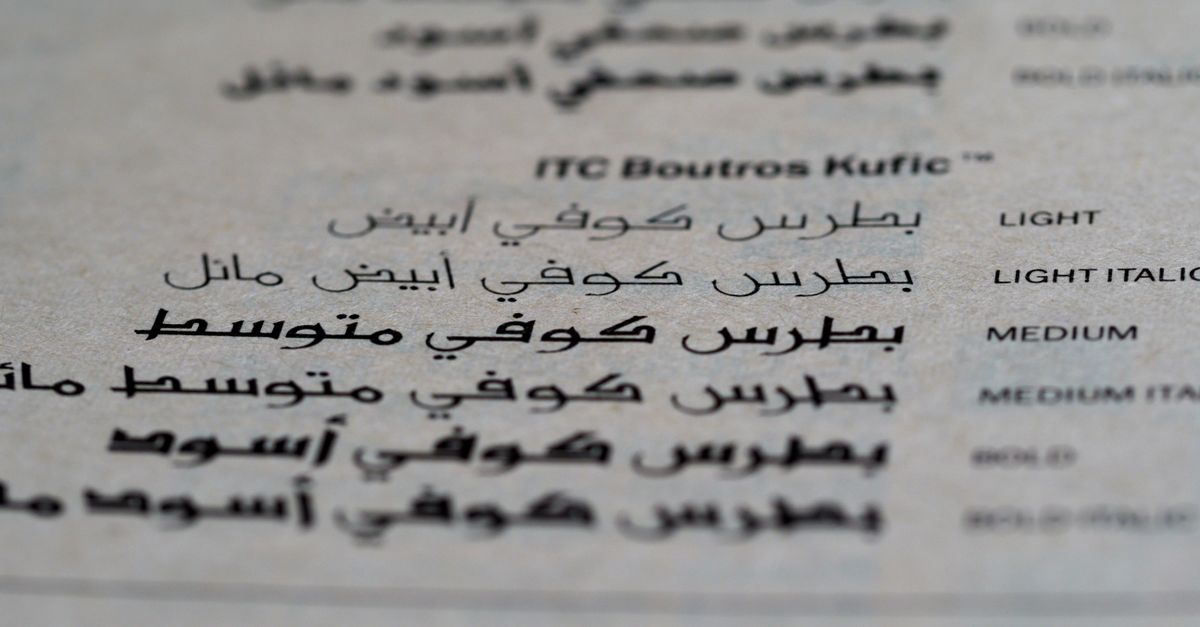
Quick Font Preview Controls
The preview uses one temporary font face at a time. These are the supported inputs, values, and practical boundaries.
| Scope | Supported value | Practical meaning |
|---|---|---|
| Font file | One non-empty TTF, OTF, WOFF, or WOFF2 file up to 10 MiB | The browser loads one local file into the current tab. |
| Sample text | Editable Unicode text | The selected font face is applied to the text you enter. |
| Font size | A whole pixel value from 8 to 200 | This changes the CSS preview size only. |
| Validation | The browser decodes the actual font bytes | An accepted filename extension does not guarantee a successful load. |
| Session | The current page's document font set | Refreshing or closing the tab removes the temporary face. |
| Output | An on-screen visual preview | No output download is created, and the source file remains unchanged. |
Do not treat the filename as authoritative font metadata. The displayed label comes from the selected filename rather than a verified internal family or style record. Font Previewer creates a unique temporary family name so the preview does not collide with fonts already used by the site.
Preview a Local Font in Five Checks
- Choose a font file. Open Font Previewer and select a trusted local TTF, OTF, WOFF, or WOFF2 file. The file must be non-empty and no larger than 10 MiB.
- Enter representative text. Type the words, characters, numerals, and punctuation you need to inspect. The sample is ordinary editable Unicode text, so it can reflect the content you expect to use.
- Choose a preview size. Select a whole-number value from 8 to 200 pixels. This control affects only the CSS size of the preview; it does not change the font's units, outlines, hinting, or kerning data.
- Wait for browser validation. The interface displays a loading state while the browser processes the font. Then inspect the glyph coverage and appearance in the current browser. A visible loading error means the browser rejected the actual data, even when the filename extension was accepted.
- Replace the file when needed. To test another font, choose the replacement file. Font Previewer deletes the previous temporary face from the document before loading the new one; it does not keep several fonts loaded for a side-by-side comparison.
Reading a Useful Font Preview
A successful preview gives you a visual sample in one specific browser. It can help you assess the elements that commonly affect a font choice:
- Uppercase and lowercase letter shapes
- The appearance of numerals and punctuation
- Rough character and word spacing
- The overall look of representative words
- Whether the current browser can load the font file
These are visual observations rather than a certification. The preview cannot calculate exact print output, prove that every target browser renders the font identically, or establish that the design is suitable for every use case. It also does not compare several fonts side by side, so record your observations elsewhere if you need to evaluate multiple candidates.
Use text from your intended project when practical. A phrase containing the same uppercase letters, lowercase letters, figures, accents, punctuation marks, or symbols can reveal problems that a short generic sample would miss. The tool applies the font to that text, but it does not list the font's complete character map.
Missing Characters and Browser Fallback
Whether a character displays in the selected design depends on glyph coverage inside the font. A font may include the basic Latin letters but omit other symbols, accents, emoji, or characters from a particular writing system. Missing glyphs can appear as empty boxes or characters supplied by the browser's fallback font.
A box does not necessarily mean the entire file failed to load. It may mean that the selected font contains no glyph for that character. Font Previewer does not synthesize missing glyphs, prove full language support, enumerate the character map, or distinguish a fallback glyph from the chosen font through image analysis. For that reason, include the exact characters you care about in the sample and check whether they visibly render in the intended design.
Changing the preview size can help reveal how small characters and spacing look in the current browser. Stay within the supported whole-number range of 8 to 200 pixels. A missing character remains missing at every size, so resizing cannot expand the font's glyph coverage.
Why a Font File May Fail
The extension check is only the first stage. A file named with a TTF, OTF, WOFF, or WOFF2 extension may still contain damaged data, unsupported internal tables, or mislabeled content. A format rejected by the current browser also produces a visible loading error.
Font Previewer trusts the browser's font engine rather than attempting to repair or convert the file. Even a valid font can take time to parse when it contains complex tables or many glyphs. The 10 MiB limit bounds browser memory use and loading time, but it does not guarantee immediate decoding.
The loading interface also prevents an older, slow request from replacing a newer font selection. If a selected file produces an error, confirm that it came from a trusted source and has the correct extension, but do not assume the extension alone can diagnose damaged binary contents. The browser's decoding result is the deciding check.
Browser Rendering and Size Limits
The size control changes the CSS preview size only. It does not modify font units, hinting, outlines, kerning tables, or exported bytes. Line height is fixed for readable inspection, so the sample should be judged as a browser preview rather than as a reproduction of a particular layout engine.
The same font can look different elsewhere because browser zoom, device pixel ratio, operating-system rendering, and antialiasing affect the final pixels. A preview therefore offers a useful visual reference but not cross-platform rendering equivalence. It does not measure exact print output.
For a web project, test the font in the browsers your audience actually uses and confirm that you have the licensed formats and weights required for the intended integration. A successful preview is not certification of correctness, safety, accessibility, performance, or compatibility everywhere.
Privacy, Licensing, and File Lifetime
The browser reads the selected bytes locally through the FontFace API. After successful decoding, the face is added to the document font set. The file is not uploaded to Lizely, installed in an operating-system Fonts folder, or used to change application preferences.
The font exists only in the current page's document font set. Closing or refreshing the tab removes it, and selecting another file removes the previous face before loading its replacement. The tool does not retain the font for a later visit. Even though the bytes stay local, obtain font files from trusted sources because fonts are complex binary inputs processed by browser code.
Font Previewer does not calculate licensing rights, inspect embedding permissions, subset glyphs, convert formats, generate an at-font-face CSS package, or produce a downloadable specimen. It also does not retain an output file because the source font is unchanged. Make redistribution and usage decisions from the font's actual license, not from the preview result.
Pre-Use Font Preview Checklist
Use this short checklist before moving a font into a design or web workflow:
- Confirm that the file comes from a trusted source.
- Check that the extension is TTF, OTF, WOFF, or WOFF2 and the file is no larger than 10 MiB.
- Confirm that the current browser loads the actual file without a visible error.
- Enter every important character and check for boxes or browser fallback shapes.
- Review uppercase and lowercase forms, numerals, punctuation, and rough spacing.
- Test relevant whole-number sizes from 8 to 200 pixels.
- Verify target-browser behavior, licensed formats, weights, and permissions separately.
- Remember that the preview creates no installation, CSS package, comparison, or output download.
The result is a private first look at a local font, not a certificate that the file is safe, licensed for every use, fully multilingual, accessible, or identical across platforms.
Related reading: Bulk Line Break Remover: Modes, Counts, and Limits.
Related reading: List Randomizer Cheat Sheet: Rules, Controls, Results.