A standard Unicode emoji is a single character on the same level as a letter or a number, which is exactly why you can copy emoji with the same copy-and-paste shortcut you use for any other text. The grinning face 😀, for instance, is code point U+1F600 in the Unicode Standard — one character your operating system already knows how to draw. Because every emoji is encoded as text, copying it to your clipboard and pasting it into a message, document, post, or username field works in nearly any modern app, and the meaning travels with the character even when the artwork changes. A searchable picker such as the Emoji Copy and Paste tool takes advantage of that by matching what you type — a name like "smile" or "heart," or a casual keyword like "lol" — against each emoji's official Unicode name plus its extra keyword tags, then putting the matches in a grid so a single click copies the full sequence to your clipboard.
That combination — standard characters under the hood, semantic search on top — is the fastest way to copy emoji without scrolling through a phone keyboard or memorizing code points. The rest of this guide explains how the tool works, what it actually copies, and how to get the result you want on the first try.
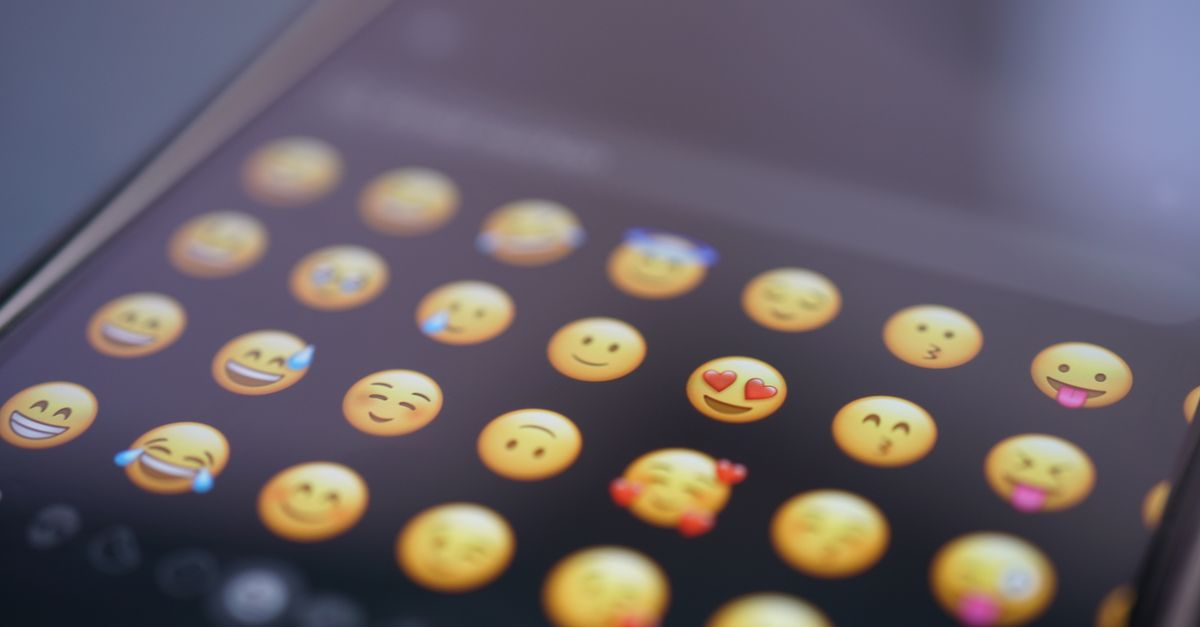
Why Emoji Behave Like Text When You Copy Them
The reason copy emoji workflows work at all is that the Unicode Consortium has assigned a single, permanent code point to most of the glyphs people casually call emoji. 😀 is U+1F600. ❤️ is U+2764 plus a variation selector. 🏳️🌈 is several code points glued together with an invisible joiner. None of that detail matters at the clipboard level — your operating system treats each complete emoji the same way it treats the letter "A." That gives emoji three useful properties:
- They travel as text. A copied emoji survives being saved, searched, indexed, and re-pasted the same way any other character does. It does not need an image attachment or a special file format.
- They have official names. The Unicode Standard gives every emoji a canonical short name (for example, "grinning face," "red heart," "rainbow flag"). Tools can search that name list directly, which is why typing a plain-English word finds the right glyph.
- They work almost everywhere text works. Messages, documents, spreadsheets, social posts, comment fields, and most username forms all accept Unicode emoji because they accept Unicode text.
Because of those properties, a browser-based picker can search a name list, present a grid, and hand you a real, portable character every time you click. The character you copy is the same character the recipient's device will render — only the picture drawn on top of it may differ.
How to Copy Emoji by Name or Keyword
- Open the Emoji Copy and Paste picker in your browser. There is nothing to install and no account to create.
- Type a word in the search box — a name like "smile," "heart," "cat," or "fire" — or click a category chip such as smileys, animals, food, or hearts to narrow the grid without typing.
- Browse the grid of matching emoji. Hover an emoji to see its official name pop up so you can confirm the meaning before copying.
- Click any emoji to copy it to your clipboard. The tool writes the complete sequence — every code point, every invisible joiner, every variation selector — so what lands on your clipboard is a single, correct emoji rather than separate characters.
- Paste the emoji wherever you need it using your usual shortcut: Ctrl+V on Windows and Linux, Cmd+V on macOS, or the long-press → Paste menu on iOS and Android.
Each click is independent, so you can copy several emoji in a row and paste them one at a time, or paste them in sequence to build a short string like "🔥🐱✨." The clipboard write happens locally, so the round-trip is essentially instant.
Searching by Name vs. Browsing by Category
The picker supports two complementary ways to find an emoji, and most people end up using both. The search box is the fastest route when you already know the meaning you're after. Because the tool matches against each emoji's canonical Unicode name plus extra keyword tags, a search for "lol" still finds 😂. The keyword layer is what makes the search forgiving — you do not need to remember that the "face with tears of joy" is officially spelled that way.
Category chips are the better choice when you are browsing. The picker exposes eleven groupings: smileys, emotion, people and hand gestures, animals, food and drink, travel, activities, objects, symbols, hearts, and flags. Clicking a chip instantly filters the grid to that family, which is useful when you want to pick a heart color, compare food emoji, or scan a flag set without typing anything at all. You can combine the two: pick a chip first, then refine the result with a search term.
What You're Actually Copying: Code Points, ZWJ, and Variation Selectors
Some emoji are a single code point. Others are more involved. Knowing the difference matters because broken-looking emoji are almost always a sign that a sequence was not copied in full.
| Type | How it is built | Example |
|---|---|---|
| Single code point | One entry in the Unicode Standard | 😀 = U+1F600 |
| Code point + variation selector | Base glyph + U+FE0F forces the colorful version | ❤️ = U+2764 + U+FE0F |
| ZWJ sequence | Several code points joined with an invisible Zero-Width Joiner (U+200D) | 👨👩👧 = man + ZWJ + woman + ZWJ + girl |
| Skin tone modification | Base emoji + one of the five Fitzpatrick tone modifiers | 👋🏽 = U+1F44B + U+1F3FD |
The picker copies the complete sequence for every emoji it shows, so skin-tone families like 👨👩👧 and the rainbow flag 🏳️🌈 arrive as one character instead of fragmenting into pieces. If you ever see a copied emoji break into separate boxes or icons on someone else's screen, the cause is almost always a missing joiner or a stripped variation selector — usually the result of pasting through a system that does not fully support Unicode. Recopying from the picker fixes it because the full sequence is preserved.
Emoji vs. Kaomoji: What You're Actually Copying
Search results for "copy emoji" often return kaomoji as well, but the two are built from completely different ingredients. Emoji are encoded Unicode characters that render as colored pictures on modern devices. Kaomoji are Japanese-style emoticons such as (◕‿◕) or (づ。◕‿◕)づ that are built from ordinary keyboard characters and read horizontally without tilting your head. The two are not interchangeable, and a tool that copies one will not copy the other.
Use the Emoji Copy and Paste picker when you want a real Unicode pictograph — 😀, 🐱, 🔥, 🏳️🌈. Switch to a kaomoji tool when you want text-art faces that work in plain-ASCII environments where the receiving system does not draw colored glyphs. Both have their place; the choice depends on whether the destination renders Unicode.
Why the Same Copied Emoji Looks Different Across Apps
The Unicode Standard defines which character represents which meaning. It does not define how the character is drawn. Each platform — Apple, Google, Microsoft, Samsung, and every social network that ships its own font — designs its own artwork for every code point. That is why a copied 🎉 looks like a party popper on iMessage, a differently shaped party popper on Android Messages, and a third style inside a Notion document. The underlying character is identical everywhere; only the picture varies.
Two practical consequences follow. First, screenshots of emoji are unreliable evidence of how an emoji renders — the picture depends on the viewer's device. Second, when you want a consistent look across an organization or brand, you need to pick a font and a platform and stick to them; Unicode alone will not give you a uniform visual. For everyday messaging and social posts, the cross-platform variation is harmless. The meaning always travels with the character.
Common Places to Paste Copied Emoji
Because the output is plain text, anywhere that accepts text accepts a copied emoji. A few of the most common destinations:
- Messaging apps — iMessage, WhatsApp, Telegram, Signal, Discord, and Slack all render standard Unicode emoji inline.
- Social posts and bios — X, Instagram, TikTok, LinkedIn, and Mastodon accept Unicode emoji in posts, comments, and most profile fields.
- Documents and notes — Google Docs, Notion, Apple Notes, Microsoft Word, and plain Markdown files all preserve pasted emoji as text.
- Usernames and display names — Many services allow Unicode emoji in display names, and some allow them in handles.
- Spreadsheets — A copied emoji in a cell behaves like any other character and can be used in labels, conditional formatting, and chart legends.
For destinations that limit character counts — bios, SMS, X posts — a character counter can confirm how much room is left after you paste. A line counter is handy if you are copying a vertical list of emoji into a status field that breaks awkwardly on long lines.
Fixes When a Copied Emoji Looks Wrong
If an emoji looks broken on the receiving end, work backward through these checks.
- Recopy from the picker to make sure the full sequence — joiners and variation selectors included — is on the clipboard.
- Check the destination's Unicode support. Older systems and some plain-ASCII forms strip or replace emoji silently.
- Confirm the platform's font is up to date. A very old operating system may lack artwork for newer Unicode emoji and will draw a placeholder box.
- Try a different application on the same device. If the emoji renders in one app but not another, the problem is the receiving app, not the character itself.
Almost every "emoji is broken" report traces back to one of those four causes. The character you copied is fine; something downstream is dropping a code point. Going back to the original Unicode sequence and re-pasting usually restores it.
For a deeper look, see Strip an Emoji Reaction From Outlook Email Text.
For a deeper look, see Cursive Text Generator Copy and Paste for Every Bio.