To convert DOCX to Markdown, use the DOCX to Markdown Converter to select one .docx file, review a local Markdown preview, and download an editable .md draft.
This tool performs a structural conversion, not a visual Word reproduction. In your browser, it reads the selected document’s Office Open XML package, extracts the main document’s structure, and turns explicit heading styles and simple rectangular tables into Markdown. The document is not uploaded, so the selected file remains on your device throughout the workflow.
That distinction gives you a practical starting point for a documentation site, repository, note app, CMS editor, or static-site workflow. It also establishes a clear review boundary: Word can express page design and document behavior that Markdown cannot, so the generated file should be treated as an editable draft rather than a perfect replica.
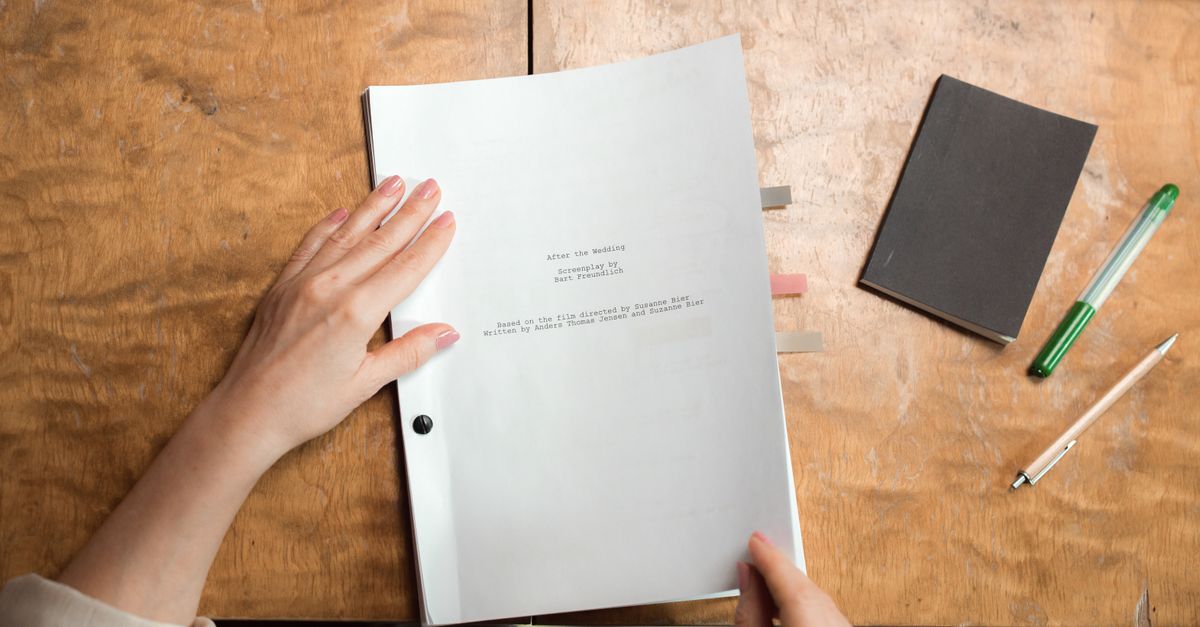
What the converter carries into Markdown
The conversion follows the document’s explicit structure. It does not infer meaning from how a paragraph happens to look in Word.
| Word input | Markdown result | What to review |
|---|---|---|
| Explicit Heading 1 through Heading 6 paragraph styles | The matching heading level, from # through ###### | Confirm that each heading represents a real section and that its level fits the document hierarchy. |
| Ordinary paragraphs | Ordinary Markdown text | Proofread the wording and check whether any paragraph needs a heading, list, link, or emphasis. |
| A simple rectangular table | A readable pipe table with the first row as its header | Verify the header row, cell contents, and any characters escaped for Markdown. |
| A custom paragraph style | Ordinary text rather than a guessed heading | Apply Heading 1–6 in Word before conversion when the paragraph is truly a section title. |
| A merged, nested, or uneven table | Readable tab-separated text instead of a potentially misleading Markdown table | Rebuild the table in your Markdown editor if its tabular structure is important. |
| Tabs and line breaks | Visible characters or line breaks rather than silently deleted content | Keep intentional structure and remove breaks that were only artifacts in Word. |
Because the first row always becomes the Markdown table header, it should contain the labels readers need. If the source table has no meaningful header, adjust the generated file instead of allowing the result to imply structure that was not present.
Convert a Word document in three steps
- Choose one .docx Word document. Open the converter and select a .docx file from your device. This is a single-document workflow, so convert each file separately when you have several documents.
- Review the local Markdown preview. Inspect the generated structure before downloading it. Pay particular attention to heading levels, table headers, escaped characters, tabs, line breaks, and any content that looks visually unexpected.
- Download the .md file and edit it. Save the generated Markdown file, then open it in your Markdown editor. Make any editorial adjustments needed for the destination site, repository, note app, or CMS.
Keep the original .docx available while editing. It provides the best reference for checking the wording and deciding whether a paragraph that became plain text should instead be a heading or list in the final Markdown.
Prepare Word content for a cleaner Markdown draft
A short preparation pass in Word can prevent structural ambiguity when the document is converted.
- Use the built-in heading styles. Assign genuine section titles to Heading 1 through Heading 6. Large type, bold text, color, and centered alignment do not become Markdown headings automatically.
- Check custom styles before conversion. A custom style remains an ordinary paragraph because the converter does not guess which paragraphs are headings.
- Make table headers intentional. Put the column labels in the first row. Flatten tables with merged, nested, or uneven cells if you need a dependable pipe-table result.
- Review tabs and line breaks. Intentional breaks remain visible in the output. Remove accidental ones in Word or clean them up in the Markdown editor after download.
- Identify Word-dependent content. Note links, lists, citations, and other elements that rely on Word-specific behavior so you can confirm their meaning in the generated file.
Preparation does not need to recreate the visual page. Its purpose is to make the document’s hierarchy and table structure explicit, reducing the amount of guesswork required during the Markdown review.
What does not carry over faithfully
Word formatting is richer than Markdown, and the converter deliberately exposes that difference instead of claiming full visual fidelity.
- Page design is not reproduced. Custom fonts, paragraph spacing, indentation, page numbers, columns, shapes, and theme styles are outside the conversion contract.
- Rich or non-body elements are not recreated. The converter does not claim to recreate images, charts, comments, tracked changes, fields, citations, or text boxes.
- Visual emphasis does not define structure. A bold or oversized paragraph is not converted into a heading unless it carries an explicit Heading 1–6 style.
- Complex table geometry falls back to text. Merged cells, nested tables, and uneven rows cannot be represented faithfully in basic Markdown, so they appear as tab-separated text.
- Complex list numbering is not guaranteed. Numbering systems that depend on Word-specific behavior may need manual repair in the destination editor.
This means the result is most useful as source content for a documentation or publishing workflow. It is not designed to reproduce a Word document as a pixel-equivalent webpage or preserve every object embedded in the original package.
Review the generated Markdown before publishing
Treat the downloaded file as a draft with a transparent structure. A focused editorial pass protects the document’s meaning.
- Confirm the heading hierarchy. Check that each # through ###### marker corresponds to a real section and that no subsection is promoted or demoted accidentally.
- Inspect every table. Verify the header row, compare cell order with the Word source, and rebuild any fallback text that should remain a table.
- Repair links and lists. Check links and list structures that may depend on Word behavior, especially content that must work correctly in the destination platform.
- Decide which breaks to retain. Preserve meaningful tabs or line breaks, but remove temporary formatting that makes no sense in the final Markdown.
- Proofread the text. Read for missing context, awkward paragraph boundaries, and labels that no longer make sense without the original page design.
- Check destination-specific requirements. Apply any link, media, metadata, or style conventions required by the repository, CMS, documentation site, or note system.
A small editorial pass is expected after document conversion. The preview makes the basic transformation visible, but only you can confirm that the resulting structure serves the intended audience and destination.
Where the Markdown draft works best
The converted file is most useful when the goal is editable, reviewable content rather than an exact copy of a Word page.
| Goal | Recommended route | Reason |
|---|---|---|
| Prepare a documentation, repository, CMS, or note-app draft | DOCX to Markdown Converter | It converts explicit headings, paragraphs, and simple tables into editable Markdown source. |
| Reproduce the exact appearance of a Word page | Do not rely on this converter | Fonts, spacing, columns, page furniture, and other visual details are not recreated. |
| Extract plain text without Markdown syntax | DOCX to Text Converter | A text-only workflow is better when headings, tables, and Markdown markers are not needed. |
| Collect document hyperlinks separately | Word Hyperlink Extractor | Hyperlink extraction is a dedicated task rather than part of the Markdown conversion contract. |
Plain Markdown is easier to review, edit, compare, and version in many content systems than a binary Word file. The converter therefore fits the stage where content moves from a Word draft into a text-based working environment.
How the browser keeps the file local
All processing stays on your device. The browser validates a bounded DOCX ZIP package before loading the local ZIP reader, then reads only the main document part and produces Markdown for a read-only preview.
- Package checks happen first. The selected Office package is checked for size, ZIP directory shape, entry count, and declared expanded size before the local ZIP reader is loaded.
- Only the main document XML is read. The converter uses the installed JSZip dependency to access word/document.xml, following the Office Open XML model described in Microsoft’s WordprocessingML document structure overview.
- XML parsing is explicit. WordprocessingML is parsed through the browser’s DOMParser, whose behavior is documented by MDN’s DOMParser reference. Parser errors stop the conversion instead of producing unchecked output.
- The preview is not an HTML rendering surface. Neither the original XML nor extracted text is inserted into the page as raw HTML; the Markdown appears in a read-only text area for inspection.
- Unsupported packages are rejected clearly. Password-protected, damaged, unsupported, and oversized Office packages do not continue through the conversion.
Local processing protects the document from being uploaded, while the explicit validation and parsing steps make failures visible. It does not mean every Word feature is supported—the product remains a structural converter with documented limits.
Match the output to your actual task
Choose the output based on what you need from the document, then keep separate extraction tasks separate.
- For an editable Markdown draft with headings and simple tables, use the DOCX-to-Markdown workflow described above.
- For unformatted readable text, use the DOCX to Text Converter instead of removing Markdown syntax later.
- For a list of document hyperlinks, use the Word Hyperlink Extractor.
- For embedded images, use a dedicated image-extraction tool rather than expecting the Markdown converter to recreate them.
The most dependable result comes from matching the task to the tool, preparing explicit structure before conversion, and reviewing the downloaded Markdown against the original before publication.
Related reading: Convert DOCX to Text: Validate the Result Before Use.
Related reading: Convert DOCX to Markdown Format: A Practical Workflow.