In AutoCAD, line end style is the control character that terminates each line of text: a real carriage return and line feed (CRLF), a lone carriage return (CR), or a lone line feed (LF). On Windows installations the clipboard almost always delivers CRLF pairs, on macOS or Linux a lone LF is common, and a handful of older drawings use lone CR. To change line end style in AutoCAD text means switching between those real break characters and the printable escape form, the two visible characters backslash and n, in whatever direction the destination requires. To perform that conversion across an entire Mtext block, attribute value, or extracted layer list, the Line Break Converter, which recognizes each of the three real endings and the three common literal spellings and rewrites them deterministically in the browser. A CRLF pair is always treated as one boundary, so Windows line endings never produce a doubled escape. The preview keeps preformatted whitespace, the original input area is never overwritten, and nothing is sent to a server.
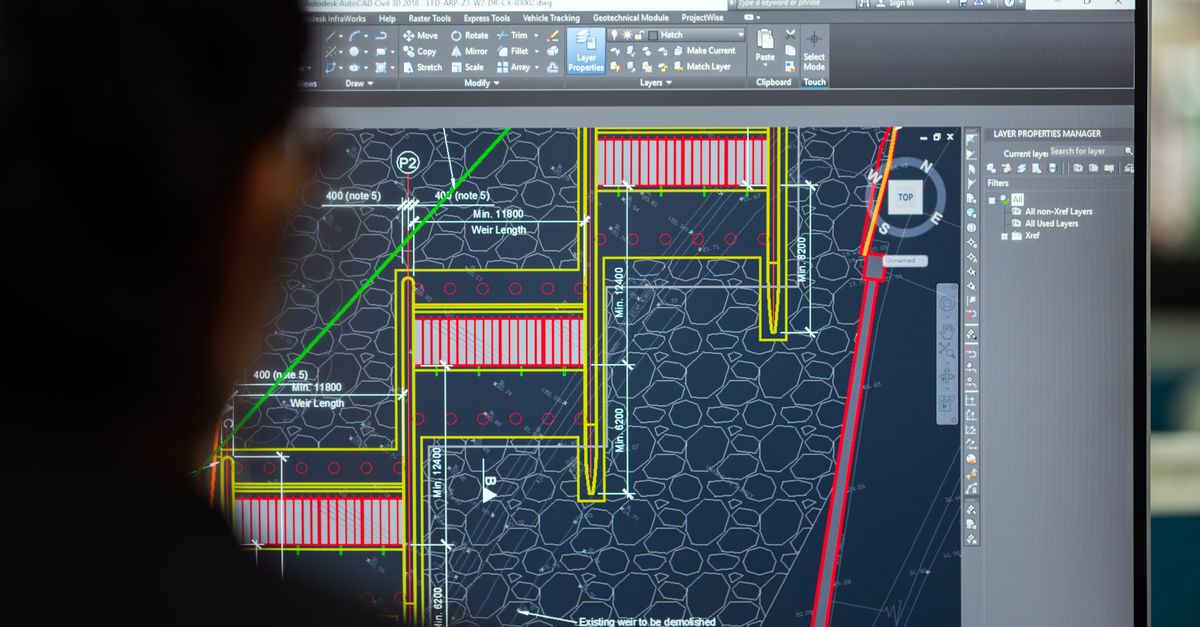
AutoCAD Line End Style: Where Text Fits In
AutoCAD uses the phrase line end style in two unrelated places, and the text tool on this page solves only one of them. The first meaning is geometric: a polyline, mline, or arrowed leader has visible end caps that AutoCAD renders with the dash pattern from the current linetype. Those end caps are configured through the Properties palette or the LINETYPE command and live in the drawing geometry. The second meaning is textual: when you copy an Mtext string, an attribute value, a title block field, or a layer-name list out of a drawing, every line in that text ends with a control character. That control character is the line end style of the text, and changing it is a different operation from changing the visual end cap on a drawn line.
The practical reason to change line end style in AutoCAD text is that downstream tools do not all want the same form. A JSON literal cannot contain a real newline without escaping, a Python single-quoted string is terminated by one, a CSV cell that contains a real newline must be wrapped in quotes, and a one-line title block summary should not contain any real newline at all. Moving between these forms safely requires a tool that knows exactly what counts as a boundary and what counts as printable text, and that is what the Line Break Converter is built to do.
Three Conversion Modes for AutoCAD Text Breaks
The converter exposes one explicit mode at a time, so the output you receive is always the result of a single named rule. The three modes map directly onto the three situations that come up when text leaves AutoCAD for code, configuration, or documentation:
| Mode | Recognized input | Output | Typical AutoCAD use |
|---|---|---|---|
| Actual to escaped | Real CRLF, CR, or LF | Visible backslash followed by n (\n) | Paste Mtext into a JSON literal, a config file, or a single-line documentation block |
| Escaped to actual | Literal \r\n, \n, or \r as printed characters | Real LF newlines | Turn a copied JSON-like string back into real lines for Mtext, an attribute value, or an AutoCAD script |
| Actual to space | Real CRLF, CR, or LF | One ordinary space per boundary | Flatten a multi-line title block, layer-name list, or extracted notes into a single line |
Actual-to-escaped treats a Windows CRLF pair as a single boundary and emits one \n, never two. Escaped-to-actual processes the literal \r\n spelling before the shorter \n and \r spellings, which prevents a doubled replacement when the same text contains both. The exact behavior of the underlying literal replacement is documented in the MDN reference for String.prototype.replace, which describes how a single match consumes the longest recognized spelling before shorter alternatives are tried.
How to Change Line End Style in AutoCAD Text
- Copy the text out of AutoCAD: select the Mtext, highlight the attribute value in the Properties palette, or run a quick selection report that lists layers, blocks, or notes from the command line.
- Paste the clipboard contents into the converter's input area. The converter accepts up to 1,000,000 characters, which is enough for tens of thousands of typical Mtext paragraphs without slowing the preview.
- Choose the mode that matches your destination. Pick actual-to-escaped when the next stop is a JSON file, a Python single-quoted string, a YAML value, or any place where a real newline would break the literal. Pick escaped-to-actual when the next stop is Mtext, an attribute, or an AutoCAD script that expects real line breaks. Pick actual-to-space when you want a single-line summary of a multi-line note.
- Click Convert and read the preview carefully. The preview keeps preformatted whitespace, so real newlines appear as new rows and the two visible characters backslash and n appear literally on one row. Visual wrapping of a long preview row does not insert any real newline bytes into the result.
- Download the UTF-8 TXT file or copy the result from the preview. The downloaded bytes match the preview exactly, without a byte-order mark, so the file opens identically in any editor that reads UTF-8.
- Paste the result into your destination file or script. If you are feeding the text into an AutoCAD script, validate it inside AutoCAD before relying on it, because a real newline can be invalid inside some string syntaxes without additional quoting.
Working With AutoCAD Mtext and Attribute Values
Two AutoCAD text scenarios account for most line end style conversions. The first is exporting notes: you copy a multi-paragraph Mtext, paste it into a properties panel, and need to drop the whole thing into a single-line column in a spreadsheet or a JSON configuration. The CRLF pairs that Windows inserts become visible \n sequences, the line layout disappears, and the original Mtext can be reconstructed later from the same string by switching to escaped-to-actual mode. Because each CRLF pair becomes one \n and not two, the length of the resulting literal is predictable, and the count of breaks survives the round trip. The second scenario is importing prepared text: you receive a literal such as "Line 1\nLine 2\nLine 3" from a script or a database and need it to render as three real lines inside Mtext. Escaped-to-actual handles all three documented literal sequences — \r\n, \n, and \r — and replaces each with one LF newline, so the resulting Mtext loads with the same line breaks it had before the round trip.
For code and configuration work where the distinction between a control character and two printable characters is critical, the relevant background is summarized in the MDN documentation on JavaScript escape sequences: a backslash followed by n inside source code means one line-feed byte, while the same two characters typed into a plain text field mean two ordinary printable characters. The converter preserves that distinction rather than blurring it, which is why the preview deliberately renders the printable form on a single row and lets the actual newlines create new rows.
Round-Trip Behavior and Boundary Counting
Because each recognized boundary becomes exactly one replacement, the count of breaks is preserved through a round trip in actual-to-escaped and escaped-to-actual modes. Convert ten real lines to escaped form and you receive ten \n sequences. Convert ten \n sequences back to real form and you receive ten real LF newlines. That property matters for AutoCAD notes that must arrive at their destination with the same number of lines they had in the source. It also matters when the destination enforces a maximum line count, because the converter does not silently merge or split boundaries to satisfy a quota; it leaves that decision to the user.
Actual-to-space mode follows the same one-replacement-per-boundary rule. Two consecutive blank lines become two consecutive spaces, not one. The converter deliberately does not collapse them, trim the result, or infer sentence punctuation, because preserving one replacement per boundary keeps the transformation reversible in count even when visual whitespace later needs separate cleanup. If the goal is a single continuous run with no breaks at all, the dedicated Line Break Remover is the right next step rather than asking the space mode to do double duty.
Limits, Pitfalls, and What the Tool Doesn't Do
The converter is explicit and deterministic, which is helpful but also means a few things are deliberately out of scope. It does not change the visual end cap of an AutoCAD polyline, mline, or leader; those are part of the drawing geometry and live in the Properties palette or the LINETYPE command. It does not parse full programming-language string literal rules, so multiple preceding backslashes, Unicode escape forms, or quoted-string escaping beyond the three documented literal sequences are not interpreted. It does not collapse consecutive breaks in actual-to-space mode; each CRLF, CR, or LF becomes exactly one space, so a paragraph break in the source becomes two spaces in the output. It does not trim leading or trailing whitespace, convert tabs, wrap text to a fixed width, add HTML line break tags, or preserve the original line-ending style — escaped-to-actual output always standardizes to LF.
Input is capped at 1,000,000 characters so the preview stays responsive in the browser, and empty input produces a visible error rather than a silent no-op. Editing the input or switching modes clears the previous result and revokes its object URL, so an older downloaded file cannot be mistaken for the current configuration. The original input area is never overwritten, which makes it easy to compare the converted output against the source side by side, and every transformation runs locally without a network request.
Picking the Right Cleanup Step After Conversion
Once the line endings are in the form you need, the next cleanup step depends on what is left. For removing breaks entirely so a multi-line note becomes a single continuous run, the dedicated Line Break Remover handles deletion without trimming other whitespace. For broader whitespace cleanup such as collapsing tabs, removing blank lines, or stripping every whitespace character, the Whitespace Remover exposes three explicit modes with predictable behavior. If your goal is the reverse direction and you want to see the same CRLF and LF rules explained from a code-or-data starting point, the walkthrough on converting line break symbols to literal text for code or data covers the matching literal-to-actual path with examples drawn from JSON and log output. For numbering, prefixing, or deduplicating the resulting lines, the line-oriented tools in the text category complete the workflow without sending any drawing content off the local machine.
For a deeper look, see How to Remove Line Breaks in Word Using a Browser Tool.